Volume constraint as a percentage
You can apply a volume constraint as a percentage alongside setting quantities via PeopleStage. This allows you to select a percentage of the total audience for a campaign, rather than a fixed volume.
You can add a percentage volume constraint at audience level or segment level.
Audience level
To set a percentage constraint at audience level:
-
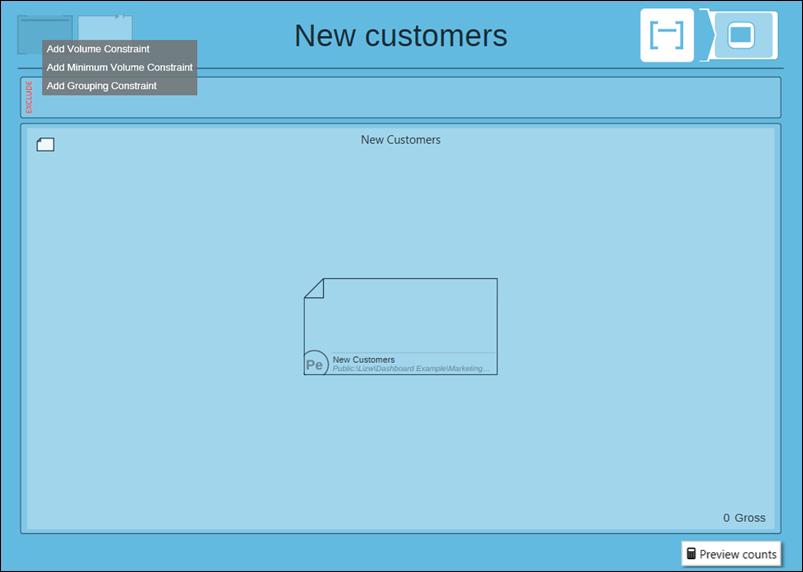
On the PeopleStage audience, right click on the Constraints icon to add a volume constraint.
-
Click Add Volume Constraint to open this option and add a volume constraint to the audience.
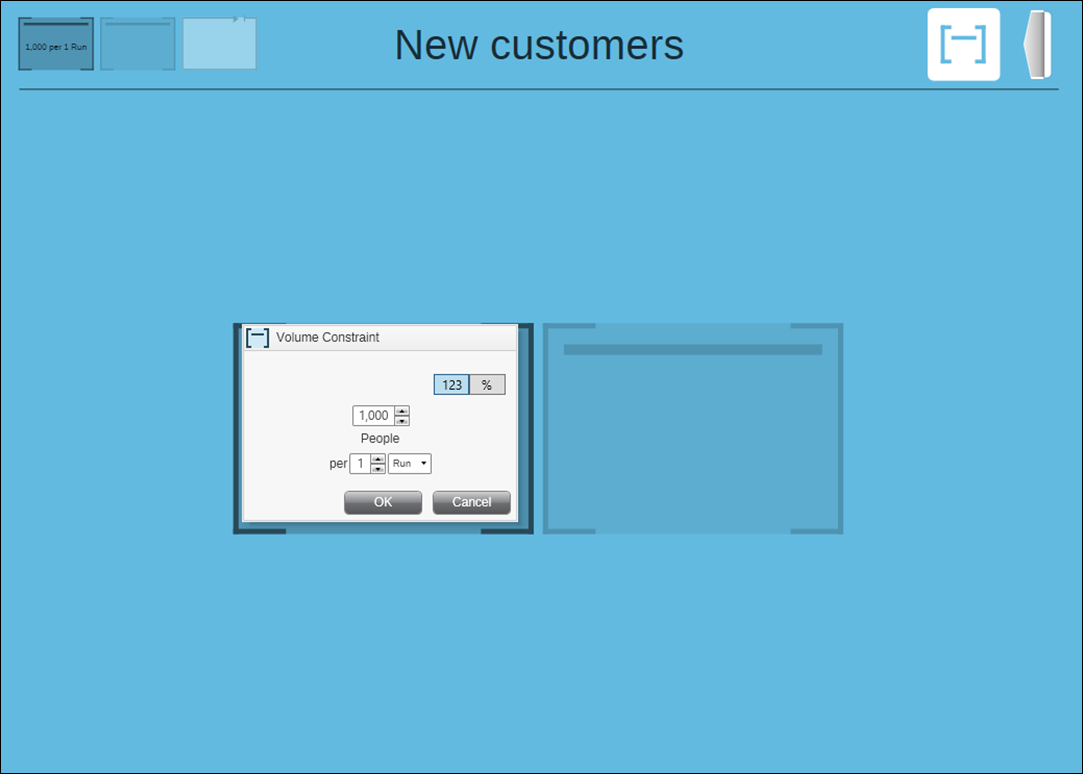
By default, the quantity volume is displayed. However, use the % icon to move from applying an actual amount to an overall percentage.
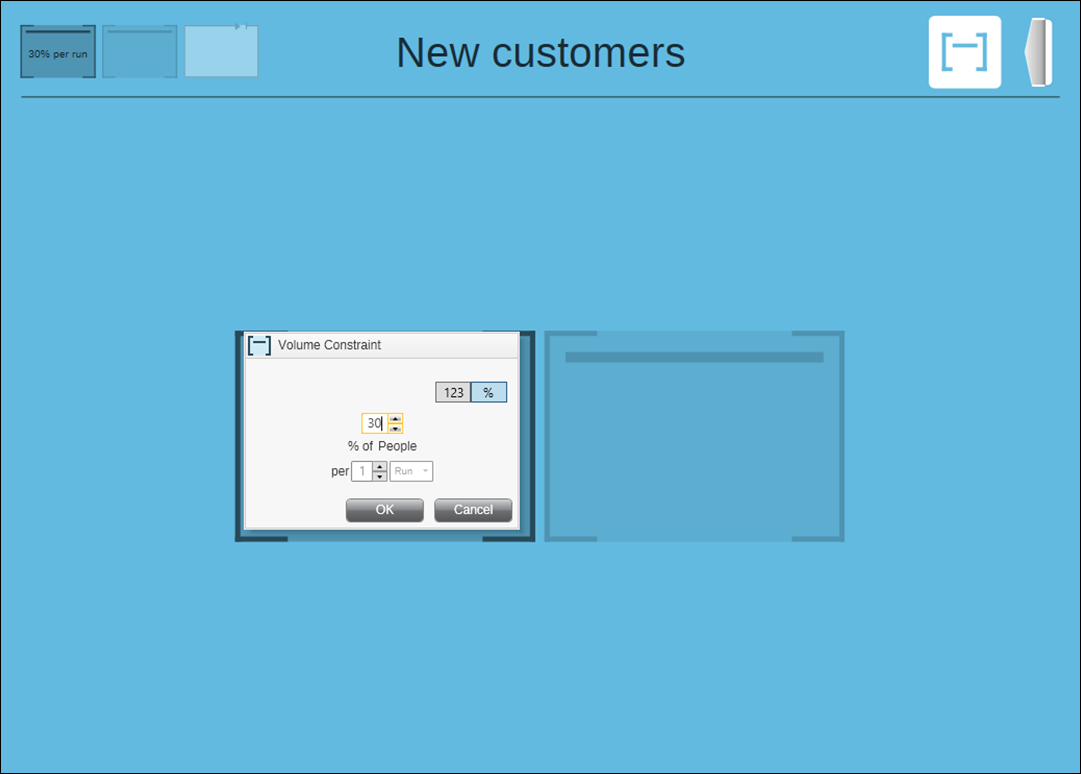
In this example, we are selecting a 30% volume constraint. The default volume is 50% but this can be typed over to the required figure. Here, PeopleStage is going to select 30% of the Audience for a run of the campaign.
Note
Adding a quantity volume constraint allows you to specify X number of people over a range of options - day, hour, week, year etc. For percentage, PeopleStage only sets a percentage of the volume on a per run basis.
-
Click OK to apply the constraint.
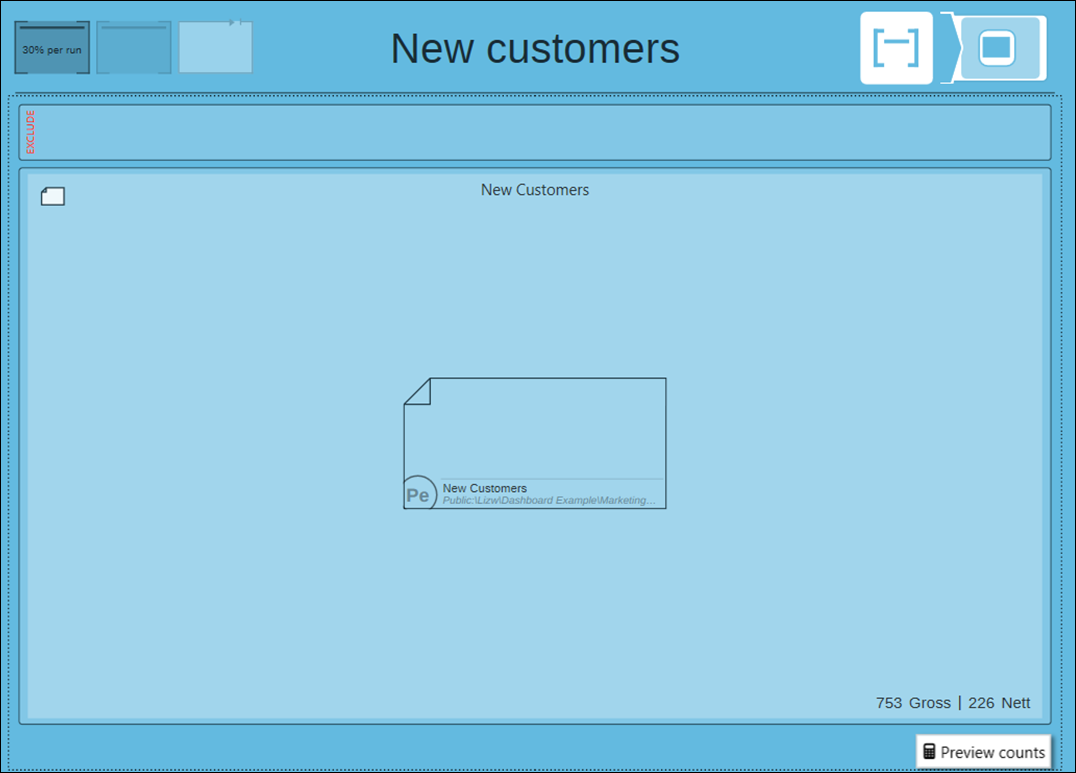
By using preview counts on the audience, the gross and net volumes are calculated, showing you that the 30% volume constraint has been applied.
Audience segment level
You can also apply a percentage constraint to audience segments, as well as the overall audience.
-
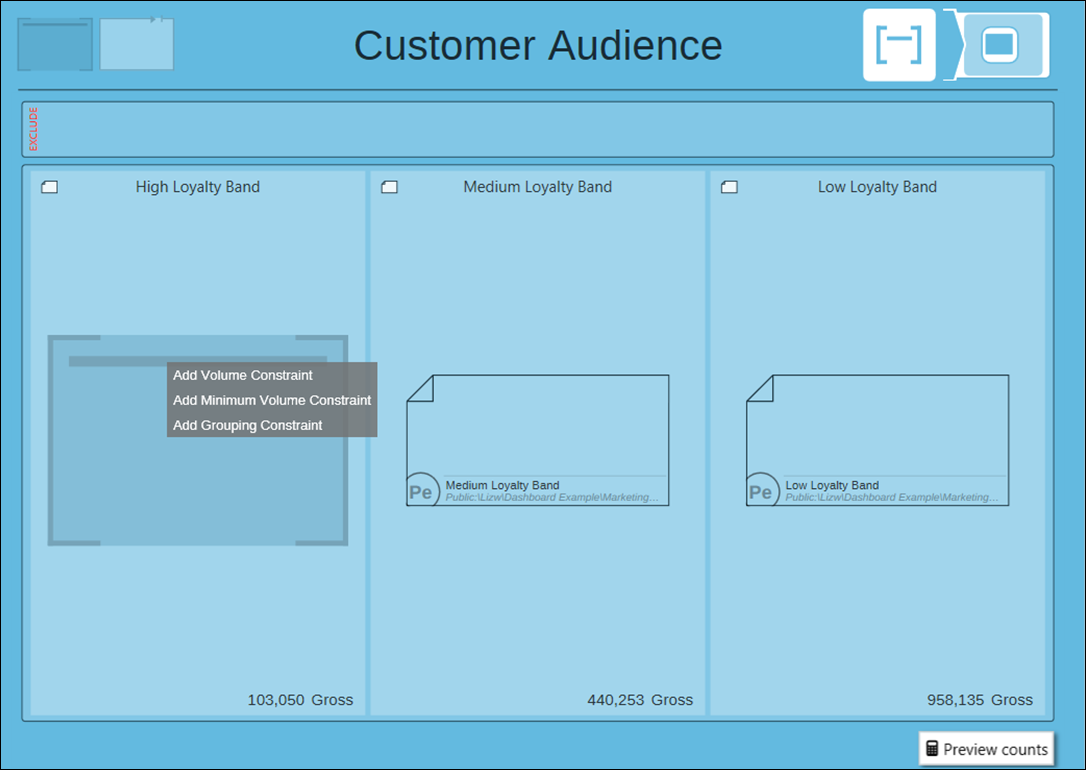
Click the constraints icon on the top left of the audience segment.
-
Click Add Volume Constraint.
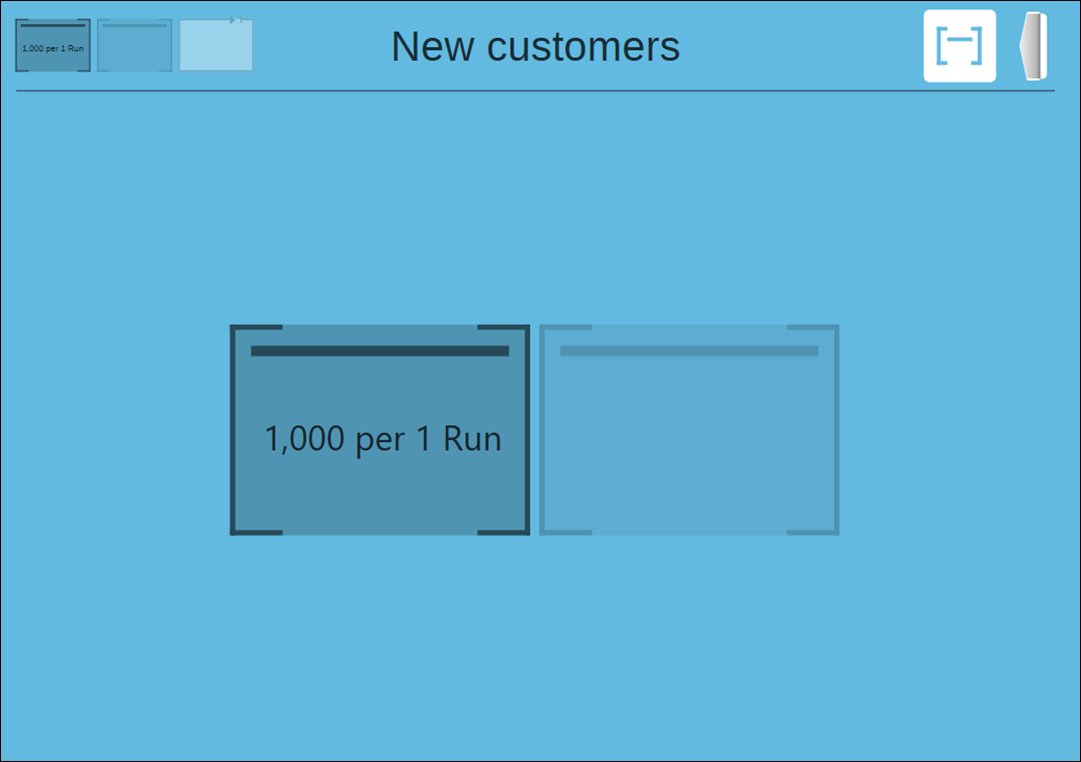
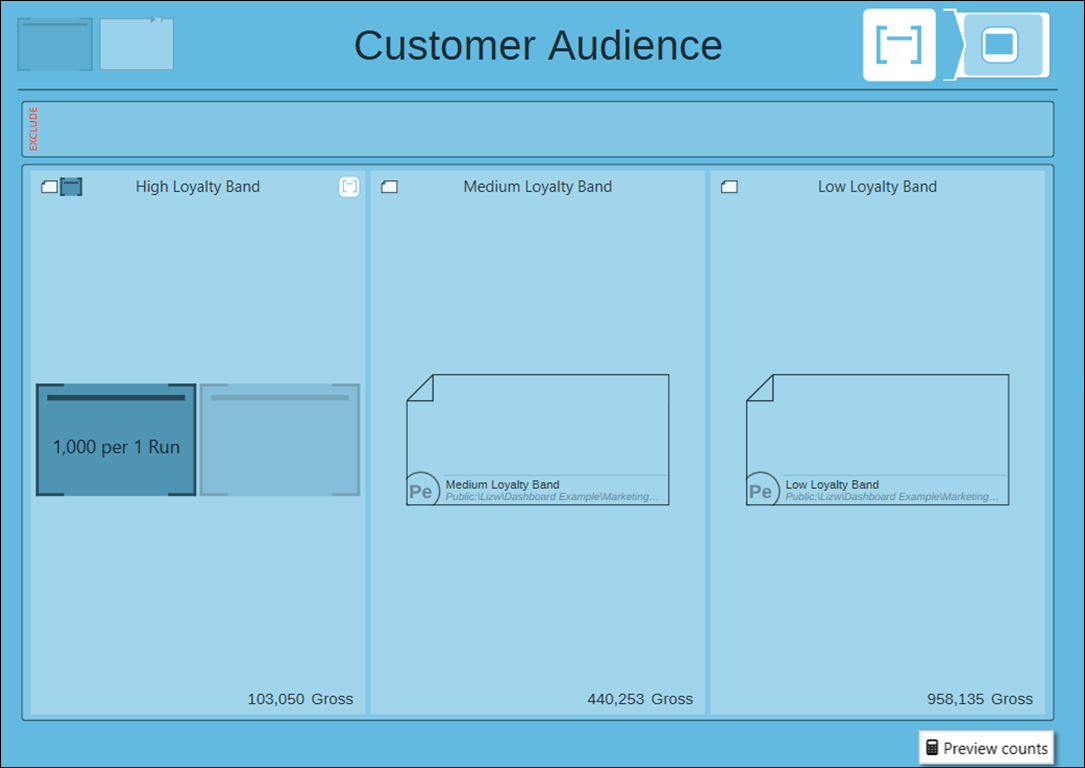
By default the Volume Constraint will show 1000 records per 1 run. You can change this by clicking on the constraint.
-
The same dialogue menu now appears, allowing you to add the actual amount of records to constrain or a percentage of the records.
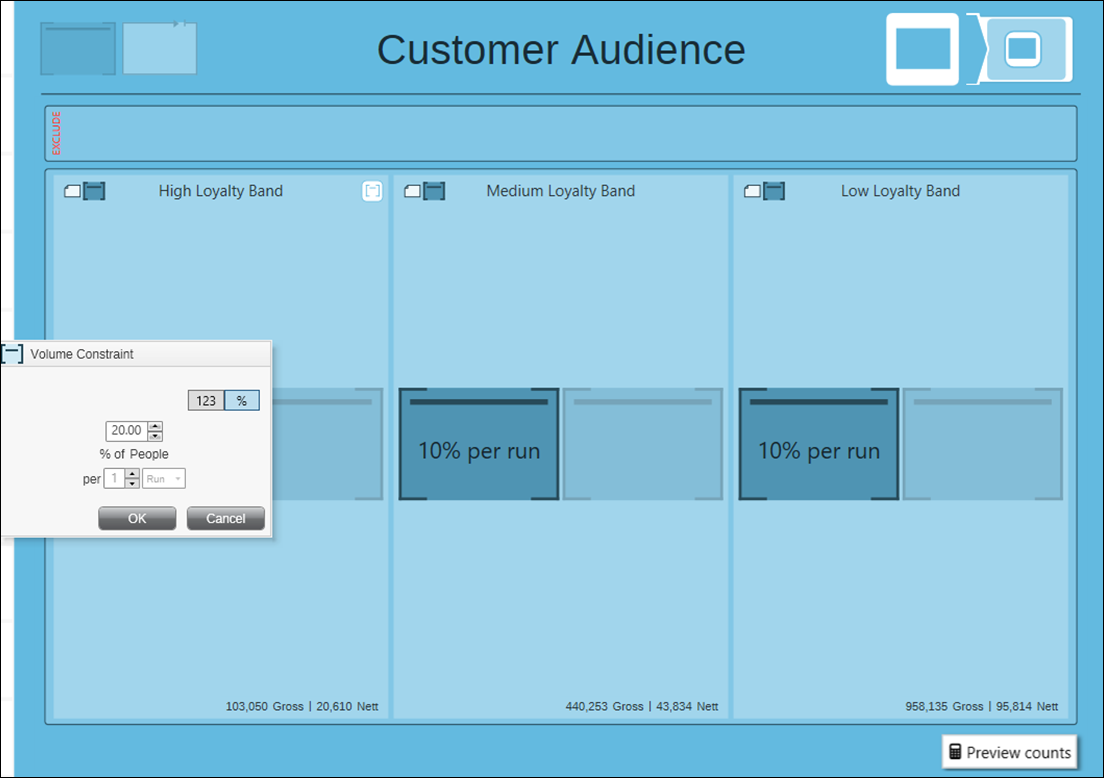
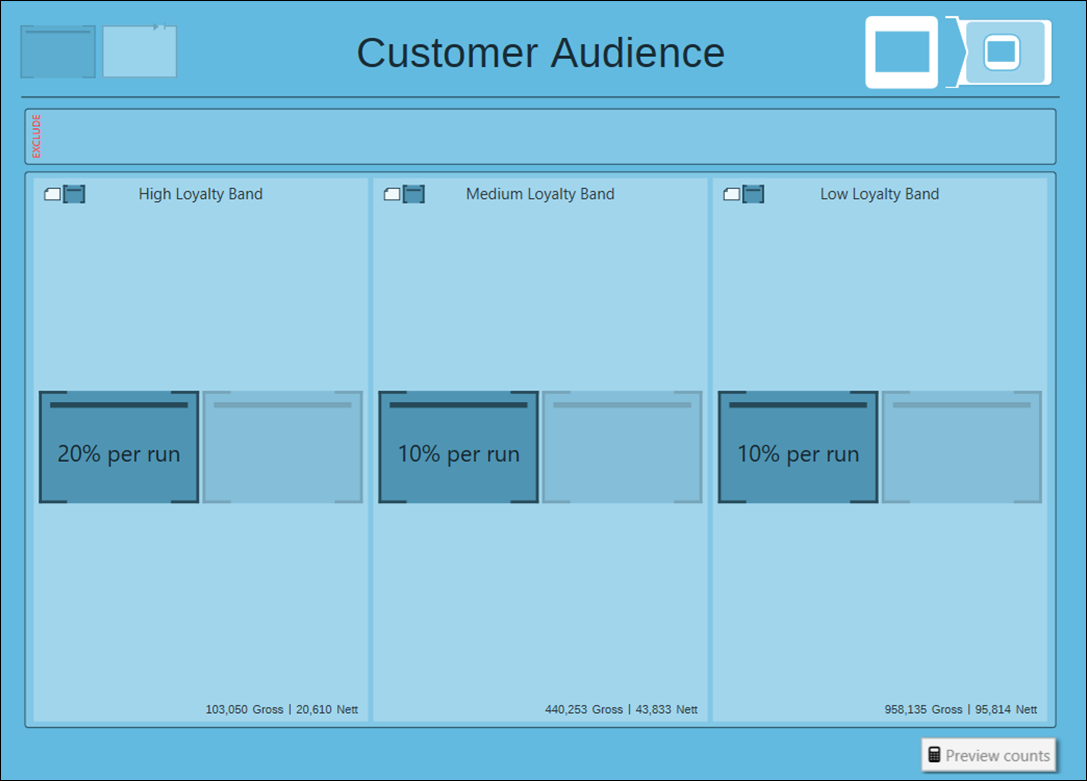
In this example we have applied a percentage limit on all three Audience Segments.
-
Click OK to apply the percentage constraint to the segment.
-
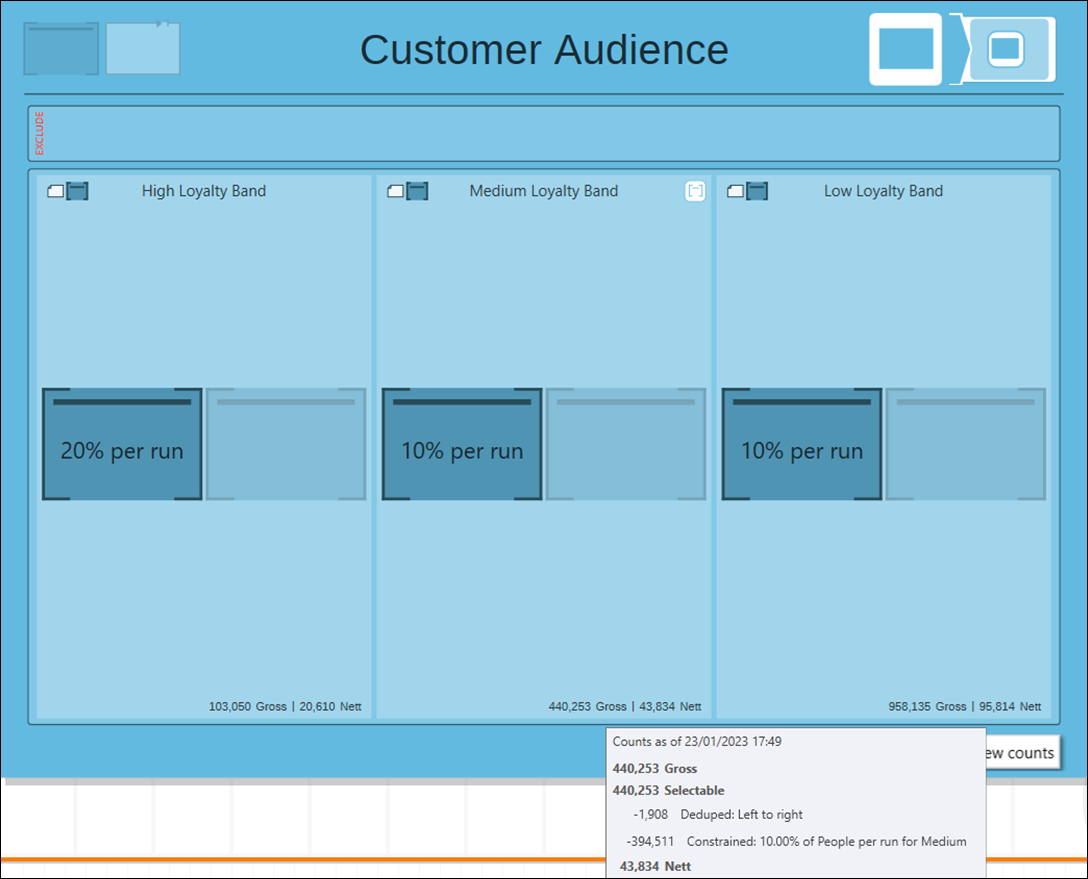
Click Preview Counts to see the nett counts with any deduping and constraints applied.
-
Hover over the counts to see explanation of the volume drop off.
Audience segment level and an overall audience limit
Segment volume constraints and overall audience constraints can be used together. You may still want to select a percentage of people from your audience segments but then restrict an overall volume limit for the campaign too.
Note
You can use volume percentage constraints and quantity volume constraints alongside each other to construct an overall volume constraint. For example, you may wish to apply percentage constraints to certain segments and quantity constraints to others, or apply a quantity constraint overall but percentage limits for each segment.
- Apply an Overall Audience Volume Constraint as described above
- Apply volume constraints to Audience Segments as described above
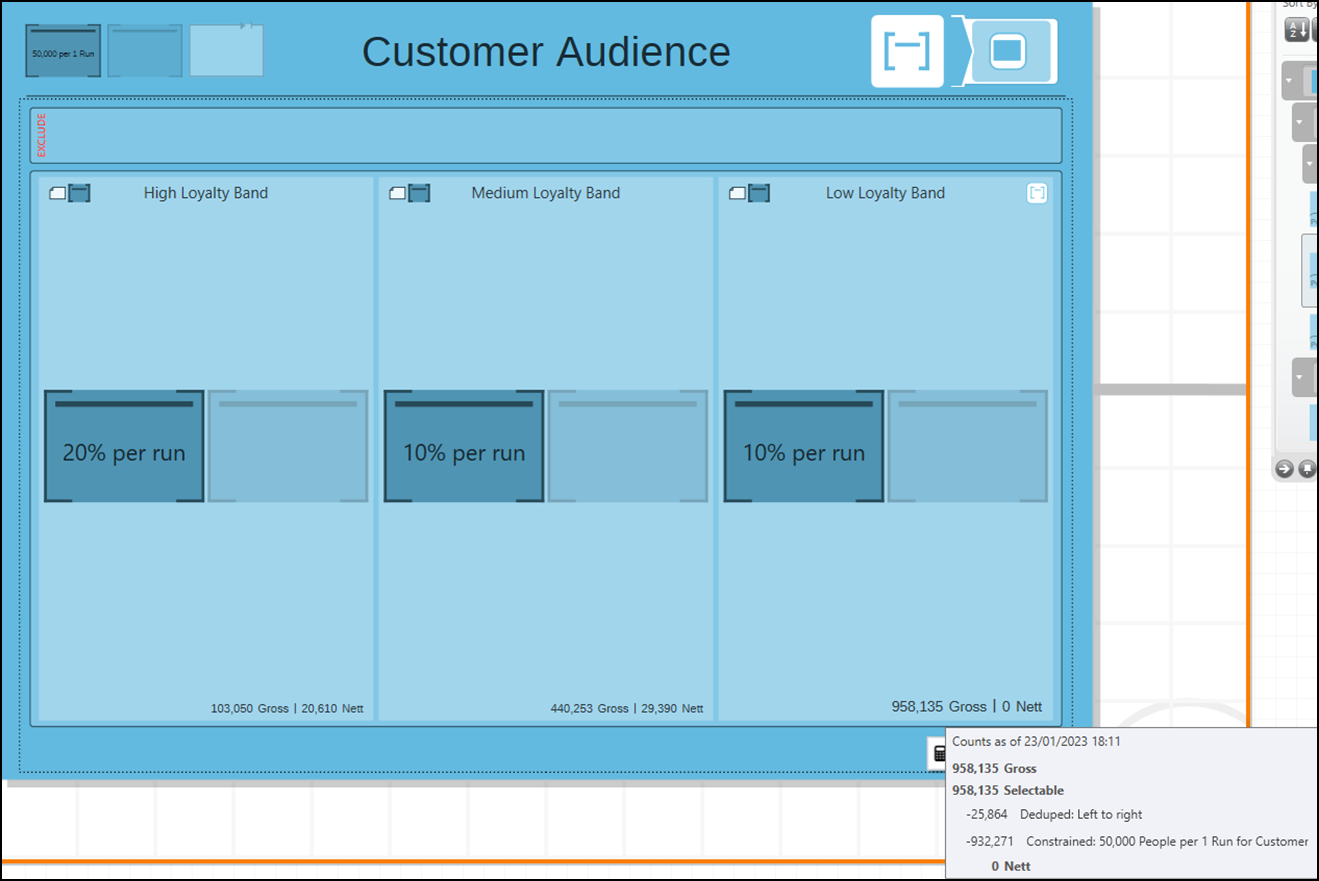
In this example, we know that by applying our percentage limits the volumes are constrained as follows:
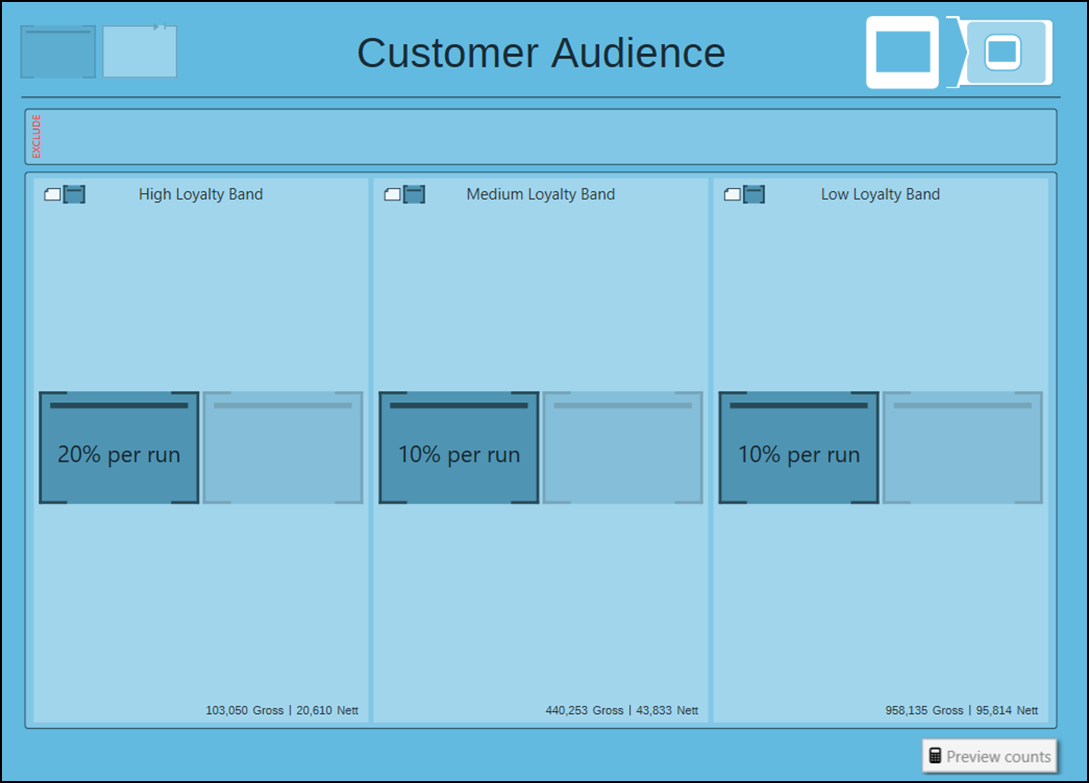
If we apply a volume constraint at audience level of 50,000 per run and preview the counts, then our results look like this:
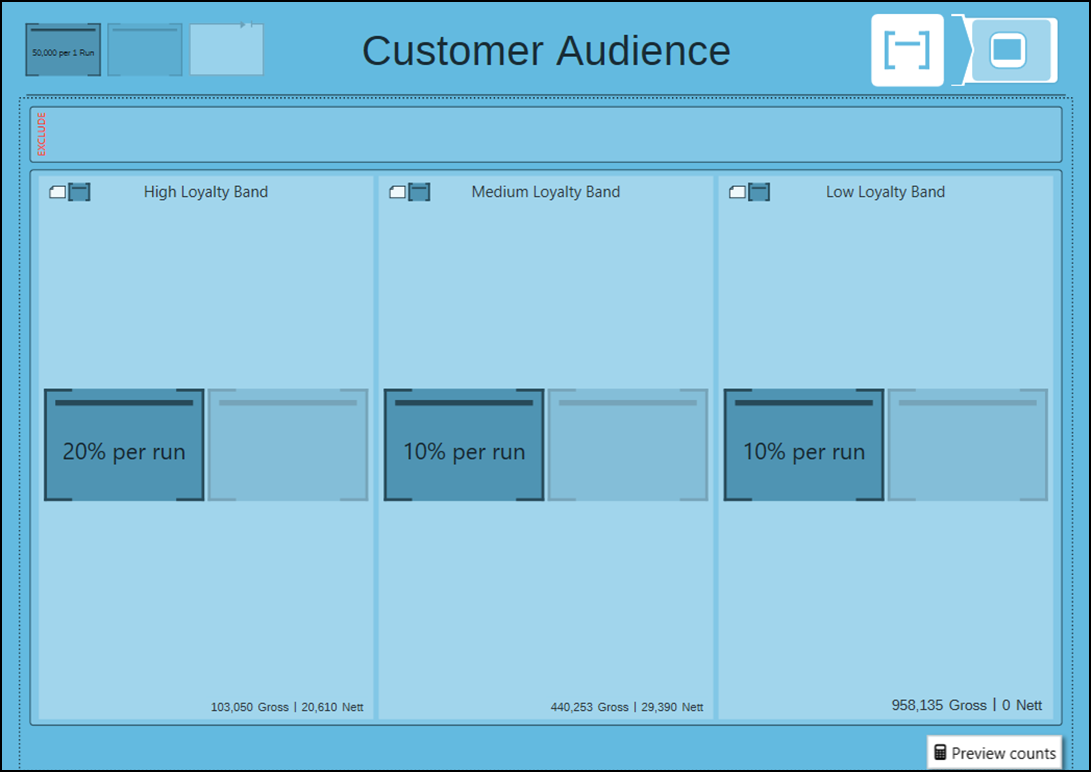
PeopleStage always ensures that the most important segment is addressed first (the segment on the left of the Audience). In this case, all of the 20% of our high loyalty band has been allocated as the total does not add up to 50,000. PeopleStage will then consider the next percentage in the next segment and will work out the result. It will then check against the overall volume constraint to see if all can be allowed. In this case it cannot, which means that the number of records in this segment is the difference between 50,000 and 20% of the gross count of our high loyalty band. Moving to the next segment, although PeopleStage calculates what 10% of the low loyalty band audience segment is, it cannot allow the volume in the campaign as the 50,000 volume constraint has already been reached.