Change the hashing algorithm for FastStats systems
Following the deprecation of the SHA-1 hash function, it is no longer recommended for use with digital signatures. Apteco recommends that all FastStats systems move from SHA-1 to at least SHA-256 as soon as possible.
If your FastStats system is still set to the SHA-1 security hash method, follow the steps below to upgrade to your preferred hash method.
Changing the hash method for FastStats
To change the hash method for FastStats:
- Ask all users to log out.
- Open the FastStats Web Service Configurator.
- Click System, then Security.
-
Set Hash method to the desired level (SHA-256 minimum).
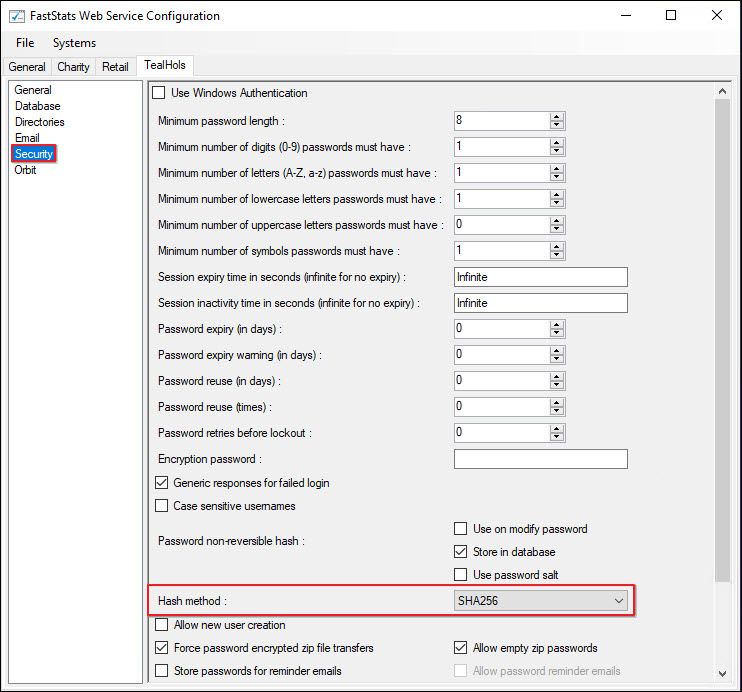
You must then reset all users' passwords.
-
Open the FastStats Configurator.
- Click File, then Generate Password Hash.
-
Enter
passwordin the Password box, select the new hashing method used in the previous step, and click Generate (if using password salt, check the Generate salt box).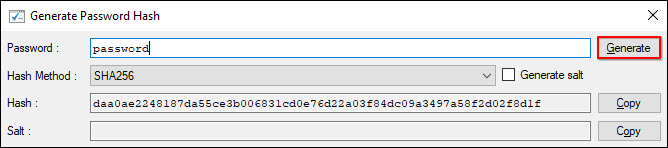
The Hash box is populated with the hashed version of
password. -
Update the Users table in the control database (WS DB) to change all users' passwords and set a flag to force them to change their password on next login. Use the following SQL script, substituting your actual database name for
TealHols: -
Users can now log back into FastStats using the password
password. They are prompted to change their password before they can continue.
Changing the hash method for Orbit
If the system also has Orbit running, you may need to update the hash method in the Orbit API Configurator.
To change the hash method in Orbit:
- Open the FastStats Orbit Updater Configurator.
- In the API section, click Open API Configurator.
- In General > FS Config database, if the connection string field contains a valid FS_Config connection string, the changes made in the FastStats Configurator appear automatically.
-
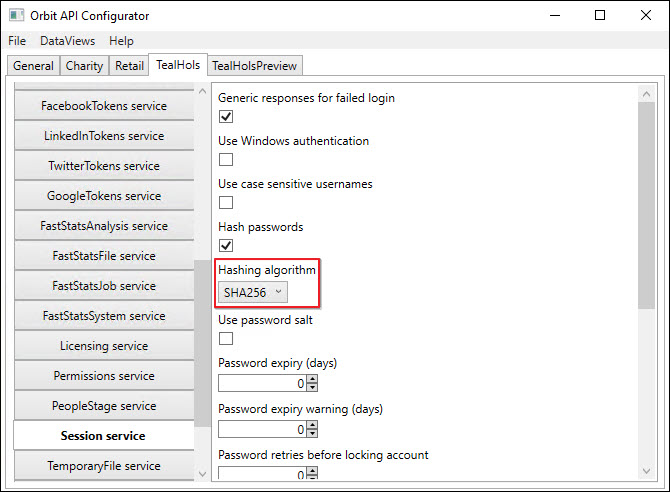
If not populated, go to the DataView tab > Session service and change the Hashing algorithm to match the method set in the FastStats Web Service Configurator.
-
Save and close the Orbit API Configurator.