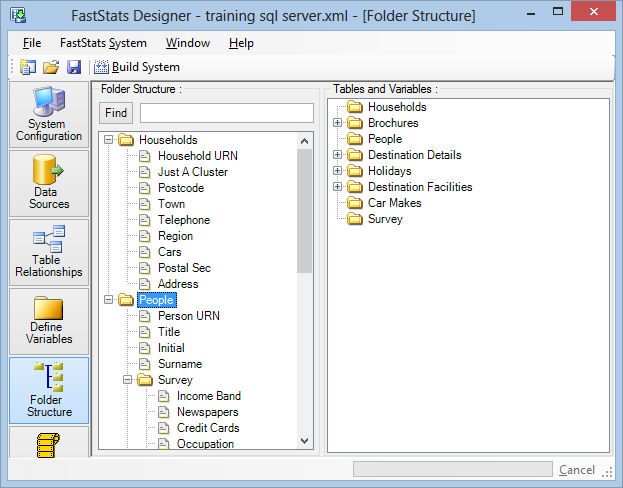
Folder structure
It is necessary to organize the variables into folders. The available tables and variables are displayed in the right hand pane. Select (or multi-select) variables in the right hand pane and drag them into the folder structure in the left hand pane. As variables are added to the folder structure they are removed from the list on the right.
Dragging a table creates a folder with the same name as the table. Folder and Variable descriptions are displayed in brackets if the description differs from the folder/variable name.
You can create further subfolders by right-clicking in the left-hand pane and choosing Add Folder.
You can remove folders and variables by right-clicking in the left-hand pane and choosing Delete.
Users will see this folder structure as their default folder structure but they are able to manipulate the folder structure to their own preference.