CiviCRM
CiviCRM is an open-source CRM used widely in the charity and non-profit sector. The CiviCRM data source in Orbit Connect lets you pull data directly from your CiviCRM instance using native API connectivity. Once connected to Orbit, the data is available in a structured form ready for analysis and campaigning.
Before you begin
Confirm you have the following:
- An active CiviCRM instance accessible via a public URL
- API credentials for your CiviCRM instance
- Sufficient permissions in Orbit Connect to add and configure data sources
Connect to CiviCRM
To add CiviCRM as a data source:
- In Orbit Connect, go to Data sources and click + New data source.
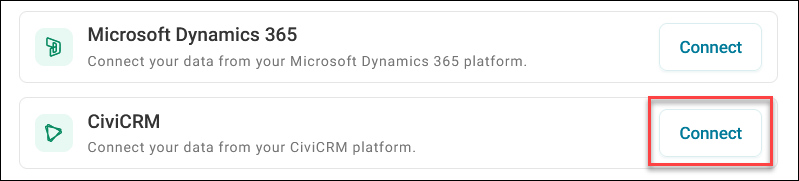
- Next to CiviCRM, click Connect.
- Give your source a name, then click Create.
- Under Credential, select + New Credential.
-
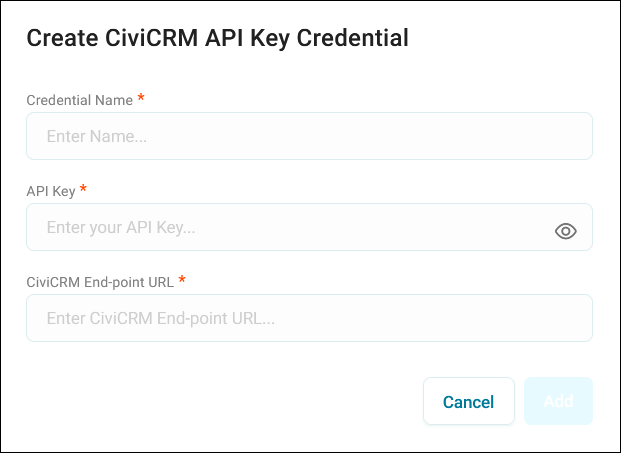
Enter your CiviCRM Credential Name, API key, and End-point URL.
-
Once the connection is confirmed, click Add.
- Under Tables, select the table you want to use.
Select and configure columns
After connecting, use the column picker to choose which fields to ingest from CiviCRM.
To configure your column selection:
- Once you’ve selected a table, click Set Up in preview panel.
- In the column picker, select the relevant CiviCRM columns to import.
- Click Add.
This initial column selection defines the base dataset. You can refine it further using query parameters.
Tip
Start with a focused column selection.
Refine your query with JSON parameters
For more control over the ingested data, use the JSON query parameter field. You can use this to perform joins between entities, apply row-level filters, and use custom column selections.
Example 1:
{
  "select": [
    "id",
    "display_name",
    "first_name",
    "middle_name",
    "last_name",
    "birth_date",
    "contact_type",
    "created_date",
    "deceased_date",
    "do_not_email",
    "do_not_mail",
    "do_not_phone",
    "do_not_sms",
    "do_not_trade",
    "is_deceased",
    "is_deleted",
    "is_opt_out",
    "job_title",
    "modified_date",
    "prefix.label"
  ],
  "join": [
    [
      "OptionValue AS prefix",
      "LEFT",
      [
        "prefix_id",
        "=",
        "prefix.value"
      ],
      [
        "prefix.option_group_id",
        "=",
        6
      ]
    ]
  ]
}
Example 2:
{
  "select": [
    "id",
    "contact_id",
    "campaign_id",
    "cancel_date",
    "cancel_reason",
    "contribution_page_id",
    "contribution_recur_id",
    "created_date",
    "creditnote_id",
    "currency",
    "fee_amount",
    "modified_date",
    "net_amount",
    "receive_date",
    "source",
    "tax_amount",
    "thankyou_date",
    "total_amount",
    "contribution_status_id:label",
    "financial_type.name",
    "payment_instrument_id:label"
  ],
  "join": [
    [
      "FinancialType AS financial_type",
      "LEFT",
      [
        "financial_type_id",
        "=",
        "financial_type.id"
      ]
    ]
  ]
}