Custom variables
A custom variable is a variable you add to your system yourself, without needing a full data rebuild. Once created, it behaves like any other variable in Orbit, whether as a dimension on a dashboard tile or a filter on an audience.
Custom variables are useful whenever you need to bring in or build data that isn't already in your system.
Examples
- Scores or codes from an external file
- A variable that groups other data together based on rules you define
Custom variables bring together every variable in one place, whether built directly in Orbit or created in your underlying FastStats system. If you change or delete a variable in FastStats, that change reflects in Orbit automatically.
Note
Not every variable listed here can be edited from Orbit. Variables built directly by the FastStats system itself, rather than by a user, are read-only.
Access custom variables
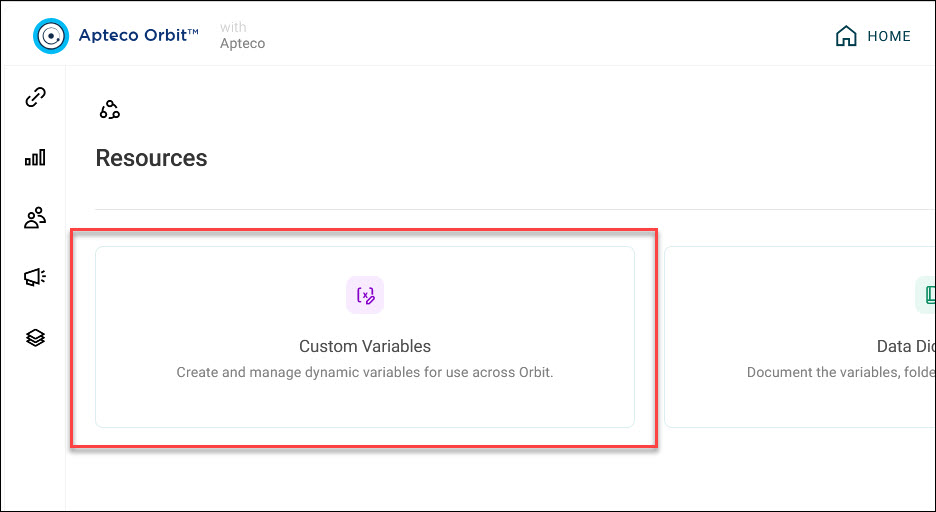
To open custom variables:
- Click the Account and settings icon in the top-right corner.
- Click Resources.
-
Select Custom Variables.
Manage variables
The list shows every custom variable in your system, split across two tabs: Custom Variables (active) and Archived.
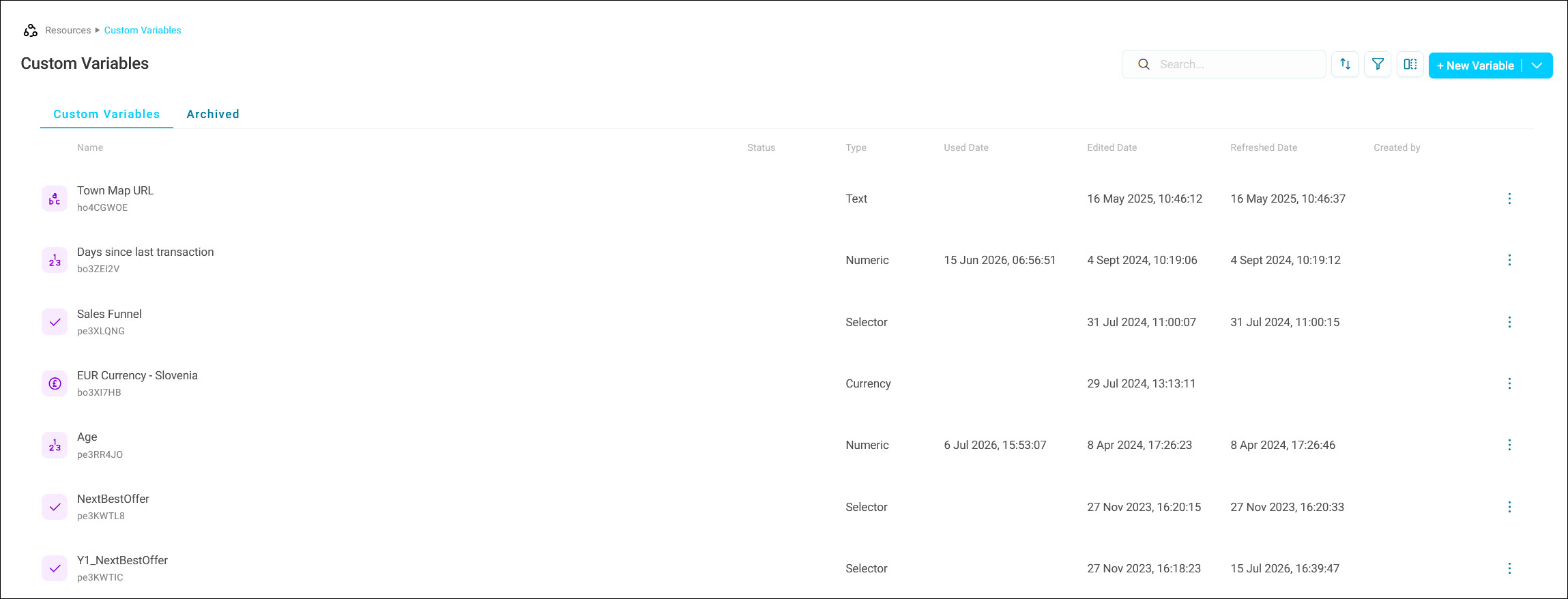
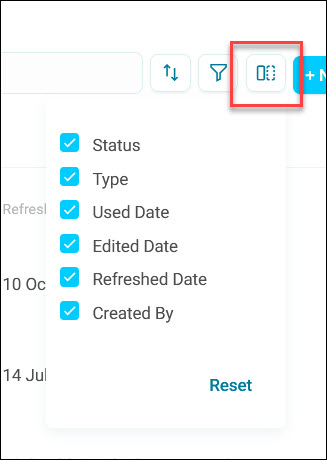
By default, the Custom Variables tab shows the Status, Type, Used Date, Edited Date, Refreshed Date, and Created By columns.
You can:
-
Search for a variable
-
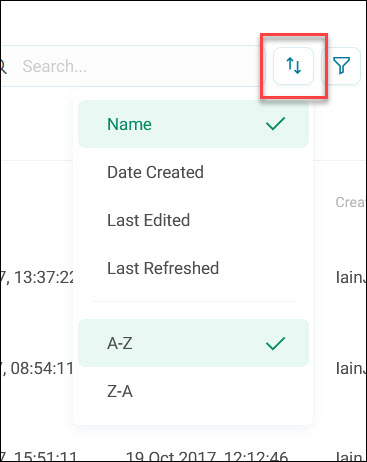
Sort the list by name, date created, last edited, or last refreshed, in ascending or descending order
-
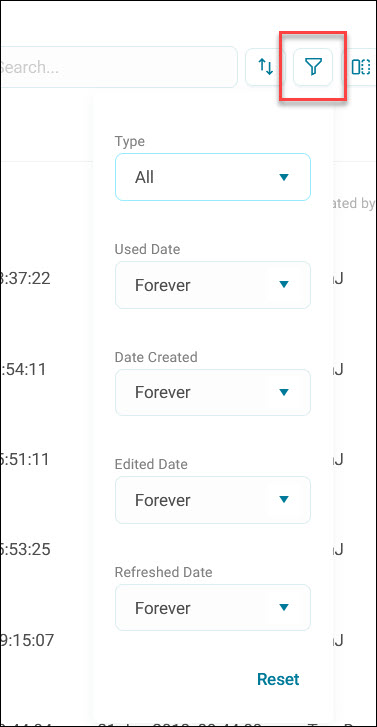
Filter the list by type, or by used, created, edited, or refreshed date
-
Choose which columns to show
-
View the details of a variable using the
-
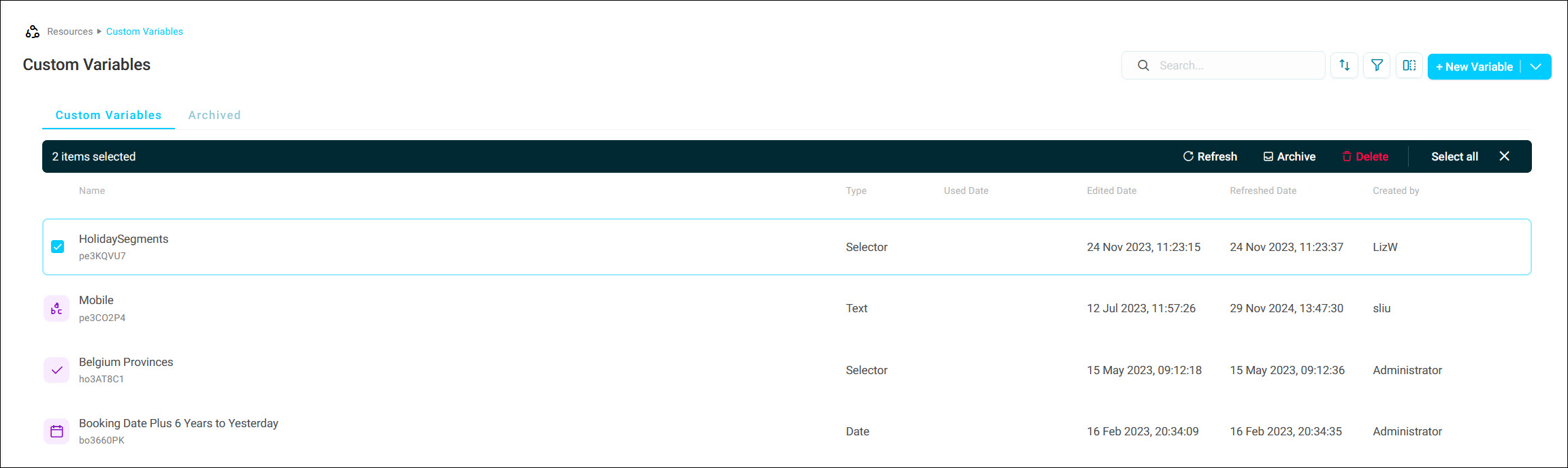
Select multiple variables at once to refresh, archive, or delete them together
Refresh a variable
Refresh recreates a custom variable using its original definition, picking up any changes to the underlying data since it was created. You'll see a confirmation notification once it's done.
Archive and restore variables
- Archive a custom variable to remove it from the active list without permanently deleting it. You're asked to confirm before it's archived.
-
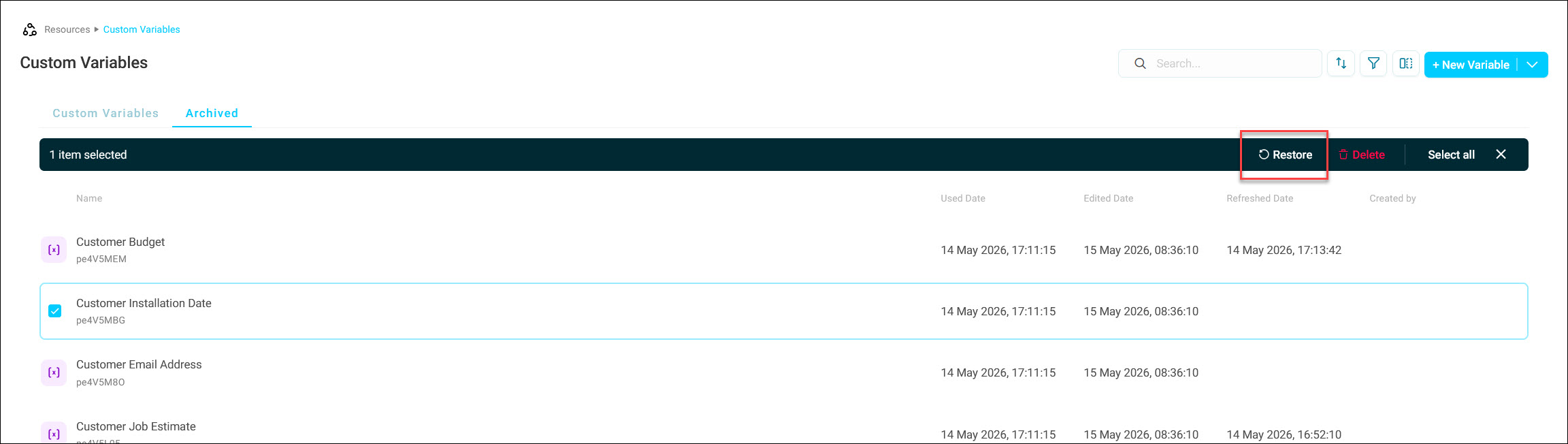
Restore an archived custom variable, from the Archived tab, to bring it back.
Delete a variable
- Delete a custom variable to remove it permanently. You're asked to confirm before it's deleted, and this cannot be undone.
Permissions
Access to custom variables is controlled by your roles and rights. Depending on your permissions, you may be able to view, create, edit, or delete custom variables. See Permissions for more detail.