Data dictionary
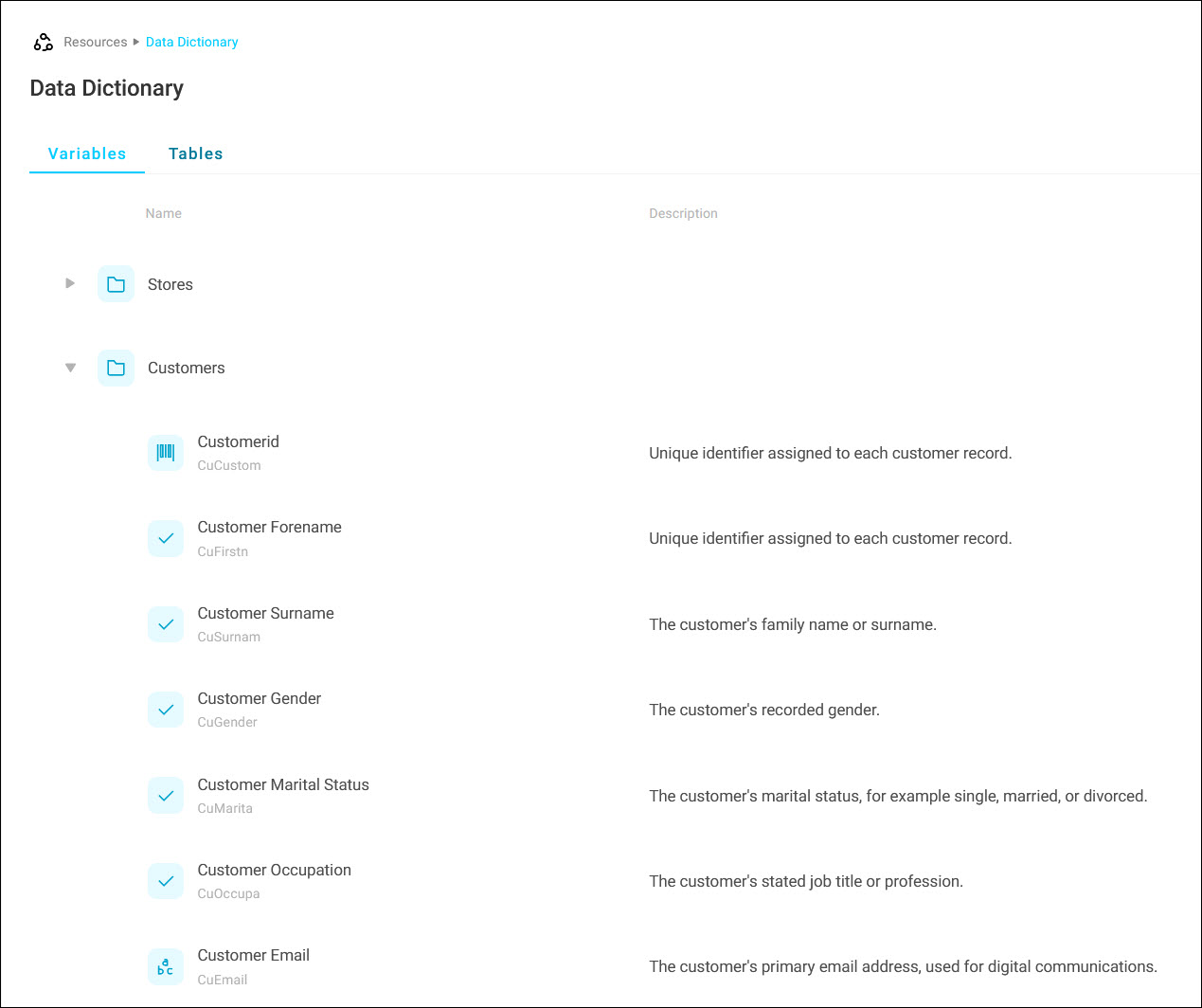
The data dictionary is a centralised place to document the variables, tables, and folders in your Orbit system.
Clear descriptions help your team understand the exact context, formatting, and intent of your data. The Orin AI assistant uses them too, to make better suggestions when creating items in Orbit.
The data dictionary starts pre-populated with any existing variable notes. Keep it up to date in two ways:
- Editing individual descriptions directly in Orbit
- Importing a delimited file for bulk changes
Note
Every edit to your data dictionary is saved, but Orbit does not currently provide a way to view or revert previous versions of a description. To undo a change, edit the description again or restore it from your own records.
Example
A variable named CuMarita isn't self-explanatory to a new analyst. Add the description "The customer's marital status, for example single, married, or divorced" to the data dictionary.
Access the data dictionary
To open the data dictionary:
- Click the Account and settings icon in the top-right corner.
- Click Resources.
- Select Data Dictionary.
Manage variables and tables manually
To update a few definitions, edit them directly:
- Select the Variables or Tables tab, depending on what you want to update.
- Click the arrow next to a folder to expand its contents.
-
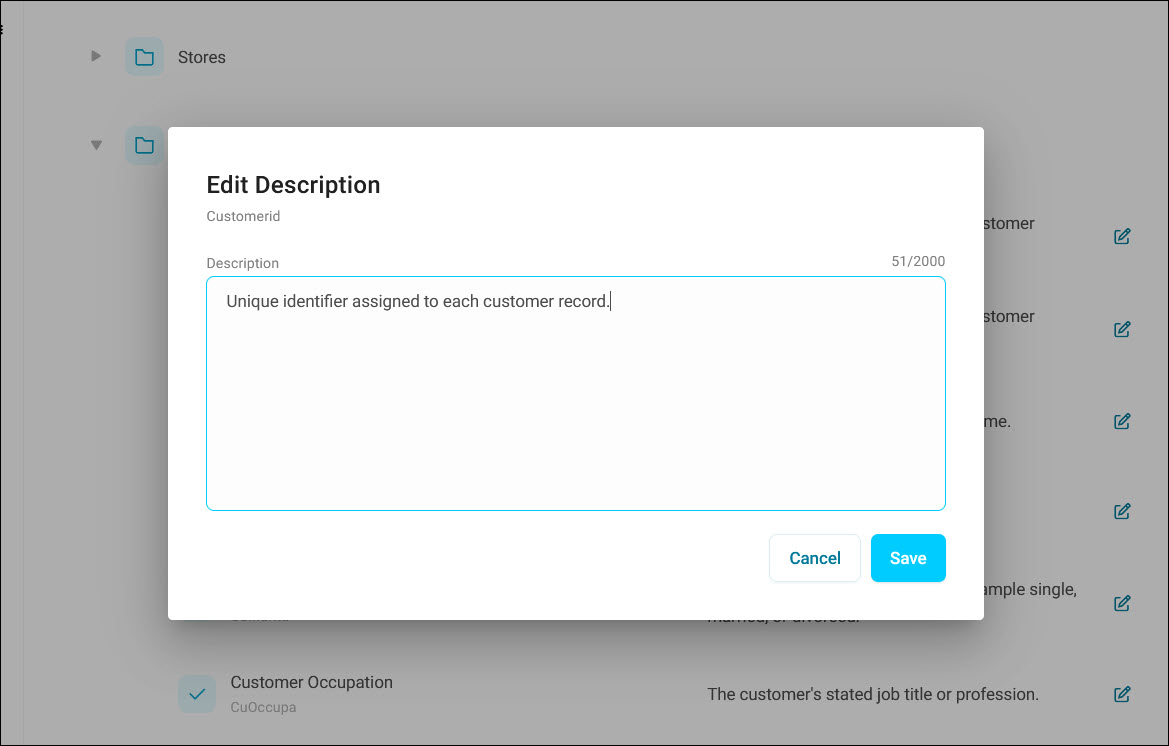
Find the item you want to update and click the edit (pencil) icon.
-
Enter your description, up to a maximum of 2000 characters.
- Click Save. The description updates immediately.
Tip
To remove a description, click the edit icon, clear the text box, and click Save.
Search and filter
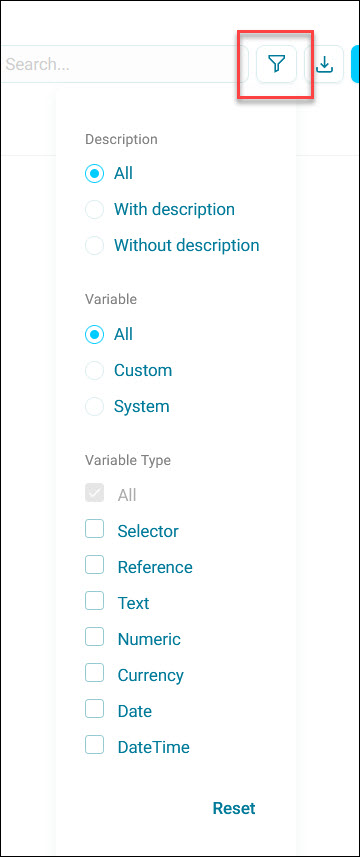
To find entries in a large system, search or filter by:
- Whether an item has a description: All, With description, or Without description
- Variable scope: All, Custom, or System
- Variable type: Selector, Reference, Text, Numeric, Currency, Date, or DateTime
Note
On the Tables tab, the description filter is available, but variable scope and variable type do not apply.
Matching results stay within the folder hierarchy, so you can see where each item sits. Click Reset to clear your filters.
Bulk updates with export and import
For large-scale updates, export your current data dictionary, add your descriptions in a spreadsheet or text editor, and then import the completed file back into Orbit.
Export
- Click the export icon next to Upload Descriptions.
-
Choose your export options:
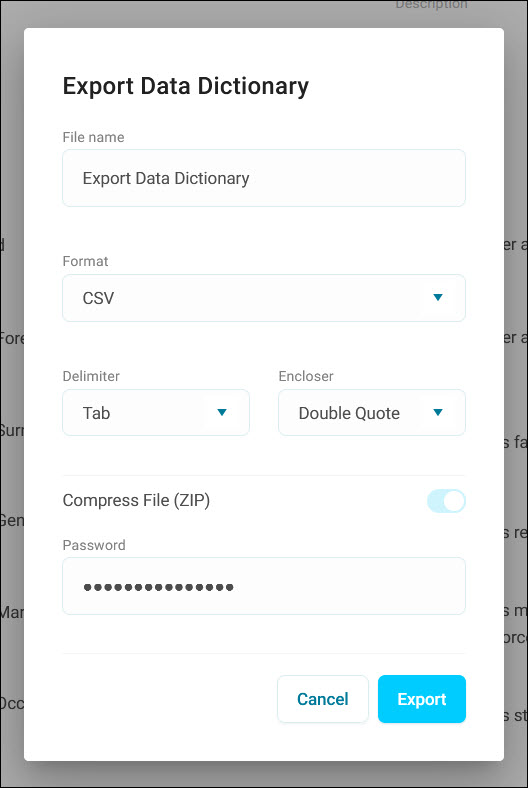
- File name: enter a descriptive name, for example
Export Data Dictionary. - Format: CSV, TXT, or XLSX
- Delimiter: Comma, Tab, Semicolon, Pipe, or Other
- Encloser: Double Quote, Single Quote, None, or Other
- Toggle Compress File (ZIP) if you want the export as a password-protected ZIP file. If enabled, enter a Password to protect the file.
- File name: enter a descriptive name, for example
-
Click Export.
This downloads a file listing every variable, table, and folder in your system, ready for you to add or edit descriptions in any text editor or spreadsheet app.
Import
- Click Upload Descriptions.
- Click Select File and select your file.
-
Map the Name and Description fields to the matching columns in your file.
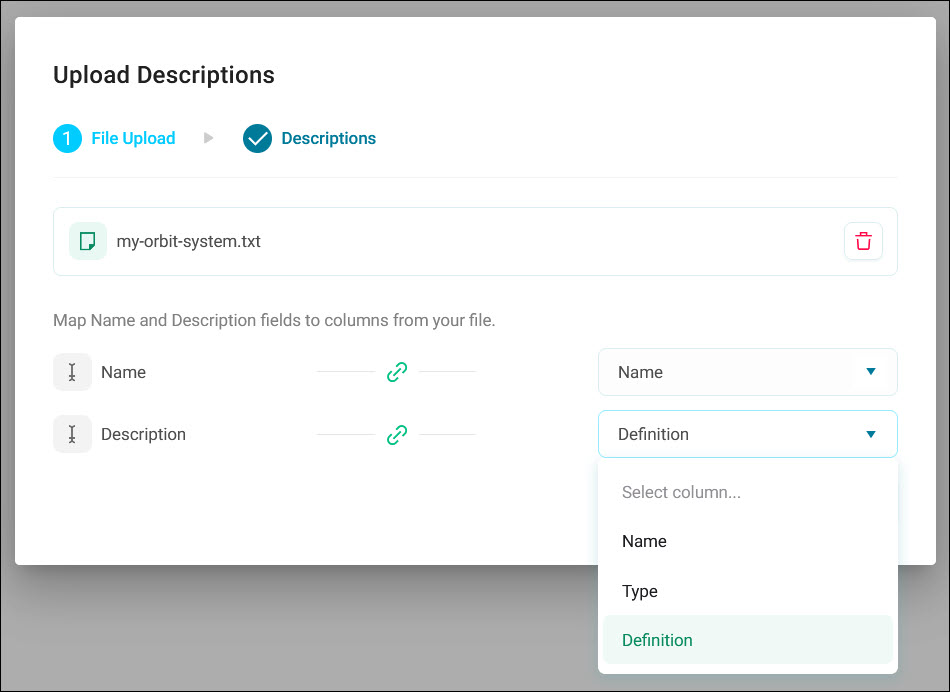
The column list reflects the headers in your uploaded file, so the options you see depend on your own system and file.
-
Click Next.
Review and confirm the import
Before you confirm the import, Orbit opens a preview so you can check the changes:
- Click the filter icon to show only Matched or Unmatched rows.
- Use the search bar to find items and confirm their description is correct.
-
Unmatched items display an Unmatched label. Use the drop-down list to map them manually, or delete them from the import using the delete (bin) icon.
Note
You can add a deleted row back with + Add Description.
-
Confirm parent and child items line up correctly.
Click Upload to confirm. The data dictionary refreshes immediately with your imported descriptions.