Library
The PeopleStage library sits on the right-hand side of your diagram workspace and is initially collapsed to a tab entitled 'Primary Flow Shapes & Library'.

Clicking on the arrow at the bottom of the tab opens the Library panel. The default action is to auto-expand and hide the panel when editing or checking in your working areas. Clicking on the pin symbol at the bottom of the panel, so that it appears upright, turns off the auto-hide function.
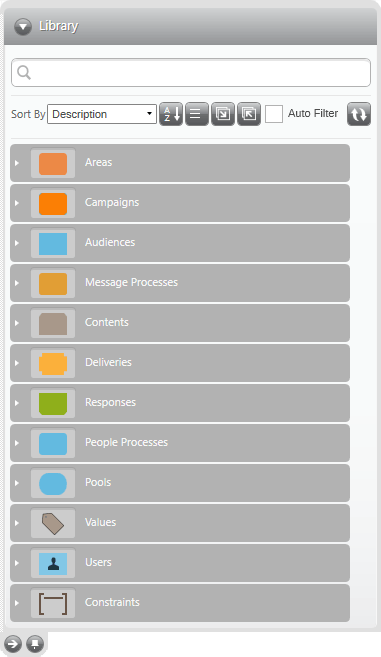
The Library panel contains a mixture of items, some created in PeopleStage and some from the FastStats system that PeopleStage is connected to. What you see in the Library is dependent upon where you are in the diagram. The PeopleStage Library is designed to auto-filter and display items relevant to where you are in the diagram.
- Uncheck the Auto Filter option to see all items available in your system Library.

However, leaving the Auto Filter selected during the normal creation of a campaign saves you time searching through lists of items not connected to your current diagram activity. Even when using the Auto Filter, some types of items may be numerous, e.g. FastStats Selections. In this scenario use the search box at the top of the library panel to further filter the items to select from in the display.
Tip
If you are unable to find an item make sure you have cleared the search box.
The default display is to sort items by their Description. However, it is possible to change this sort function by the Last Used Date or by the Number of Uses.
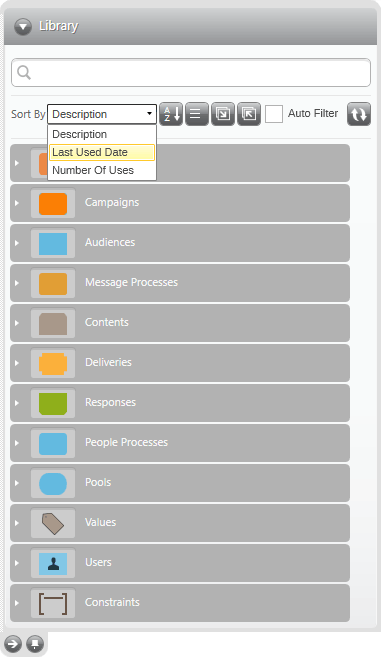
The other Library functions are:
 This acts as a toggle button to sort the individual items within their groups in alphabetical ascending or descending order
 This acts as a toggle button to group items by folder or display as one list
 This button expands the whole Library structure
 This button collapses the whole Library structure
 This refresh button saves work you have added to the Library and displays work added by other people
Areas
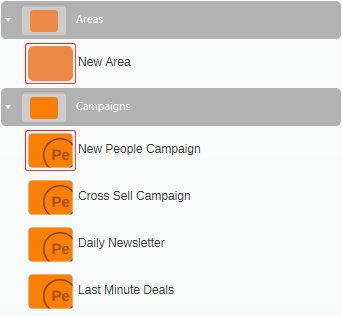
Areas are the containers for related campaigns. Drag the New Area shape onto the diagram to create a new area.
Note
You can have an area within an area — for example, to group a collection of special offer campaigns.
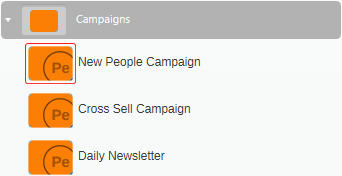
Campaigns
Contains new or templated Campaigns to select from.
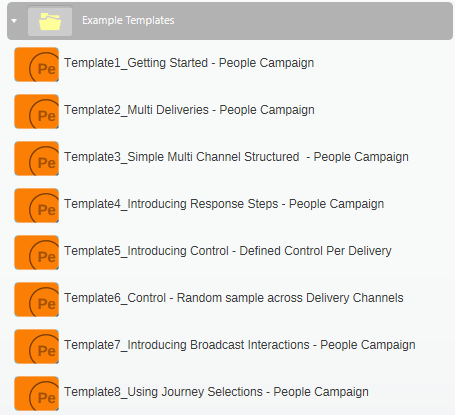
Example campaigns
PeopleStage includes example campaign templates for you to use as a starting point in creating a new campaign.
Tip
Open the campaign's Notes view for more information about the example.
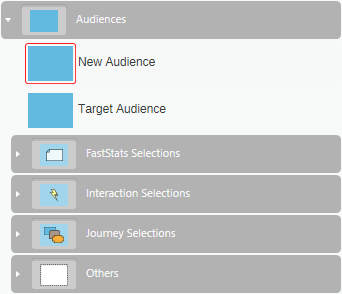
Audiences
Audiences define who should be selected to enter or proceed through a Campaign.
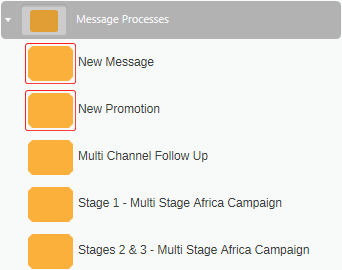
Message processes
Use a New Message to define the Content and Delivery details of a Message to be sent to your Audience. A New Promotion is a Message which also contains a transactional New Responses step.
Contents
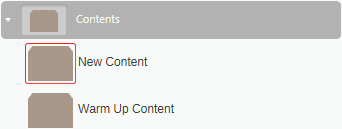
A New Content step allows you to add message specific information, extra to any standard fields defined for a particular delivery channel.
Deliveries
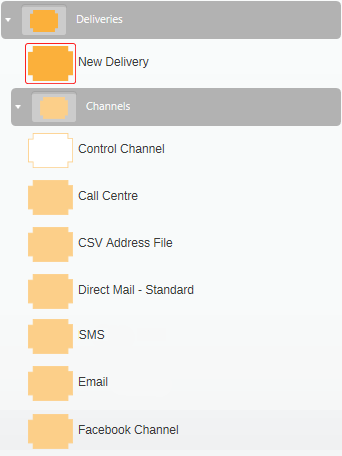
A Delivery step is where we define how to send a Message in terms of the delivery channel(s). Any available channels (defined by the PeopleStage Administrator) are organised into Channels folders to select from.
Responses
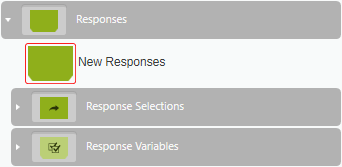
The Responses area contains optional items you can use to define transactional information such as what constitutes a response to your Message.
People processes
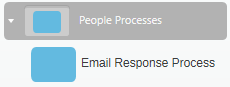
The People Processes section contains templates for common campaign structures.
Pools
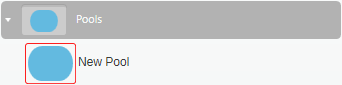
Use Pools to hold people on their journey through a Campaign pending your decision on, or until the next step of your Campaign is scheduled to run.
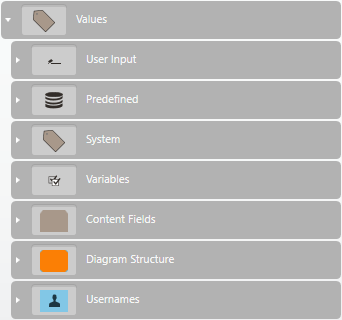
Values
Different types of Values are available to select from and use to further define aspects of your Campaign.
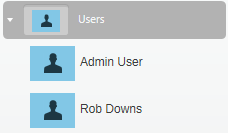
Users
Usernames of people authorised to use your system.
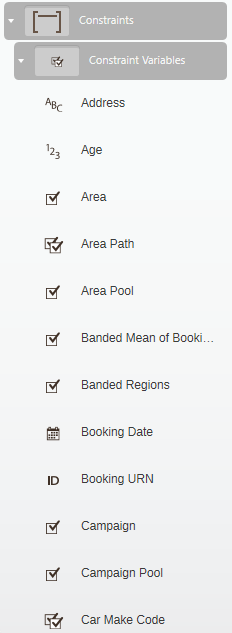
Constraints
This area contains FastStats variables you can use to define PeopleStage constraints.
Seed sets
Seed records can be used for monitoring the quality and timeliness of all deliveries in a campaign and are added at the campaign level.