Viewing Google Analytics campaign reports
Once your campaigns are live and UTM tracking is in place, you can access reports in Orbit.
To view your Google Analytics campaign report:
-
Open your campaign and click the Overview tab.
-
Review key metrics, including:
- Users: Total visitors driven to your site from the campaign
- New Users: First-time visitors resulting from the campaign
- Returning Users: Visitors who have accessed your site before
- Active Users: Active users on your site
- Engaged Sessions: Sessions where users actively interacted with your site (e.g., clicked links, scrolled)
- Average Engagement Time: Average time spent per session
- Events: Specific user actions (e.g., downloads, clicks)
-
To explore detailed metrics or UTM breakdowns, click View in Google Analytics.
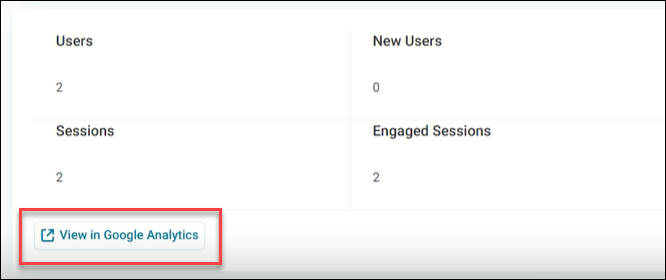
Advanced insights within Google Analytics
While Orbit provides a high-level summary, Google Analytics offers deeper insights:
- Traffic sources: See which channels (e.g., email, social media) drive the most visitors
- User behaviour: Analyse pages visited, time spent, and user flows
- Event tracking: Monitor clicks, downloads, and other interactions
Click View in Google Analytics from the campaign Overview tab to go to the corresponding report in your Google Analytics account.