Direct posts
Note
A user with Admin permissions must configure the social media channels within PeopleStage; this topic concentrates on setting up a campaign within PeopleStage.
Before starting, set your Campaign Area to be editable:
-
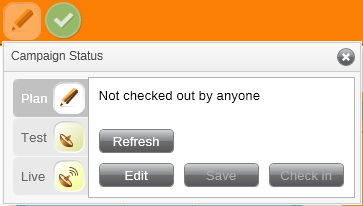
Click on the status control icon and, from within the Plan tab window, select Edit
-
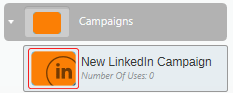
Drag and drop a New LinkedIn Campaign into your Campaign Area.
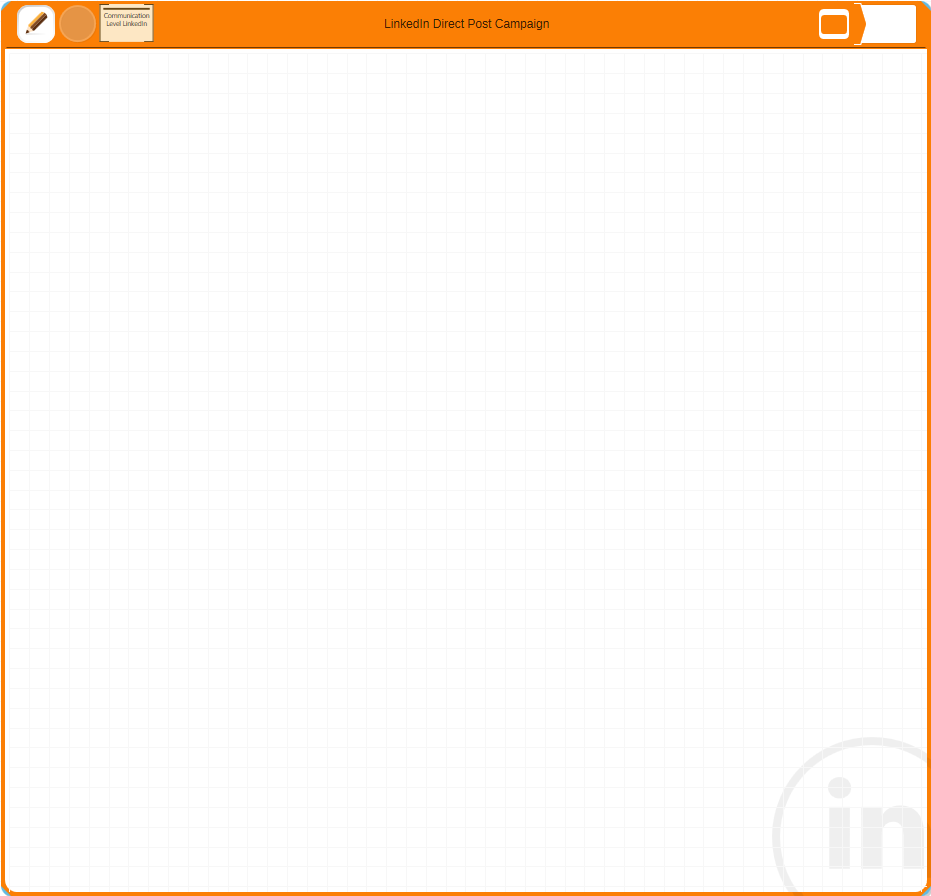
The LinkedIn campaign has the LinkedIn Watermark in the bottom right hand corner of the Campaign window.
- Once a Campaign has been created, look to the Library to start building your customer journey.
Note
Only LinkedIn related campaign components will be shown if the Auto filter has been turned on within the Library.
- Drag and drop the LinkedIn Audience onto your blank Campaign.
Audience
Note
If the Auto filter is turned on within the Library, only LinkedIn page audiences will be visible under the Social Audiences in the Audiences folder.

- Drag and drop the applicable LinkedIn Audience from the Library into the Campaign.
Message
- Drag and drop a New Message from the Library's Message Processes folder into the Campaign and draw a line from the Audience to the Content step within the Message.
New Social Media Message Processes
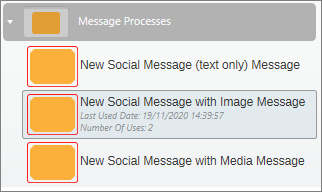
Options include:
- New Social Message (text only): Content Step includes a Title and Text segment
- New Social Message with image: Content Step includes a Title, Text, and Image segment
- New Social Message with Media: Content Step includes a Title, Text, and Media segment (used for video posts)
Content

Add the following information into the Content step using the following labels:
- Title: Not visible on the post but is the name of the Post sent to LinkedIn
- Text: The text which will appear in the Post
- Image: URL or directory/file path of the image
- Media: URL or directory/file path of the video content
Note
The Title is a compulsory social message field and the description MUST be "Title", the segment MUST be "Any".
Delivery
-
Double-click on the Delivery step to zoom in.
-
From the Deliveries folder in the Library, choose the applicable social channel which has been set up for the LinkedIn page.

- Drag and drop the channel into the Delivery step in your campaign.

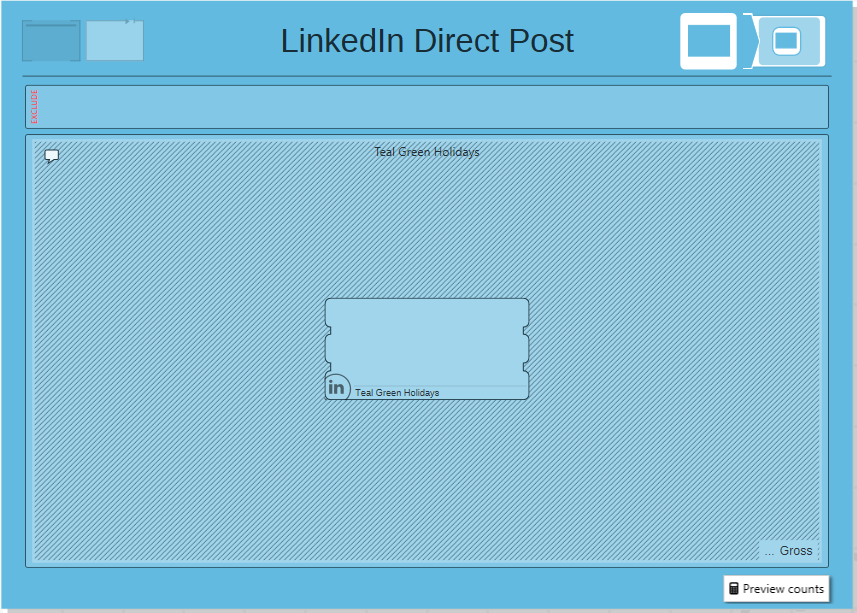
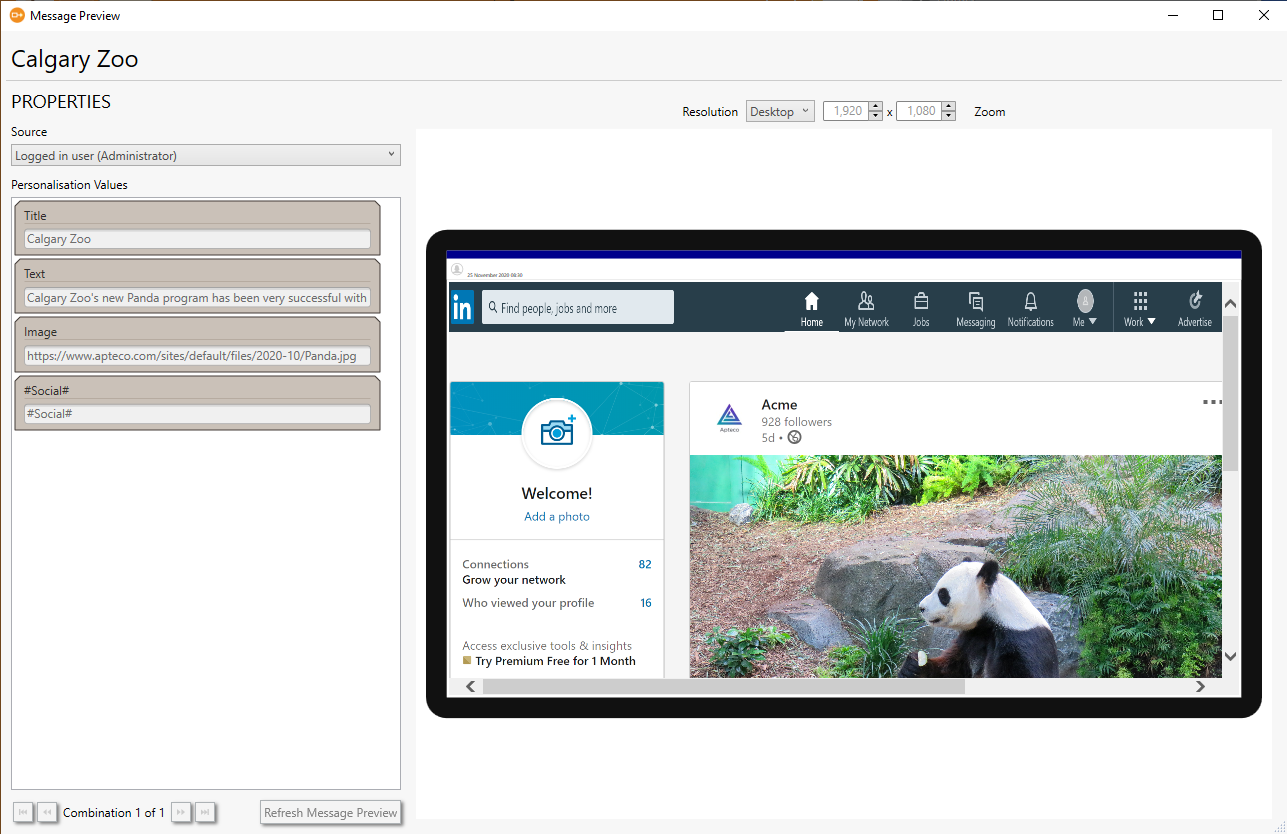
A preview of the post will automatically display in the Delivery step.
Note
In the bottom right of the Delivery step is an envelope icon; this also allows you to preview the post before sending it.
See also Multi-social campaigns in PeopleStage.