Before you begin
Before running any Apteco software update, confirm your current release version and prepare your environment.
Check your current release
Apteco FastStats
To check your FastStats release:
- Open FastStats.
-
Click Help, then About.
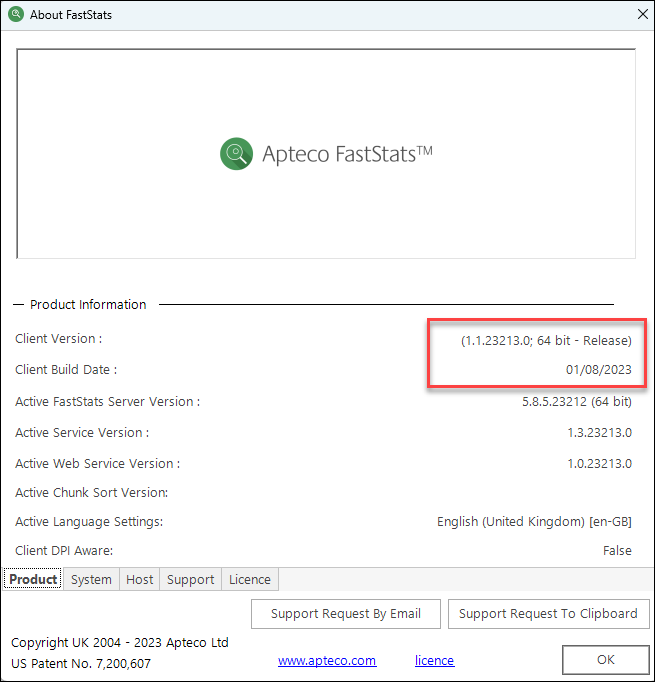
You can determine the version by the Client Build Date, which is typically in the month before the release date. The example above was built on 1st August 2023 for the Q3 2023 release.
Note
Determine if your currently installed Apteco applications are 32-bit or 64-bit. Use the 64-bit versions where possible.
FastStats service
To determine your current FastStats Service version:
- Open the FastStats Configurator.
-
Click FastStats Services.
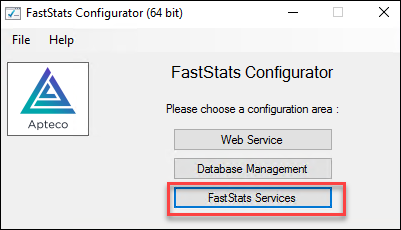
You can see the version number and quarterly release under Version. In the example above the version is Q2 2023.
Prepare for an Apteco update
To fully prepare for an Apteco software update:
- Review the technical updates section for any configuration changes you need to make manually.
-
Inform users of planned downtime. Allow approx. two hours for an update, and perhaps slightly longer if you:
- Have a multi-server solution
- Are using PeopleStage
- Need to make additional changes from previous interim releases
-
Download and extract your software installation files from the software releases page on the Apteco portal to create the appropriate installation folders.
-
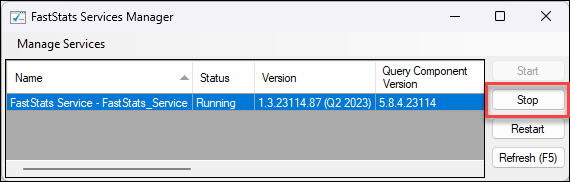
Stop all your FastStats Services.
To do this:
- Open the FastStats Configurator.
- Click FastStats Services.
-
Highlight all services, then click Stop.
-
Quit all Apteco software.
You are now prepared for an Apteco software update.