Audiences Admin
Compositions
Compositions are used to configure Audience Check Templates and Export Templates
You can share a composition. See Sharing for details.
Note
The Compositions button located on the right of the display, next to New Audience , will only be visible if you have admin permissions.
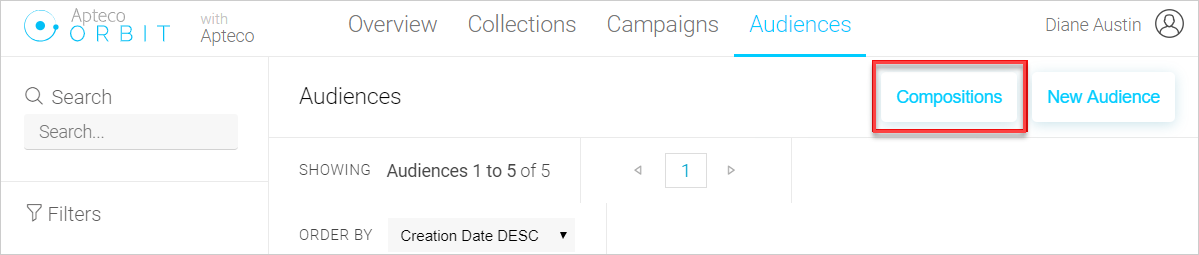
- Click on the Composition button to access the Audience Compositions page
Check templates
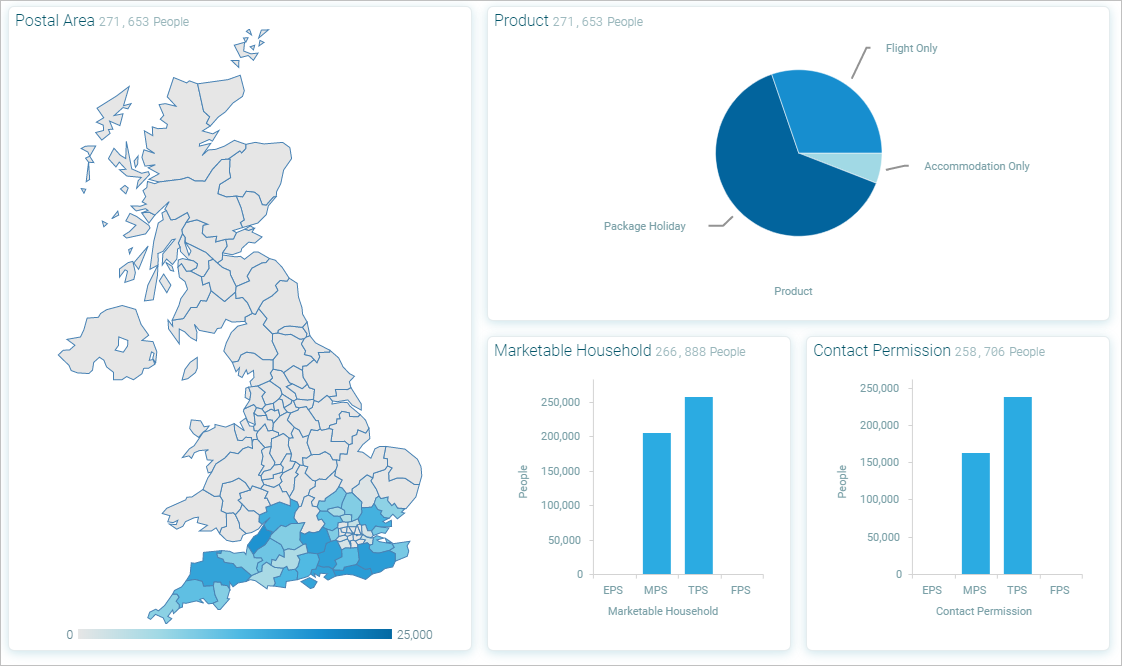
Check templates provide a visual representation of the Audience to ensure it includes the types of individuals that you are targeting and to confirm it matches the preference centre compliance and suppression requirements.
Export templates
Export templates can contain any variables required to be output for a particular audience list. For example, for an external mailing house you would need to include name and address information whilst, for your internal testing, you might just include first name and email address.
View or modify an existing composition
Existing Compositions are listed as Check Templates or Export Templates on the left and you can view their contents by clicking on the Composition name.
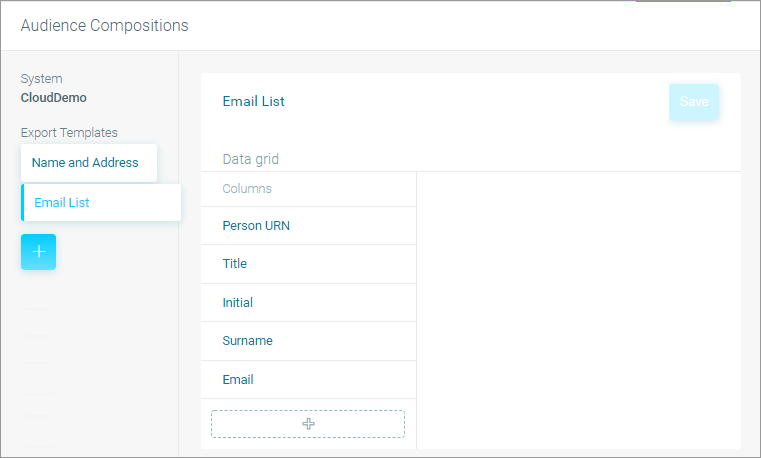
In this Email List export template you can see the current export fields listed under Columns and you can add further variables by clicking on the + sign. If a column needs to be removed either:
- Click on that variable and choose Remove in the bottom right of the screen.
- Click on the
 icon to the right side of the variable name
Note
When a template has been modified, it is not automatically updated.
- Click on the Save button to update the template.
If the template is no longer required:
- Click on the icon to the right side of the Composition title
This will permanently delete the template.