Creating an audience
Including and excluding characteristics
You can define your audience by including and excluding characteristics, also known as variables. For example, you may include your high value customers but exclude people who have recently made a purchase, or have opted out of communication.
You can access sections for includes and excludes via the Audience tab:
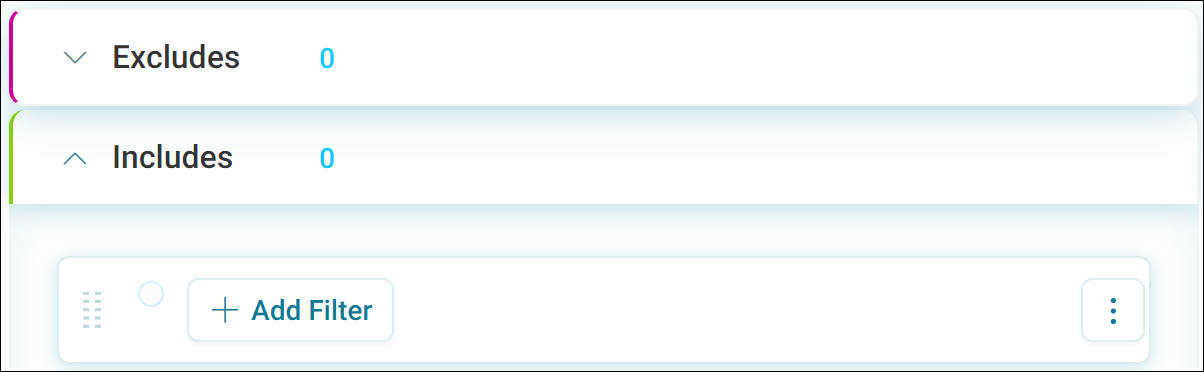
Using the Add Filter button, you can choose to build sections of your audience and define how the characteristics are combined.
You can access and create a new Audience list either:
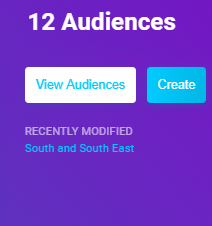
- directly from the Overview page by clicking on the Create button in the Audiences panel on the right
- by selecting the Audiences tab at the top of the window and using the New Audience button within the Audiences page that opens
Duplicating an audience
Note
You can duplicate an existing Audience from the Audiences page.
- Click the three dots to show the menu
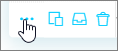
- Select the Duplicate icon
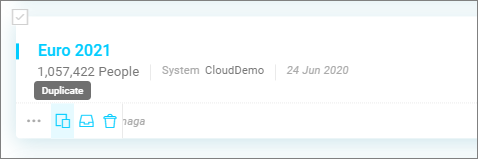
Orbit creates a copy of the Audience using the same data variables and limits.
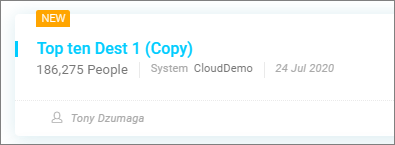
- Open the Audience to rename it and make any changes
New audience in overview
New audience in audiences page
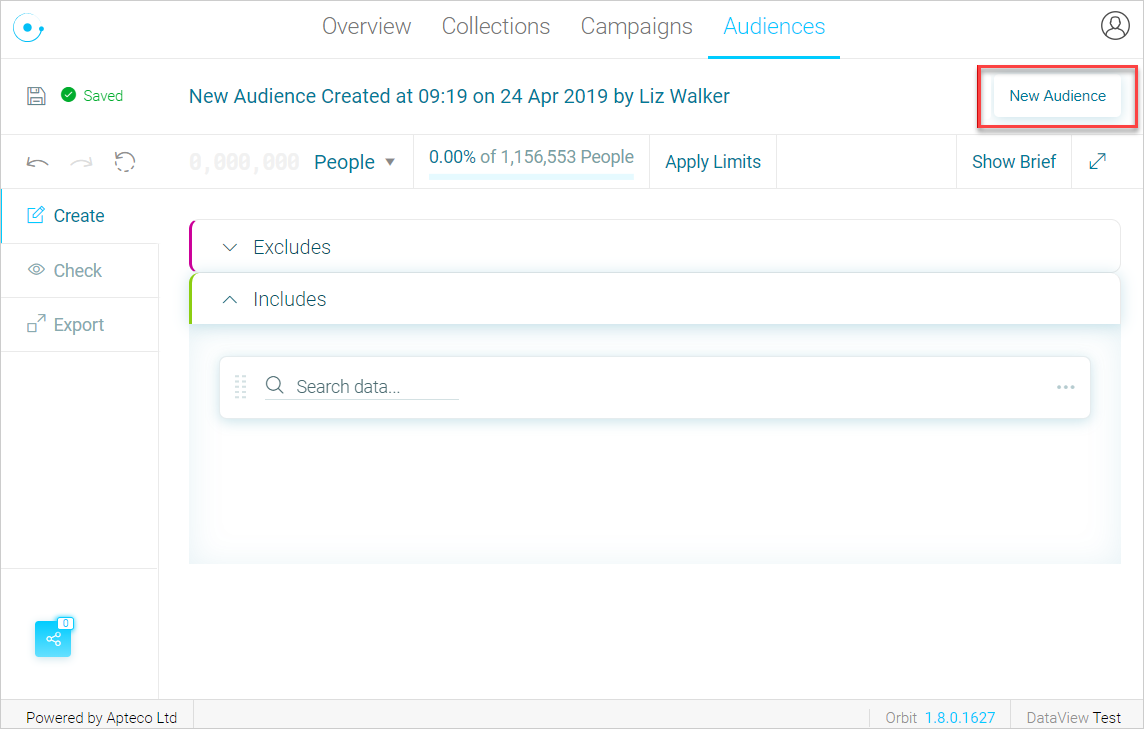
In the New Audience page, by default, you will begin on the Create tab. This is where you build the criteria for your audience and obtain a count of records meeting the defined criteria.
Navigating a new audience
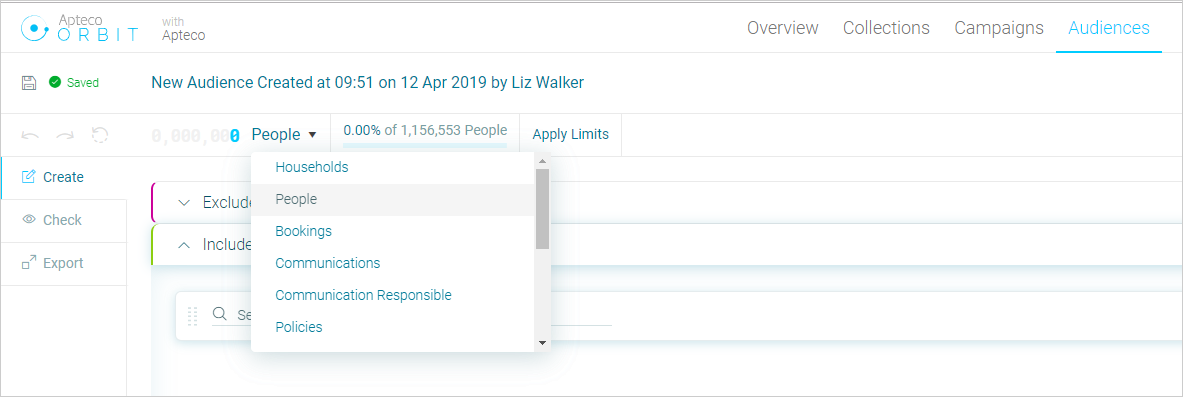
The first question to ask yourself is: What are you trying to find out? For example, do you want to count people or transactions meeting the Audience criteria? Once determined, use the drop-down menu at the top of the display to select the table level for your Audience count:
Note
There will be a system default table level set by your Administrator. On Apteco's Holidays system this is People.
Orbit will create a default Audience Name – for example:

You can change this by clicking onto and overtyping the text with your own description.
Note
Orbit will automatically save any changes you make to the Audience; the icon to the left of the Audience indicates this.
Undo, redo and reset options
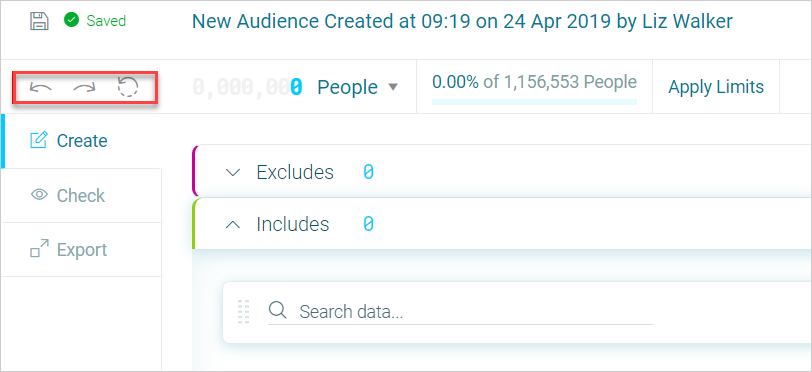
Options below the Saved icon include Undo, Redo and Reset. Although Orbit automatically saves any changes, you can use these icons to revert to a previous state.
Adding details to the brief
On the right side of the Audience window, you have the option to add details of your campaign brief:
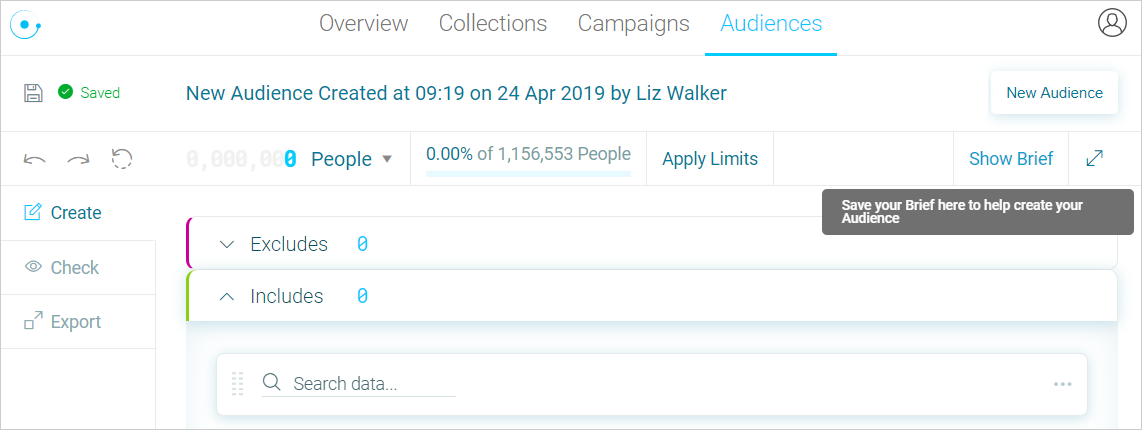
- Click on Show Brief and then copy and paste your campaign brief into the Brief panel
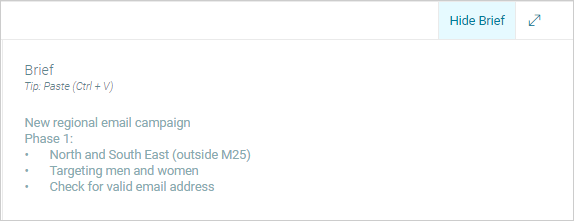
You can leave this window open for reference whilst creating your Audience or collapse it again by selecting Hide Brief.