Expressions in audiences
You can access and use the expressions builder via Orbit audiences. Expressions provide a powerful way of further manipulating source data for your audience. The main way to add expressions in audiences is via filters on clauses.
Note
To use expressions in Orbit, you must have the requisite knowledge of how to write expressions.
Note
You can create numeric or text variables, but Orbit audiences don’t yet support date variable expressions.
Note
For more context around building and using expressions, see the FastStats help content for expressions.
Adding an expression to an audience
Example use case
The expression used below is very simple for illustrative purposes. A more complex example would be for UKPostcodeDistMin, where you could reference the systems postcode variable to get the nearest store:
UKPostcodeDistMin(\[Postcode\], "SW1A 1AA","EH99 1SP", "CF99 1NA")
If you used the UKPostcodeDistMin expression outlined above, it would produce a numeric output and therefore you could select people in a household that were within say 20 miles of the nearest store.
To add an expression to an audience:
- Go to Audiences.
- Open or create an audience.
- Click + Add Filter.
- Select the Expression tab.
- Enter a Name and select a Table from the dropdown menu.
-
Write your Expression and click Apply.
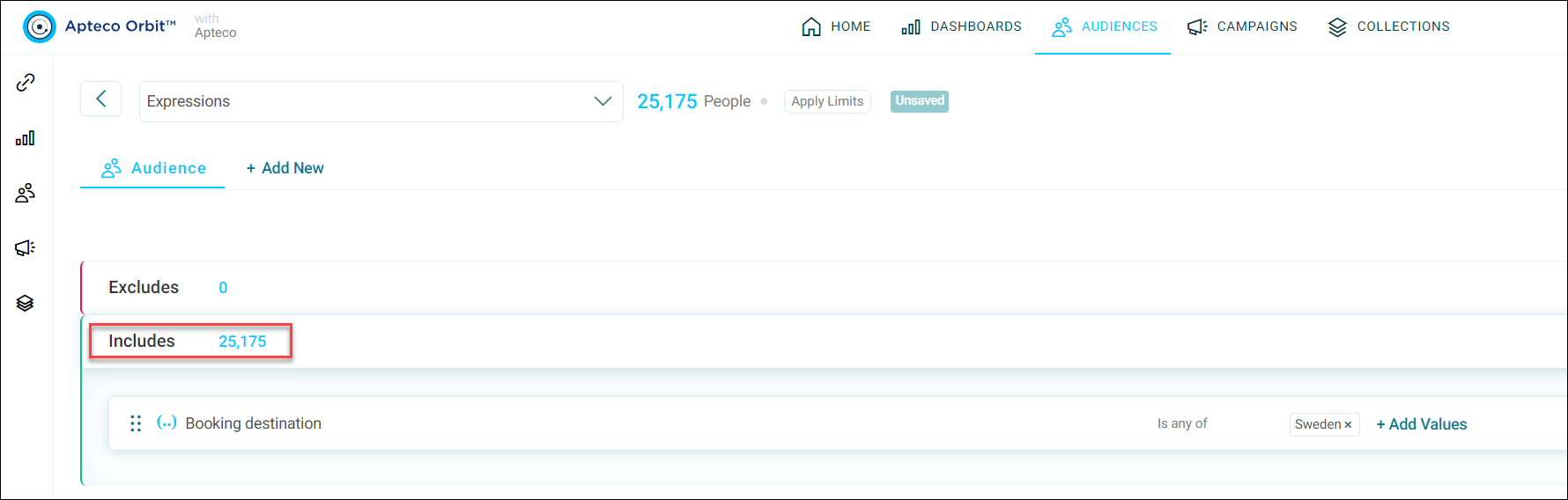
A variable representation of your expression is now displayed. In this example, it’s a text variable representation of booking destinations that is shown.
-
From the Values, Existing File, or Upload File tab options, supplement your expression with further detail and click Apply.
Your audience now includes the number of people defined by the value of your applied expression.