Expressions
The FastStats Expression tool provides multiple functions that allow you to manipulate your data for analysis and/or output purposes.
Expressions in FastStats
You can use expressions in four different places in FastStats:
- Calculate Expression wizard to populate a new variable according to a mathematical expression or logical rule
- Cube as a cube statistic or dimension
- Data Grid as an output column
- Like a variable in a selection
Supported expressions
- Aggregation Functions - Functions that allow the aggregation of multiple values, such as finding the minimum of a list.
- Date Conversion Functions - Functions to support the conversion of dates
- Date Functions - Functions allowing the manipulation of date fields.
- Date List Functions - Functions used to compare a list of dates
- FastStats Variables - Using FastStats variables in expressions
- File Functions - Functions used to look up a value or read a column from the file in the path parameter
- Inequality Operators - Operators to support comparisons such as 'greater than'.
- List Functions
- Location Functions - Geo functions that allow the use of latitude and longitude to calculate distance as well as selecting parts of UK postcodes.
- Logical Functions - Functions for building conditional expressions.
- Maths Functions - Functions allowing square roots and logs.
- Missing Values - Missing value support.
- Operators - Simple operations such as addition and subtraction.
- Queries - Using queries in expressions
- Selector Functions - Functions used to manipulate the codes, descriptions, values or indices of selector functions
- Set Functions
- Sorting Functions
- String Functions - Functions to support text processing
FastStats also offers the ability to create Aggregated Expressions 'on the fly' and Derived Cube Expressions.
Copy one expression into another
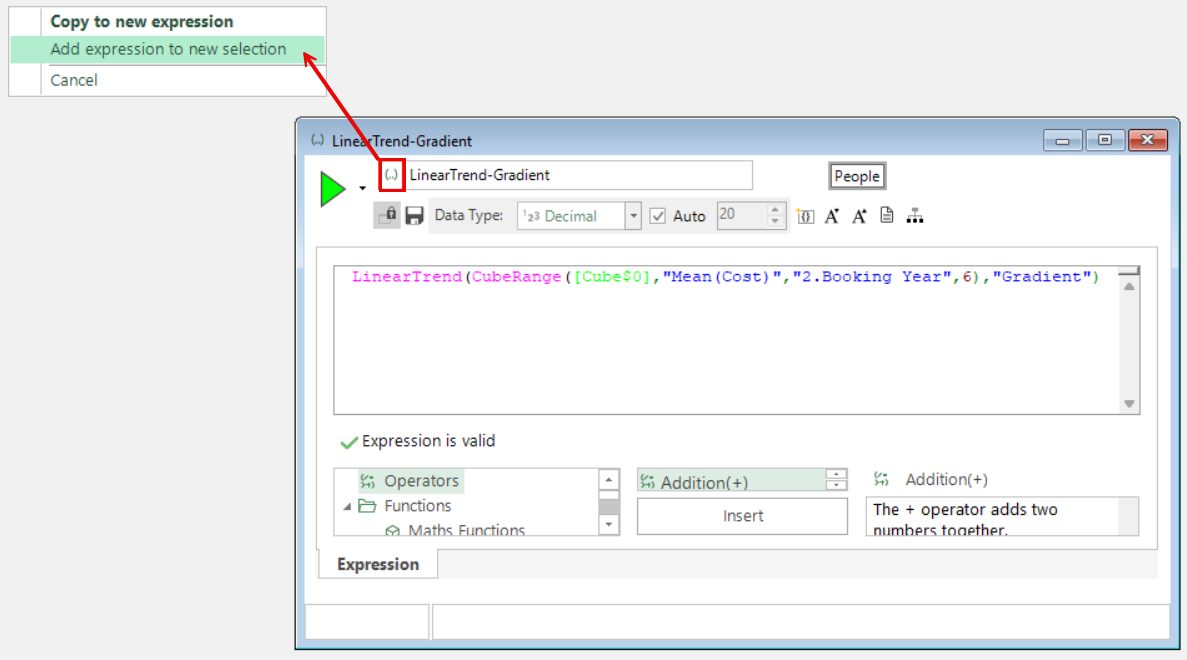
You can drag one expression into another using its drag handle. This copies all of the expression text to the insertion position of the new expression, and will also include any embedded queries, aggregations and cube lookups. Validation occurs to ensure you aren't adding too many queries/cubes for the expression.
This supports the creation of complex expressions and allows you to test part of an expression before adding it into another you are already working on.
Add an expression into a new selection
Adding an expression into a new selection is simplified so that you now just right drag the expression onto your FastStats workspace and select Add expression to new selection from the context menu.
Note
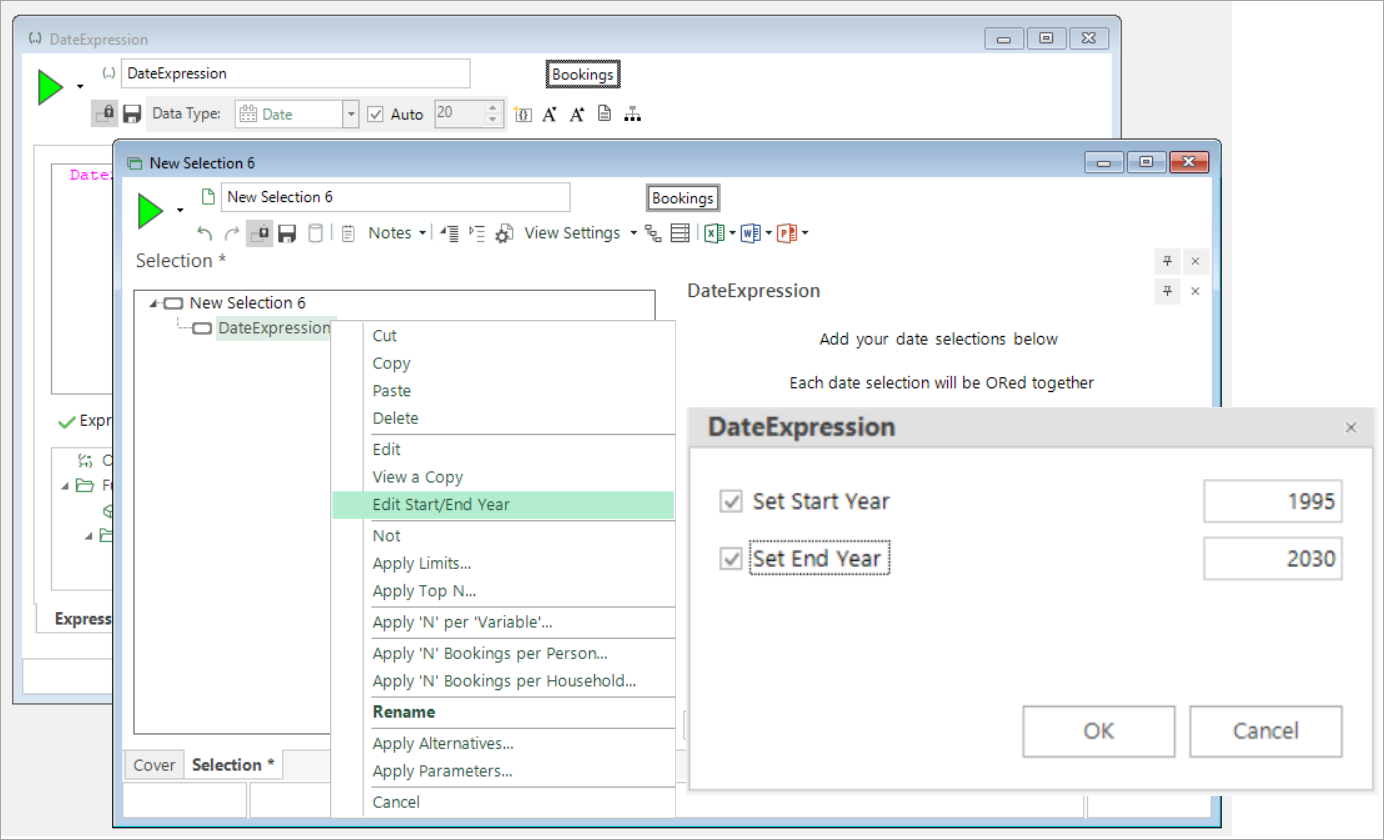
When creating a selection using a date expression for analysis prior to the year 2000, remember to right click and define the required start and end years.
Queries in expressions
FastStats allows you to use existing queries in expressions. These must be dragged onto the expression panel to be added to the expression. These are most useful when used in logical functions. For each record, the query evaluates to 1.0 if query is true, and 0.0 otherwise.
When they are added to the expression, the query placeholder is shown in green, surrounded by curly braces as shown below.
In the preceding example, the expression would evaluate as:
-
If this record is in the low income query then 1.0
-
else if this record is in the middle income query then 2.0
-
else Missing Value
Inserting comments
Comments can be inserted within the text of an Expression as a reminder or aid to understanding.
The comments can be inserted between any of the elements of an Expression and must be placed between /* & */ symbols.
The comment text will be displayed in grey.
.png)
Customise expression colours
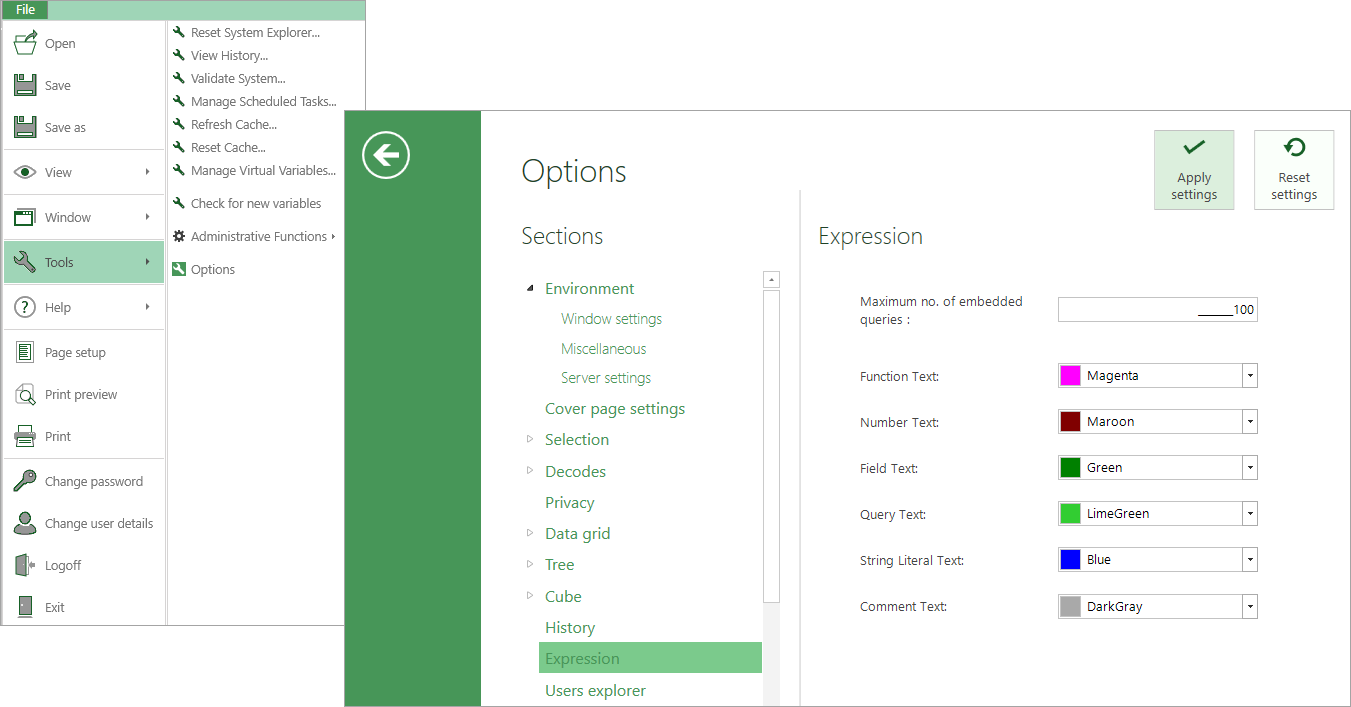
There are six default colours used to distinguish the constituent parts of an expression. You can customise these colours to suit your own preferences via File > Tools > Options > Expression. Once set, the customised colours apply to any new expressions you create.
Public/private path prefix
Certain expressions like ModelScore require a pathname as a parameter. This is a problem for enterprise users who do not know the physical pathnames.
To work around this the server will need to accept paths of the form:
Public:xxx\yyy\zzz.pmmlPrivate:xxx\yyy\zzz.pmml
where Public and Private will need mapping to the actual folders.
The definition of Public and Private will be supplied by the autoexec config statements.