File functions
Lookup
Looks up a value from the file in the path parameter and matches to the key parameter.
The path must be a string.
Note
The key can be of any type.
Note
The file should be a 2 column file with no headers, and you can optionally specify the delimiter and encloser.
NumericListFromFile
Used to read a column from the file in the path parameter into a numeric list.
The path must be a string.
The column number specifies which column to read, and the header parameter specifies how many header rows there are, and you can optionally specify the delimiter and encloser. The default values are tab-delimited and double-quote enclosed.
TextListFromFile
Reads a column from the file in the path parameter into a text list. The path must be a string.
The column number specifies which column to read, and the header parameter specifies how many header rows there are, and you can optionally specify the delimiter and encloser. The default values are tab-delimited and double-quote enclosed.
List from file functions in Expressions
Sometimes the references within an Expression need to change - for example, a marketer may need to add references to include new stores, or remove ones that are no longer relevant; a coach company might start running routes from new depots. This can be done manually for each separate piece of analysis that includes your Expression, but is potentially a labour-intensive process.
As an alternative, the NumericListFromFile and TextListFromFile" functions allow you, from an Expression, to access and read a column from within a delimted data file, bringing the identified information into that Expression and creating a list. Combined with other functions - for example GeoNearest, UKPostcodeDistMin, you might then use the Expression in a Selection to select upon as a target audience for a PeopleStage campaign, as a column in a Data Grid, or a measure on a Cube. If the values in your list need to change, you simply update the data file and the new information is then automatically pulled through and used in the Expression and any associated analysis when they are re-run.
TextListFromFile - a worked example
Scenario: For a new campaign, the Holidays Company Plc wants to identify and promote flights from four UK airports - Heathrow, Gatwick, Birmingham and Manchester. The plan is to target people with offers from their nearest airport.
To get started:
-
Open a new Expression window
The syntax here is:
TextListFromFile(filePath, columnNumber, headerRows, {delimiter}, {encloser}) -
From Location Functions, select and insert UKPostcodeDistMin
- Drag and drop the Postcode variable after the function and add a comma
-
From File Functions, select and insert TextListFromFile

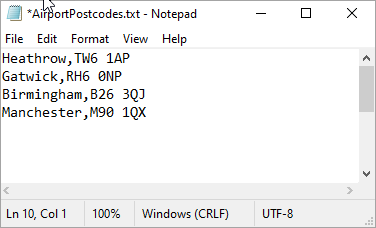
The Expression builder indicates String value expected and it is here that you add the path and filename for the data file you want to use. In this example, the data file is a comma delimited .txt file that contains the airport name and postcode:
Note
If you are working on an enterprise system, you need to copy and paste the data file into a Private or Public folder.

Note
Delimiter and Encloser are optional parameters which default to tab-delimited and double-quote enclosed.
In this case, it is column 2 that needs to be referenced, there is no header row, and the file is comma-delimited with no encloser - therefore, to complete this Expression:
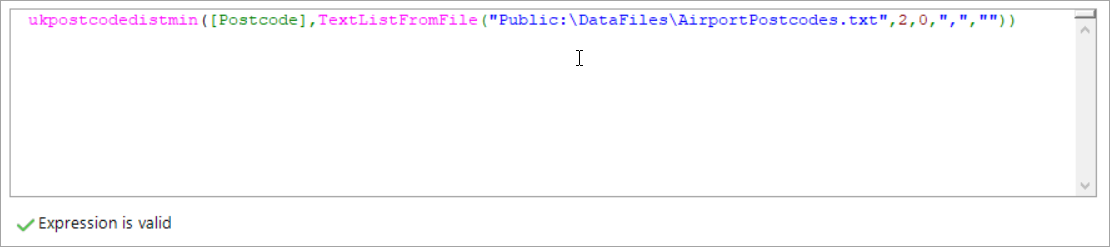
The Expression is valid and you can build to see a preview of the results:
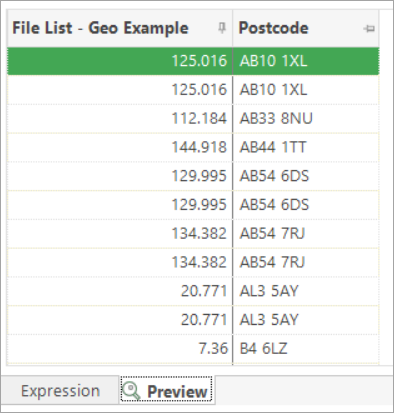
The Expression is now ready for use in your analysis.
For example, to visualise the distance that each person is from their nearest airport:
- Open a new Data Grid
- Add the Postal Area and Postcode variables
- Drag the 'Distance to nearest airport' Expression on as an additional column
-
Build
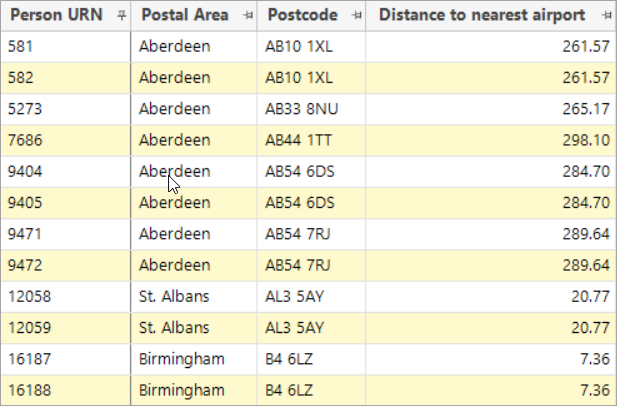
The power of the list from file functions comes fully into play when your list of reference points changes. Let's imagine, for example, that the Holidays Company Plc now also offer flights from Glasgow airport.
To update the information:
-
Edit and re-save the data file
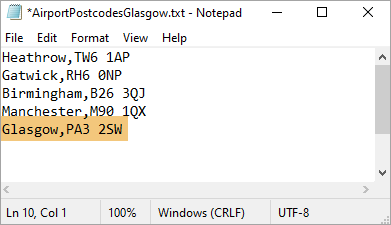
-
Copy and paste the file back into the relevant Private or Public folder
-
Rebuild the Data Grid
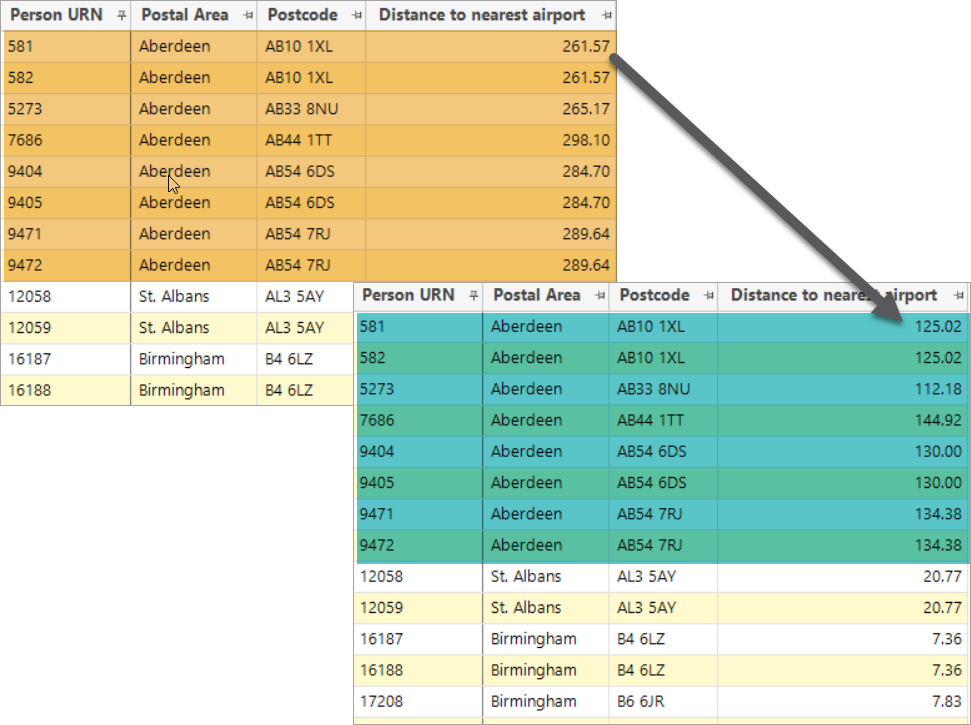
Note that the distance to nearest airport values have changed for some people - in this sample, those in Aberdeen - indicating that Glasgow is now their nearest airport.
Further analysis
What if you want to do some exploratory analysis on the potential for offering flights out of glasgow airport?
In this case, rather than amending the definitive list of airports, you can mix the list of parameters and single values, as shown in the screenshot below:

It is also possible to use multiple lists and multiple values in the same Expression as each parameter can be of either type here.
An extension to the TextListFromFile function allows for a mapping of the elements in the list - for example to map postal sector and postal district columns to the usual FastStats variable formats.
See List and file mapping for a complete list of the mapping options.