Calculate expression wizard

The Calculate Expression wizard is a Virtual Variable Wizard that allows you to create a new virtual variable from the result of an expression. Detailed information on Expressions is available here.
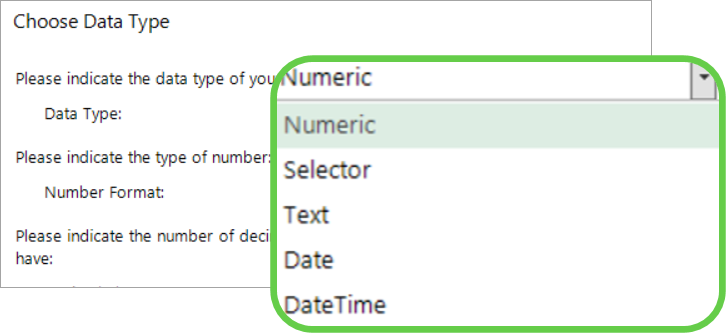
The output data type can be numeric, selector, text, date or datetime:
From the Virtual Variables Wizards panel in the Wizardsribbon bar, select Calculate Expression to Start the wizard.
Click the links below for worked examples that demonstrate how you can use this wizard to create virtual variables from an expression:
Start
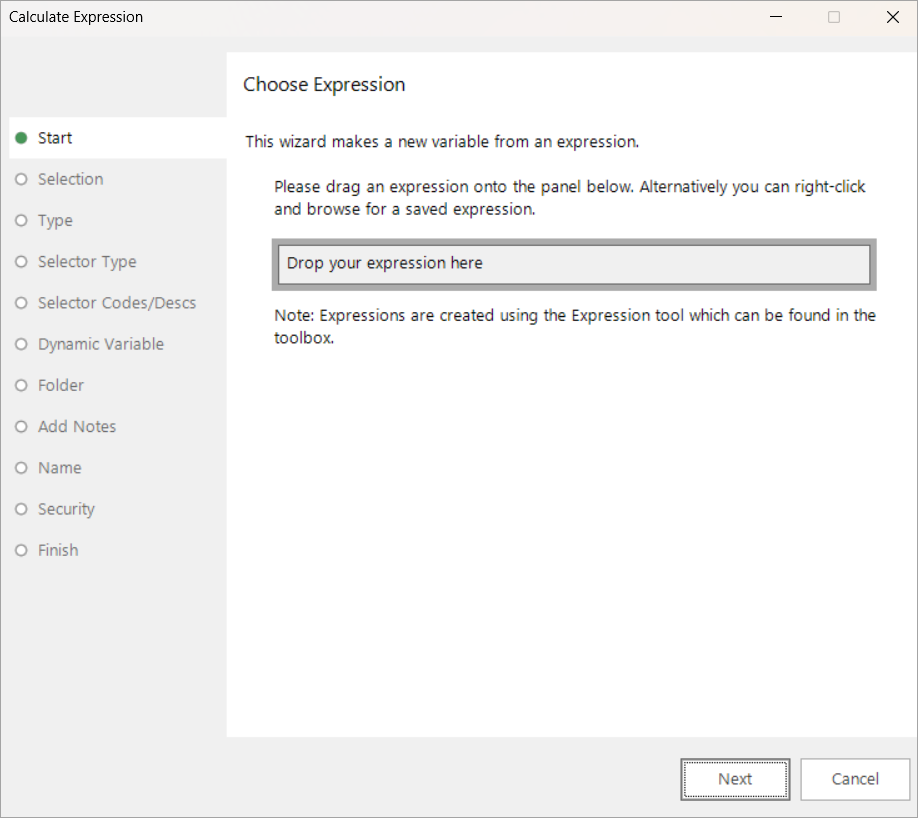
At this first step of the wizard, you need to add the expression from which you want to create your virtual variable. You can do this by dragging the created expression onto the drop-box or, alternatively, by right-clicking within the drop-box and browsing to a saved expression.
Selection
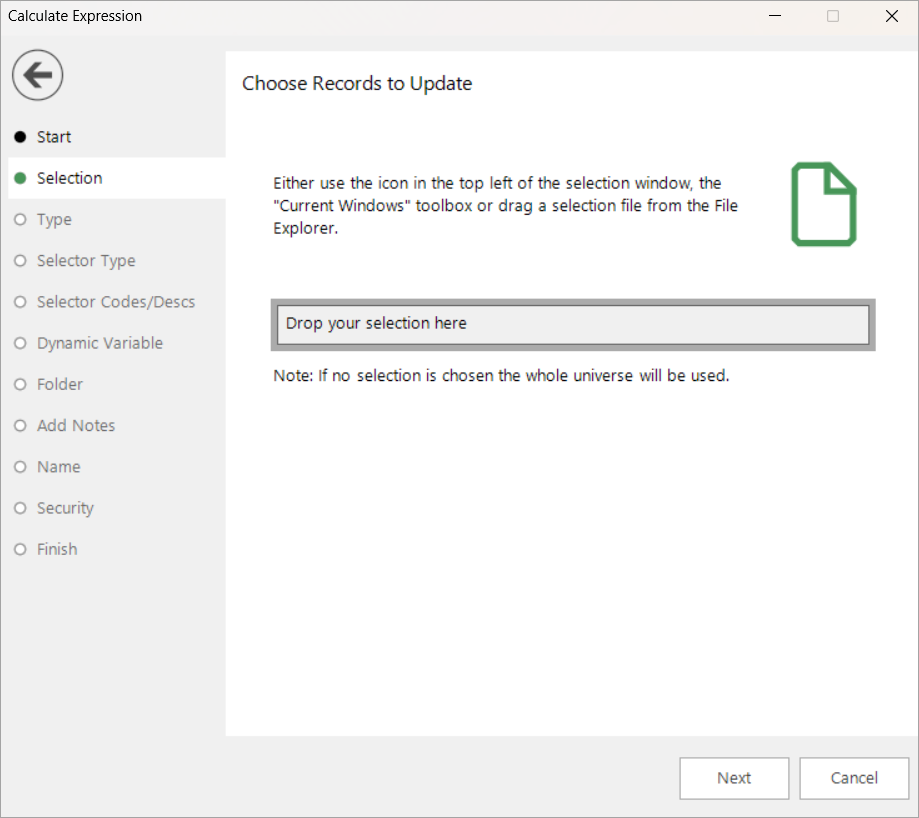
The new variable can affect all records or a subset of the records. If you wish to define a subset, drag a selection onto the drop-box. To affect all records, simply leave the selection undefined.
Data type
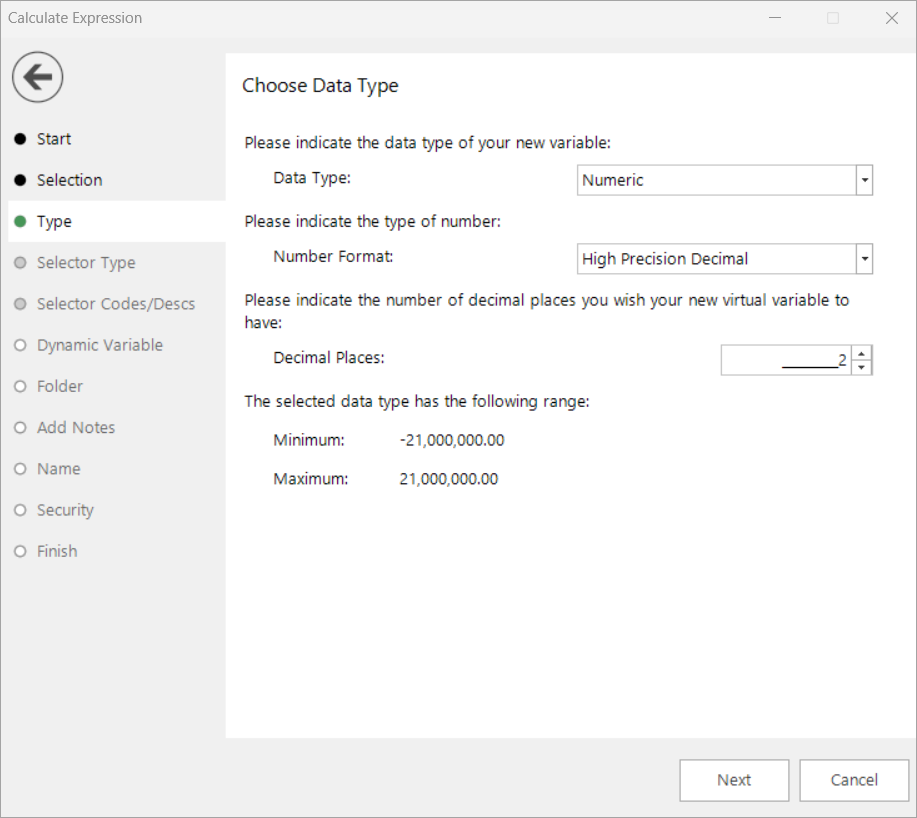
When working with numerics, the numeric types you can choose from are:
- High Precision Decimal
- Decimal
- Integer
- Currency
For High Precision Decimal or Decimal types, you can also choose how many decimal places your new variable will have. However, integer types will always have no decimal places, and currency types will always have two decimal places.
Click Next to go to Dynamic variable.
If you choose to create a Selector type virtual variable, clicking Next takes you to the Selector type step.
Selector type
When you choose to create a selector type virtual variable, the Selector Type step offers three options for defining the selector codes and descriptions:
- Derive from Expression Text - the system detects automatically if this is possible.
- Input codes and descriptions manually - you determine the codes and descriptions to use.
-
From an Existing Variable - the system uses the codes and descriptions of the source variable you drag onto the drop-box.
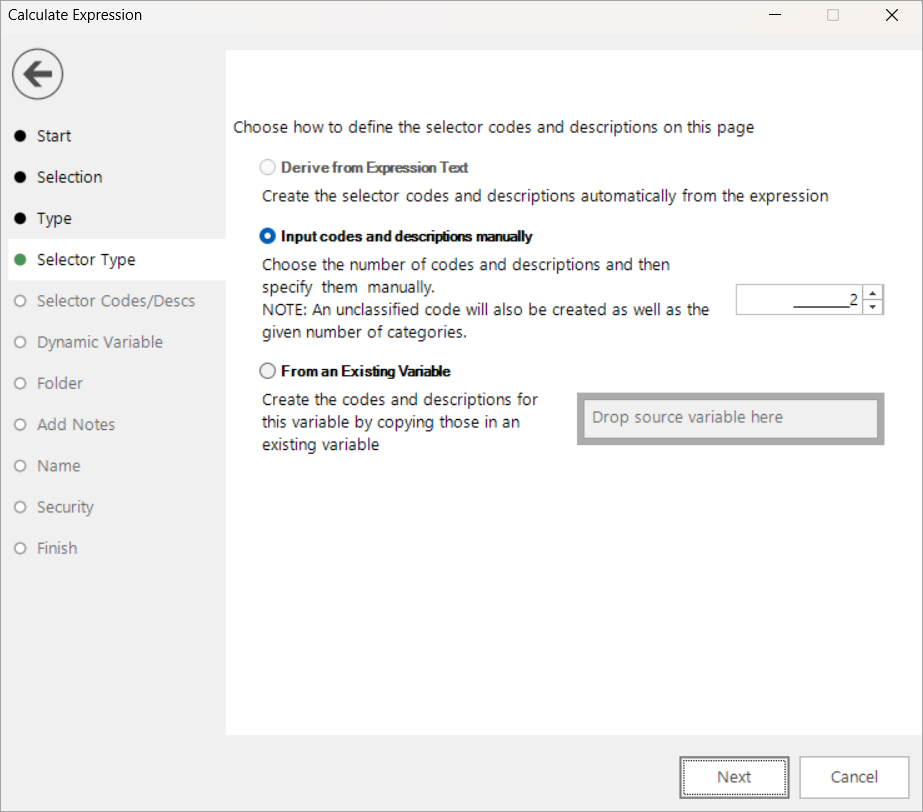
If you opt to input the codes and descriptions manually, clicking Next takes you to the Selector Codes/Descs step to add the information.
Selector codes/descriptions
When you opt to enter the selector codes and descriptions manually, you do so using the table in this step of the wizard.
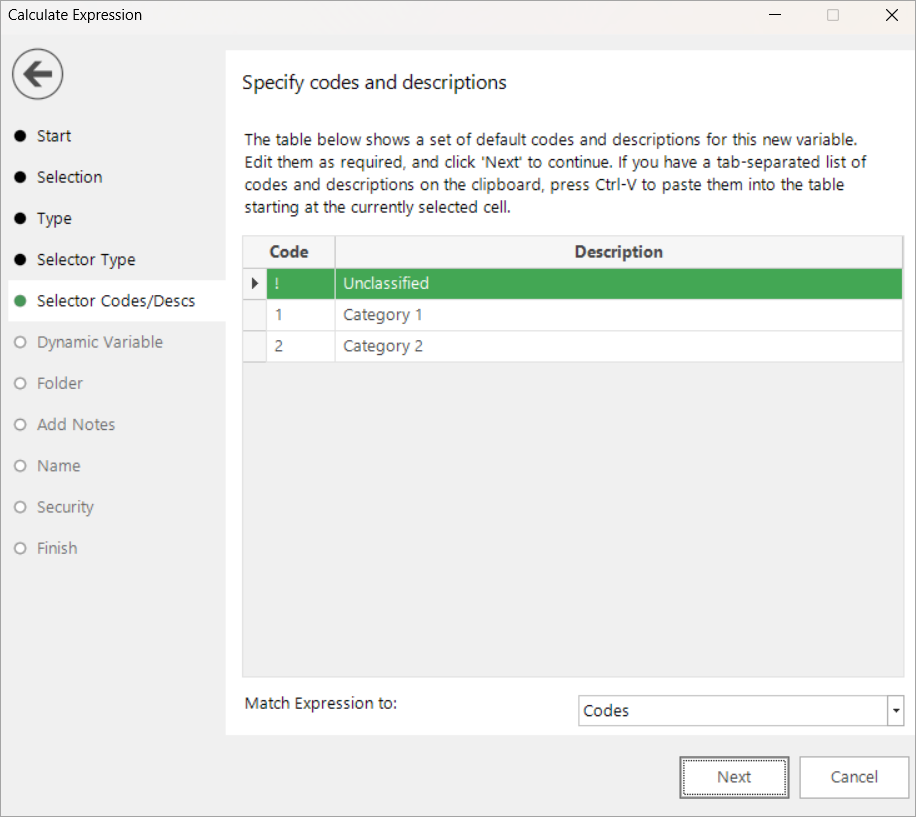
Enter your codes and descriptions.
Dynamic variable
This step provides the opportunity for you to set the expression to be dynamic and re-calculate every time the variable is used, or static so that the values calculated at the time the variable was created are always used.
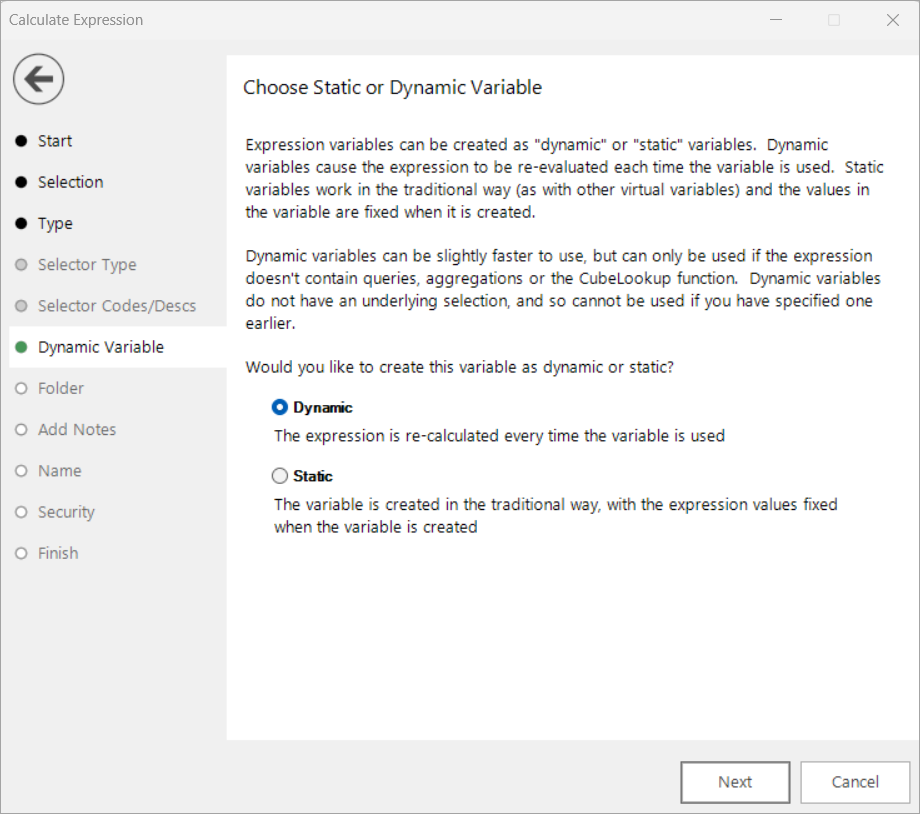
Select the Dynamic or Static radio button, as required.
Folder
Choose the folder that the new variable should be created in.
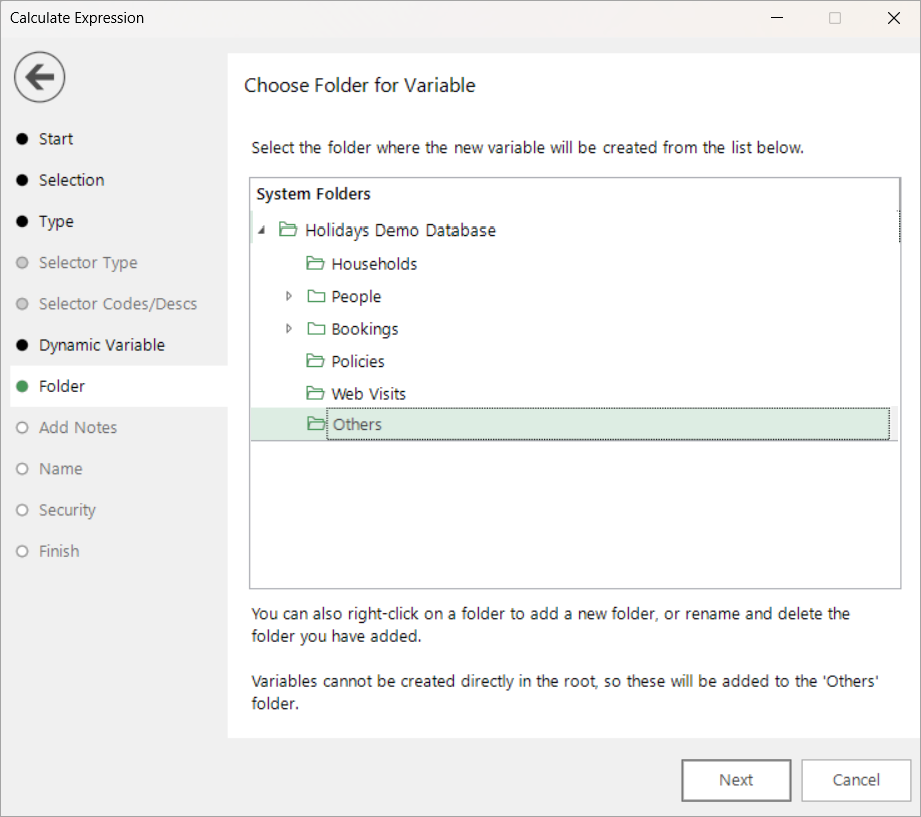
Create (if necessary) and highlight the folder to hold your Virtual Variable.
Note
Remember to apply best practice when naming your virtual variables, particularly if they are to be used by you and others.
Add notes
You can choose to add notes to your variable which provide context or useful information for yourself or others. The notes can be viewed later by right-clicking on the variable once it is in the System explorer window and selecting Properties>General.
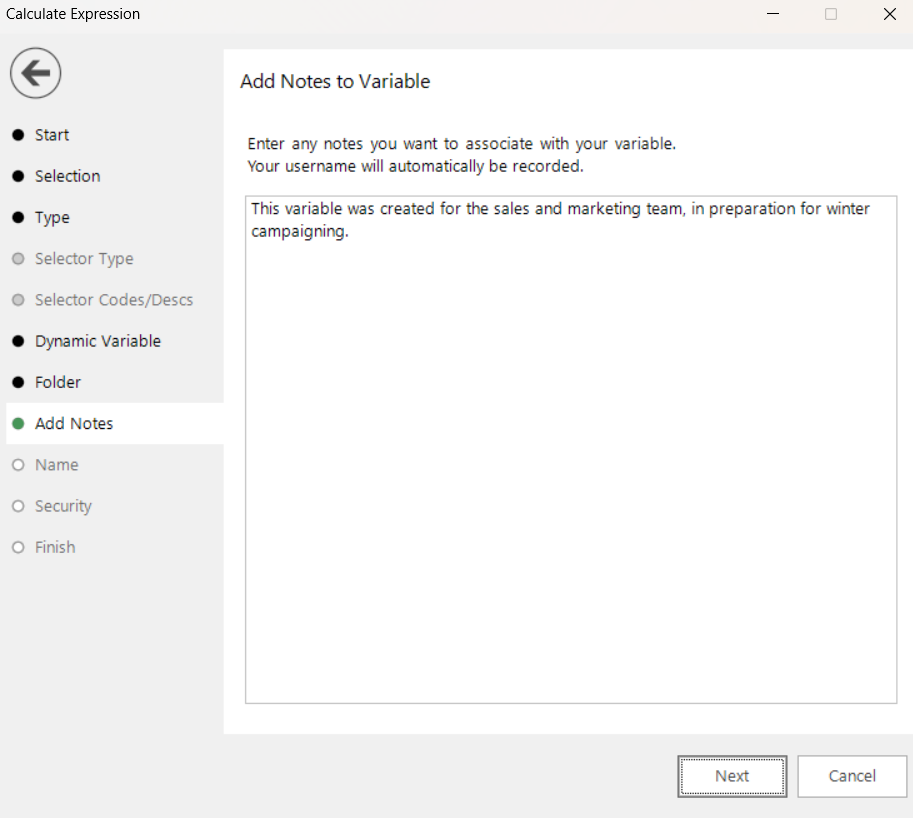
Enter any notes you wish to record.
Name
This step of the wizard allows you to define what the Virtual Variable will be called.
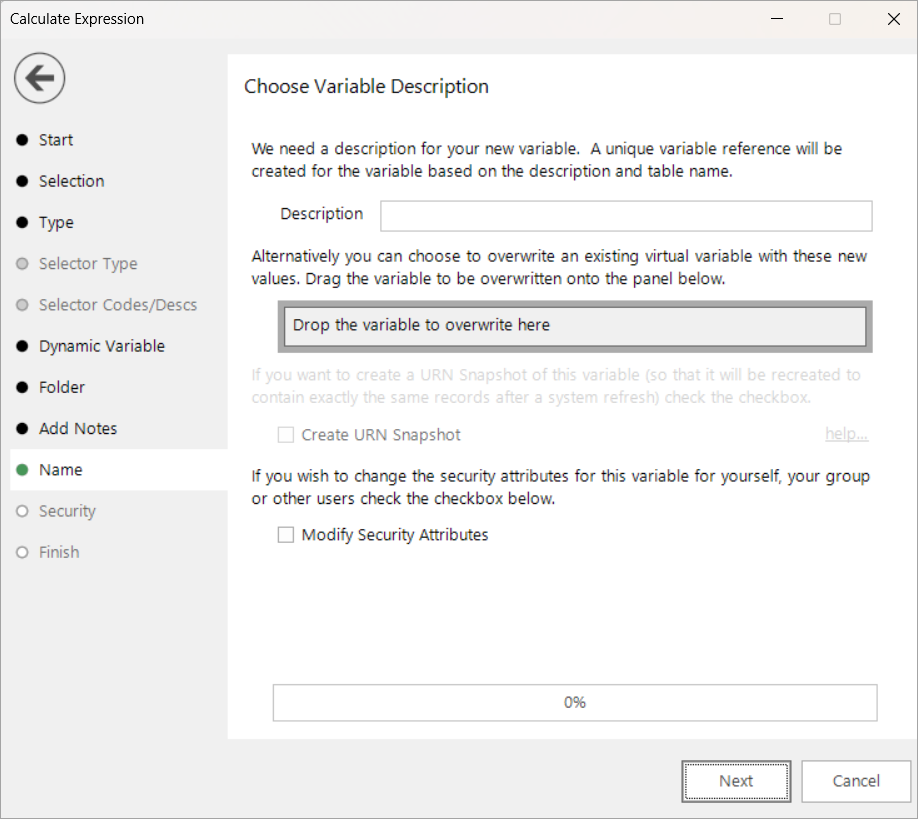
Enter the name of your variable in the Description box.
To overwrite an existing virtual variable drag it on to the Drop the variable to overwrite here drop box.
Tick the Create URN Snapshot box to record the exact records found at this time so it can be recreated after a refresh of the data if needed.
Tick the Modify Security Attributes box to allow you access to Security (This option is only available on the Enterprise Version)
Security
This is an optional step available on the Enterprise version of the software.
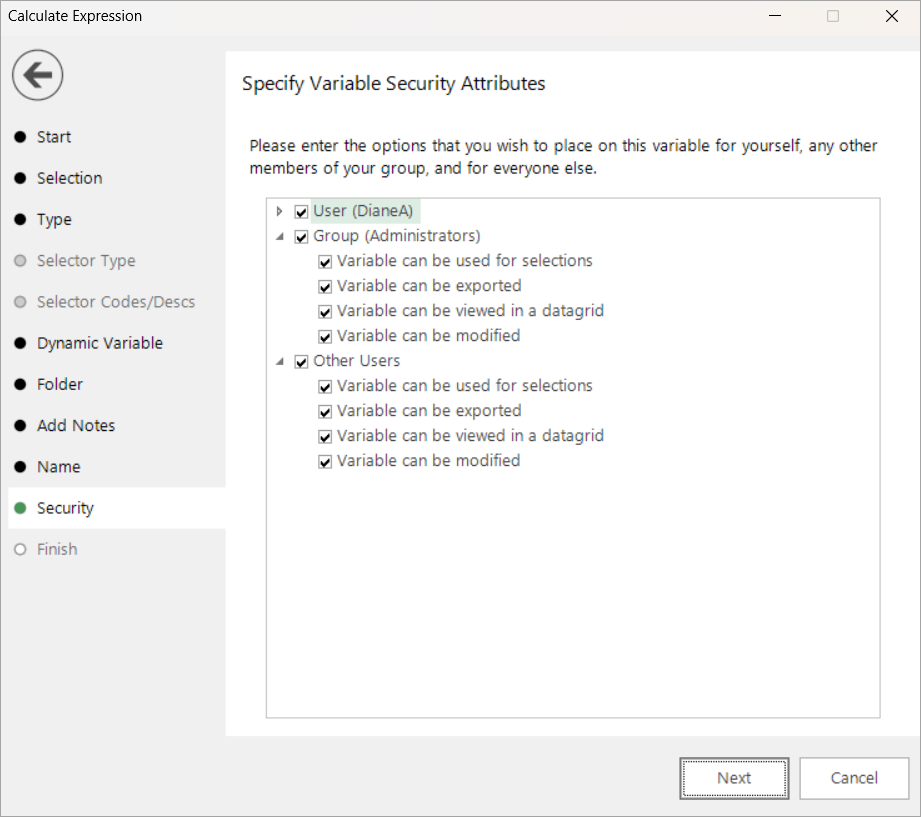
Use the tick boxes to set the security setting you wish to apply to this variable.
Finish
This step is shown after the actions required by this wizard have been completed. The new variable is created and highlighted in the Variables section of the System explorer window.
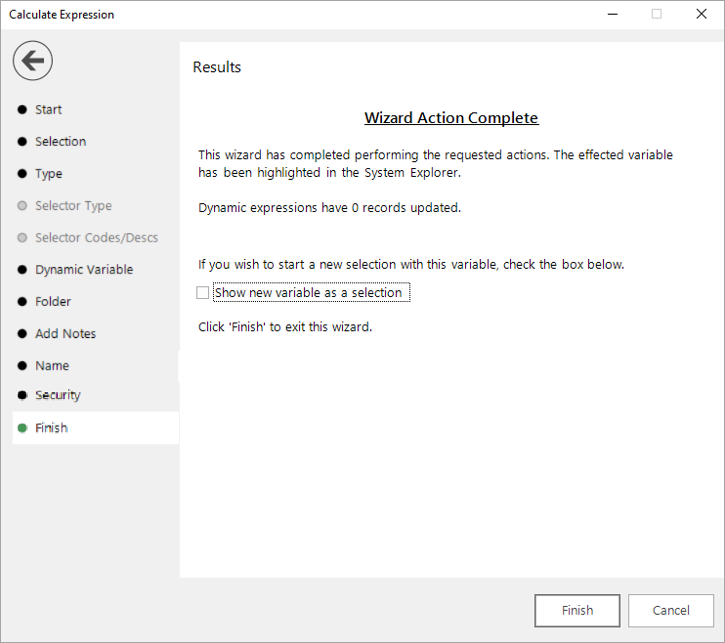
Tick the Show new variable as a selection box if you want to view the variable when the wizard is closed.
Click Finish to close the wizard.
Numeric output example
The example below demonstrates how you can use the Calculate Expression wizard to create a virtual variable that allows you to search on a person’s average holiday spend, calculated from an expression.
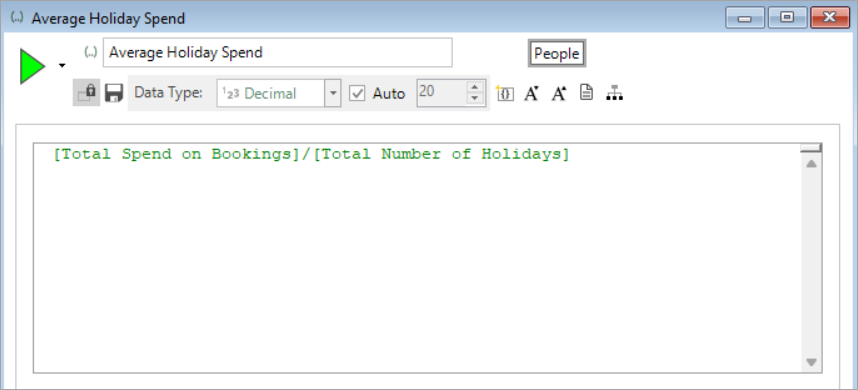
The first stage of this process is to create the expression that calculates average holiday spend.
-
Open the Expression tool and create and name the expression shown below.
Note
The Total Spend on Bookings and Total Number of Holidays variables used have been pre-created using the Aggregation wizard.
Next from the Virtual Variable Wizards panel within the Wizards ribbon bar:
-
Click to launch the Calculate Expression wizard.
-
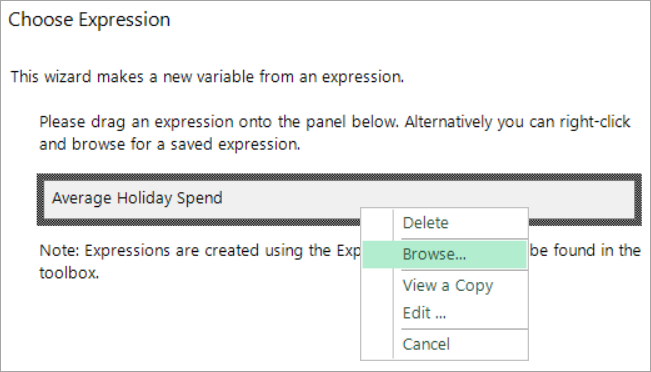
Start - drag your Average Holiday Spend expression onto the drop-box, or right click and browse to the saved expression. Click Next.
-
Selection – leave blank so the whole universe is used. Click Next.
-
Type – set the data type as numeric and adjust the number format and decimal place settings, if relevant. Here - leave as the defaults. Click Next.
-
Dynamic Variable – Select Dynamic as the means to generate the variable. Click Next.
- Folder - for this example, leave this as the default Others folder. Click Next.
-
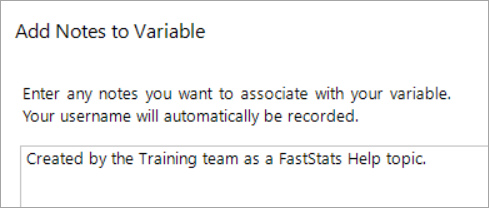
Notes - for example, "Created by ... for ...". Click Next.
-
Name - enter your description for this variable - e.g. Average Holiday Spend. Click Next.
Note
Always consider company and best practice for naming conventions - for example, add your initials to identify yourself as the creator of this variable.
-
Finish – as a dynamic variable, the number of updated records is not displayed here but you can see the created numeric variable highlighted in the Others folder of the System explorer.
- Tick the Show new variable as a selection box. Click Finish.
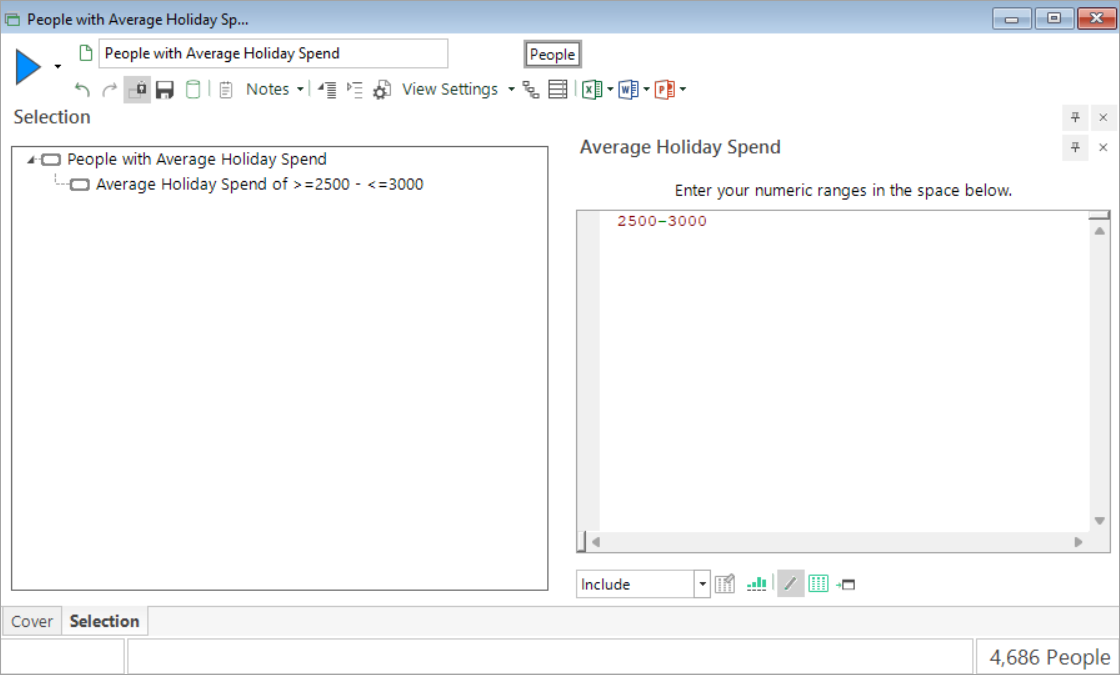
The variable is now displayed within a new selection window, allowing you to enter the value(s) or range(s) of interest.
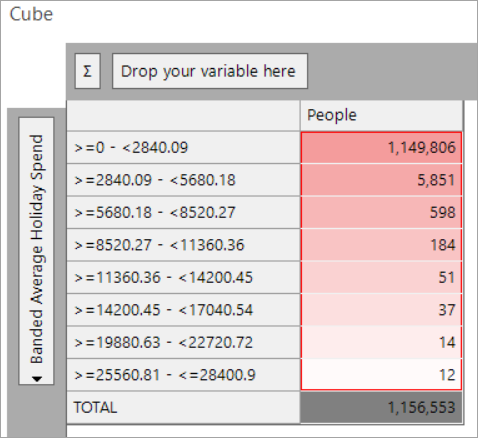
You could also drag this variable onto a Cube dimension to create a banded breakdown:
See also, Selector output example.
Selector output example
There are two established methods for creating selector virtual variables from expressions. Firstly, there are a limited number of expression functions where the allowable values can be derived directly from the expression text. Secondly, you can use the Create from Cube wizard to turn a sparse text cube into a selector virtual variable based on a number of codes or a threshold value.
From the Q2 24 software release, you can also create selector type virtual variables direct from expressions using new options within the Calculate Expression wizard:
- MANUAL CODES: You can user define the number of codes that the virtual variable has and then specify the codes and descriptions. The result of the expression is checked against the code and/or description and matched. If there is no match, the value is placed into the unclassified category.
- FROM EXISTING VARIABLE: You can specify that the expression takes its codes and descriptions from an existing variable. This is useful for those cases where the known values always match existing ones and you want the values in the same order.
Let's consider an example in practice:
The first stage of this process is to create an expression that you then want to derive a selector virtual variable from. The on the fly pattern match aggregation expression below has been created to identify the destination that represents the longest sequence of holidays a person has made to the same destination (see Expressions: Aggregations on the fly - Pattern Match Longest Sequence).

To generate a selector virtual variable for Destination, from the Virtual Variable Wizards panel within the Wizards ribbon bar:
-
Click to launch the Calculate Expression wizard.
-
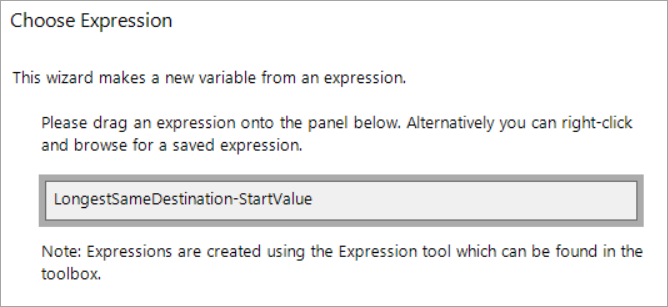
Start - drag your expression onto the drop-box, or right click and browse to the saved expression. Click Next.
-
Selection – leave blank so the whole universe is used. Click Next.
-
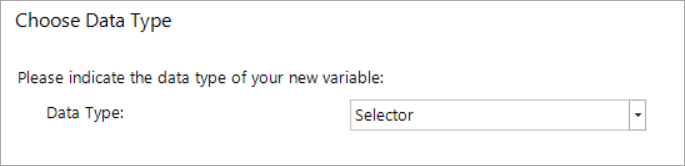
Type – set the data type as selector. Click Next.
-
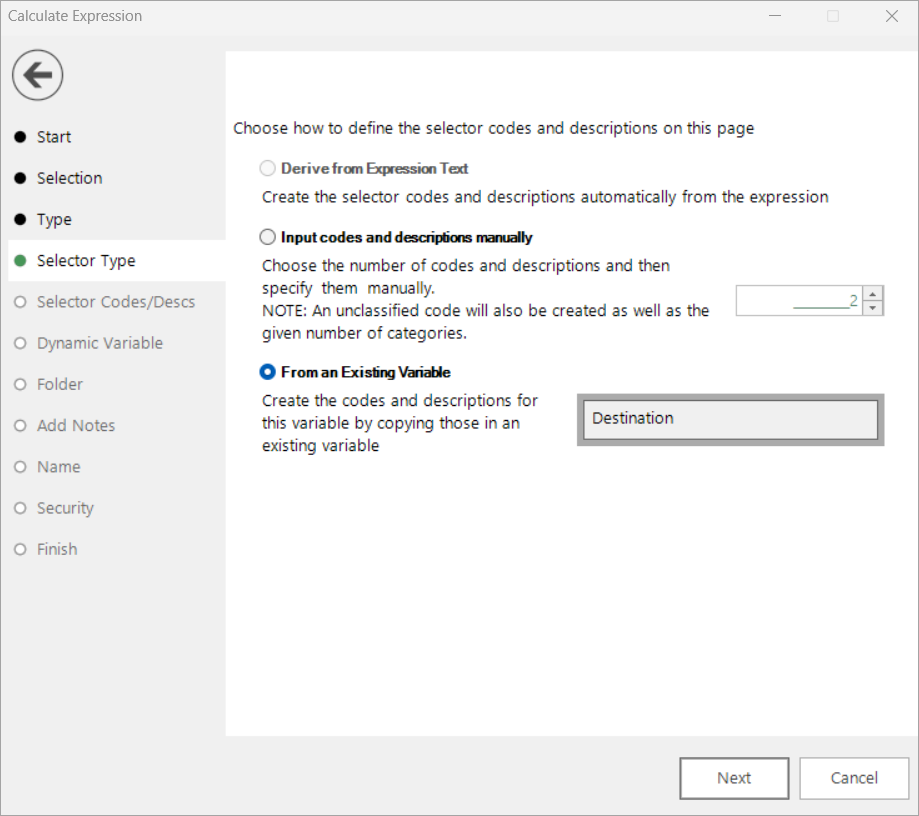
Selector Type - this is where you determine how to define the codes and descriptions for your virtual variable. The system automatically detects if the information can be derived from the expression text and, if not, this option is inaccessible. Otherwise, the two new options remain for you to select from and, in this example, choose From an Existing Variable and then drag and drop the Destination variable onto the drop-box:
Click Next.
-
Dynamic Variable - because the expression we are deriving the variable from contains an aggregation, it is not possible to create a dynamic virtual variable here and this option is inaccessible. Click Next.
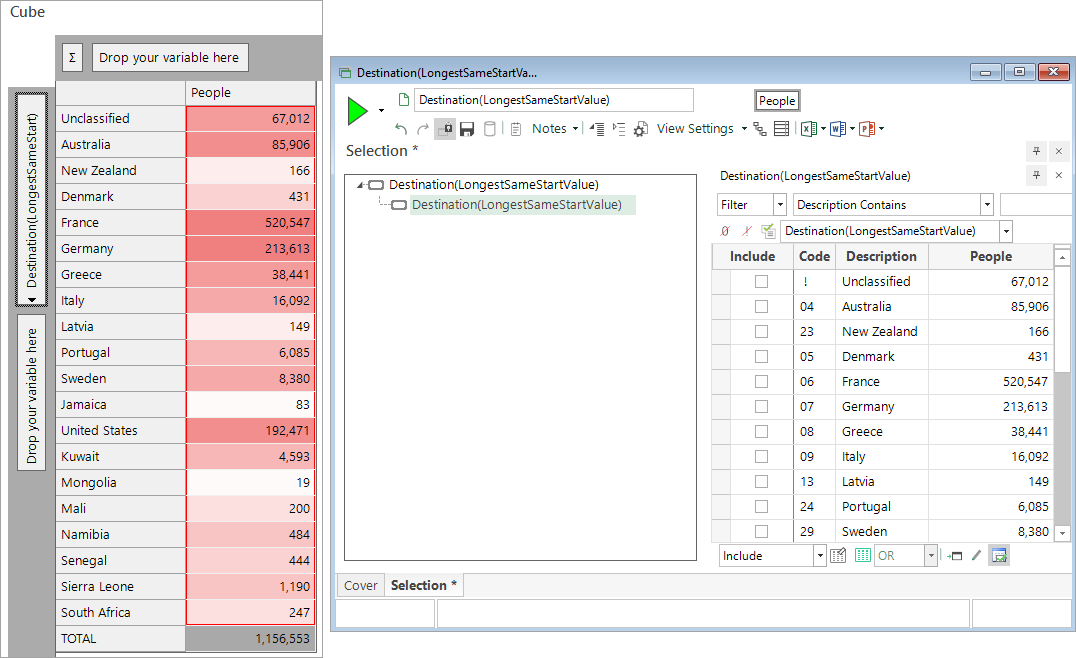
The remaining steps are standard for wizards and allow you to choose the System folder for the new variable, add notes, name the variable and set security options for its use. Once complete, the new virtual variable is available to use for selection,on a cube, etc. The categories and codes, and their order are the same as the Destination variable that was used as the source.
See also, Numeric output example.