Initialise wizard
The Initialise Wizard is a Virtual Variable Wizard that provides a way to create blank virtual variables which can then be populated using the Assign Values Wizard.
An example use for these two wizards is to create tag variables to put certain records in certain categories. Create a Flag Array variable with a number of codes (tags) using the Initialise Wizard. Then use the Assign Values Wizard to set each code to a certain selection (such as potential customers, high spenders, etc). You can then use this variable in Selections, Cubes, Profiling, etc to analyse these groups.
On the Wizard tab click on the Initialise link to start the wizard.
Table
The first step of the wizard is to select the table that the variable will be created on. Drag the table you want to use from the Tables section of the System explorer window and onto the drop on box.
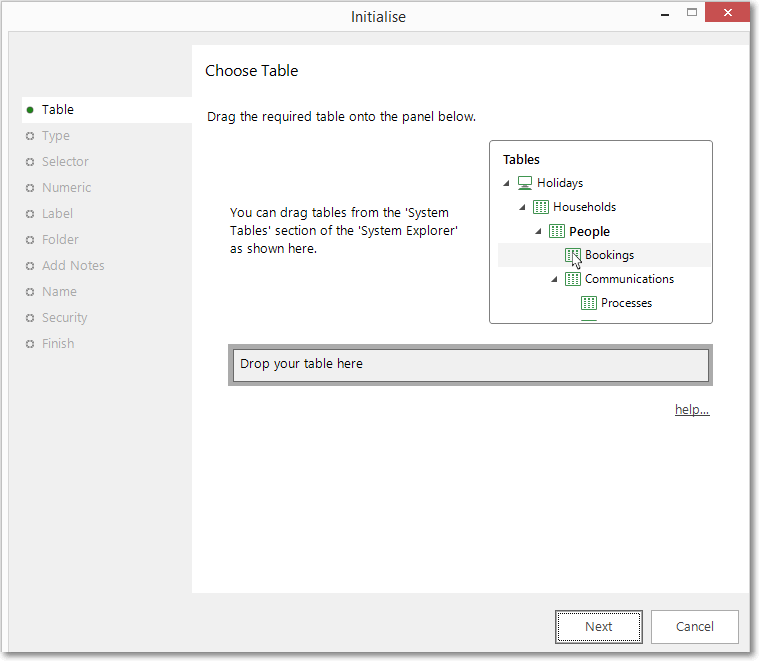
The table that the variable is created on determines what information it can hold. For example, if you have a Households table and a Person table then creating a new virtual variable on the Households table will mean the variable can only hold one value per household. However if the variable is created on the Person table then it can hold one value per person and there might could be multiple values per household (as a household could contain multiple people).
Type
Choose the type of virtual variable to create.
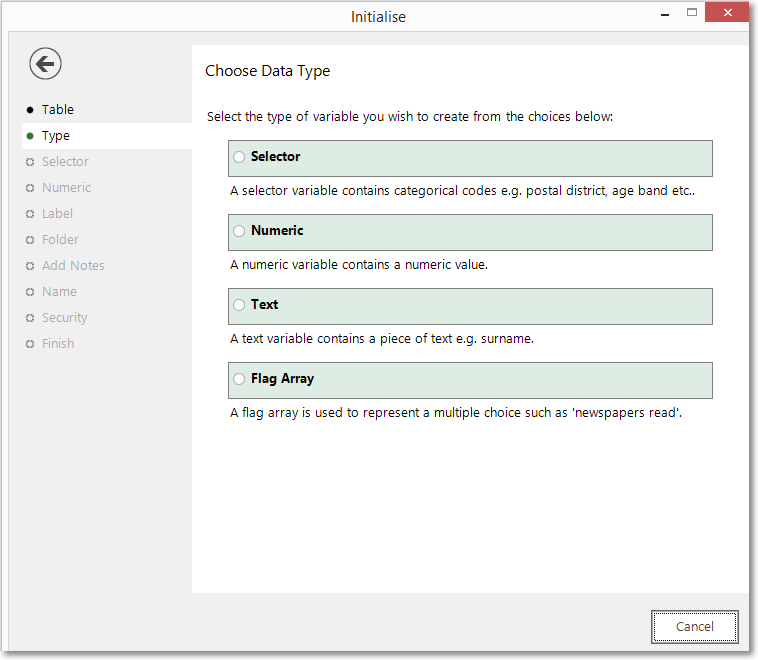
The four types of variable are:
Selector
A selector variable will hold one value for each record on the table that the variable is created on. That value has to be only one from a certain list of categories. If the variable type will be a Selector variable then the next step of the wizard will ask for the number of categories to define. An example of a Selector variable might be postal district, where each household has one and only one postal district.
Numeric
A numeric variable can hold integer or real numbers up to a certain precision. An example of a Numeric variable might be the cost of an order.
Text
A text variable will hold text strings up to a certain length. An example of a Text variable would be a street name in an address.
Flag Array
A Flag Array variable is similar to a Selector variable in that it can hold values chosen from a set of categories. However, unlike a Selector variable, a Flag Array can hold 0, 1 or more values for each record. An example of a Flag Array variable might be what newspapers someone reads. A person might not read any newspapers and so the value of the variable for them would be blank. A person may read one newspaper and so the value of the variable for them would be "The Times". Or a person may read several newspapers and so that value of the variable for them would be "The Times, The Sun & The Scotsman".
- Click Next to go to Selector if you are creating a Selector or Flag Array
- Click Next to go to Numeric if you are creating a Numeric
- Click Next to go to Label if you are creating a Text
Selector
If the Selector or Flag Array variable type was chosen, then the number of categories to define for the variable has to be specified as well as whether the variable should be treated as sequenced or not.
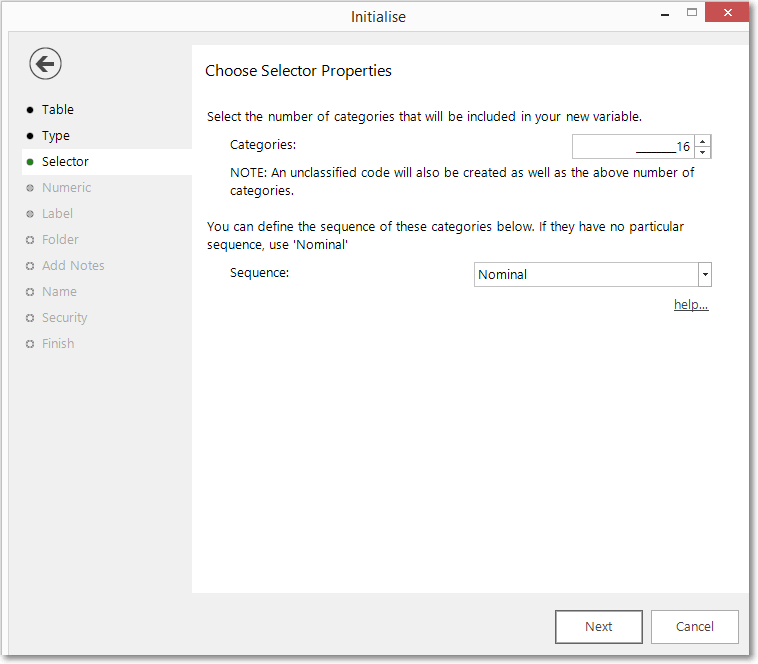
The number of categories defines the number of possible values that the variable can take. The sequence defines if the variable can be ordered or not. These defining a Selector or Flag Array variable.
For Selector Variables
The value of the variable for any given record can only be one of these categories. The first category has a special meaning as "unclassified". When changing the values of this variable using the Assign Values Wizard, any records that don't fall into any of the other categories will be set to the "unclassified" category. Therefore, an unclassified code will be added for you, so you will have the number of categories you have indicated, plus an unclassified category.
A Selector variable can also be defined to have a sequence. Some variables are definitely unsequenced, such as a person's job title. There is no sensible way of defining whether "HR Manager" comes before or after "Sales Manager", they are simply names of categories. Therefore the variable should be defined with a sequence type of "Nominal".
However, some variables can be considered sequenced. For example, you may have a variable for a person's income band. This might contain categories such as <10k, 10-20k, 20-30k, etc. In this case you definitely can say that "<10k is less than 10-20k and so this income band variable can be considered as sequenced. Depending on what order the selector's categories are going to be defined in you can set the sequence type to be "Ascending" or "Descending". For example, if the above income band variable will be defined with the following categories:
Unclassified
<10k10 - 20k20 - 30k30 - 40k40 - 50k50 - 60k60 - 70k70 - 80k80 - 90k90 - 100k> 100k
Then the sequence type would be "Ascending".
For Flag Array Variables
The value of the variable for any given record can be 0 or more of the defined categories. No unclassified category is used in a flag array variable.
Also, for Flag Array variables, the sequence type will always be "Nominal".
Numeric
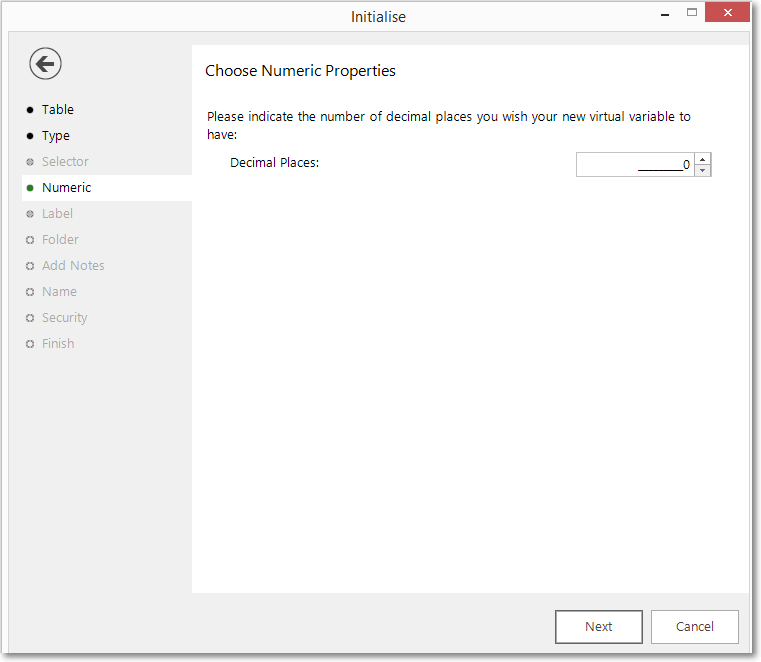
If the Numeric variable type was chosen then you can choose the number of decimal places that the variable will have.
Label
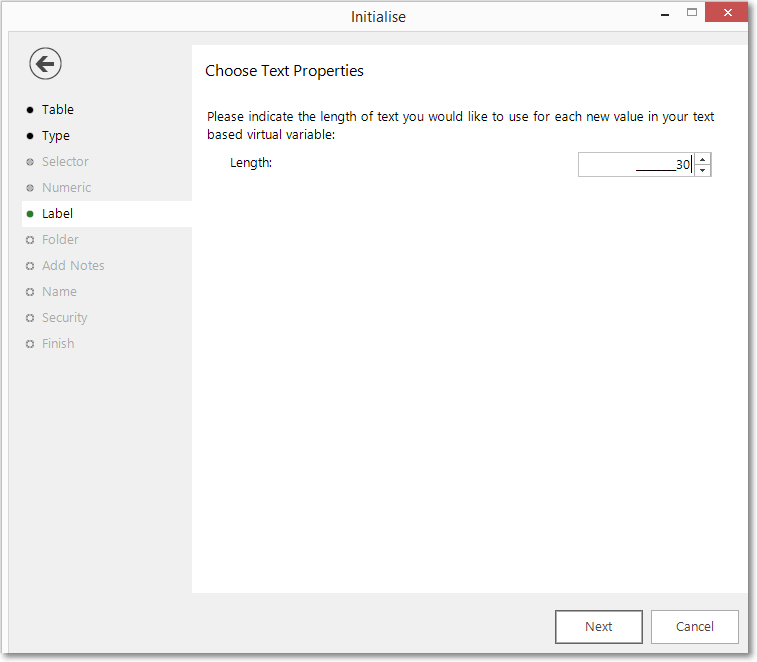
If the Text variable type was chosen then you can choose the maximum length of string that the variable will be able to store.
Folder
Choose the folder that the new variable should be created in.
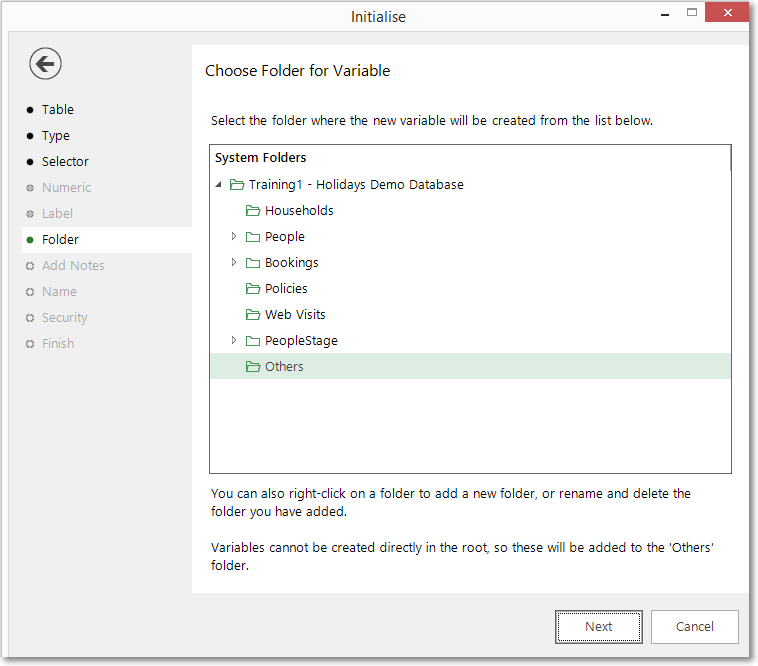
Create (if necessary) and highlight the folder to hold your Virtual Variable.
Add notes
You can choose to add notes to your variable. These can be viewed later by right-clicking on the variable once it is in the System Explorer.
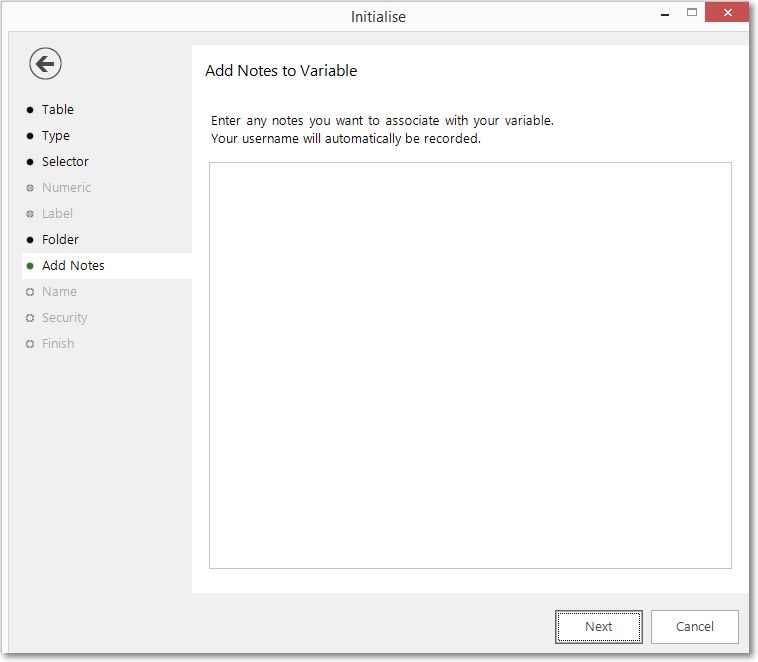
Enter any notes you wish to record.
Name
This step of the wizard allows you to define what the Virtual Variable will be called.
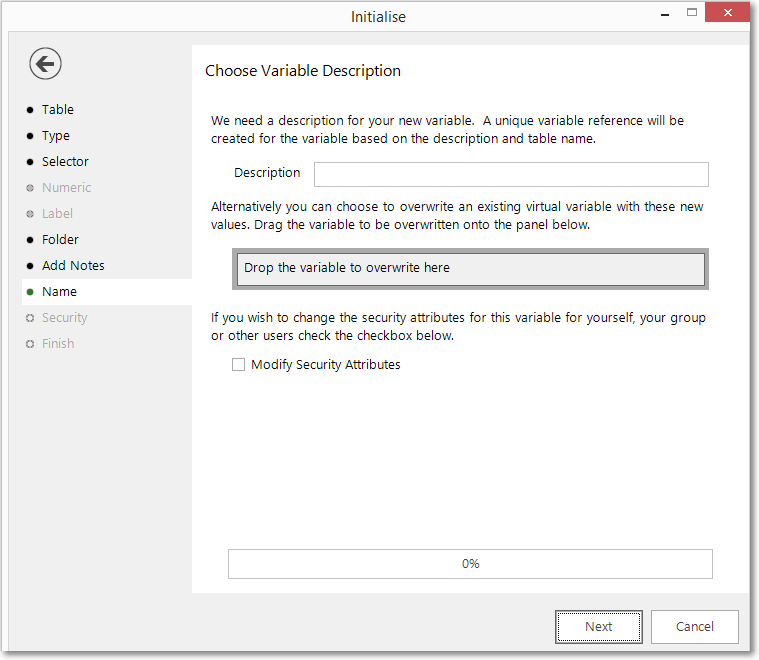
Enter the name of your variable in the Description box.
To overwrite an existing virtual variable drag it on to the Drop the variable to overwrite here drop box.
Tick the Create URN Snapshot box to record the exact records found at this time so it can be recreated after a refresh of the data if needed.
Tick the Modify Security Attributes box to allow you access to Security (This option is only available on the Enterprise Version)
Security
This is an optional step available on the Enterprise version of the software.
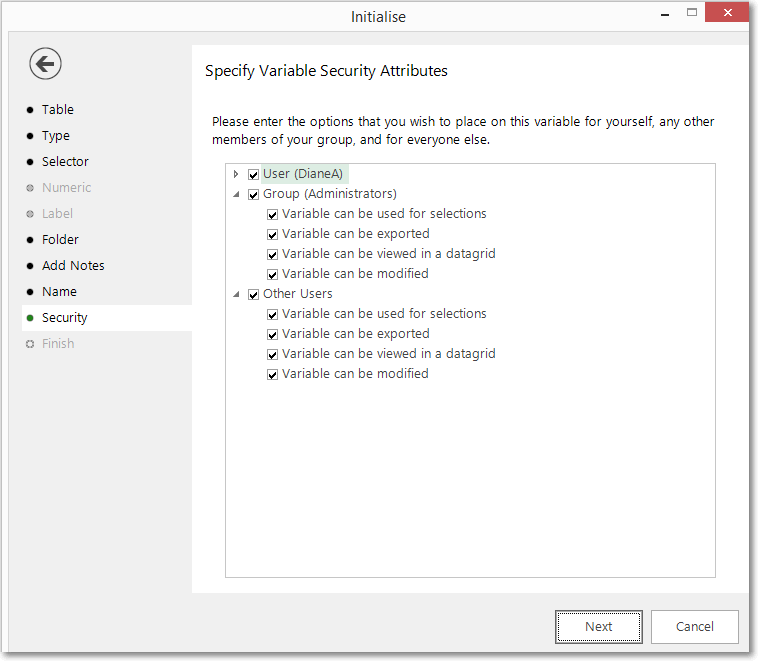
Use the tick boxes to set the security setting you wish to apply to this variable.
Finish
This step is shown after the actions required by this wizard have been completed. The new variable has been created and highlighted in the System explorer window.
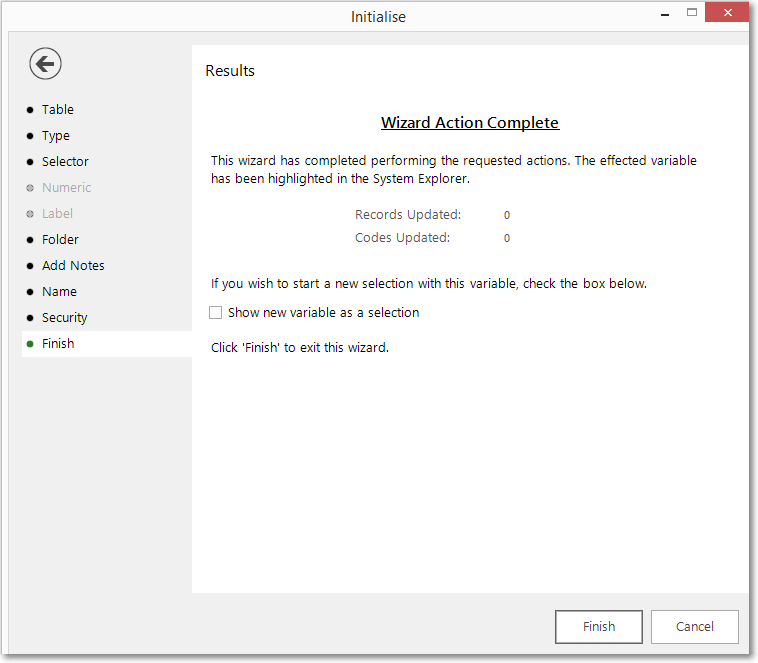
Tick the Show new variable as a selection box if you want to view the variable when the wizard is closed.
Click Finish to close the wizard.
The blank virtual variable created can have values assigned to it through the Assign Values Wizard.