Combine categories wizard
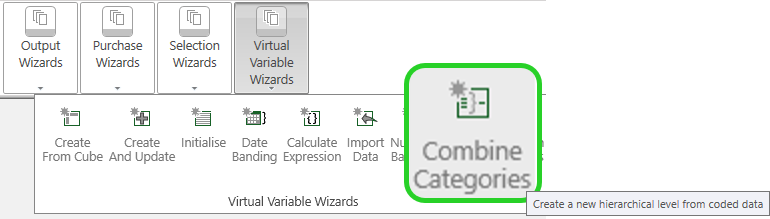
The Combine Categories wizard is a Virtual Variable Wizard that allows you to create a new virtual variable by taking an existing variable and grouping several codes together to form a new Summary variable. When this variable is used the selection form allows you to either select the group (which will select all the codes that are grouped) or drill down from the group into the individual codes and select only a few of them.
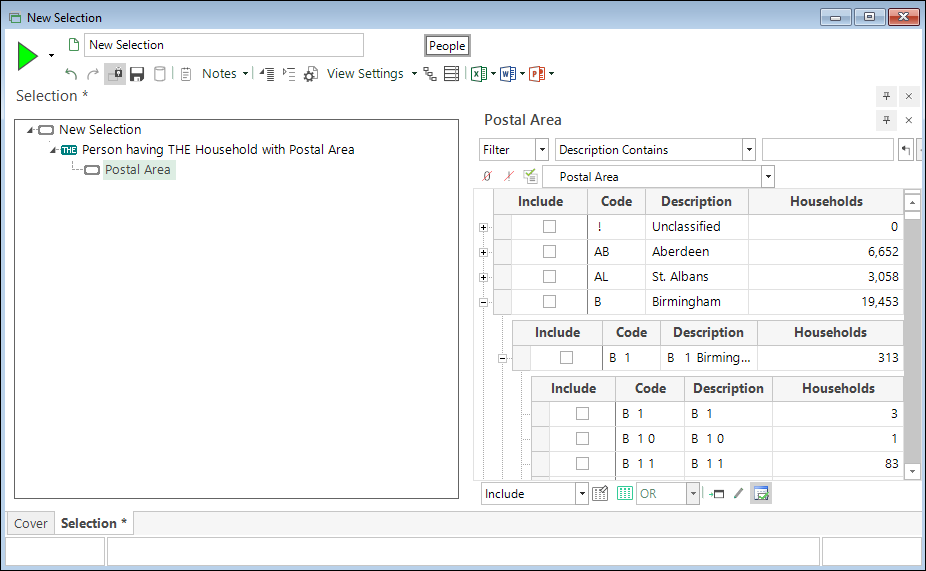
This is very similar to the Zoom Variables that FastStats Designer can create, and which are created automatically for date variables.
However, unlike zoom variables you can combine the categories of an already combined summary variable. This means you can have many layers of grouping. This can be used so that a Postcode Sector variable can be grouped into Postcode District, Postcode Area and Region, etc.
Summary type
The first step in the wizard allows you to choose which way to combine the categories into the new summary variable.
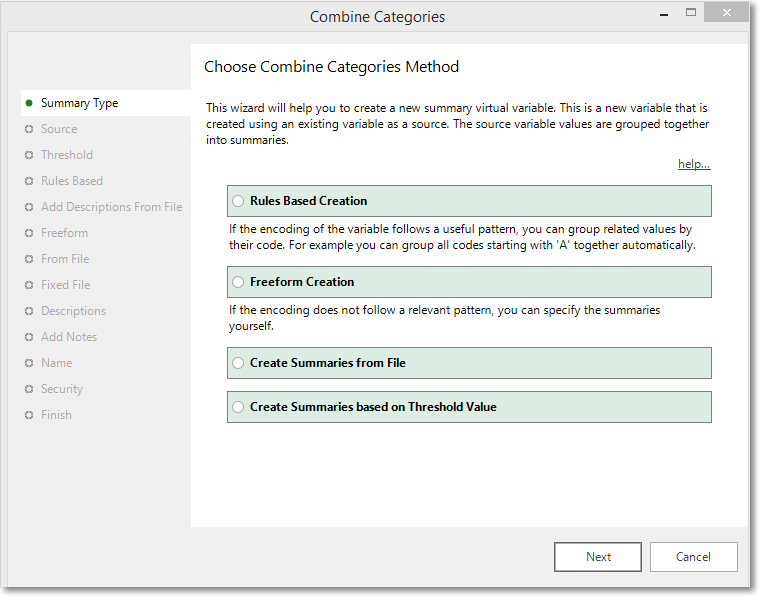
The four ways that are supported are:
Rules based
Rules Based Creation is useful if the variable to be grouped have codes that can be split into sections such as XXXYYY-ZZZZ with a fixed number of characters for each code. The Rules based creation allows you to specify a variable group based on the first n characters of the code. For example, if you have a "sort formatted" postcode sector variable it will have the format (not including special London codes) : AADDS
The first two characters are the Postcode Area (i.e. "CV"), the second two are the Postcode District (i.e. "34") and the final character is the Postcode Sector (i.e. "5"). If you use Rules Based Creation then you can create a Postcode Area grouping by grouping everything with the same first 2 characters together.
Freeform
Freeform Based Creation is useful If you are grouping a variable whose codes don't have a fixed patten as you can manually specify which codes from the source variable will be grouped together. For example, you could approximate a Gender variable from a person's salutation by manually grouping Mr into a Male group and Mrs and Ms into a Female group.
From file
Create From File is useful when you want to perform a manual (freeform) grouping and you have a file that specifies the how to group the variable. For example, you could perform a grouping with a file that grouped each postcode into either England, Scotland, Wales or Northern Ireland. You can use either delimited or Fixed file formats.
From threshold
Create from Threshold allows you to use a threshold or Top N calculation to determine the categories created.
Source
On this step define the source Selector variable to be used.
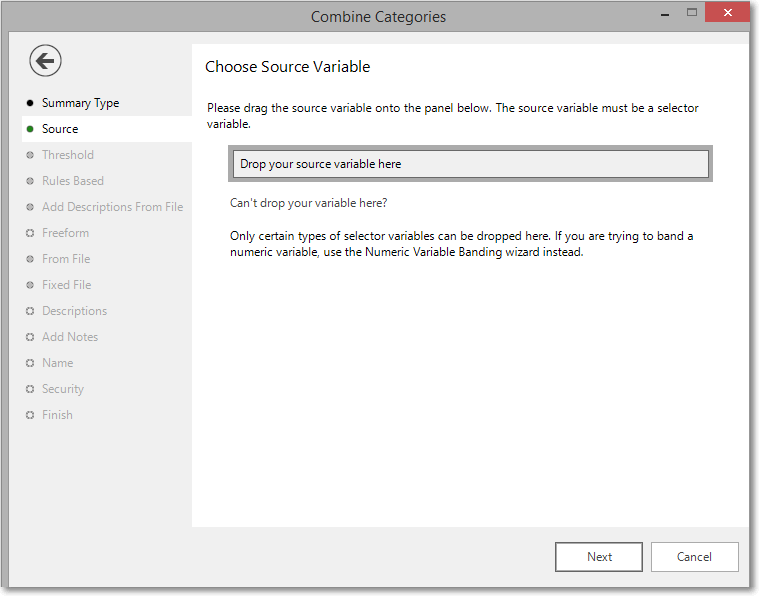
Drag and drop your Selector variable on to the Drop your source variable here box.
- Click Next to go to Threshold
- Click Next to go to Rules based
- Click Next to go to Freeform
- Click Next to go to From file
Threshold
If you are using Create from Threshold then you will see this screen:
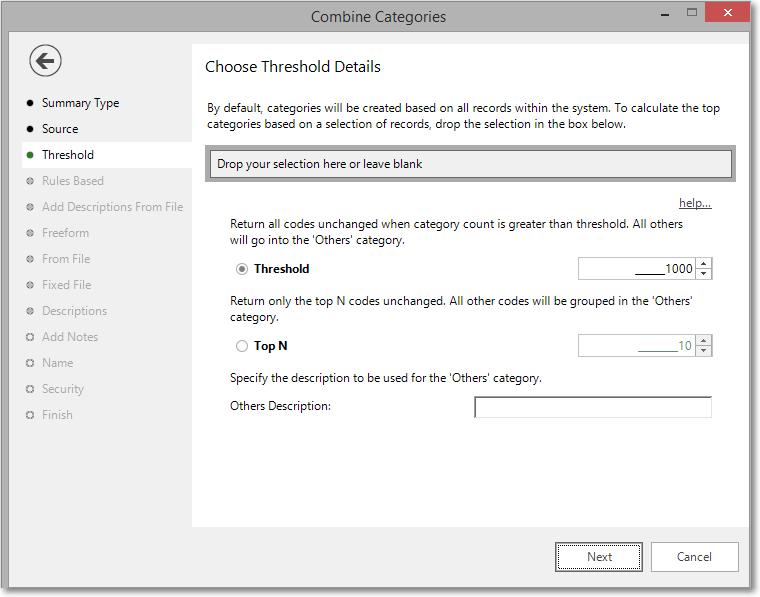
Here you can define if you want to apply a Threshold or a Top N to define how the categories are created
Threshold
- Enter the value of the threshold so that all codes will be returned unchanged when the category count is greater than the threshold. All other codes will be combined into an ‘Other’ category.
Top N
- Enter a number to return only the top N codes unchanged. All other codes will be combined into an ‘Other’ category.
Others description
- Enter the name you want to give to the ‘Others’ category.
Rules based
If you are using a Summary Type of Rules Based Creation then you will see this screen. This allows you to specify the number of characters to use to group the codes together.
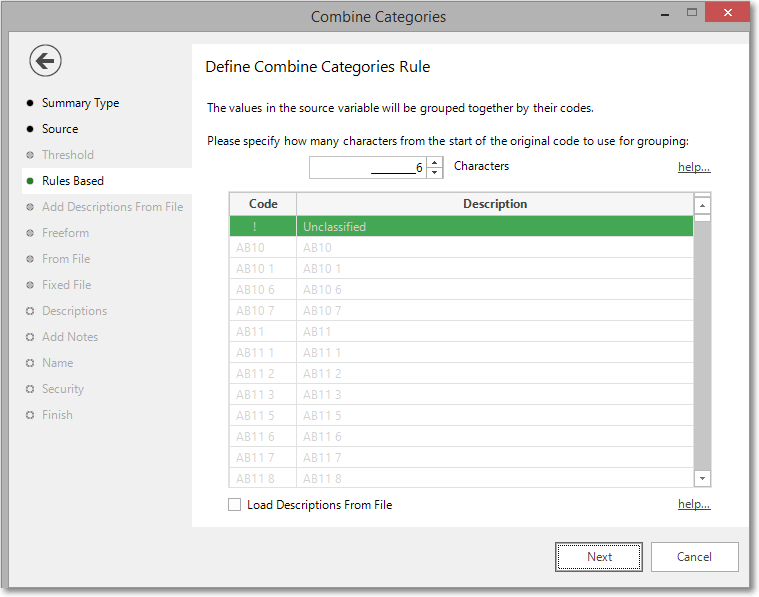
For example, in FastStats, date variables always have codes with the format YYYYMMDD. You can use Rules Based grouping to group all the dates in the same month together by specifying the number of characters as "6". Then all dates with the same first six characters (where YYYYMM are the same) will be grouped together.
There is also a Load Descriptions From File checkbox. If this is ticked then you will be shown the next stage, Add Descriptions From File, which will allow you to specify a file to give descriptions other than the default ones for the summary codes.
Add descriptions from file
Specify the file to use to populate descriptions for the summary codes generated from the Rules Based method. Specify the file as either of a Fixed or Delimited format.
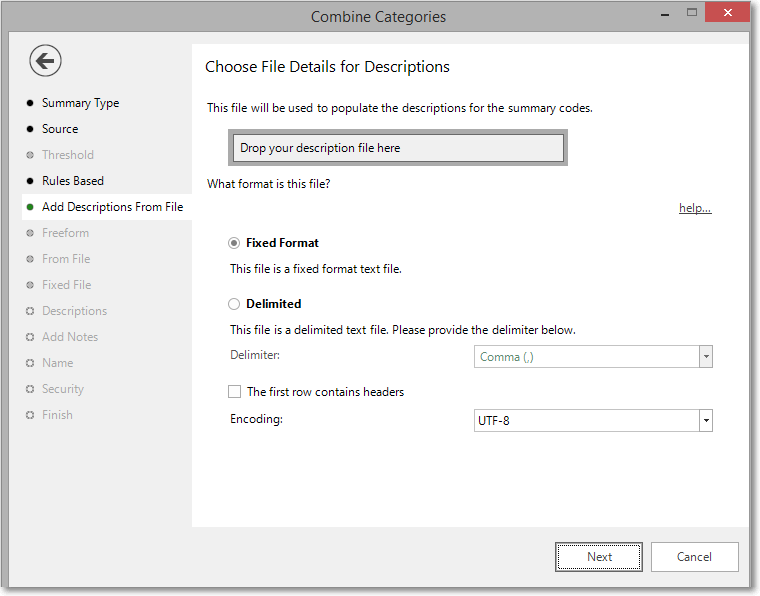
If the file is Fixed format then it should have two fields on each line, the first will be the summary code (and should be the length specified in the previous step). The second field will be the description to use for this summary code.
If the file is a Delimited file, then the delimiter should be specified in the drop down box and the file should again have two fields, the summary code (again each line should be the length specified in the previous step) and the description to use for the summary code.
Freeform
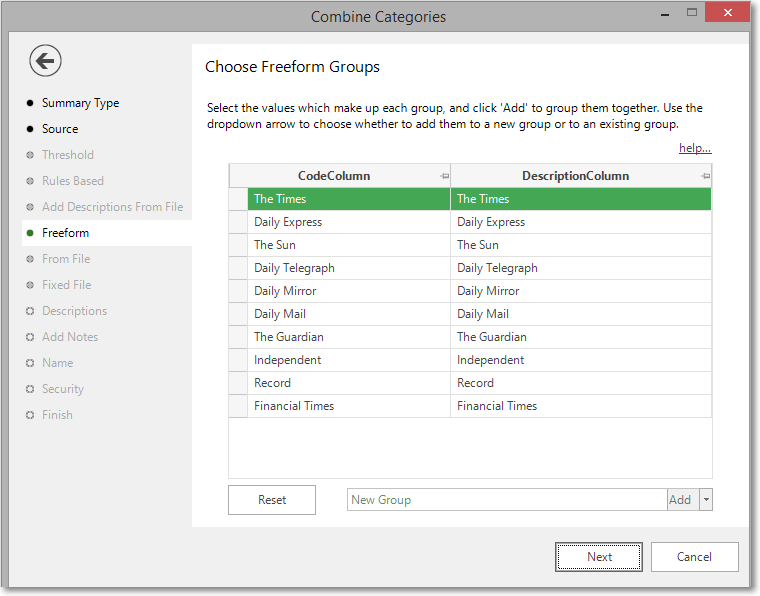
If you are using a Summary Type of Freeform Creation then you will see this screen. This allows you to manually select a set of codes by either dragging a selection or by using the control and shift keys to select multiple codes. Then press the Create Summary Group button to group these codes together.
The codes are then taken out of the list so that they are not accidentally grouped twice. Keep grouping the codes until there are none left.
From file
If you are using a Summary Type of From File Creation then you will see this screen.
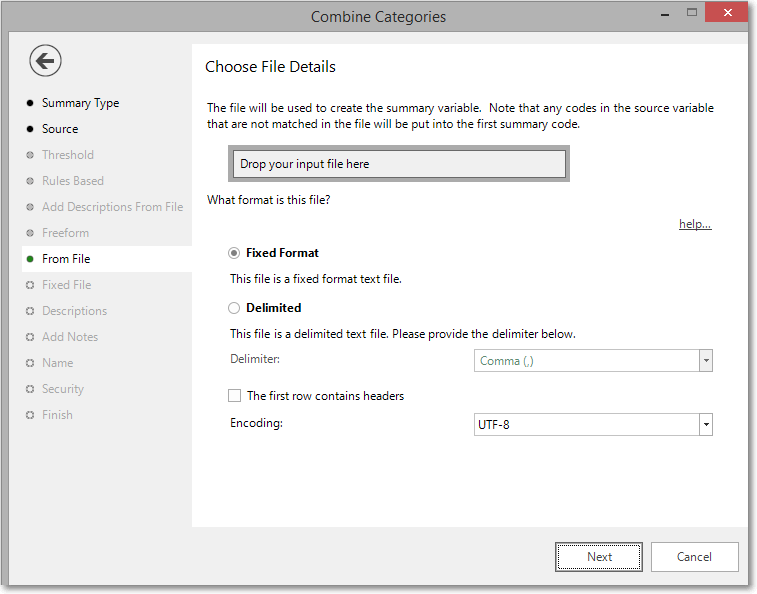
You can specify either a Fixed Format file or Delimited file, but in either case you must have 3 pieces of information in each line of the file.
-
Code: The code in the source variable to match to. Note that this field must be the same length (for both fixed and delimited files) as the length of the code in the source variable.
-
Summary Code: The code to use in the summary variable. Any two rows that have the same summary code will be grouped together.
-
Summary Description: The description to use for the code in the summary variable. Any two rows that have the same summary code must have the same summary description.
The file should not have any headers. Also, if you want to have an unclassified code in your summary variable you should put the original variable's unclassified code on the first line of the file.
If you are using a delimited file then specify the delimited by either choosing from or typing it in to the Delimiter list box.
Fixed file
If you are using a Summary Type of From File Creation and the file you are using is a fixed file then you will see this screen. This allows you to specify the position of the 3 required items in the file:
-
Code: The code in the source variable to match to. The code size will be automatically set to the code size of the source variable.
-
Summary code: The code to use in the summary variable. Any two rows that have the same summary code will be grouped together.
-
Summary description: The description to use for the code in the summary variable. Any two rows that have the same summary code must have the same summary description.
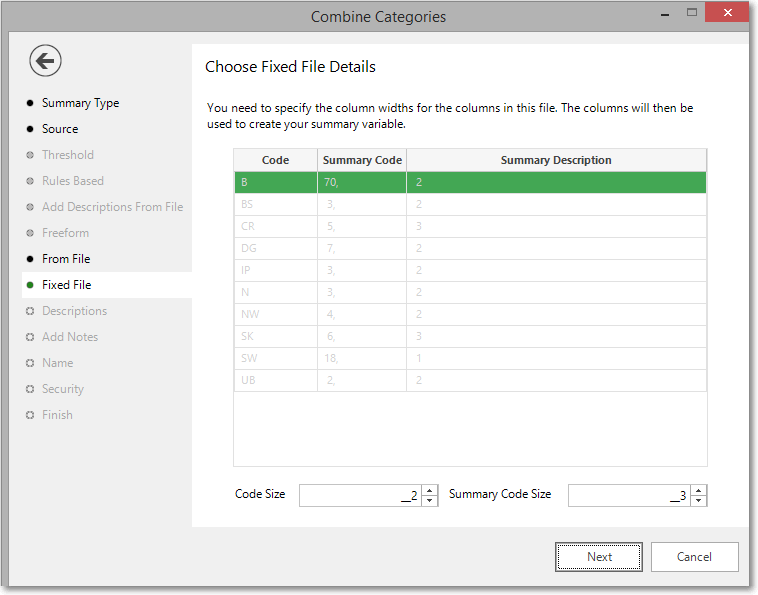
You can then change the Summary Code Size so that the Summary Code and Summary Description are correctly formatted.
Descriptions
Once the code groupings have been defined (either using Rules Based, Freeform or From File) you can change the descriptions for each summary group on this screen. Just edit the Summary Description cells.
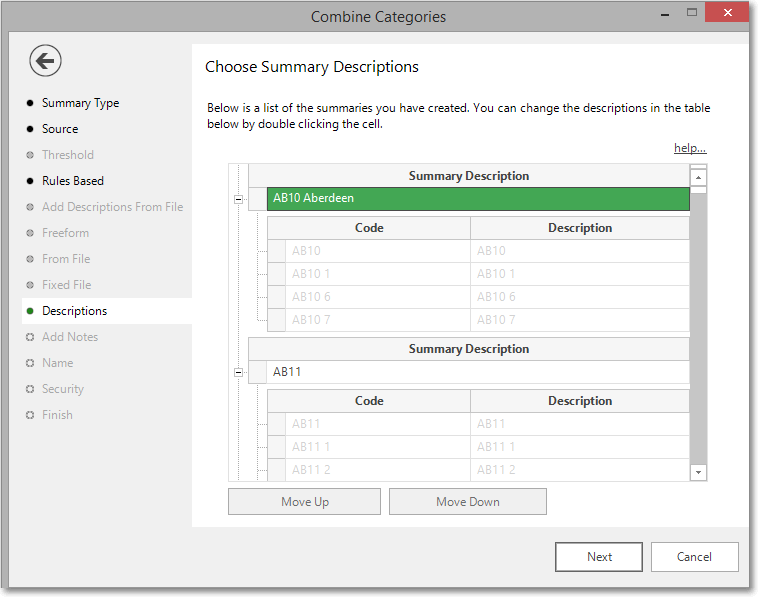
Over type the wording Description for group N to enter your summary descriptions.
Add notes
You can choose to add notes to your variable. These can be viewed later by right-clicking on the variable once it is in the System explorer window.
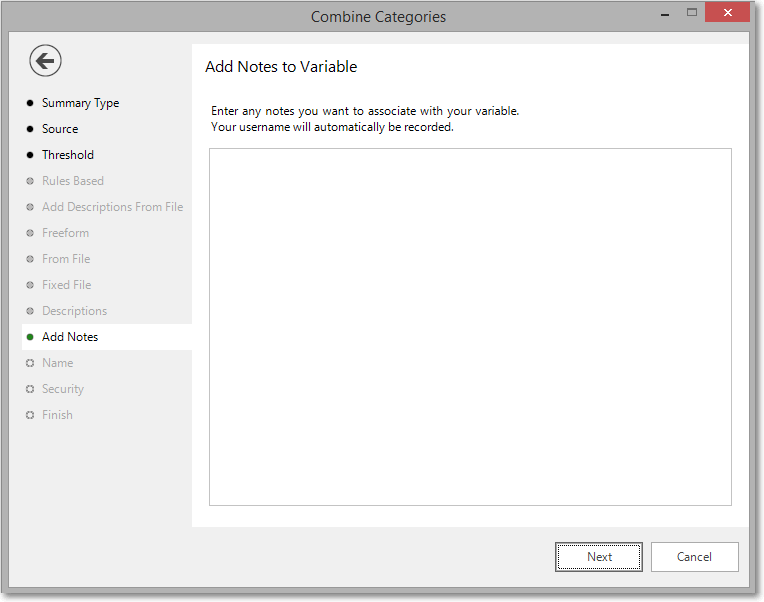
Enter any Notes you wish to record.
Name
This step of the wizard allows you to define what the Virtual Variable will be called.
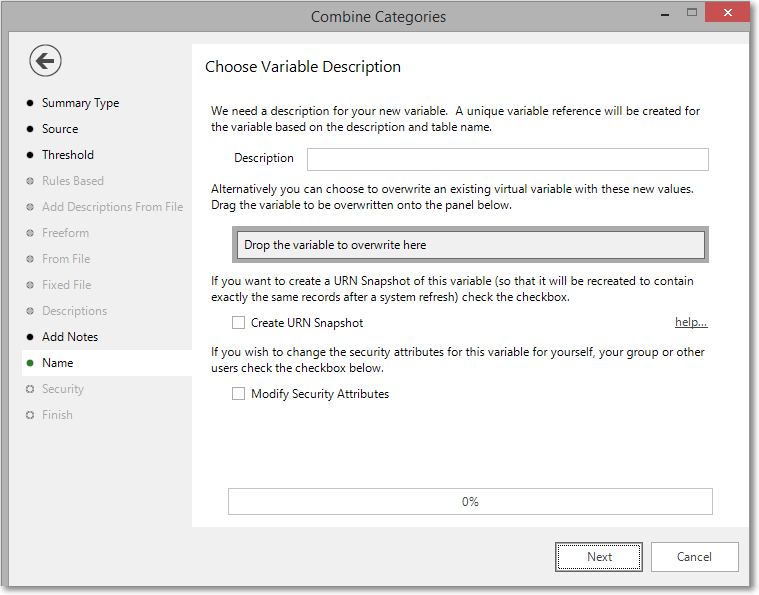
Enter the name of your variable in the Description box.
To overwrite an existing virtual variable drag it on to the Drop the variable to overwrite here drop box.
Tick the Create URN Snapshot box to record the exact records found at this time so it can be recreated after a refresh of the data if needed.
Tick the Modify Security Attributes box to allow you access to Security (This option is only available on the Enterprise Version)
Security
This is an optional step available on the Enterprise version of the software.
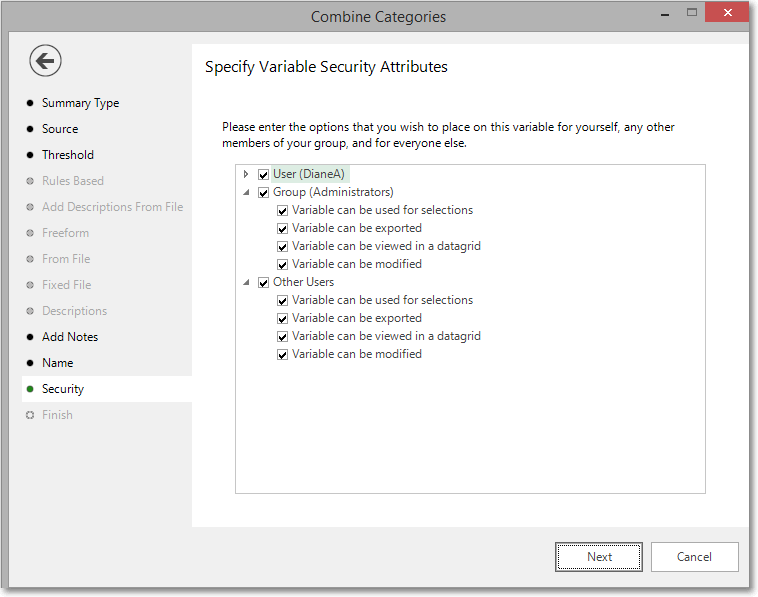
Use the tick boxes to set the security setting you wish to apply to this variable.
Finish
When you reach this step, the actions required by this wizard have been performed. The new variable has been highlighted in the System Explorer.
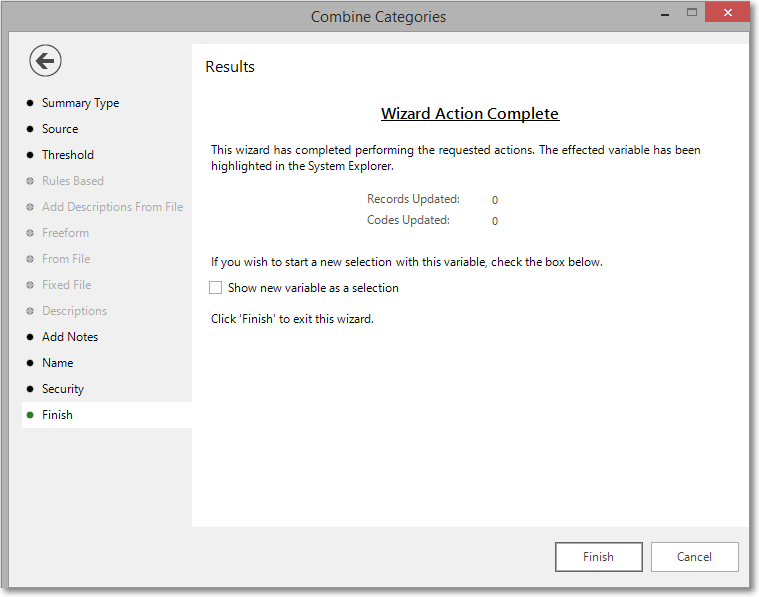
Tick the Show new variable as a selection box if you want to view the variable when the wizard is closed.
Click Finish to close the wizard.