Assign values wizard
The Assign Values Wizard is a Virtual Variable Wizard that provides a way of modifying virtual variables that have been created using the Initialise Wizard or one of the other Virtual Variable Wizards.
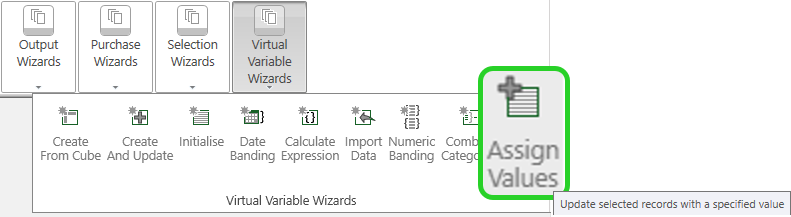
The wizard will display different steps depending on whether the variable is a Selector, Text, Numeric or Flag Array variable, but they will all set records in a particular selection to a certain value.
On the Wizard tab click on the Assign Values link to start the wizard.
Select variable
The first step in the wizard is to choose which virtual variable to modify. Drag the chosen variable onto the drop on box.
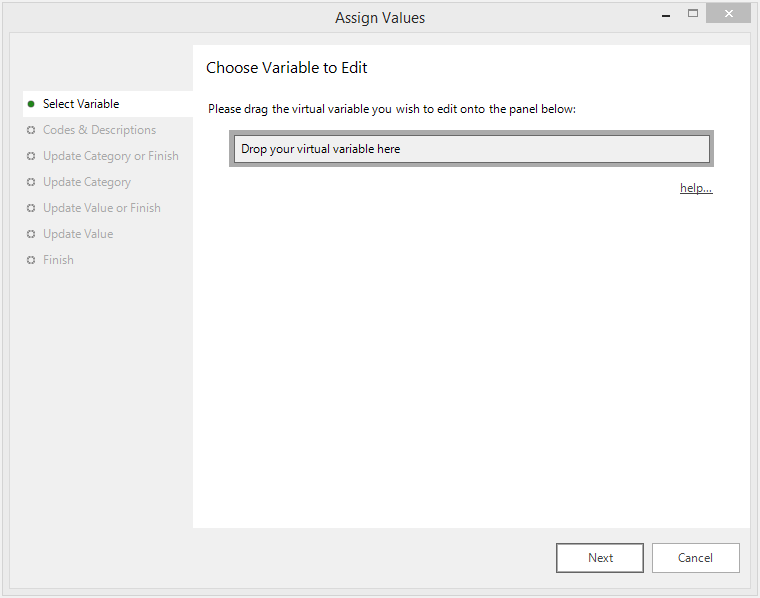
- Click Next to go to Codes and descriptions (Selector and Flag Array Variables)
- Click Next to go to Update value or finish (Numeric and Text Variables)
Codes and descriptions
If the variable chosen to be modified is a Selector or Flag Array variable then you are given the chance to modify the text used for the codes and the descriptions.
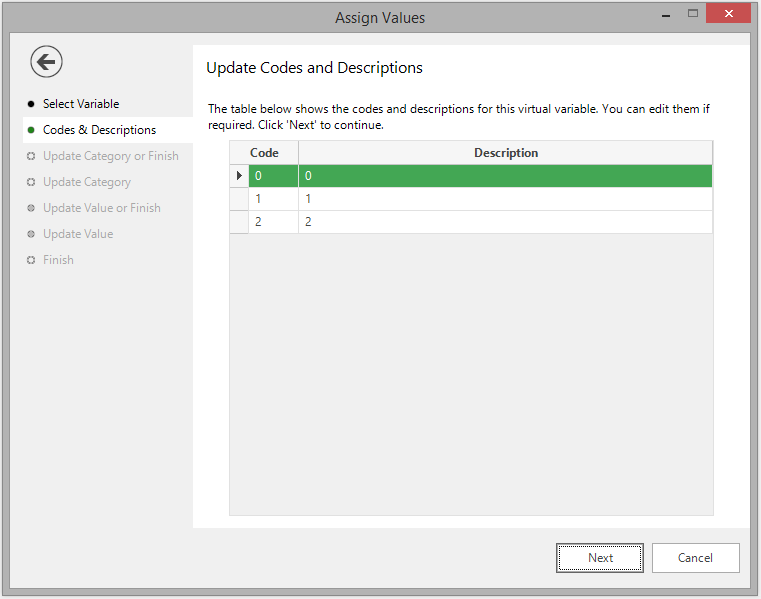
In general it is a good idea to keep the codes relatively short, but to make the descriptions longer (and more descriptive). The codes also need to be unique within this variable, and although technically you can have the same description for more than one code it would lead to confusion and so it is advisable to also have different descriptions for each code.
Update category or finish
The next step is to decide whether to update a particular category or to finish the wizard. If you want to continue to define the records that should have a certain category associated with them then choose the category from the drop down list and then click next.
If you have finished updating categories, then make sure that the Finish radio button is selected and then click Next.
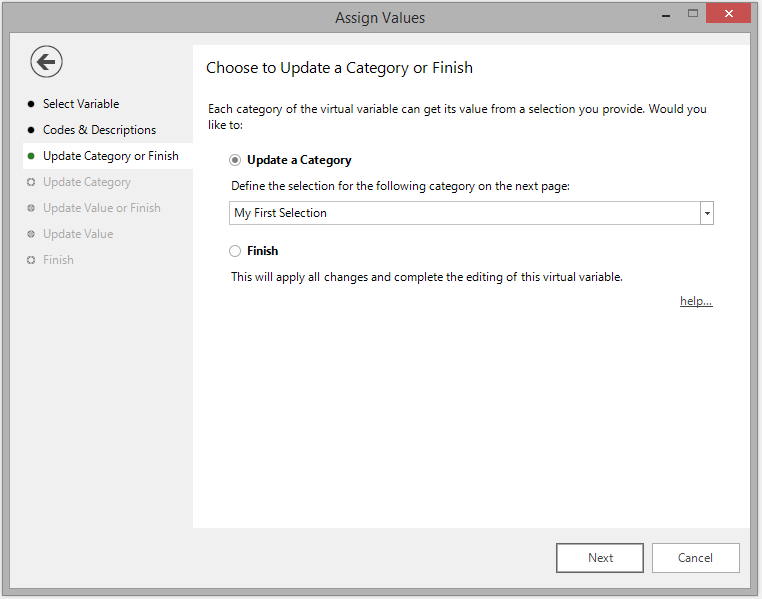
If you choose to update a category then you will be taken to the next screen to define the selection of records to associate with this category and then be brought back to this screen. You can then choose to update another category or finish.
Update category
To update a category, drop the selection of records onto the Drop your selection here drop box and click next. If you are updating a Selector variable then the value of this variable for each record in the selection will be set to the category chosen in the previous step. If you are updating a Flag Array variable then the chosen category will be added to the value of this variable for each record in the selection.
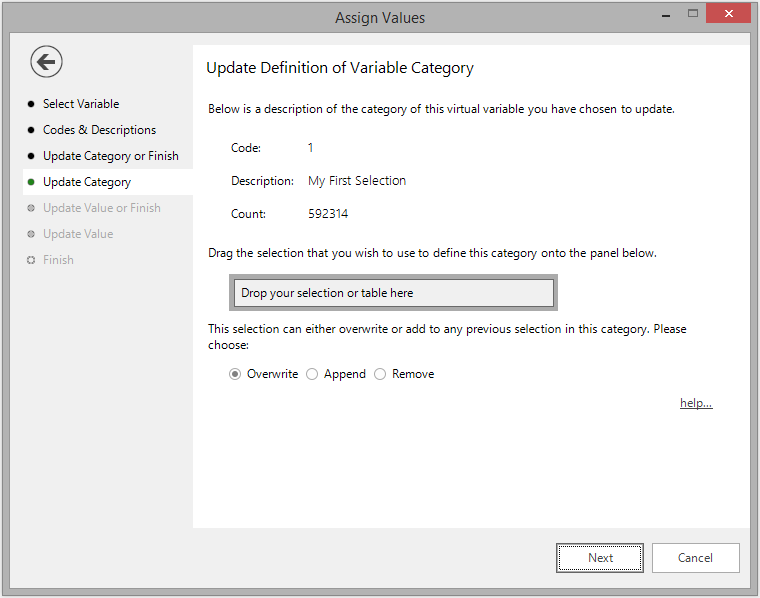
If the Overwrite option is chosen, any records not in the specified selection that had previously been set to the category chosen in the previous step will be set to the unclassified code. If the Append option is chosen then this won't happen.
This is useful if you are trying to set a category using multiple selections. If the Overwrite option is set then the chosen category will only be set for the records in the last selection used. If the Append option is set then the chosen category will be set for the records in all selections used for this category. Therefore you can keep going round from step 3 and step 4 (this step) applying new selections to the same category, building up the records set to the category.
Update value or finish
The next step is to decide whether to assign a value or to finish the wizard. If you want to continue to assign values to a particular selection of records click next. If you have finished assigning values, then make sure that the Finish radio button is selected and then click Next.
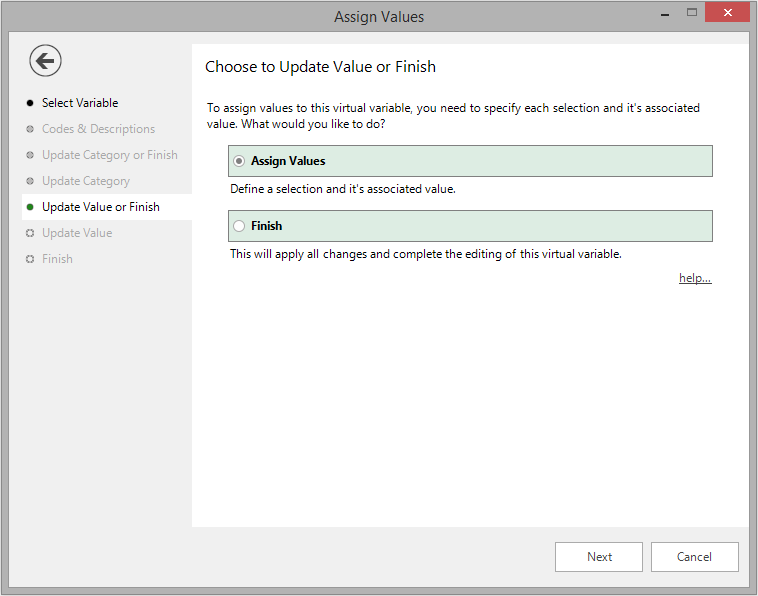
If you choose to assign values then you will be taken to the next screen to define the selection of records to associate with a particular value and then be brought back to this screen. You can then choose to assign another value or finish.
Update value
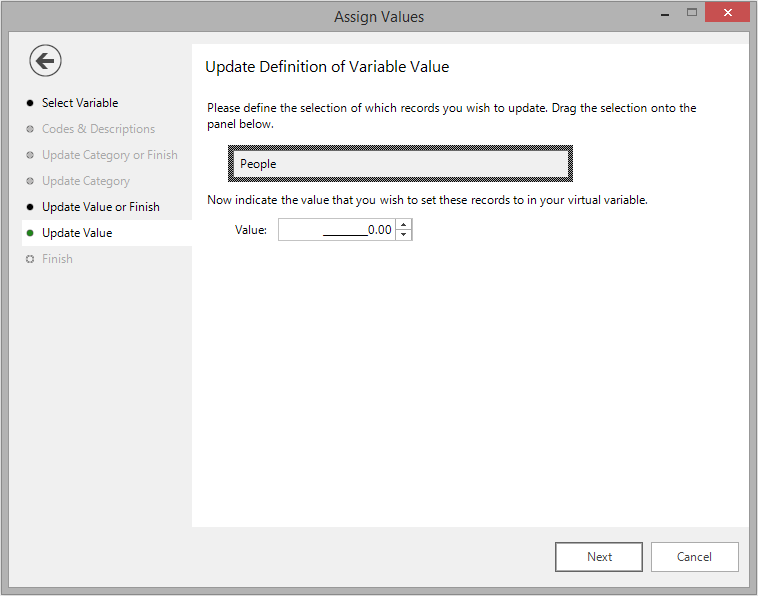
To assign a particular value, drop the selection of records onto the Drop your selection here drop box and click next. If you are updating a Numeric variable then the value of this variable for each record in the selection will be set to the numeric value defined in the value text box. If you are updating a Text variable then the value of this variable for each record in the selection will be set to the text value defined in the value text box.
Finish
Once you have finished modifying the variable you will (depending on your configuration) be given the chance to Create a URN Snapshot of this variable. A URN Snapshot can be used later to recreate the virtual variable.
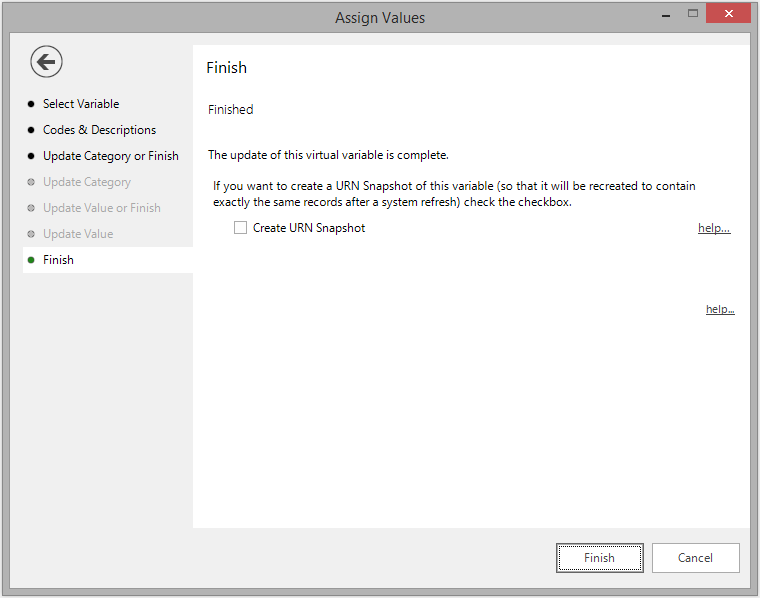
Click Finish to close the wizard.