Numeric banding wizard
The Numeric Banding Wizard is a Virtual Variable Wizard that provides a simple way to make a new banded virtual variable from an existing FastStats numeric variable.
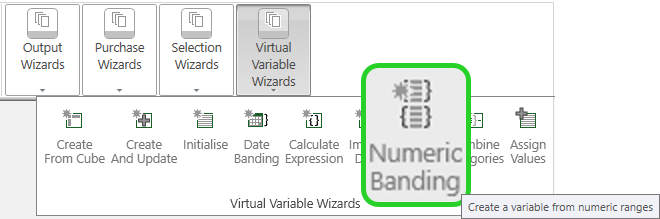
Examples of the types of numeric variable that can be created are:
- Create equal bands of holiday costs
- Band risk scores into low, medium and high risk categories
Source
On this step define the source numeric variable to be used.
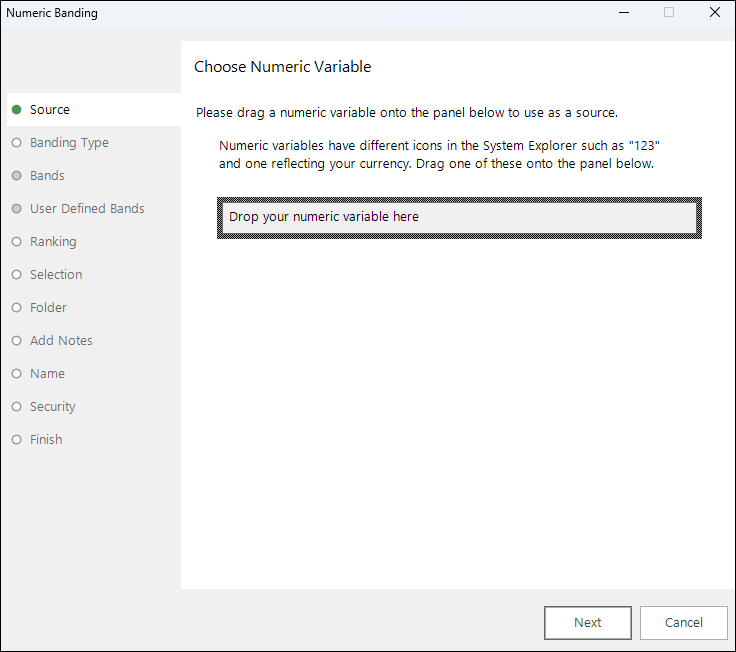
Drag and drop your Numeric variable on to the Drop your numeric variable here box.
Banding type
This step allows you to choose the type of banding your new variable will contain. Choosing Equal Ranges, Geometric Ranges or Quantiles and Pareto will have the bands made for you. If you wish to specify your own custom bands, choose User Defined Ranges. Alternatively select Ranked to group records by a selector variable and then rank them by the numeric variable.
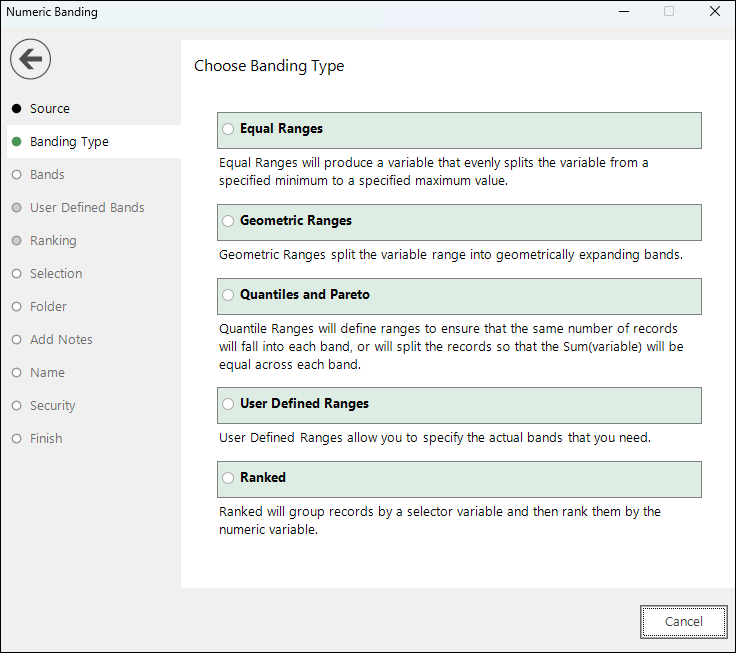
- Click Next to go to Bands (Equal or Geometric)
- Click Next to go to Bands (Quantiles and Pareto)
- Click Next to go to User Defined Bands (User Defined Ranges)
- Click Next to go to Ranking
Equal and geometric bands
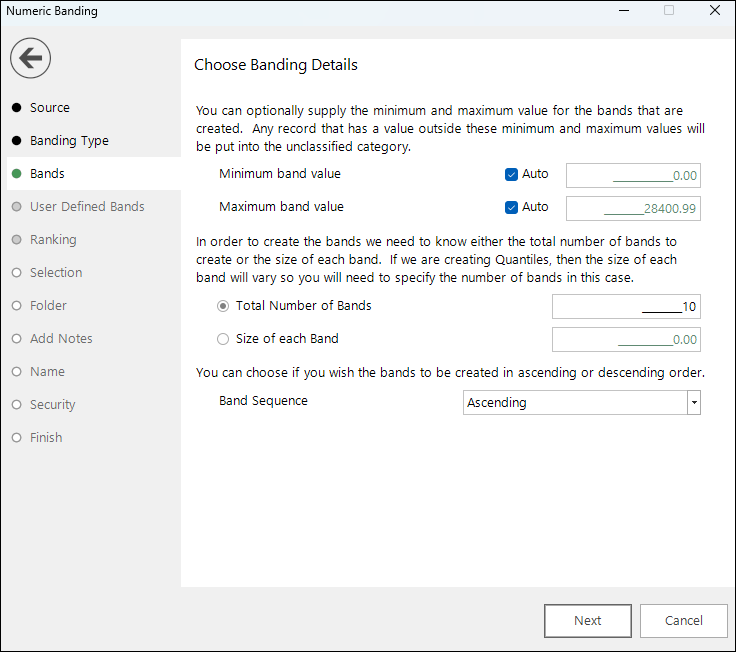
If Automatic Bands have been specified, this step is used to select how you want the variable to be banded. You can override the default minimum and maximum band values. You can also specify the number of bands to produce or the band size (which is used to then calculate the number of bands) and whether the bands should be ascending or descending.
Quantile and pareto bands
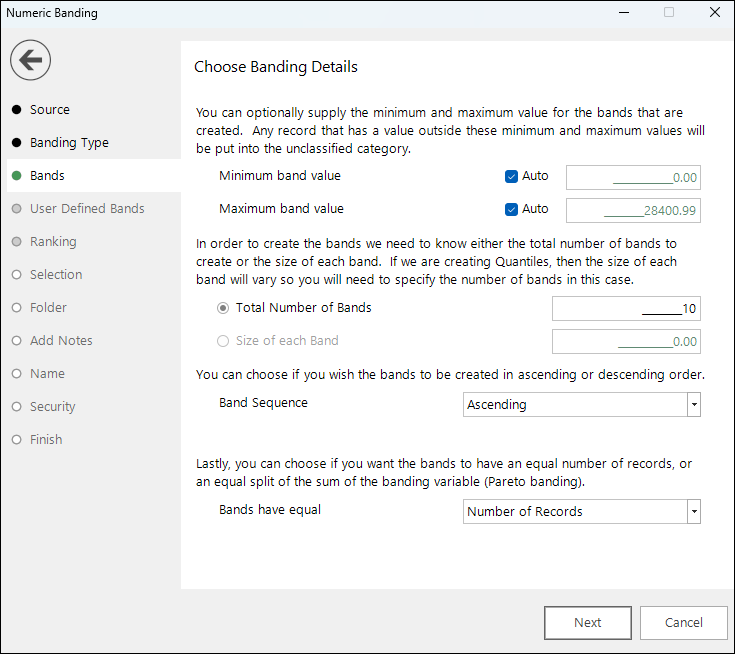
If Automatic Bands have been specified, this step is used to select how you want the variable to be banded. You can override the default minimum and maximum band values. You can also specify the number of bands to produce or the band size (which is used to then calculate the number of bands) and whether the bands should be ascending or descending.
Pareto style banding is also possible. For a worked example, see Pareto banding example.
User defined bands
If User Defined Ranges have been specified, they can be created/edited within this step.
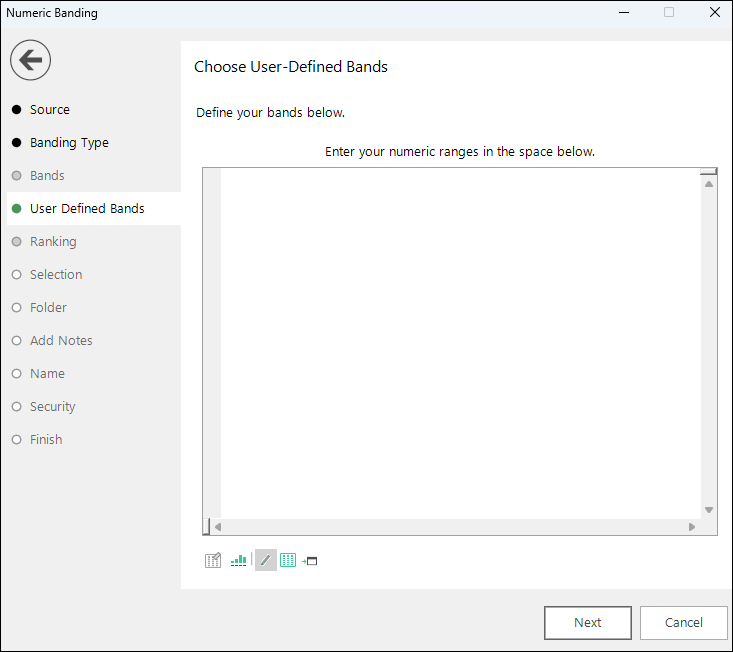
Bands can be entered in a number of ways:
- as text ranges (e.g. >0 - <= 100) using the free form tool
- using the grid
- or using the graphical Banding tool
This page of the wizard operates in the same way as the definition of a numeric selection. See "Numeric variables" for more details.
Ranking
This step allows for the Selector variable to be chosen whose categories the numeric variable will be ordered.
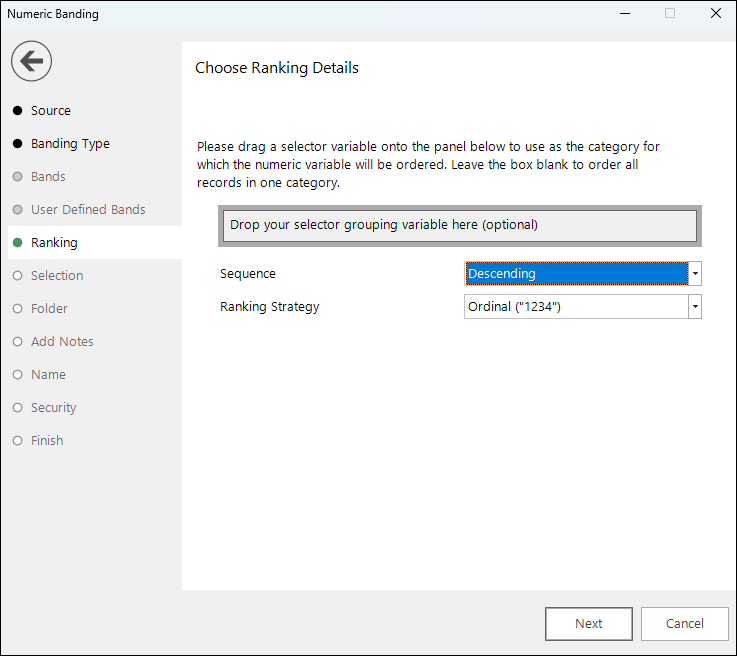
Drag the Selector variable onto the drop zone.
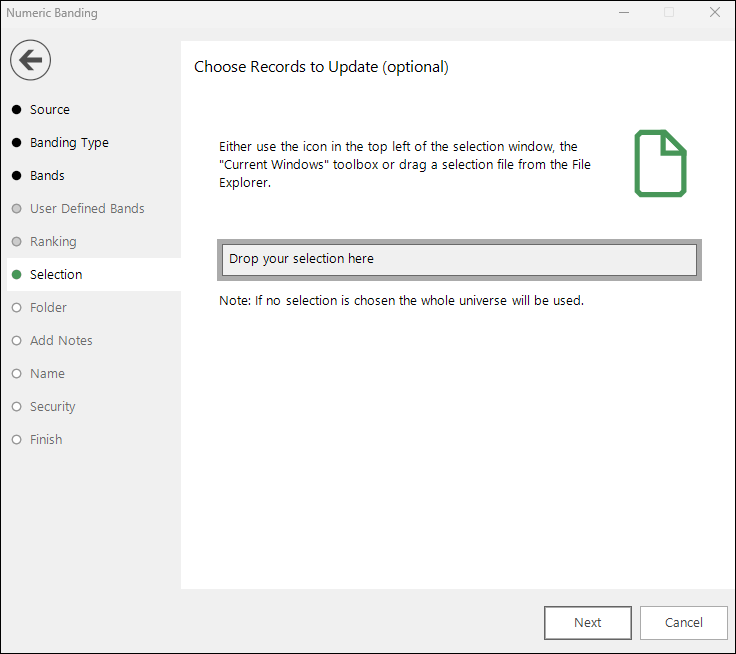
Selection
A selection can be provided here so that the numeric values are only banded if they are within the selection. Any values outside of the selection will go into an Unclassified band. If a selection is not provided all the records will be banded.
Folder
Choose the folder that the new variable should be created in.
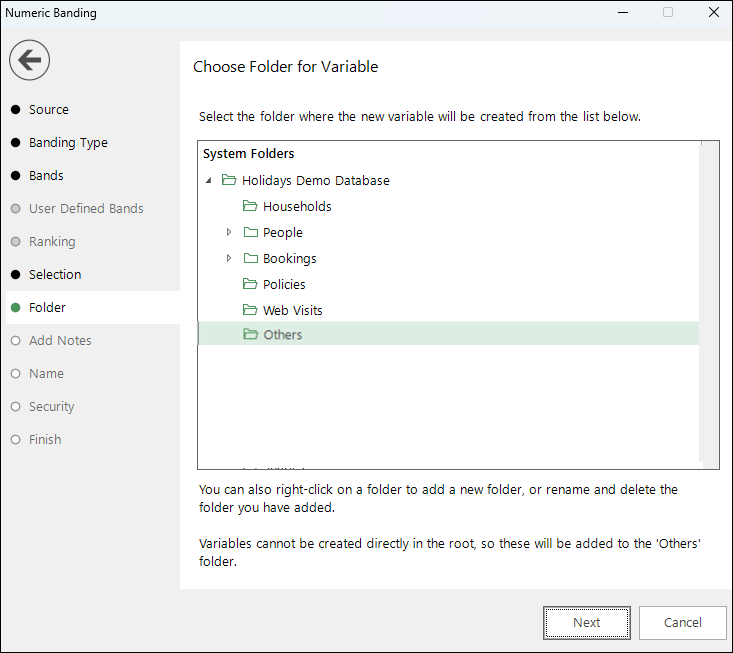
Create (if necessary) and highlight the folder to hold the virtual variables you are about to generate.
Add notes
You can choose to add notes to your variable. These can be viewed later by right-clicking on the variable once it is in the System Explorer.
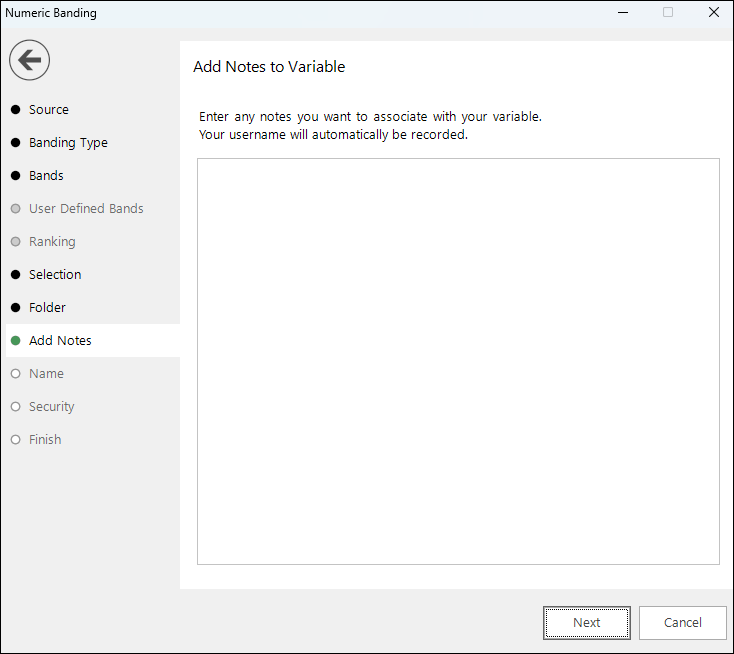
Enter any notes you wish to record.
Name
This step of the wizard allows you to define what the Virtual Variable will be called.
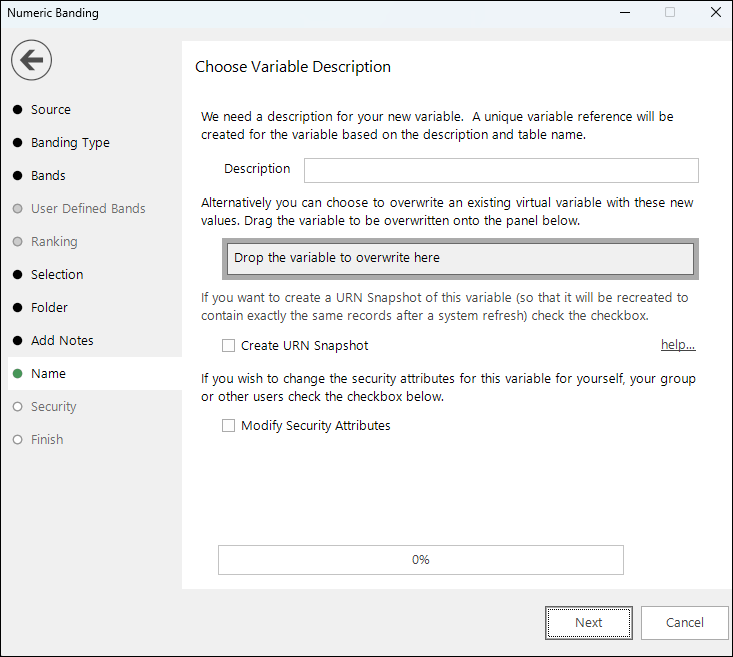
Enter the name of your variable in the Description box.
To overwrite an existing virtual variable drag it on to the Drop the variable to overwrite here drop box.
Tick the Create URN Snapshot box to record the exact records found at this time so it can be recreated after a refresh of the data if needed.
Tick the Modify Security Attributes box to allow you access to Security (This option is only available on the Enterprise Version)
Security
This is an optional step available on the Enterprise version of the software.
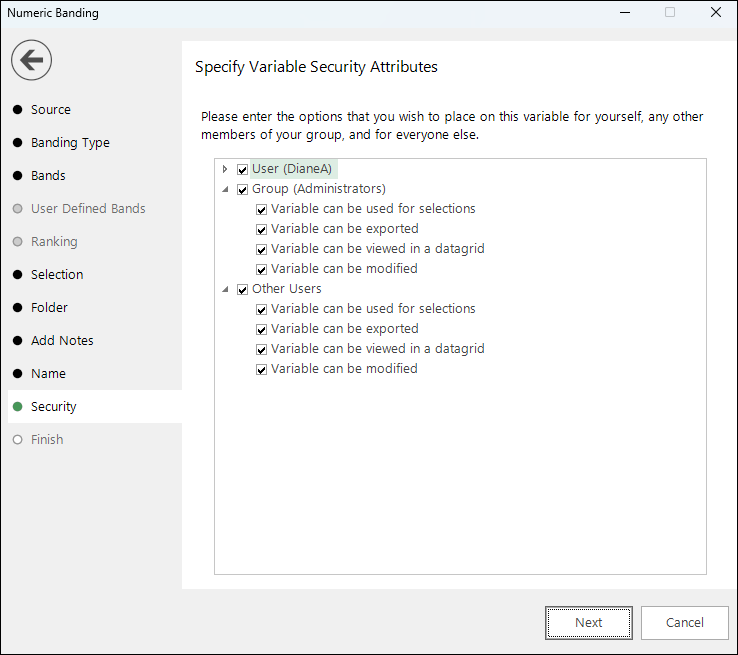
Use the tick boxes to set the security setting you wish to apply to this variable.
Finish
When you reach this step, the actions required by this wizard have been performed. The new variable has been highlighted in the System Explorer.
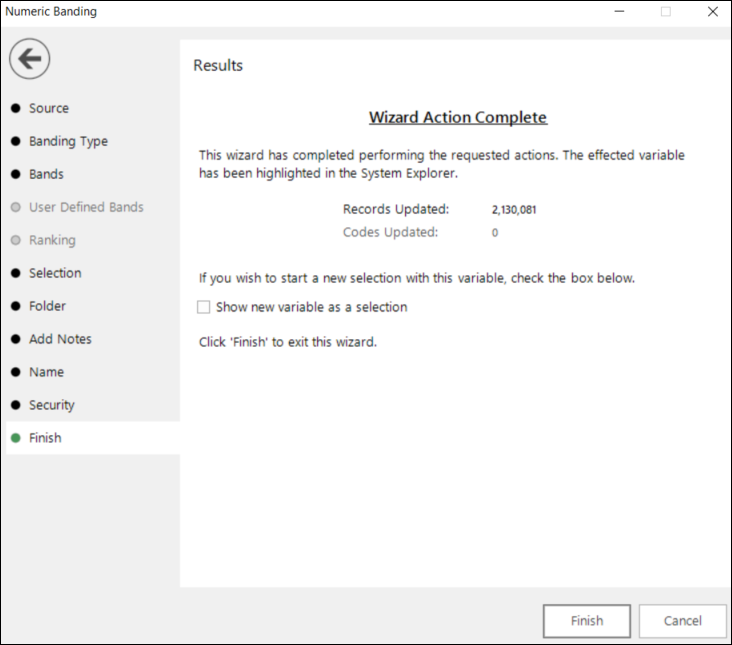
Tick the Show new variable as a selection box if you want to view the variable when the wizard is closed.
Click Finish to close the wizard.
Pareto banding example
The Numeric Banding Wizard allows for the calculation of Pareto style bandings.
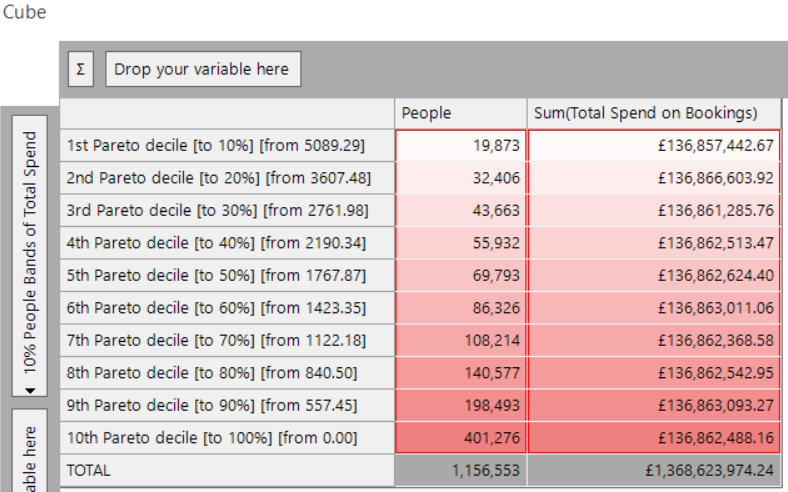
Within FastStats, this option can be used to create groups of customers, each group being responsible for a defined percentage of the total spend - in the example below, 10% of total spend.
In this case, a variable would be created with 10 quantile bands, based on a cumulative sum of the numeric or currency variable being banded.
- Open the Numeric Banding Wizard
- Source: Drag the currency variable Total Spend on Bookings onto the drop zone
- Click Next
- Banding Type: Click on the Quantiles and Pareto radio button
-
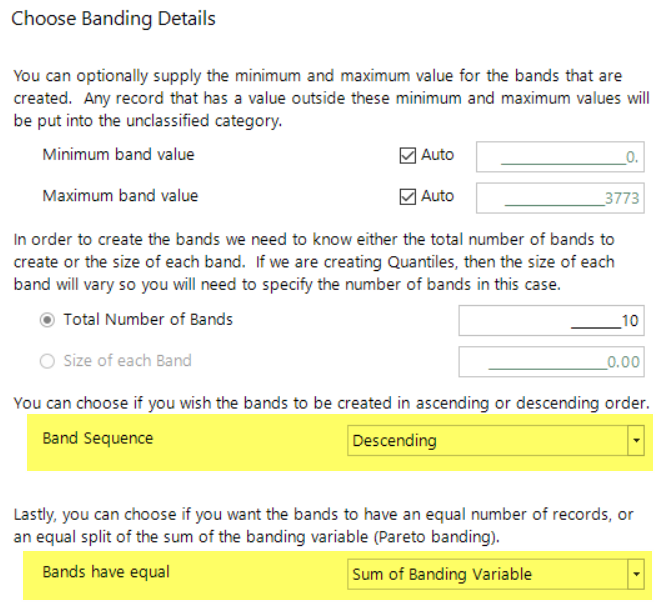
Bands: Change the Band Sequence to Descending and the Bands have equal drop list to show Sum of Banding Variable
-
Click Next
- Selection: Leave blank to use all available records
- Click Next
- Folder: Select the System folder in which the variable should be created
- Click Next
- Add Note: Add notes if required
- Click Next
- Name: Enter a Description - e.g. 10% People Bands of Total Spend
- Click Next
- Finish: Click Finish
To see the results:
- Open a Cube on a blank Selection window set to the People table level
- Drag the variable 10% People Bands of Total Spend onto the vertical drop zone
- Drag the Total Spend on Bookings variable in the centre of the Cube
-
Click the Build button