Sequence analysis wizard
The Sequence Analysis wizard provides a mechanism for creating on the fly, pattern match aggregation expressions that allow you to look for particular patterns of transactions, or for longest sequences of transactions with a particular property - for example, the same holiday destination, repeat purchases of a particular product, changes in donation type, etc.

The wizard simplifies and guides you through the process of creating the aggregation, offering all the same options that are available directly through the expression editor, with the result of the wizard being an on the fly aggregation expression which you can then use in a selection, or as a column in a data grid, for example.
To get started, from the Analysis Wizards section of the Wizards ribbon bar, select  Sequence Analysis.
For an overview of each of the wizard steps, start with step 1 - Transactional Selection.
There are three possible pattern types to select from - click the links for a worked Holidays example of each:
- Selector variable only - when you create a sequence only from the pattern within your chosen selector variable.
- Numeric variable only - when you create a sequence only from the pattern within your chosen numeric/currency variable.
- Selector and numeric variables - when you create a sequence from the pattern within your chosen selector and numeric/currency variables together.
Note
Combining the power of the Category Grouping and Pattern Match aggregation techniques, see also:
Expressions: Aggregations on the fly - Category Grouping with Pattern Match
Transactional selection
In the first step of the wizard you should identify the transactional records to be used. You can right click and select, or drag and drop the required selection or table.
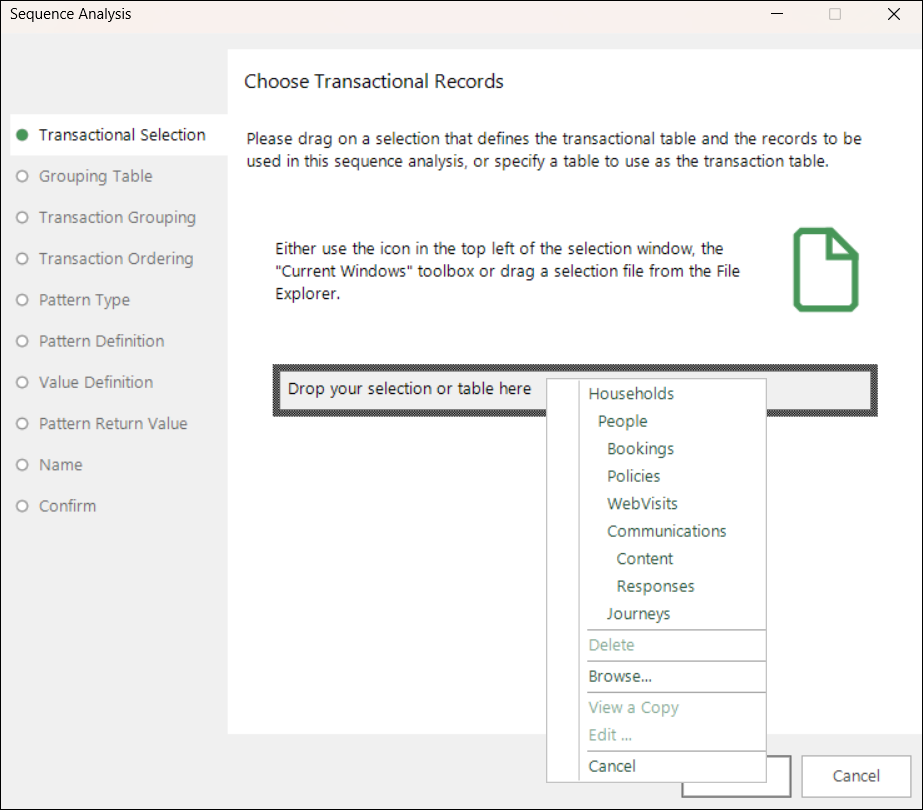
Once selected, click Next.
Grouping table
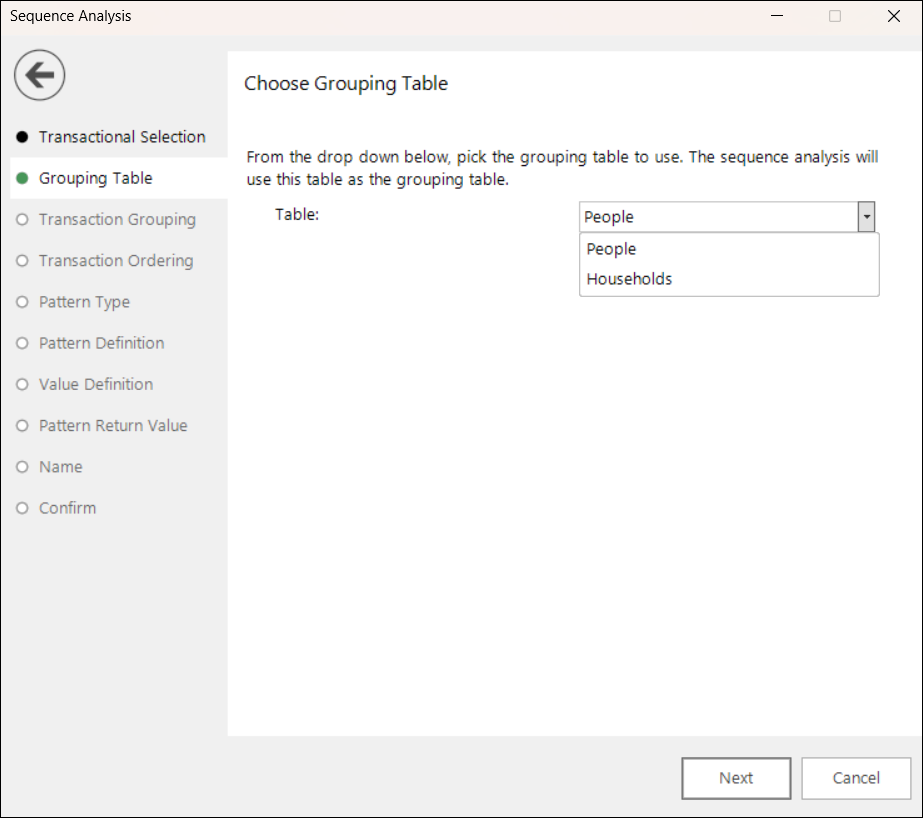
At the second step, the possible grouping tables are displayed in the drop-down menu.
Transaction grouping
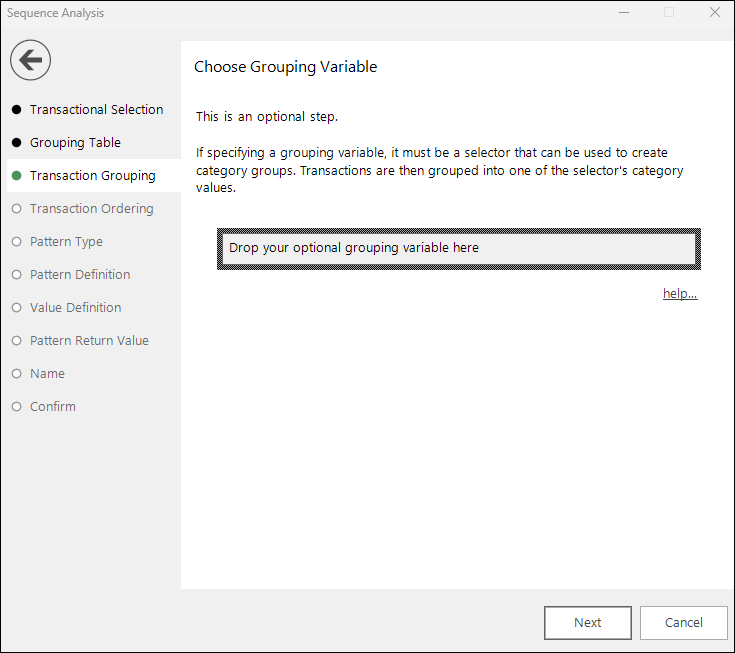
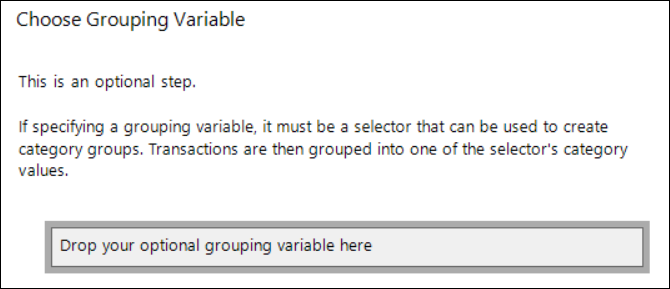
This is an optional step that works only when looking for patterns within a selector variable. The grouping variable must also be a selector.
When you specify a grouping variable, transactions are split into these category groups before the pattern match is then applied to each of the groups individually. For example, you might want to look for transactional patterns for a particular department within the business, or perhaps look at items with a specific response code.
Simply drag your grouping selector variable onto the drop-box.
Transaction ordering
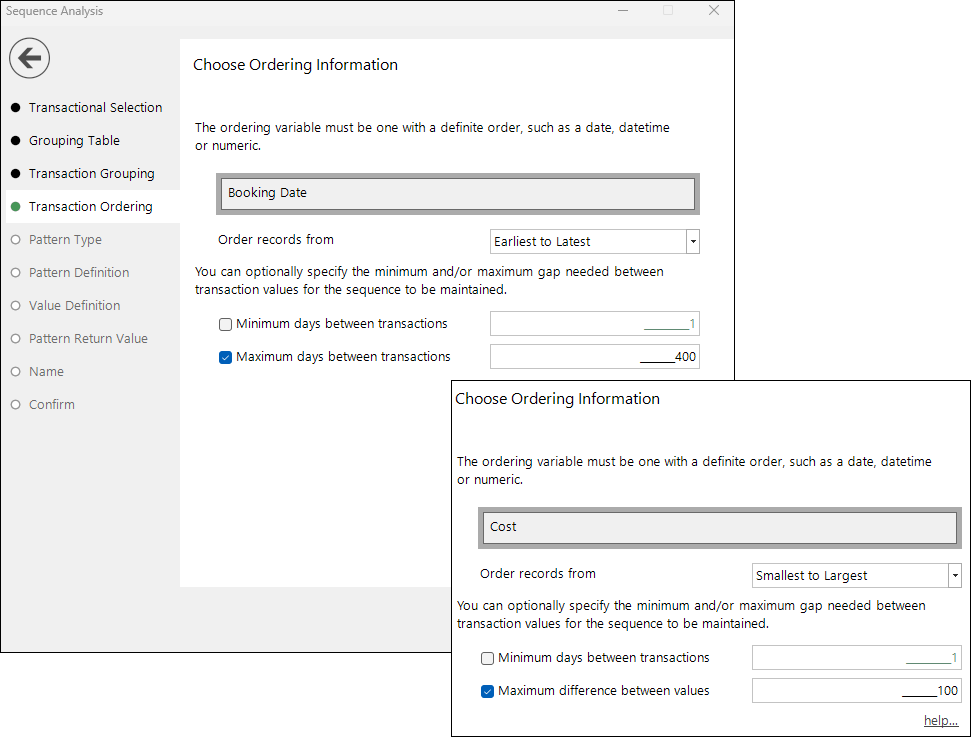
You need to give FastStats a variable with which it can order the transactions that are being pattern matched.
For date and datetime variables you can choose whether the ordering should be earliest to latest, or vice versa, and optionally define the maximum number of days between transactions, if necessary. For example, in the context of holidays, you might set this to 400 days to investigate patterns relating approximately to a person's annual holiday bookings.
For numeric/currency variables, you can order the records from smallest to largest, or vice versa, and optionally set a maximum difference between the transaction values to be returned.
Pattern type
There are three possible pattern types to select from - click the links below for a worked Holidays example of each:
- Selector variable only - when you create a sequence only from the pattern within your chosen selector variable.
- Numeric variable only - when you create a sequence only from the pattern within your chosen numeric/currency variable.
- Selector and numeric variables - when you create a sequence from the pattern within your chosen selector and numeric/currency variables together.
Note
If you have added a grouping variable in the Transaction Grouping step then you can only choose a selector variable pattern type here.
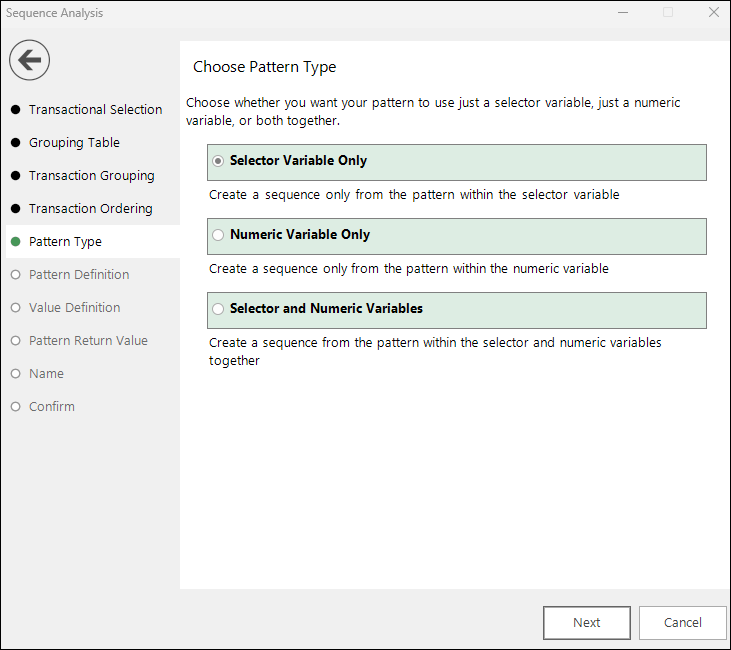
Selecting your pattern type will take you to the next relevant step(s) - Pattern Definition or Value Definition.
Pattern definition
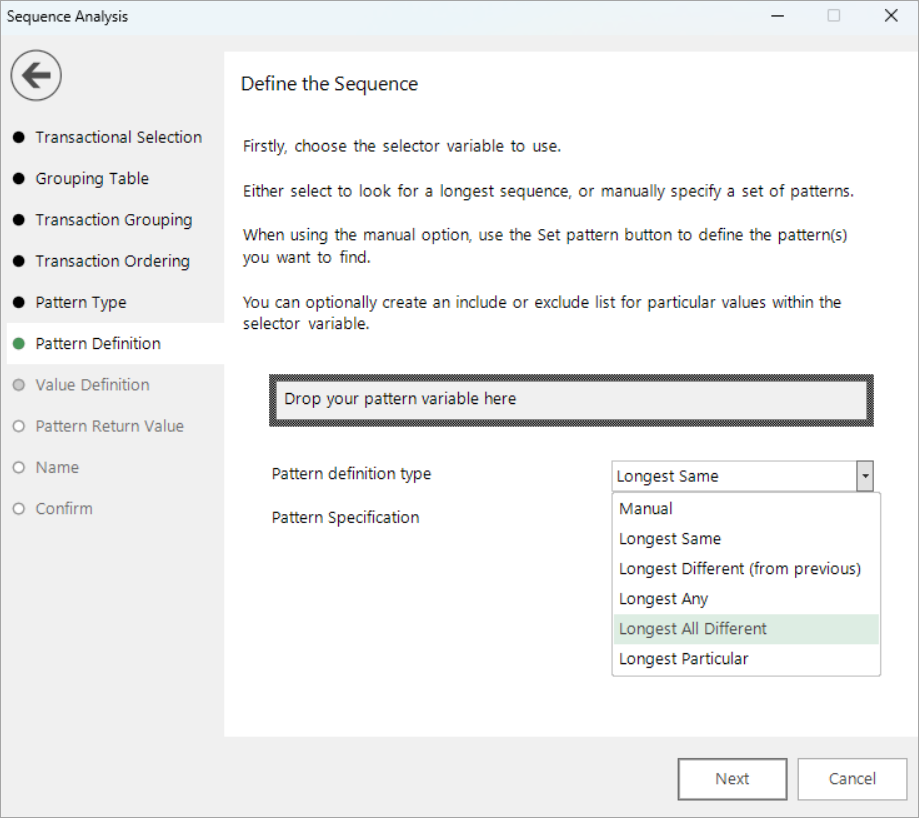
In this step, drag and drop your selector variable and choose between a predefined Longest sequence or manually define the required sequence.
Note
If you choose Longest Particular then one of the category codes for that variable must then be selected from the Longest particular value drop-down menu.
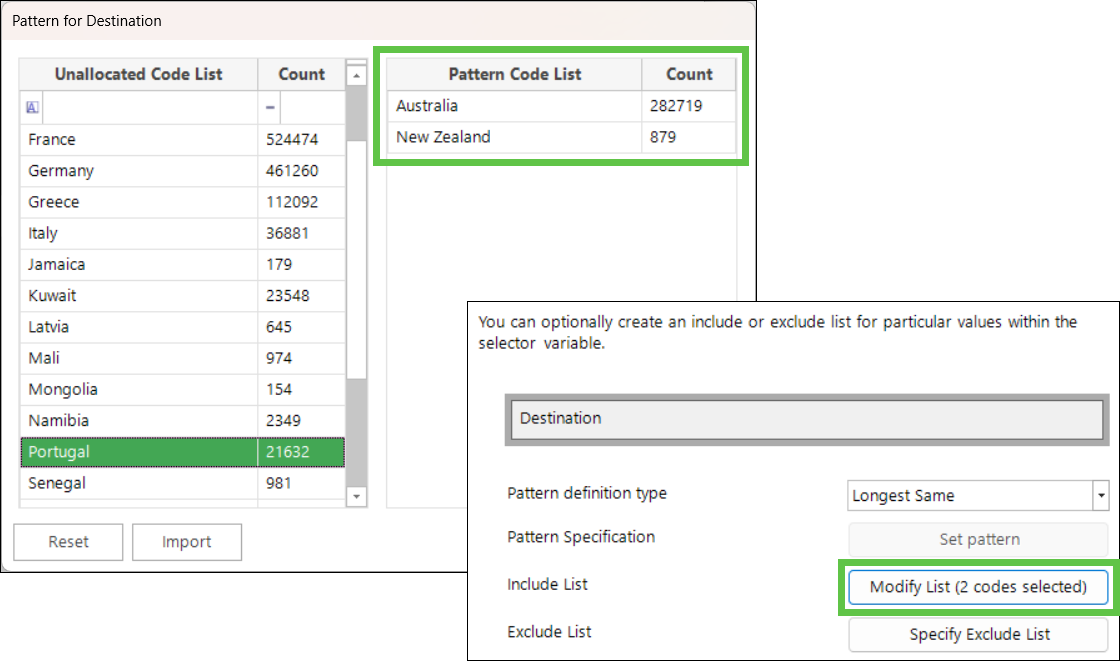
When selecting a 'longest' pattern, you can optionally create a list of specific categories to include or exclude. In the Pattern for Destination dialogue, double-click or left-click and drag categories into the Pattern Code List column.
To manually define the pattern:
- Select Manual.
- Click on the Set pattern button to open the Define pattern dialogue.
- Click on the Value column drop-downs to select the variable categories you wish to include in the pattern.
The following positional wildcards are also supported:
| Wildcard | Description |
|---|---|
| ? | Can represent any single value in that position. Use where the actual value on this element of the pattern is not needed - see screenshot below. |
| \* | Can represent 0 or more values when specifying and finding a desired sequence of transactions. e.g. that a person should have booked a holiday to Australia first, followed by one to New Zealand; it does not matter how many other bookings fall in between (or if there are none), nor does it matter what the other destinations are – as long as there is a sequence of Australia followed by New Zealand. |
| = | To match the previous category value in the pattern |
| <> | To specify that a category value should be different to the value in the previous record. e.g. find patterns of transactions where each product is different to the last. |
| ?N | To represent any value the first time it is encountered in the pattern, and then all subsequent references to it must match the same value. |
See Aggregations On The Fly - Pattern Match Positional Wildcards for more information and examples.
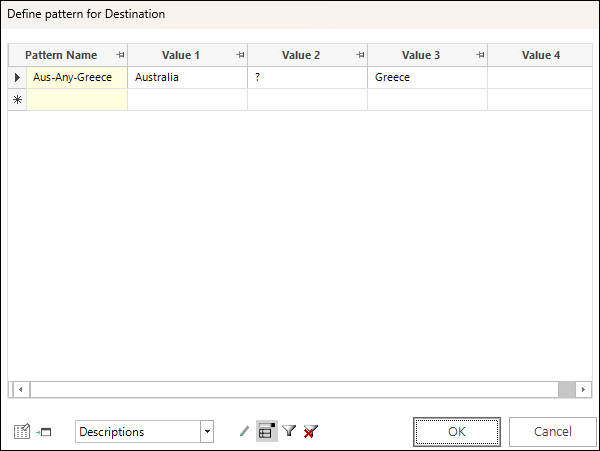
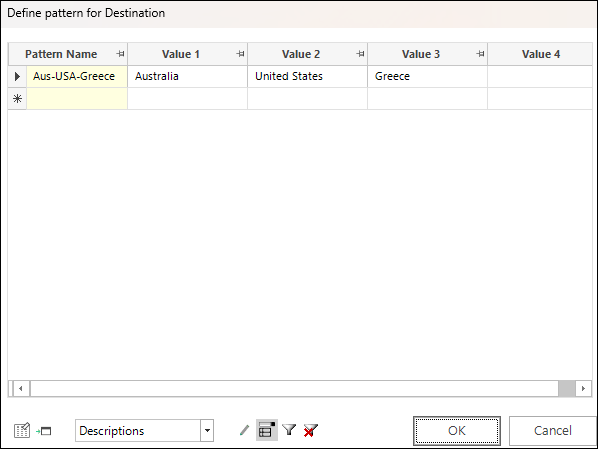
In the case of the above defined settings:
- Value 1 should be a booking to Australia.
- Value 2 can be a booking to any destination.
- Value 3 should be a booking to Greece.
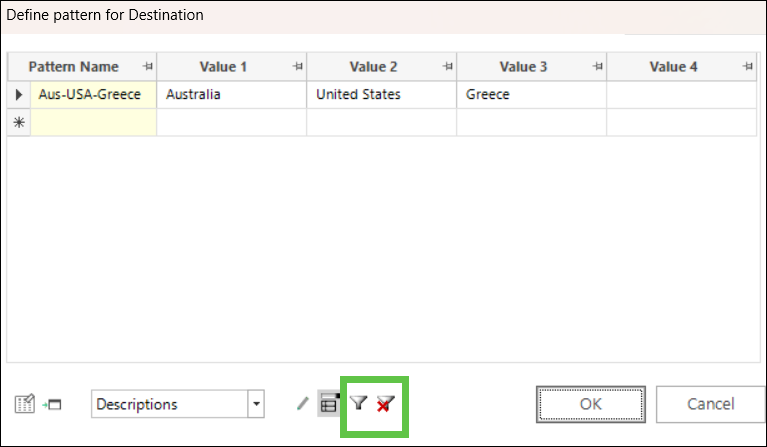
To add an include or exclude list for a manual sequence, use the icons at the bottom of the Define pattern for dialogue:
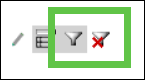
Once created, grey highlighting indicates that a list is in effect:
Note
When adding an include or exclude categories - these transactions are ones that are included in the set of transactions, but if a value is not in the include list, or is in the exclude list, then the pattern is broken at that point.
Click OK to apply the pattern definition and then Next.
Value definition
In this step of the wizard you drag and drop your selected pattern numeric variable and then define the pattern.
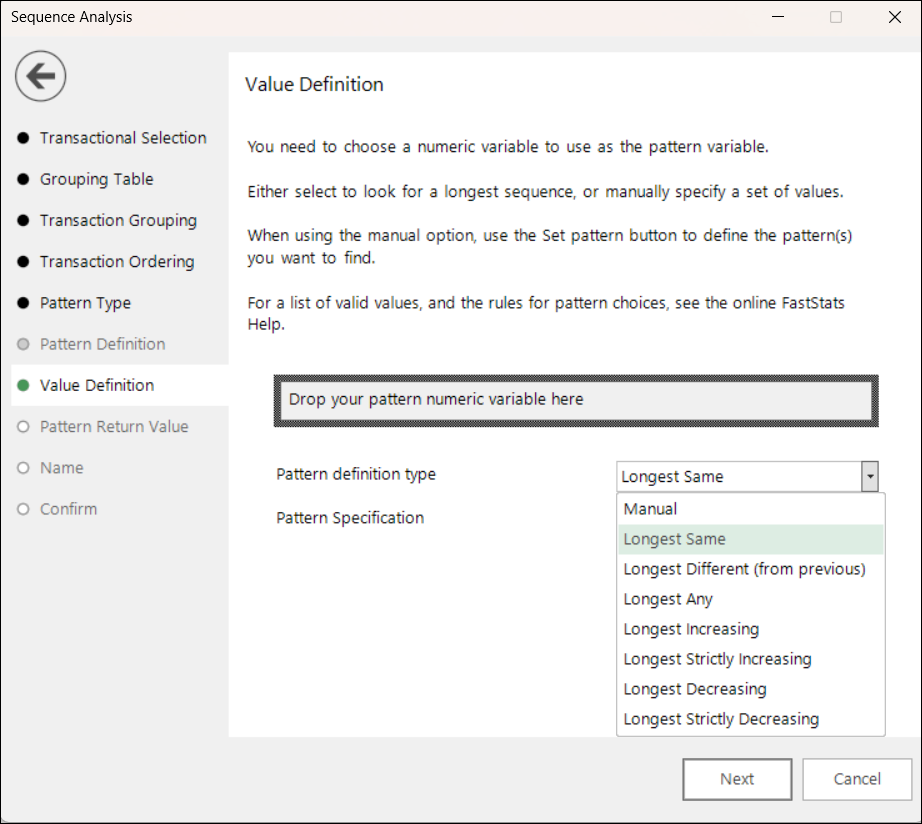
You can select from the predefined 'longest' definitions or choose to set your pattern manually.
Note
When defining selector and numeric patterns together, choosing a Longest type sequence for the selector requires you to also select a Longest option (although it can be different one) for the numeric sequence. Similarly, if the selector definition is manual, the numeric one must also be manual.
When manually defining a pattern, the pattern elements you can use to create sequences on a numeric variable are as follows.
Using booking Cost as the value variable in these examples:
- Fixed numeric values - F200 to find transactions which are exactly £200 in value.
- Fixed numeric ranges - F>100, F<1000, F500-800 to find bookings which cost more than £100, less than £1000 and between £500-800 respectively.
- Relative numeric ranges - R10-30 to compare transactions and look for a transaction that is between £10-30 more than the previous transaction.
- Percentage difference numeric ranges - P10, P10-20 to calculate that the next value in the list is 10%, or 10-20% bigger than the previous transaction.
- Ongoing sum values - >600, S>1200, S>1800 to find a transaction which cost more than £600, followed by two further transactions which return an ongoing sum value of £1200 and £1800 respectively.
- Ongoing mean values - >300, M>300, M>300 to find a transaction which cost more than £300, followed by two further transactions, each returning an ongoing mean value of £300.
It is possible to use the above in conjunction with one another to create a pattern, when appropriate:
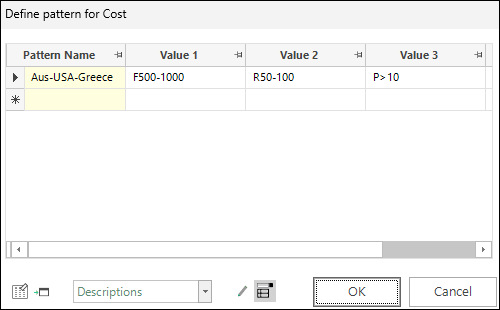
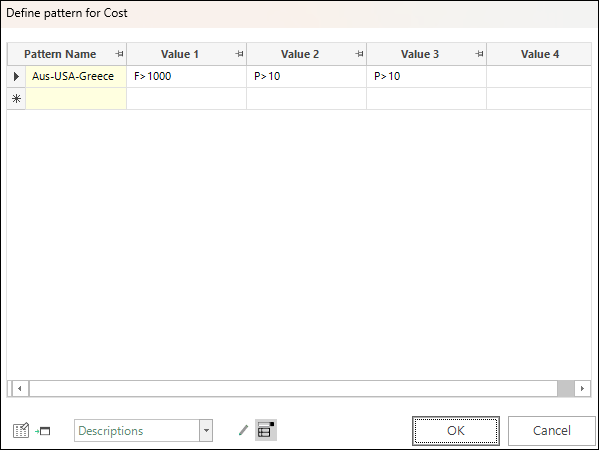
In the case of the above defined settings:
- Value 1 cost should be between £500-1000.
- Value 2 cost should be between £50-100 more than value 1.
- Value 3 cost should be more than 10% higher than value 2.
Note
If no F/R/P/S/M prefix is used, FastStats assumes that the most common case - fixed - is required.
A number of positional wildcards are supported.
| Wildcard | Description |
|---|---|
? |
To represent any single value in that position. Use where the actual value on this element of the pattern is not needed. |
\* |
To represent 0 or more of any value(s) when specifying and finding a desired sequence of transactions . |
= |
To match the previous value in the pattern |
<> |
To specify that a value should be different to the value in the previous record. |
?N |
To represent any value the first time it is encountered in the pattern, and then all subsequent references to it must match the same value. |
<, <=, >, >= |
To compare the numeric value in this record to the numeric value in the previous record. |
Note
When creating a sequence using both selector and numeric variables, the value definitions must be internally consistent with each other.
Sequences using a selector and numeric together must be consistent with each other and you should ensure that:
- There are the same number of patterns in each of the selector and numeric pattern definitions.
- The patterns have the same name.
- The patterns have the same number of elements.
- Any * elements in the pattern are in the same position in both the selector and numeric patterns.
Pattern return value
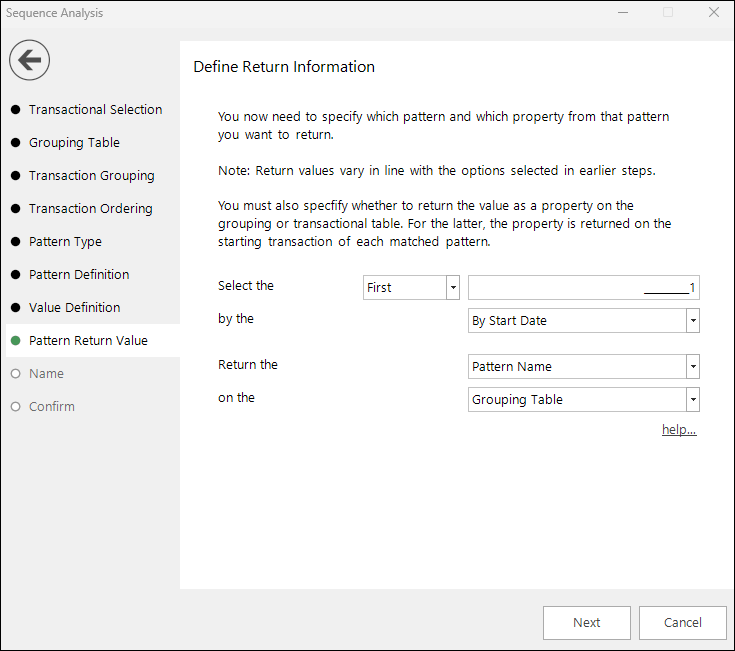
In this step you choose the pattern and the property from that pattern that you are interested in. The options presented in the Return the drop-down reflect the settings you define earlier in the wizard.
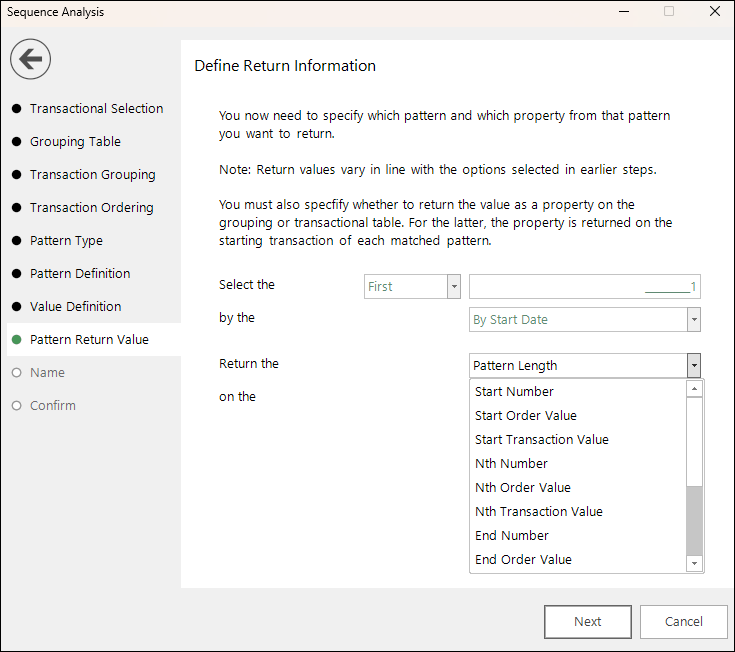
In the example below, the following variables have been used:
- Booking Date for the transaction ordering
- Destination and Longest Any for the pattern definition
- Cost and Longest Increasing for the value definition
Based on these, and the values being returned on the grouping table, the results of each return option are displayed in the following data grid, with the table below offering a key for the highlighted person, as follows:
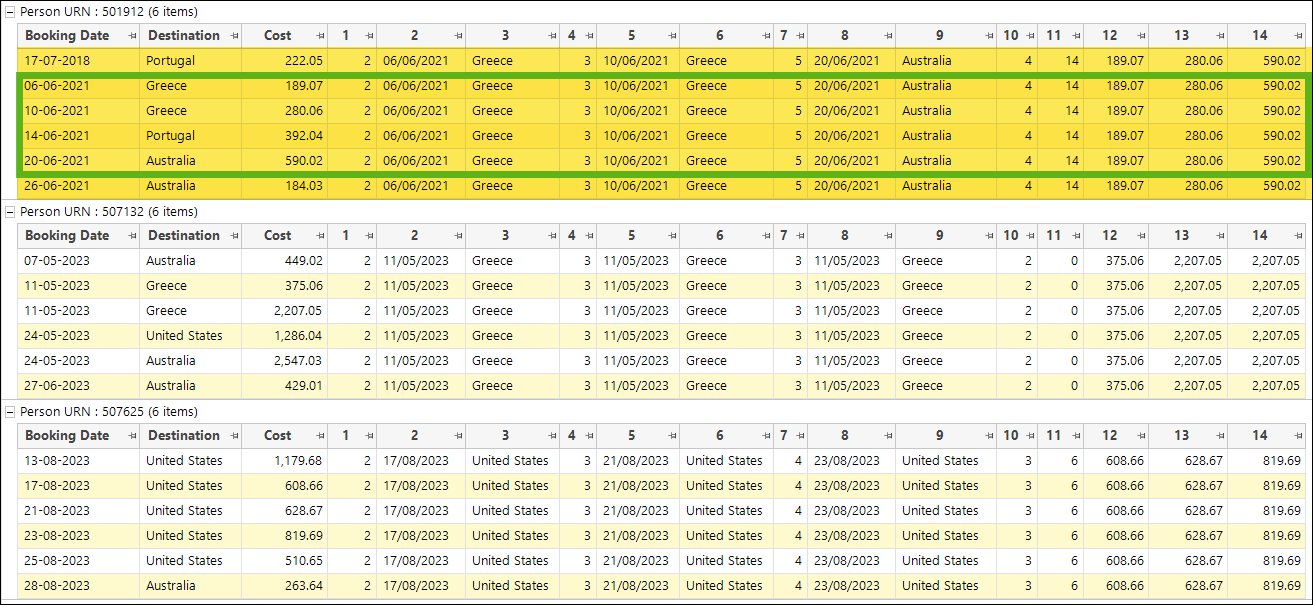
| Data Grid Column | Return Property | PERSON URN 501912 | |
|---|---|---|---|
| 1 | Start Number | Returns the number of the transaction where the pattern starts | Transaction 2 of the 6 transactions made by this person is where the pattern starts |
| 2 | Start Order Value | Returns the booking date corresponding to the transaction where the pattern starts | 06-06-2021 |
| 3 | Start Transaction Value | Returns the destination of the transaction where the pattern starts | Greece |
| 4 | Nth Number | Returns the number of the transaction in the Nth position of the pattern - here set to position 2 | Of the 6 transactions made by this person, transaction 3 is in the 2nd position within the pattern |
| 5 | Nth Order Value | Returns the booking date corresponding to the transaction in the Nth position of the pattern - e.g. here set to position 2 | The date of the 2nd transaction in the pattern is 10-06-2021 |
| 6 | Nth Transaction Value | Returns the destination of the transaction which is in the Nth position of the pattern - here set to position 2 | Greece is the second destination in the pattern |
| 7 | End Number | Returns the number of the transaction where the pattern ends | Transaction 5 of the 6 transactions made by this person is where the pattern ends |
| 8 | End Order Value | Returns the booking date corresponding to the transaction where the pattern ends | 20-06-2021 |
| 9 | End Transaction Value | Returns the destination of the transaction where the pattern ends | Australia |
| 10 | Pattern Length | Returns the length of the pattern | 4 transactions in this pattern |
| 11 | Pattern Order Span | Returns the total number of days from the first booking date to the last booking date in the pattern. | 14 days |
| 12 | Start Numeric Value | Returns the booking cost of the transaction where the pattern starts | £189.07 |
| 13 | Nth Numeric Value | Returns the cost of the transaction in the Nth position in the pattern - here set to position 2 | £280.06 |
| 14 | End Numeric Value | Returns the booking cost of the transaction where the pattern ends | £590.02 |
Once you have defined your return information, click Next.
Name
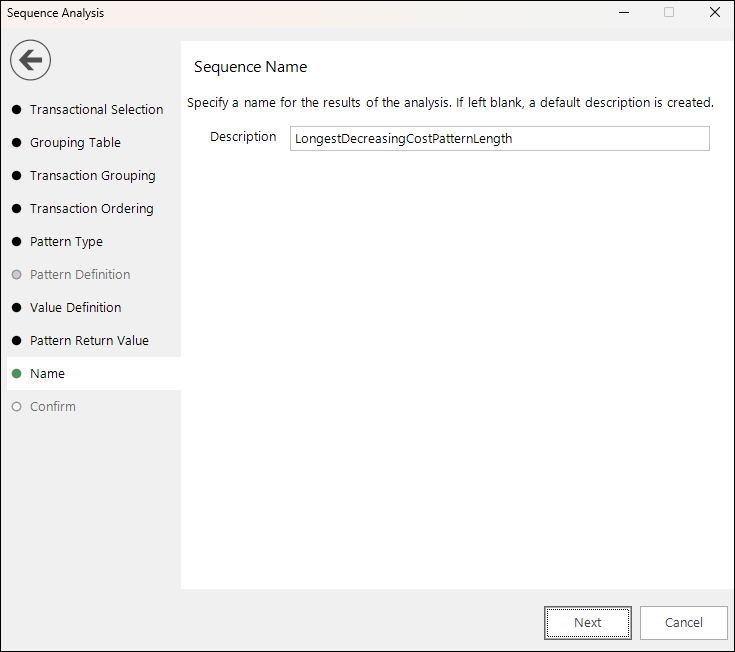
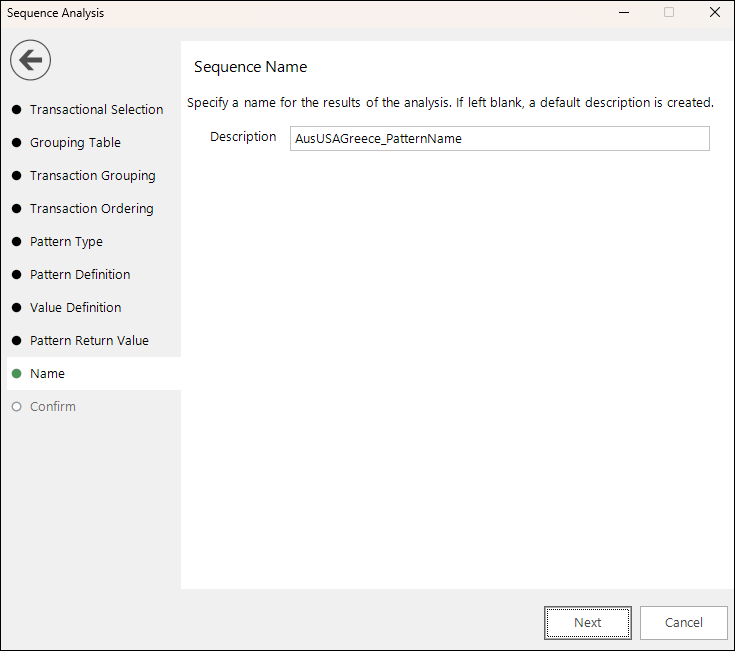
In this step of the wizard you should add an appropriate name for the expression that will be generated. This may be based on organisational practice and could include, for example, your own name or initials to indicate who the creator is.
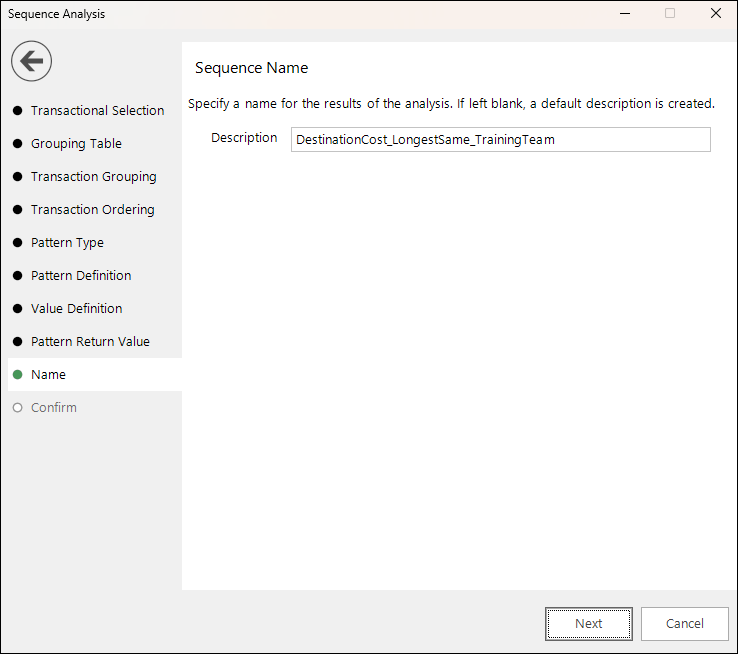
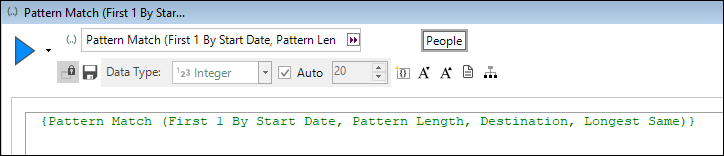
If you don't enter your own description, a name based on your pattern match settings is auto-generated.
Confirm
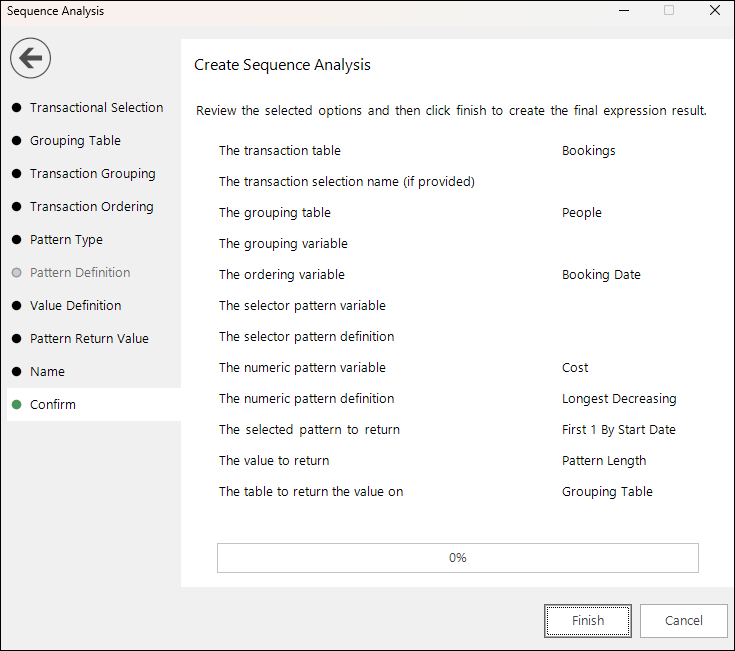
In this final step, you have the opportunity to review your pattern match settings.
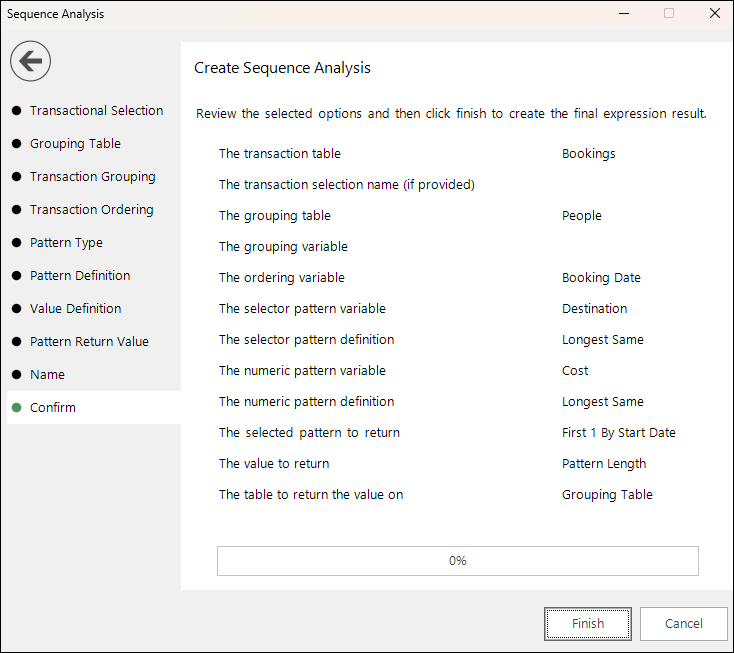
You can go back and edit the settings if necessary or click Finish to create the pattern match aggregation expression.
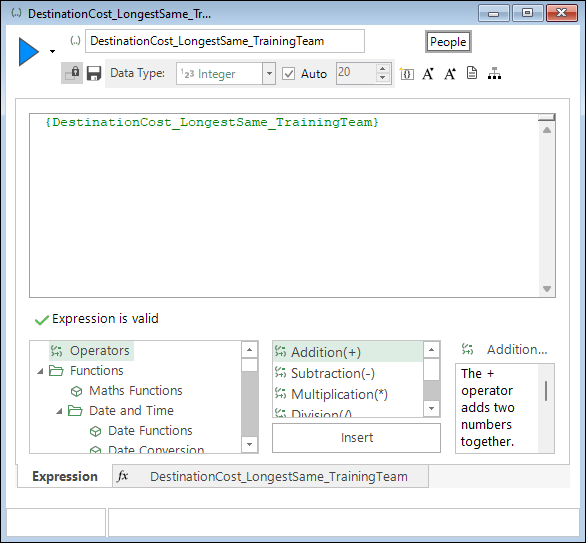
Click on the tab at the bottom of the display to view the pattern match settings:
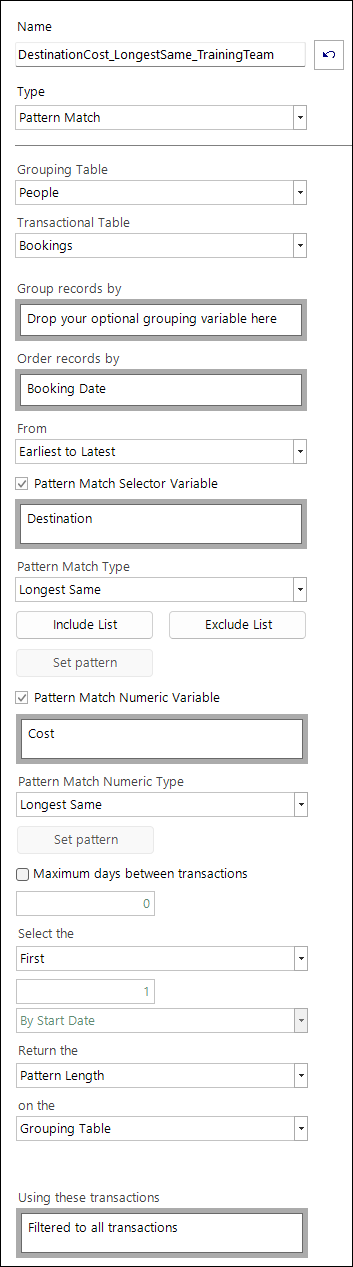
Numeric variable only
Scenario
Find the longest sequence of holidays a person has made where the cost is decreasing. find the start and end numeric values for each sequence.
To get started, launch the Sequence Analysis wizard, then:
-
Transactional Selection - right click and select the Bookings table as the transactional records to analyse.
-
Grouping Table - set People as the table to group the bookings up to.
-
Transaction Grouping - this is an optional step that allows additional grouping into the categories of an identified selector variable. No grouping variable is required here - simply click Next.
-
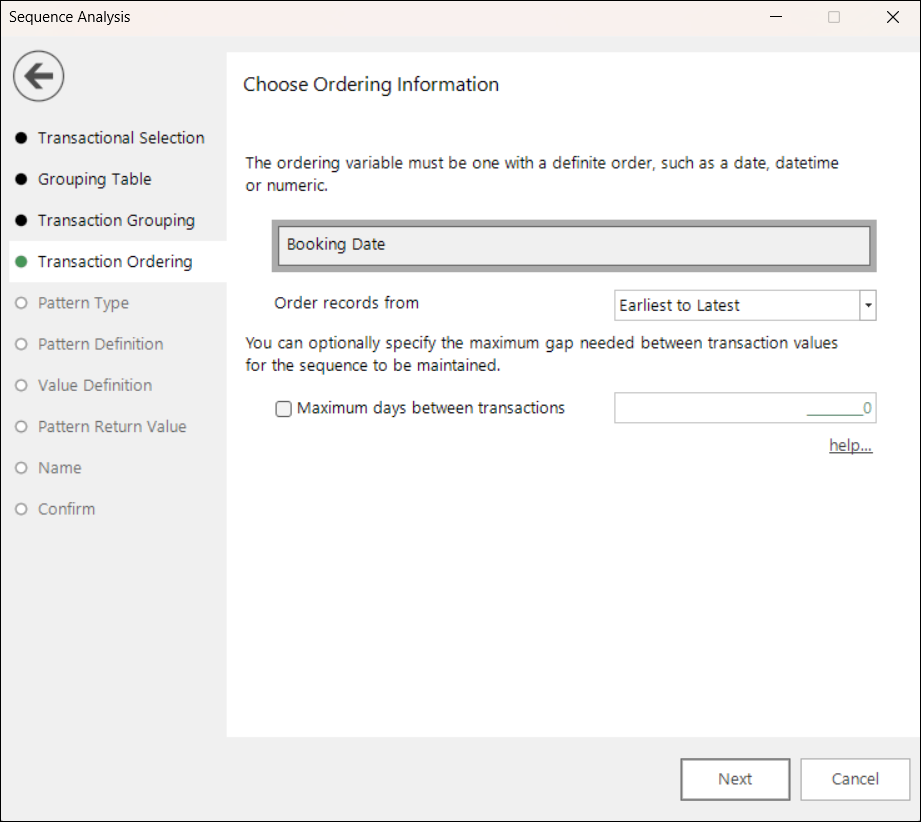
Transaction Ordering - in this example:
- Drag and drop the Booking Date variable onto the drop-box.
- Leave the default order as Earliest to Latest.
No maximum gap between transactions is necessary here - click Next.
-
In the Pattern Type step, select Numeric Variable Only.
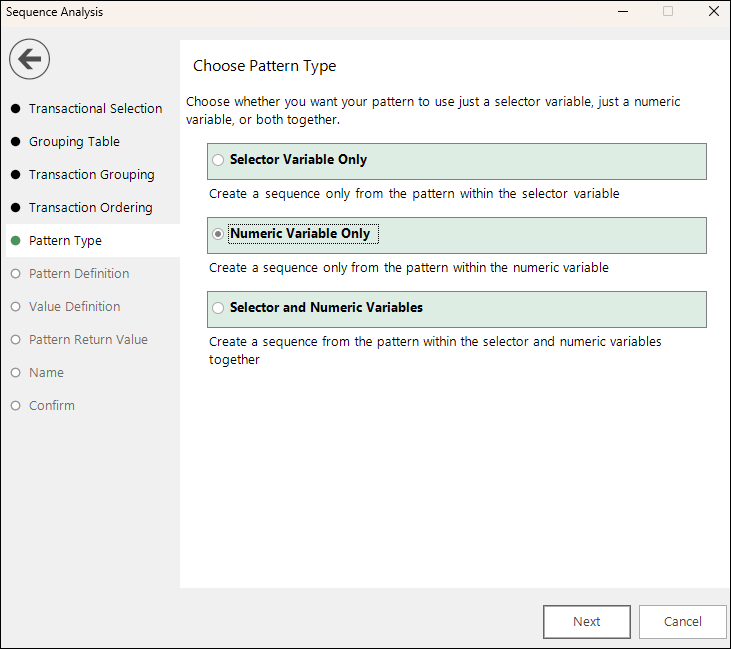
As this is numeric only pattern matching, you move directly to the Value Definition step.
-
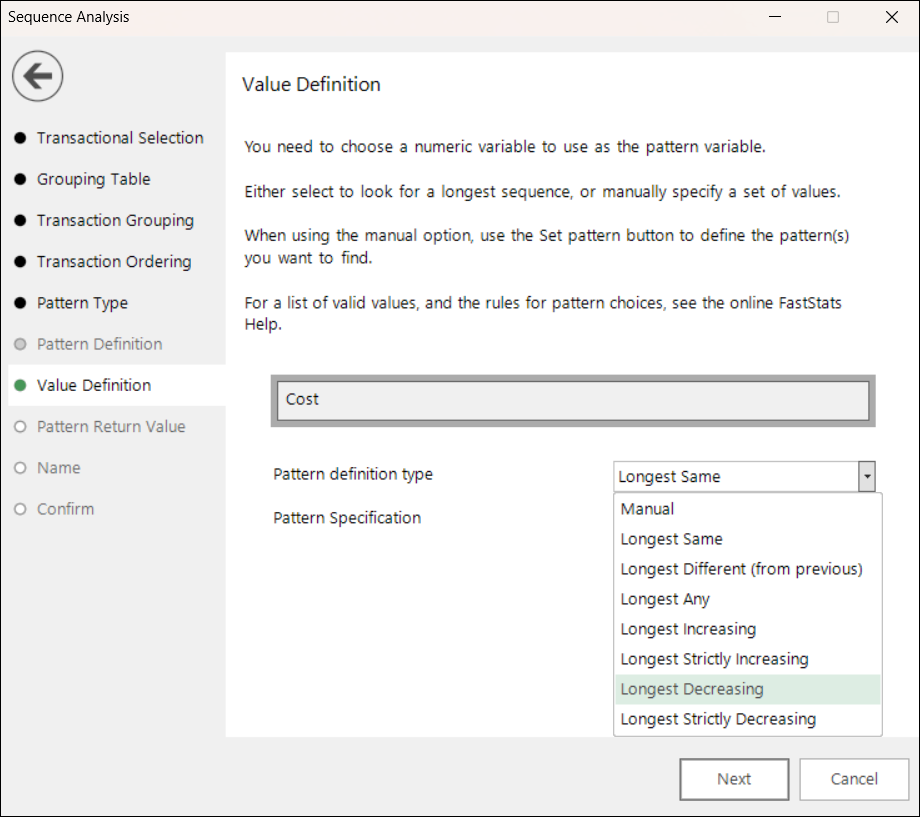
Drag and drop the Cost variable onto the drop-box, then set the pattern definition type as Longest Decreasing.
-
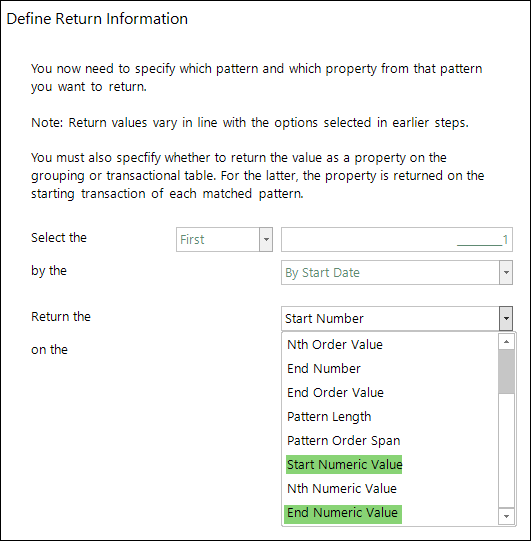
Use the Return the drop-down options to define the information you want to return. Here:
- Return the Pattern Length
- Return as a property on the Grouping Table
-
Give your pattern match aggregation an appropriate description.
-
You have the opportunity to review and, if necessary, edit your settings before creating the pattern match expression.
-
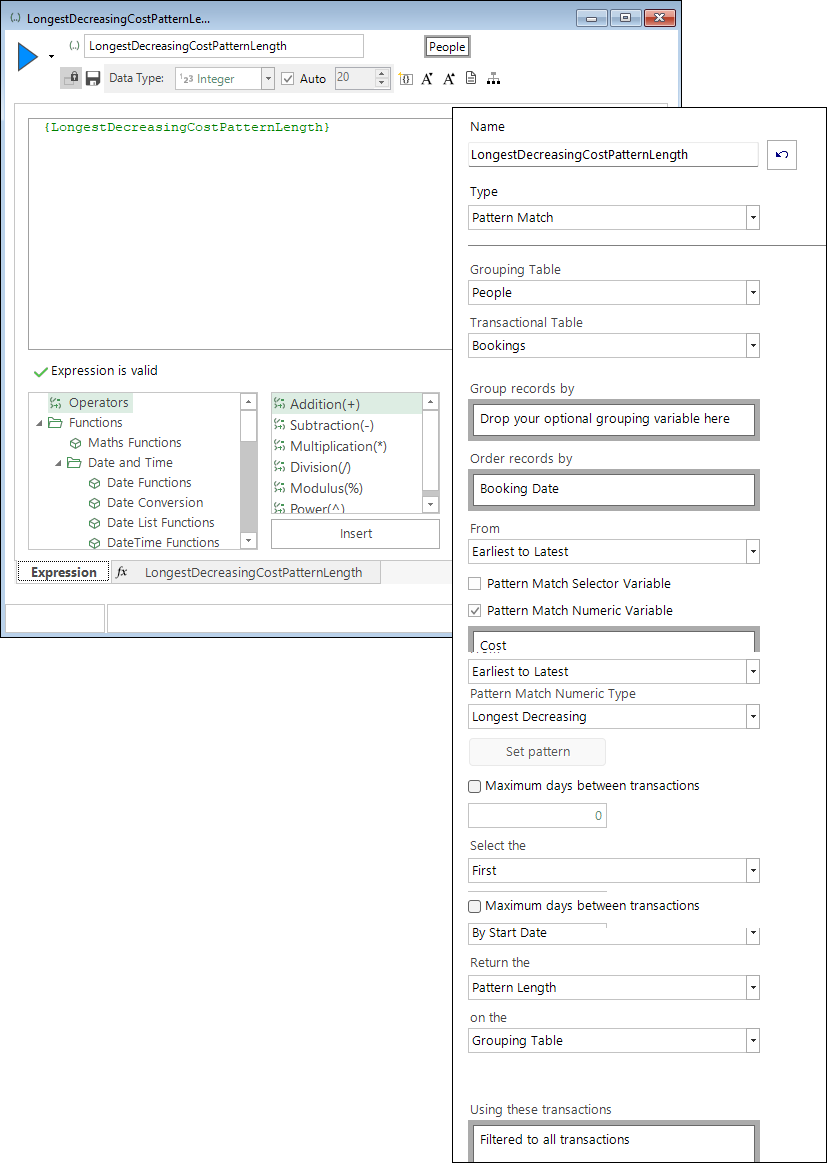
When you click Finish, the pattern match aggregation expression is generated.
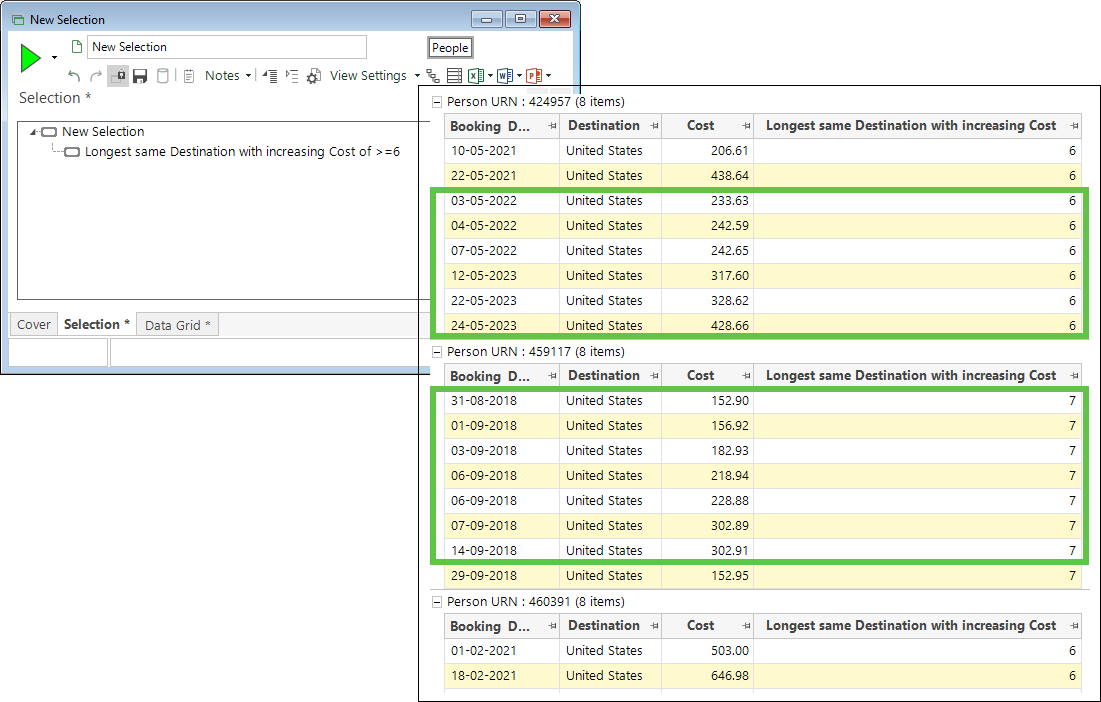
For this scenario, to create the two additional pattern match aggregation expressions, you can either use the wizard two more times to follow the same steps but define the return information as Start Numeric Value and End Numeric Value:
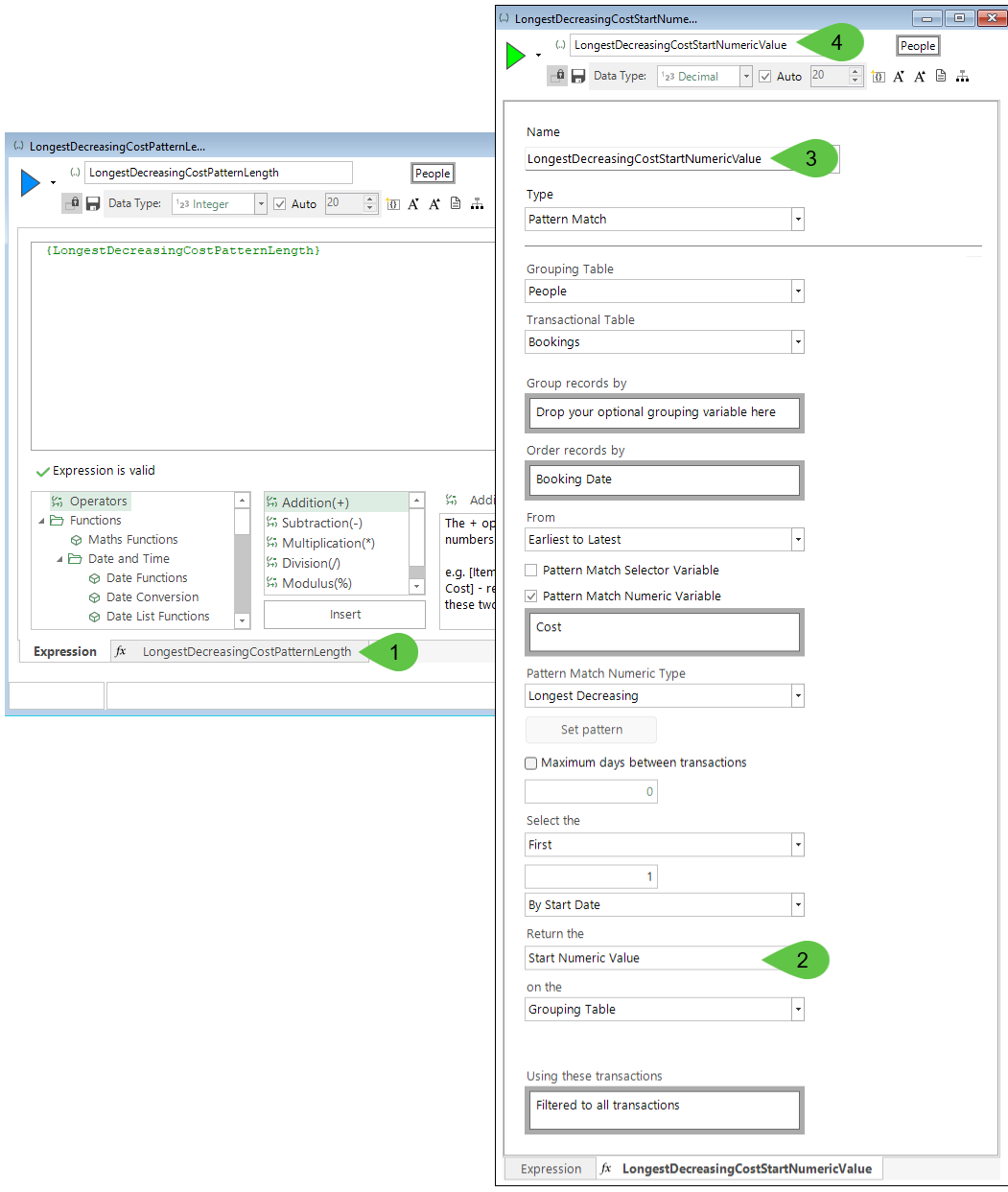
Or you can make a copy of this first expression and then:
- Click into the aggregation tab at the bottom of the editor window.
- Edit the Return the setting.
- Rename the aggregation.
-
Rename the expression.
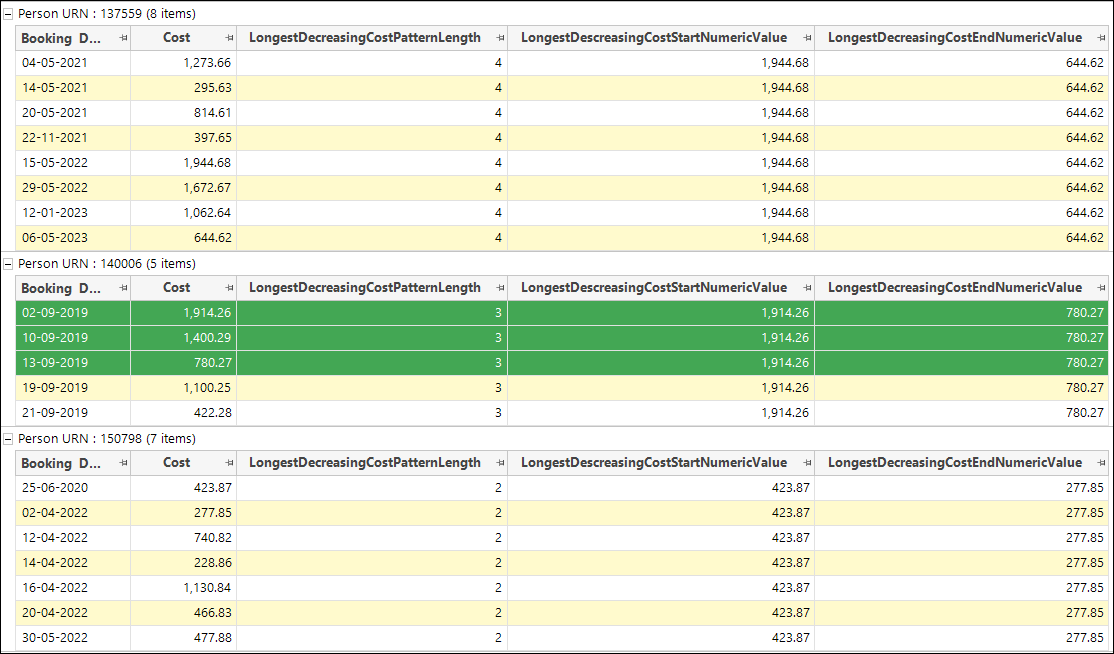
The expressions can be added as columns on a data grid to display the results for each person.
Selector and numeric variable
Scenario
Find people who have been to Australia, then the United States, and then Greece, where the cost of the Australian booking is greater than £1000, with a more than 10% increase in the cost of the US booking and then the Greece booking.
To get started, launch the Sequence Analysis wizard, then:
-
Transactional Selection - right click and select the Bookings table as the transactional records to analyse.
-
Grouping Table - set People as the table to group the bookings up to.
-
Transaction Grouping - this is an optional step that allows additional grouping into the categories of an identified selector variable. No grouping variable is required here - simply click Next.
-
Transaction Ordering - in this example:
- Drag and drop the Booking Date variable onto the drop-box.
- Leave the default order as Earliest to Latest.
No maximum gap between transactions is necessary here - click Next.
-
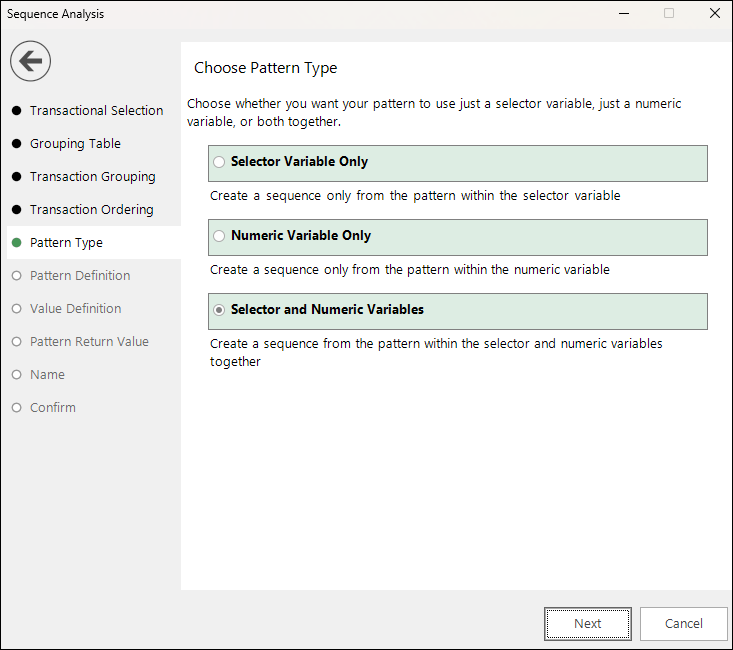
In the Pattern Type step, select Selector and Numeric Variables.
-
In the Pattern Definition step:
- Drag and drop the Destination variable as the selector variable to use.
- Select Manual from the Pattern definition type drop-down options.
-
Click Set pattern and define the categories you wish to pattern match - here:
-
Click OK and move onto the next step.
-
In the Value Definition step:
- Drag and drop the Cost variable as the numeric variable to use.
- Select Manual from the Pattern definition type drop-down options.
-
Click Set pattern and define the numeric values you wish to pattern match - here:
Note
For more on the pattern elements you can include when creating sequences on selector and numeric variables see Pattern Definition and Value Definition.
-
Give the pattern a description - here Aus-USA-Greece then OK and Next.
Note
The pattern name of the numeric value must exactly match that used for the selector.
-
In the Pattern Return Value step, leave the default settings to select the First - By Start Date and return the Pattern Name on the Grouping Table.
-
Give your expression a meaningful description.
-
In the final step of the wizard, you can review the defined settings. If necessary, navigate back through the steps and edit, or click Finish to create the on the fly aggregation expression.
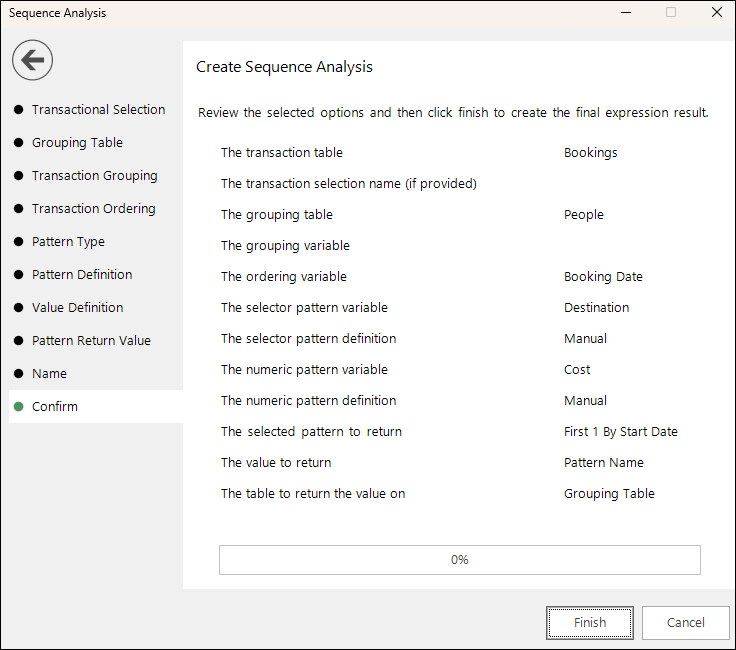
You can now use the pattern match expression to continue your analysis. For example:
-
Drag and drop the expression onto a new People level selection and enter the pattern Aus-USA-Greece.
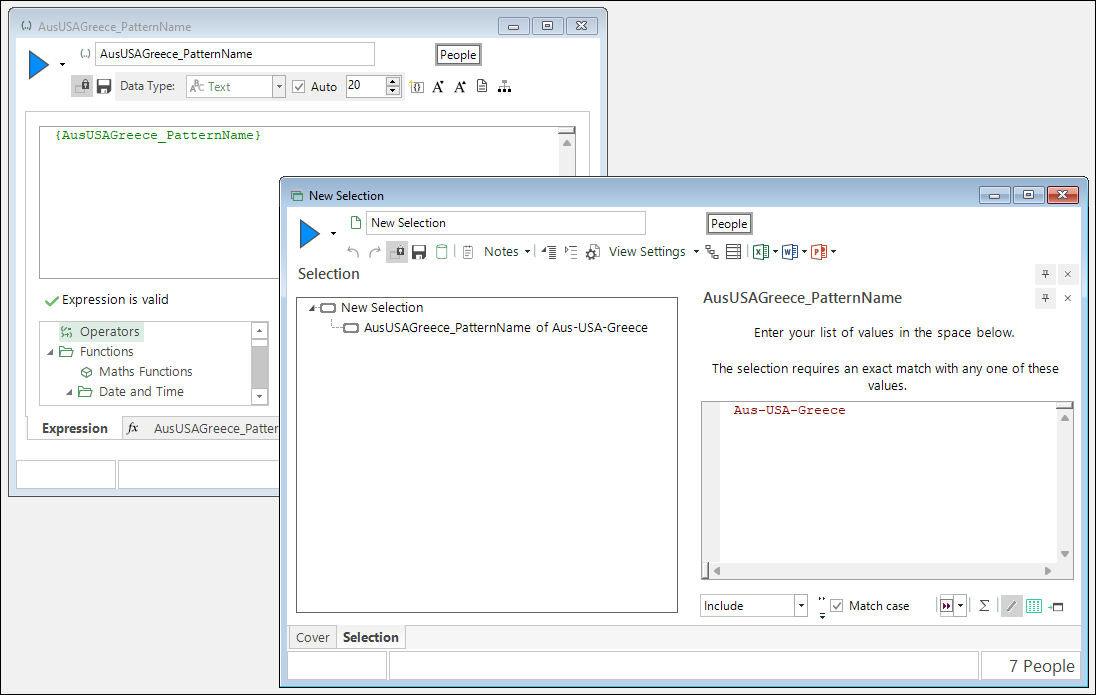
Building the selection returns a count of 7 people who currently match the defined pattern
-
Drop a data grid onto the selection and add Booking Date, Destination and Cost.
- Group by Person URN and build.
-
Sort into ascending order by booking date.
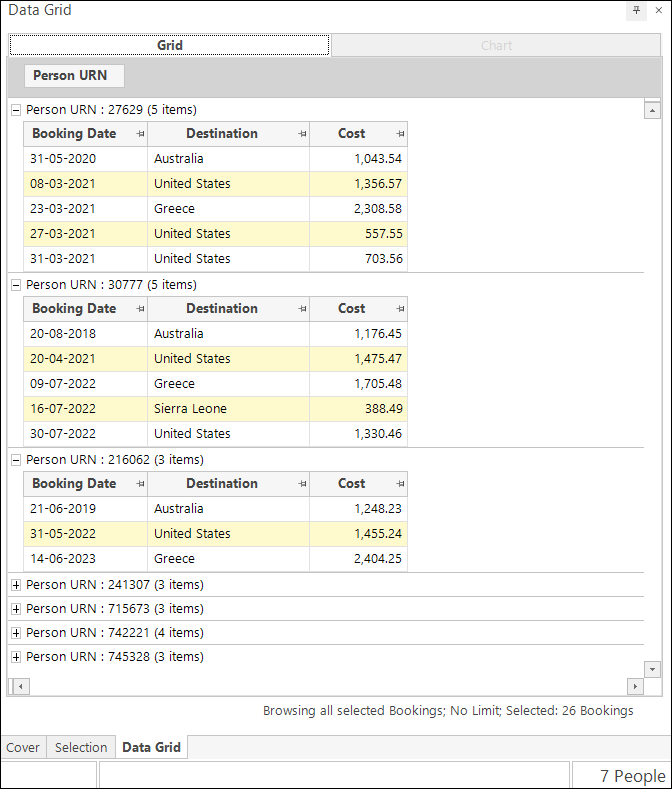
You can see that each person satisfies the pattern by:
- Having a sequence of bookings that is Australia followed by the United States and then Greece;
- The cost of the Australian booking being more than £1000;
- The cost of the US booking being more than 10% higher than the Australian booking;
- The cost of the Greece booking being more than 10% higher than the US booking,
Selector variable only
Scenario
Find the longest sequence of holidays a person has made to the same destination.
To get started, launch the Sequence Analysis wizard, then:
-
Transactional Selection - right click and select the Bookings table as the transactional records to analyse.
-
Grouping Table - set People as the table to group the bookings up to.
-
Transaction Grouping - this is an optional step that allows additional grouping into the categories of an identified selector variable. No grouping variable is required here - simply click Next.
-
Transaction Ordering - in this example:
- Drag and drop the Booking Date variable onto the drop-box.
- Leave the default order as Earliest to Latest.
No maximum gap between transactions is necessary here - click Next.
-
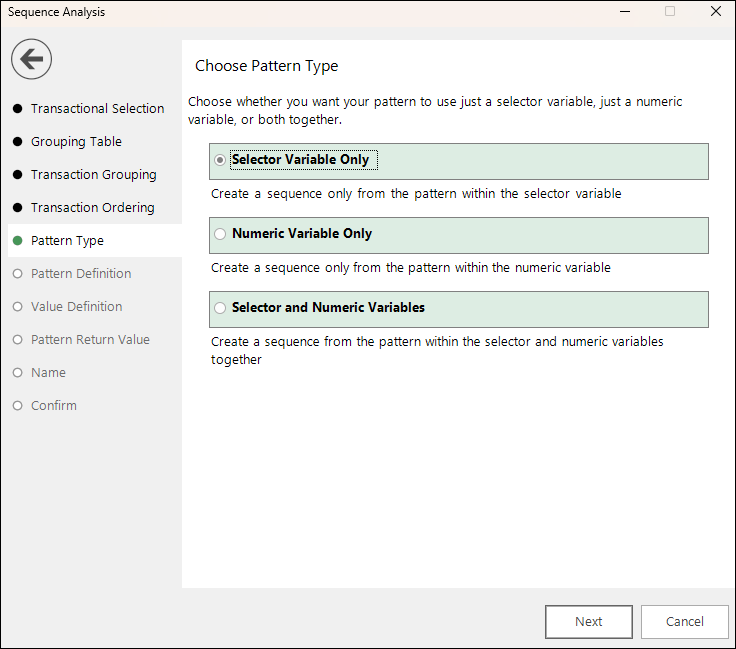
Leave the default - Selector Variable Only - as the pattern type to use.
-
First:
-
Drag and drop Destination as the pattern variable to use.
You can now use the Pattern definition type drop-down to select either a 'longest' sequence option, or define your own pattern by selecting Manual.
-
Select Longest Same.
It is possible to specify categories to include or exclude, but this is not necessary here.
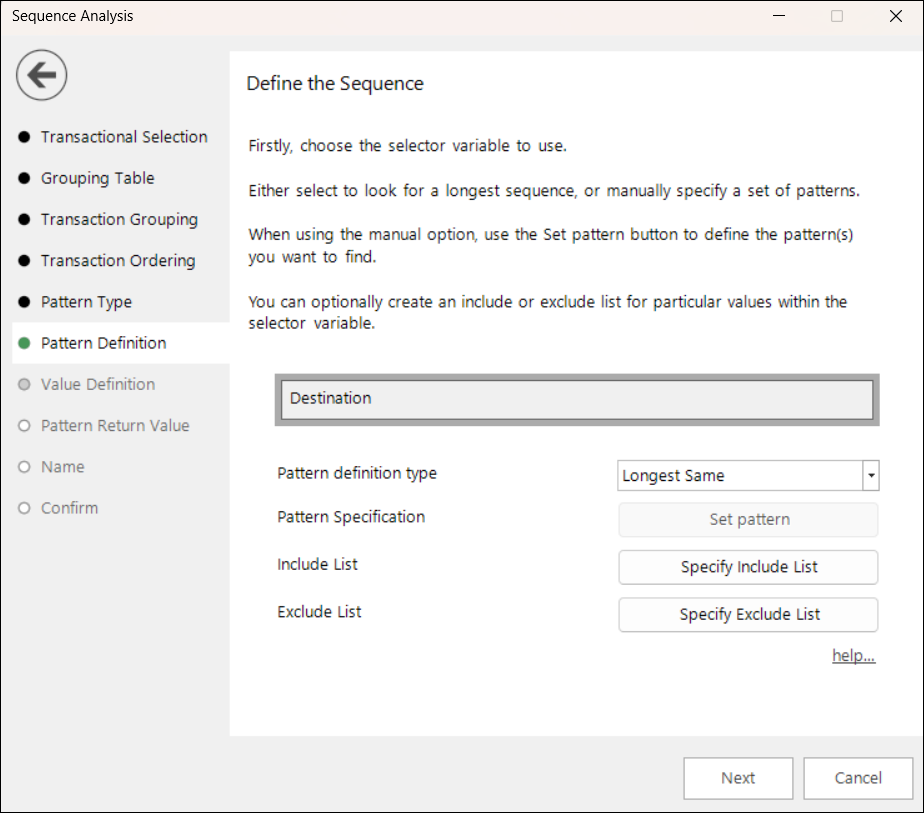
As this is selector only pattern matching, you move directly to the Pattern Return Value step.
-
-
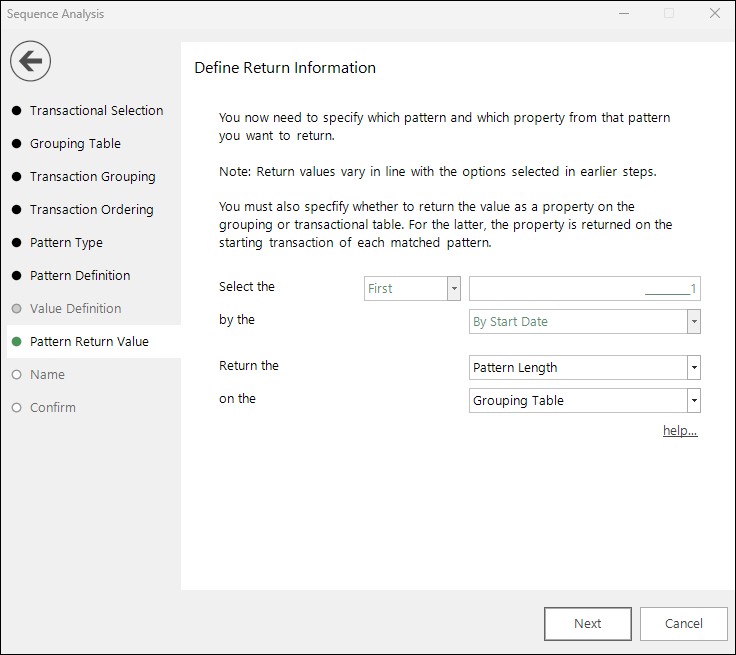
Use the Return the drop-down options to define the information you want to return. Here:
- Select the First
- Return the Pattern Length
-
Return as a property on the Grouping Table
-
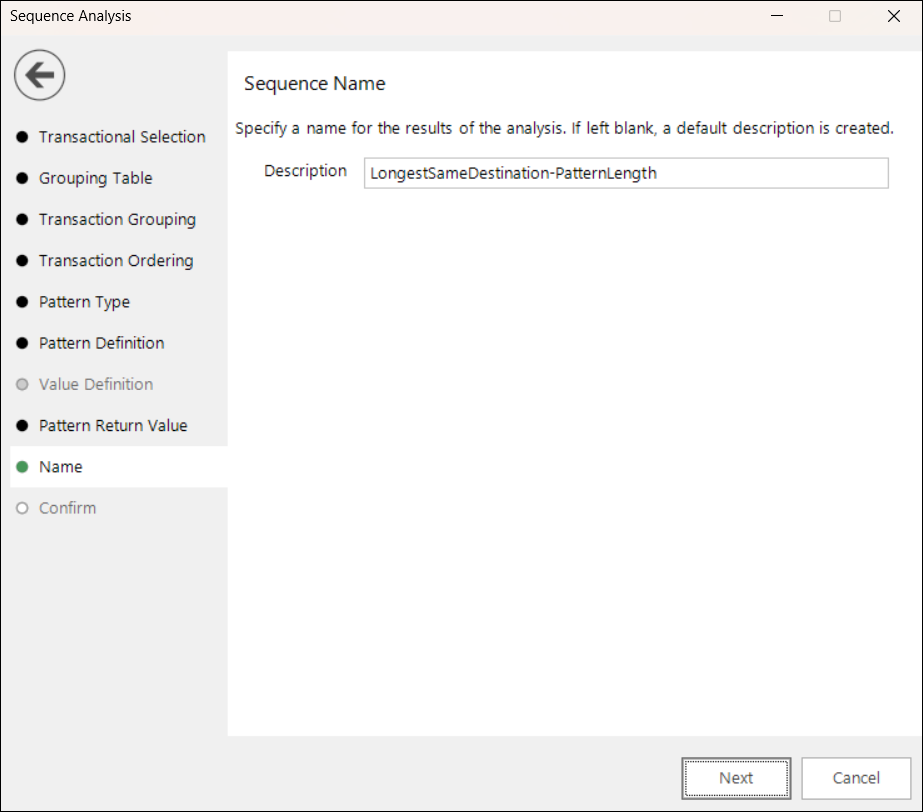
Give your pattern match aggregation an appropriate description.
-
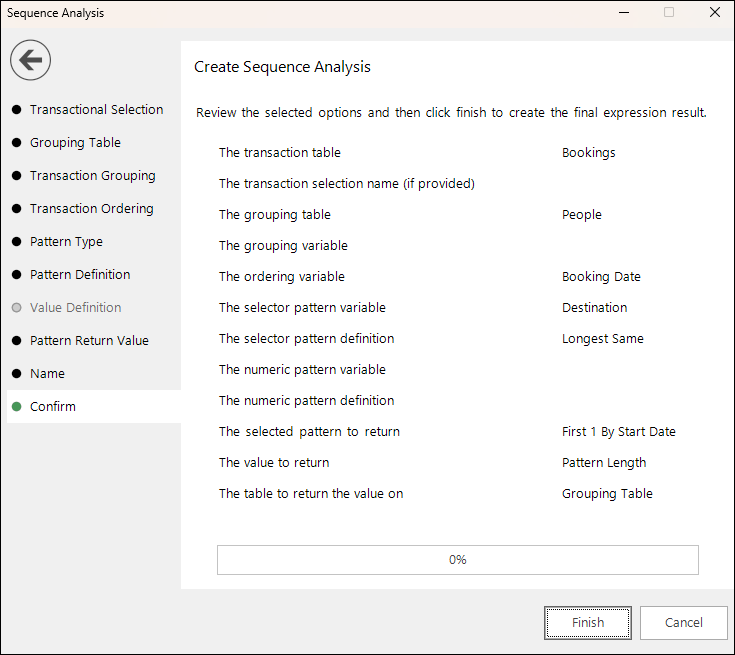
You have the opportunity to review and, if necessary, edit your settings before creating the pattern match expression.
Note
You cannot return to the wizard to make changes once you have generated the expression. You can edit settings within the expression window, or start the process again using the Sequence Analysis wizard.
Once you click Finish, a FastStats expression window opens. Switch to the on the fly aggregation tab to see the settings defined using the wizard.
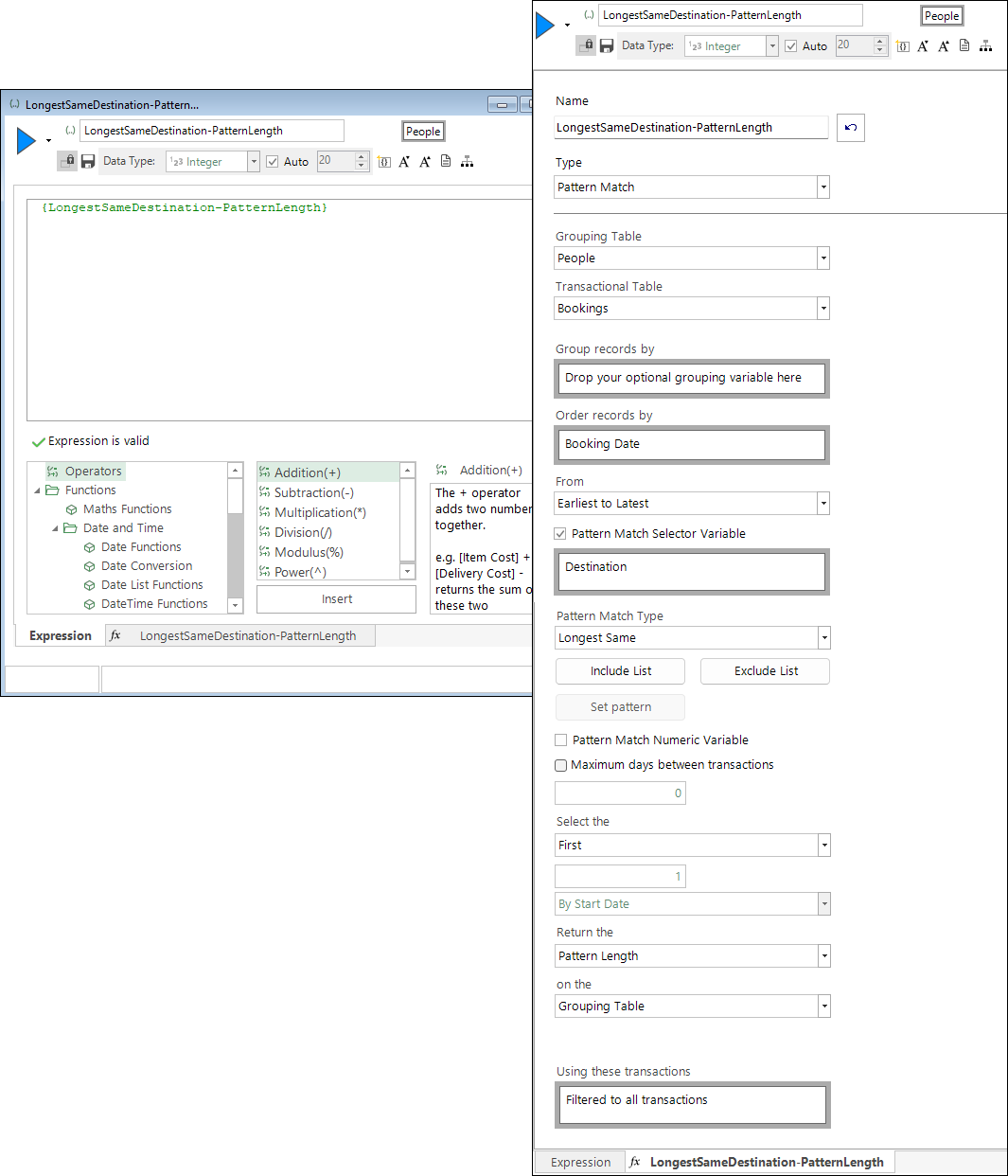
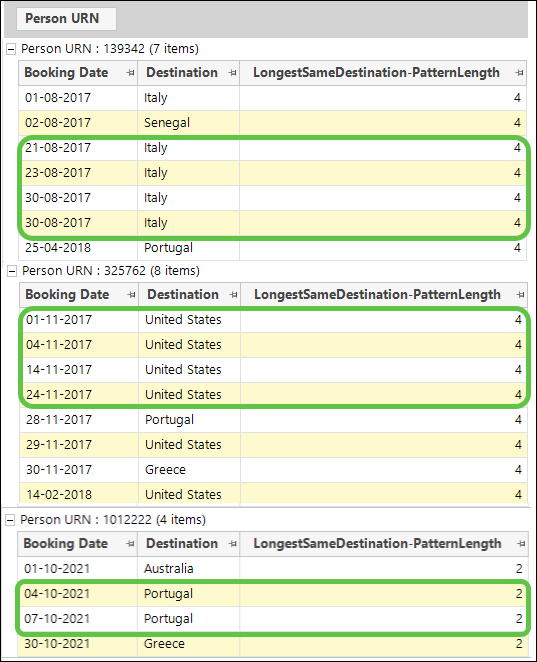
To visualise the results, drag and drop the expression onto a data grid: