Transaction analysis wizard
The Transaction Analysis wizard provides a way of analysing transactional data to show patterns in how transactions group together. This can be useful to show how common different sequences of transactions are for each grouping record.
Note
This wizard does not create a virtual variable but, instead, generates a tree display of the results.
.png)
Pick selection
The transaction analysis can be performed for only a certain set of records. Drop the selection defining those records onto the "Drop your selection here" drop box. If you would like to analyse all the data in the FastStats system then don't drop anything on the drop box and the data universe will be analysed.
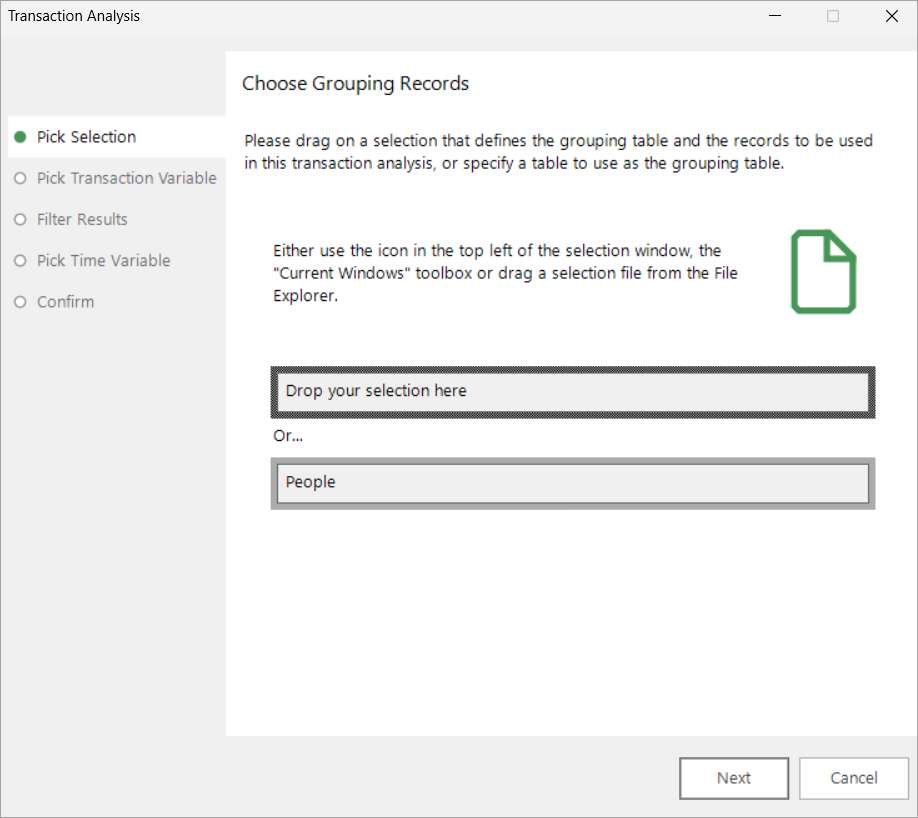
The selection you specify also determines which table the analysis will be done on. For example, in the Apteco Holidays demonstration system, tables include; Households, People, Bookings and Communications. If you analyse Booking destinations by Booking Date then you should do the analysis on either the Households or People tables (so that this will give you the number of People that took holidays to USA, Germany and then France, or the number of Households that had People that took holidays to USA, Germany and then France, for example).
If you want to analyse the whole universe, right click on the second box and select the table level at which you want to do the analysis.
By default, the analysis will be done on the default table set by your administrator for your system.
Pick transaction variable
Specify which variable you will analyse. This must be a selector type variable from a transaction table.
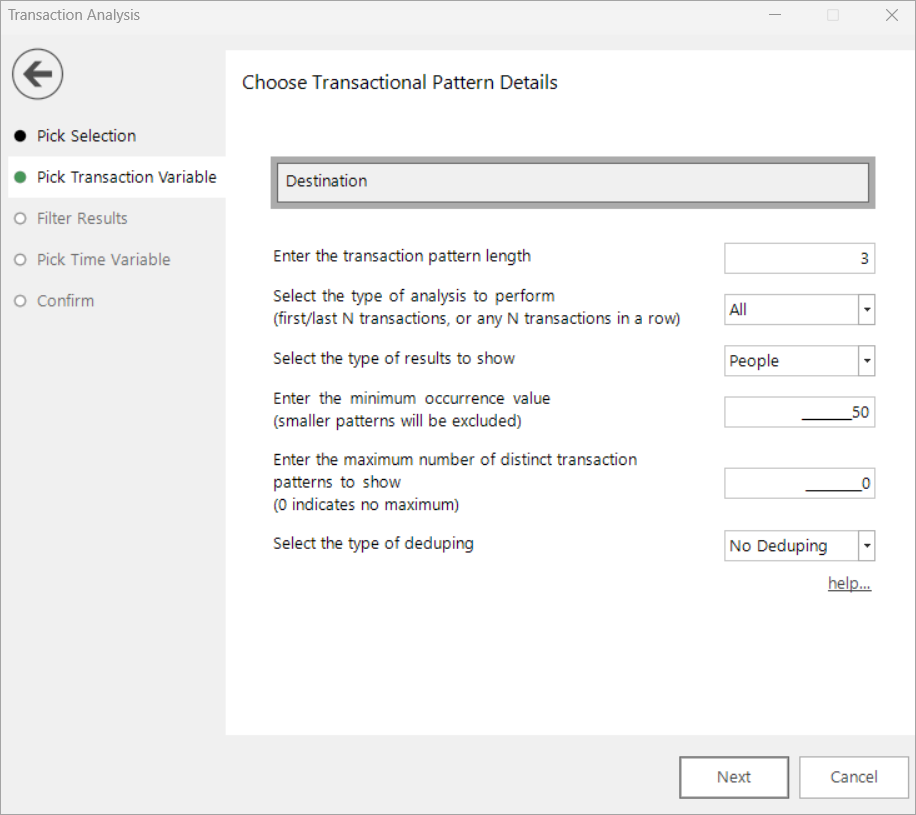
As with the Basket Analysis Wizard, you can also specify some other options:
Transaction pattern length
This is the number of transactions in a row to analyse. The default value of 3 will mean that the FastStats server will look for patterns of 3 transactions in a row. The results are then presented as 3 transaction values and a count for the number of times the pattern occurred. For example if the transaction variable is holiday Destination and the transaction pattern length is 3 then the results might look like:
- USA, USA, USA - 109,501
- Germany, Germany, Germany - 42,113
- USA, USA, Australia - 38,366
Note that the pattern "USA, USA, Australia" shows the number of people that went to USA first, then the USA again and then to Australia (i.e. the first destination in the pattern is the "oldest" destination and the last destination is the "most recent" destination).
Type of analysis to perform
The different types of analysis available are First, Last and All.
For example, imagine a person has taken 5 holidays:
- France (in 08/2002)
- Germany (in 08/2003)
- UK (in 02/2004)
- France (in 07/2004)
- France (in 08/2005)
If the type of analysis is set to First then the only pattern that will be analysed is:
- France, Germany, UK
If set to Last then the only pattern that will be analysed is:
- UK, France, France
If set to All then the patterns that will be analysed are:
- France, Germany, UK
- Germany, UK, France
- UK, France, France
Type of results to show
Results can be displayed in terms of the table used or the number of occurrences.
Minimum occurrence value
This value is used to remove infrequent patterns from the results. If a patten (such as "France, Jamaica, Iran") occurs fewer times than the minimum occurrence value then it will not be included in the results.
Maximum distinct patterns
Another way of reducing the number of results to show is to set the maximum distinct patterns value. If this is set to a value other than 0 then the wizard will return the top n values.
Type of deduping

-
No Deduping
FastStats will return:
- USA, USA, France
- USA, France, France
- France, France, USA
- France, USA, USA
- USA, USA, Germany
- USA, Germany, Germany
-
Remove Repeats
When you are interested in the way a person switches between transactions (e.g. different destinations visited) - and your results are potentially dominated by repetitions, you can choose to de-dupe the results displayed. Based on the same sequence as above, FastStats will return:
- USA, France, USA
- France, USA, Germany
Filter results
You can optionally specify a filter query so that the analysis is only done on some of the transaction records. Note that this query must have the same resolve table as the transaction variable specified in the previous step.
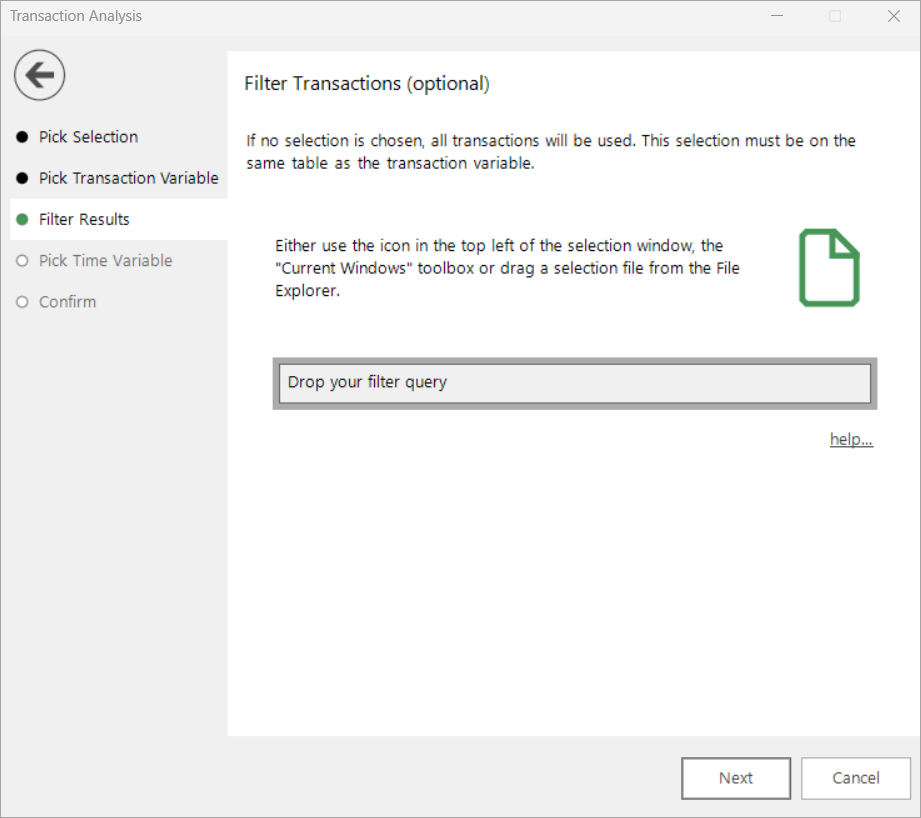
This process is the same as for the Basket Analysis Wizard.
For example, you might want to analyse the holiday destination patterns for all people that live in London where their booking was a flight only product. You would perform the analysis on the Person table, using the Booking Destination variable.
To only include the people that live in London in your analysis you would create a selection of all people that live in London (ensuring that this query's resolve table is set to People) and drag it on to the Pick Selection step of the wizard.
However this will still return destinations for all product types (flight only, accommodation only and package) for those people. To filter what type of transaction is included in the analysis, create a new selection on the Bookings table of Product - Flight Only. Then drag this selection onto the "Drop your filter query" drop box.
This will then give you an analysis of the pattern of flight only booking destinations that each person that lives in London has been to.
Pick time variable
Once you have chosen the transaction variable to analyse, you must specify a time variable used to sequence the transactions.
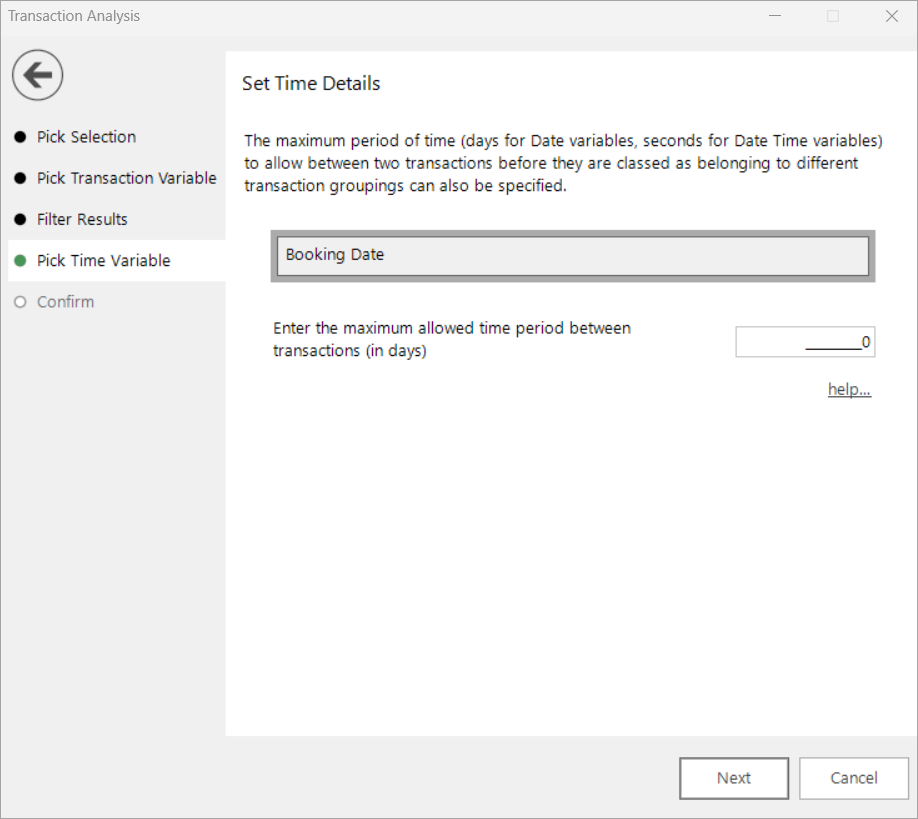
You can also set a maximum time period between transactions. This time period is specified in the same granularity as the time variable used, so if the time variable is a Booking Date variable, one code for each day then the time period will need to be specified in days.
Also note that the pattern results are shown in chronological order, with the first part of the pattern being the least recent and the last part of the pattern being most recent.
For example, imagine a person has taken 5 holidays:
- France (in 08/2022)
- Germany (in 08/2023)
- UK (in 02/2024)
- France (in 07/2024)
- France (in 08/2025)
When the maximum time period is set to 0 (no maximum) and the analysis type is set to All on Step 3 the following patterns will be analysed:
- France, Germany, UK
- Germany, UK, France
- UK, France, France
However, if the maximum time period is set to 365 (days, or 1 year) then only the following patterns would be analyzed:
- France, Germany, UK
- Germany, UK, France
The third pattern, "UK, France, France" would not be analysed as the time period between the 4th and 5th holidays is 13 months and would be over 365 days.
Confirm
The final screen of the wizard shows the options that have been chosen.
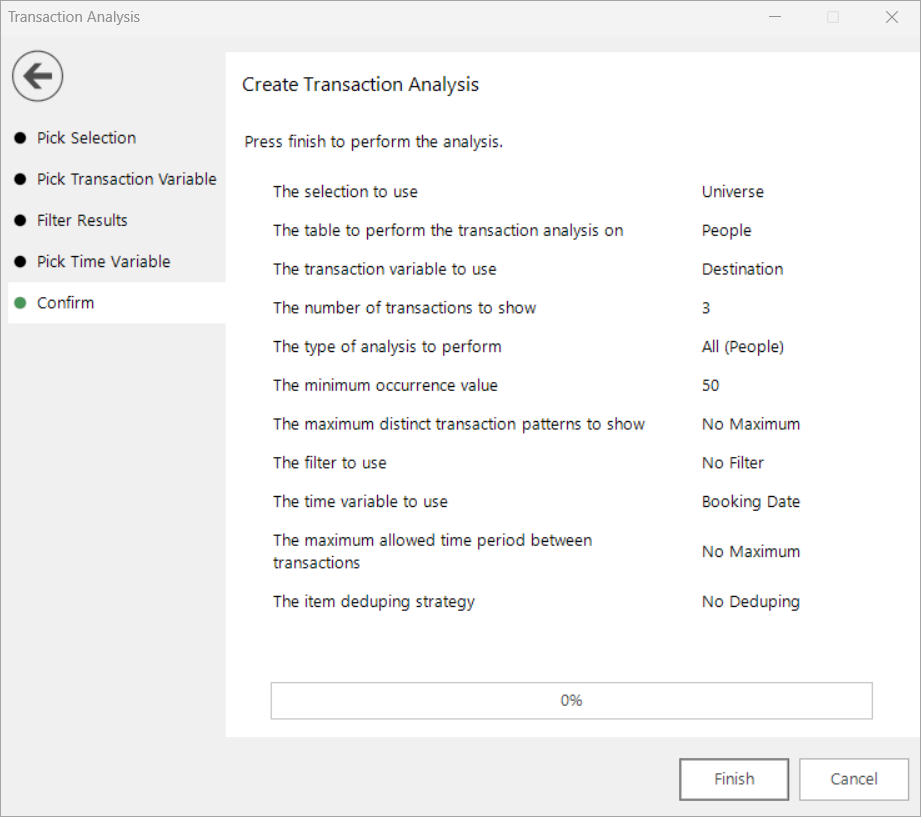
Clicking the Finish button will perform the analysis and create the results.
The results are displayed in a Tree and can be manipulated in the normal way.
Examples of results with and without deduplication are shown below.
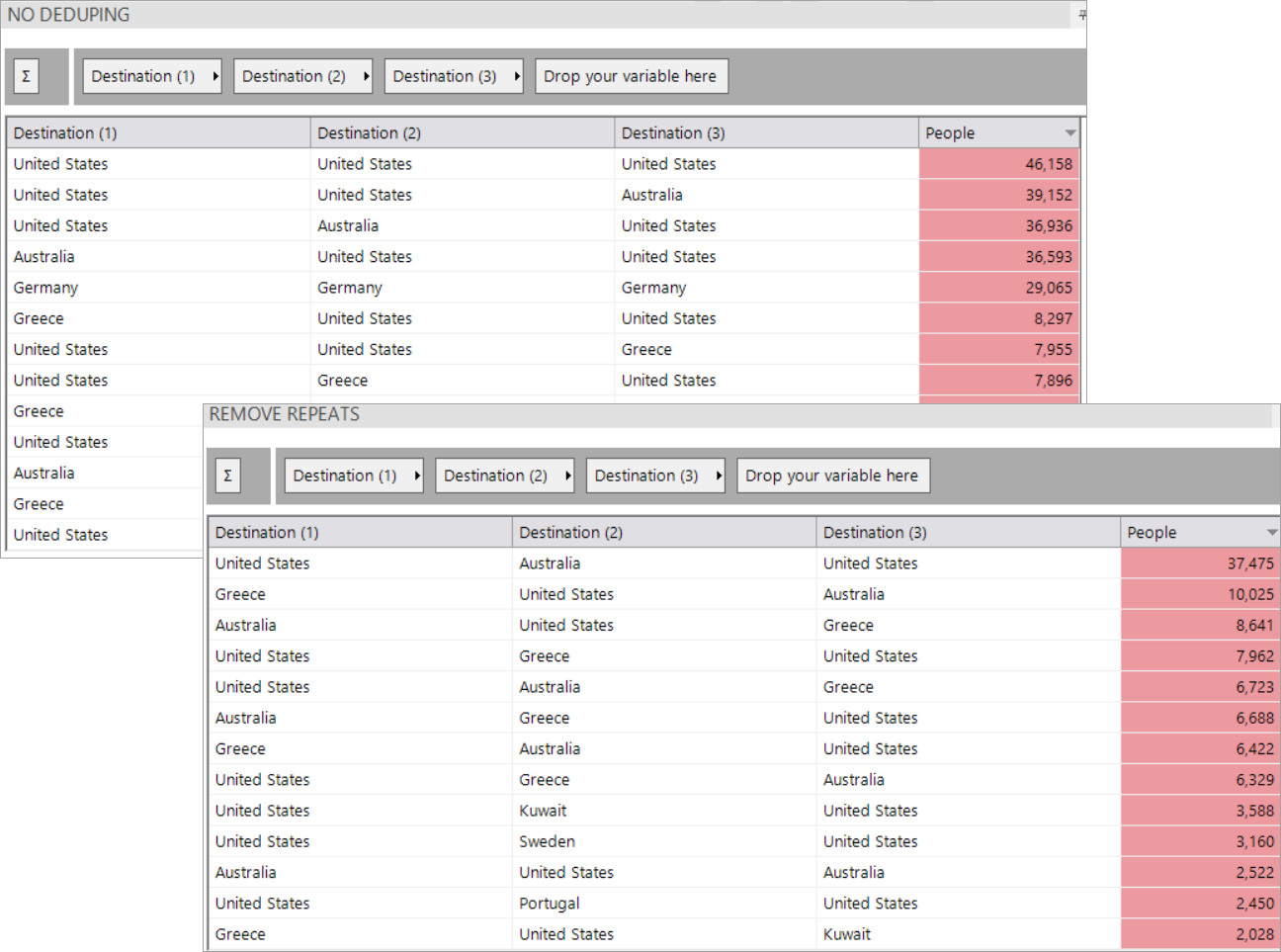
To create a selection from the results - see Drag Off Results
Drag off results
It is possible to create a selection of the results generated through the Transaction Analysis wizard and use this in further analysis.
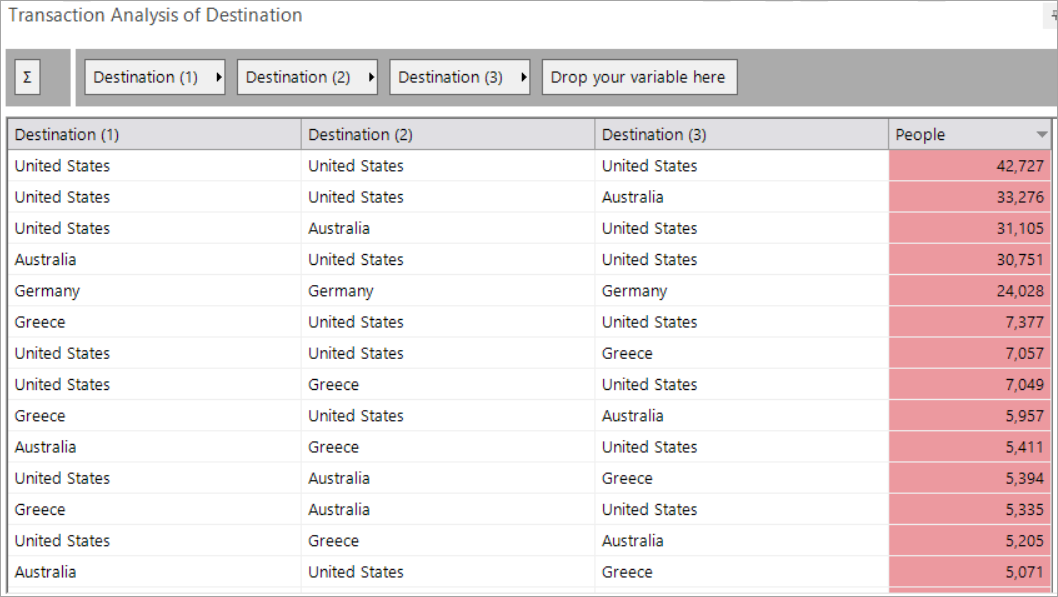
The display below shows holiday destinations where the period between each holiday is less than 400 days and shows patterns of 3 destinations where there is at least 50 occurrences of that pattern.
-
Click on the first row and then left drag and drop onto the workspace to create a selection containing the selection logic
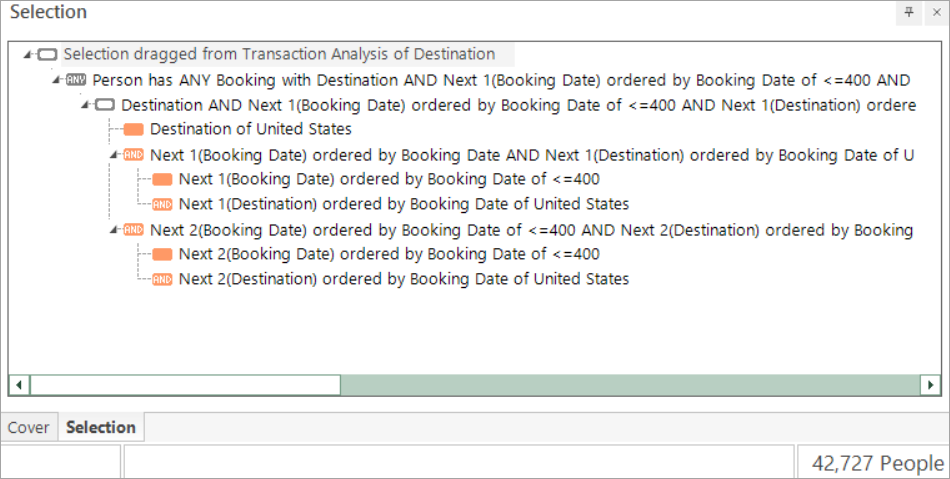
To check the results, you can use a data grid:
-
Drag the Data Grid tool onto the selection window and add the variables Destination and Booking Date
- Build the data grid
-
Drag the Person URN heading onto the drop zone "Drag a column header here to group by that column"
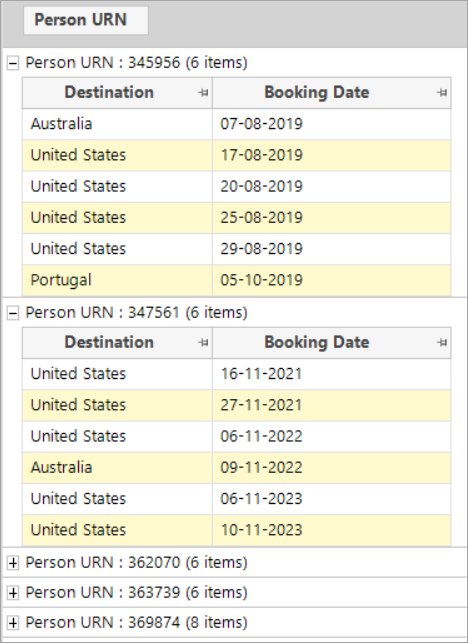
By expanding each Person URN row, you can see that each person has met the criteria of booking holidays to the United States at least 3 times in a row, with no more than 400 days between each booking.