Best next offer wizard
The Best Next Offer wizard is available within the Modelling module of FastStats. You will need the Modelling licence to access and use this wizard.
Best Next Offer suggestions are made for customers, based on:
- previous customer transactions
- the frequencies that pairs of each variable value have occurred (propensity)
- the number of transactions that have occurred for each variable value (popularity)
The user can restrict the records on the grouping table, the records on the transaction table, and choose the variable on which the offer will be made.
The user can additionally choose:
- whether or not to allow previously bought products to be offered again
- the rank of the offer, e.g. the best, the second best, the third best, etc.
There are also two weightings that can be adjusted in order to favour propensity or popularity.
In the Analysis section of the Wizards ribbon bar, click on the Best Next Offer icon to start the wizard.
Grouping table
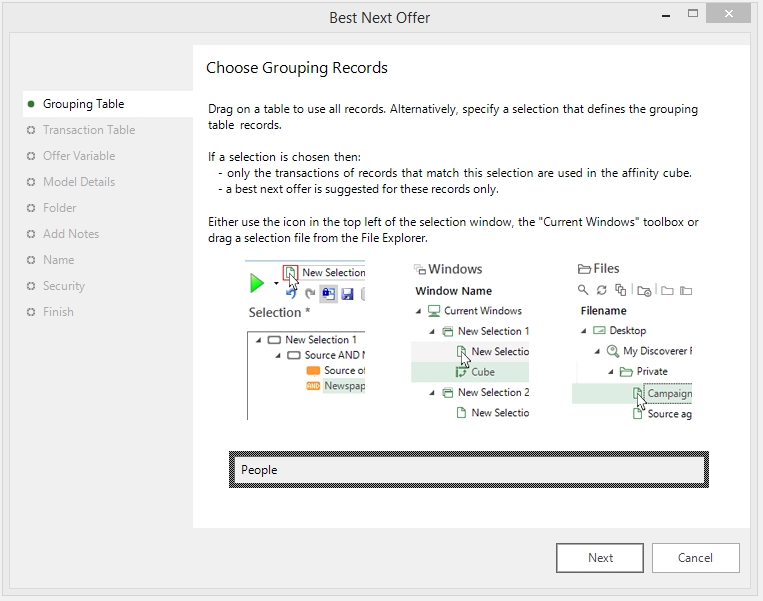
Drag a selection or relevant table onto the drop box to determine the people to be examined. Only the transactions of these people will be used.
Transaction table
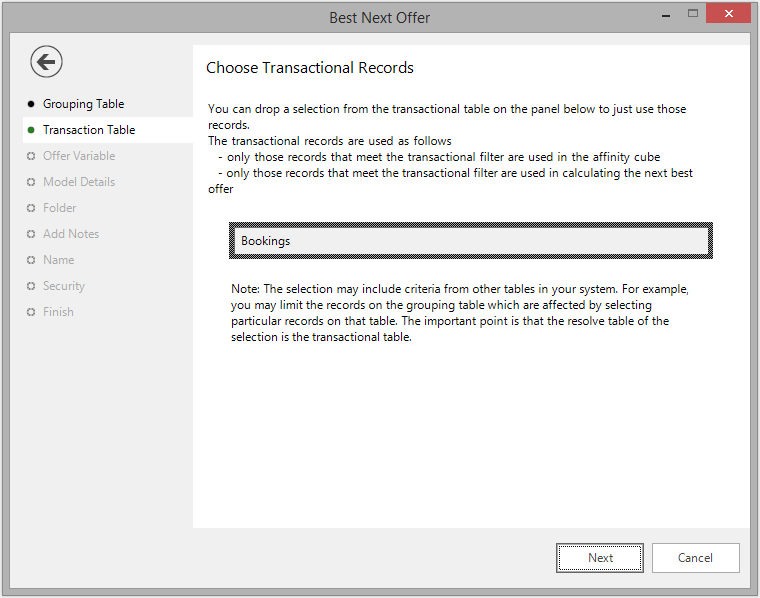
Right click and select the transaction table to be used in the calculation. Alternatively, drag and drop the required table onto the drop box.
Offer variable
Drag the required Best Next Offer variable onto the drop box. This must be a selector variable on the transactional table. The example in the screenshot below uses Destination.
 Q117.png)
Click on the Show Affinity Cube button to see the number of people who have been to different destination pairings. A Zd Exp statistic is also shown to indicate if the number of people that have been to the 2 destinations is higher (positive) or lower (negative) than expected.
 Q117.png)
In the above example, we can see that a large number of people have been to Greece and the US. However, there is a minus Zd Exp, indicating that the number is lower than would be expected. Conversely, far fewer records have been to Greece and New Zealand, but the Zd Exp is much higher. We can therefore conclude that someone who has been on holiday to Greece is more likely to buy a holiday to New Zealand and less likely to buy one to the United States.
Model details
At Step 4 you can set the parameters for the wizard:
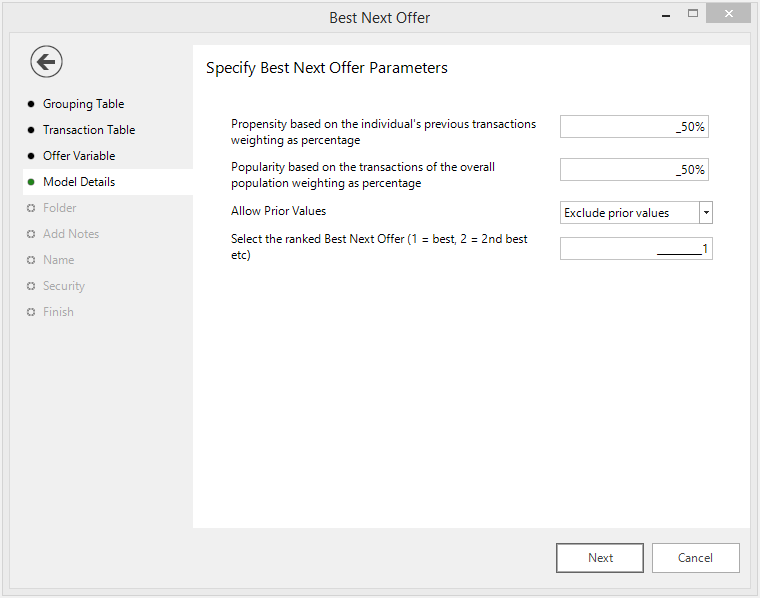
- Propensity – Here you can set a weighting based upon the previous transactions of the individual. By default this is set to 50%.
- Popularity - Here you can set a weighting based upon the popularity of the overall population's choice. By default this is set to 50%.
- Allow Prior Choices – Here you can exclude or include suggestions for future offers: In the case of our Holidays example, this would be according to holiday destinations people have been to before.
-
Select Rank – Here you can determine a number to indicate if you want to calculate 1 = Best... 2 = 2nd Best... 3 = 3rd Best, etc.
Folder
Choose the folder that the new variable should be created in.
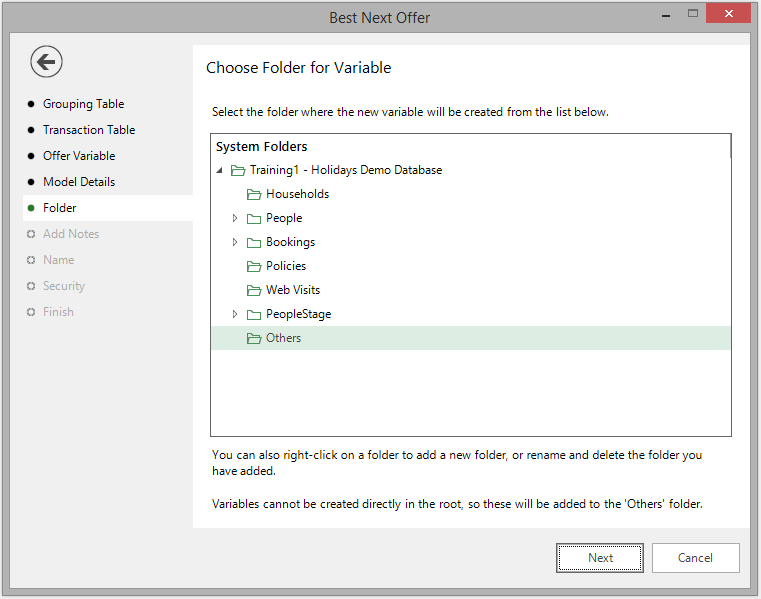
Create (if necessary) and highlight the folder to hold your Virtual Variable.
Add notes
You can choose to add notes to your variable. These can be viewed later by right-clicking on the variable once it is in the System Explorer and looking at its properties.
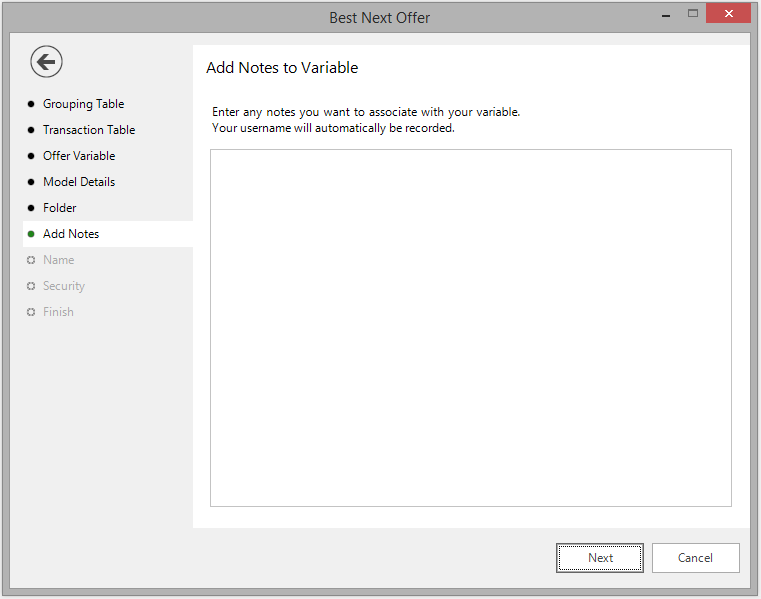
Enter any notes you wish to record.
Name
This step of the wizard allows you to define what the Virtual Variable will be called.
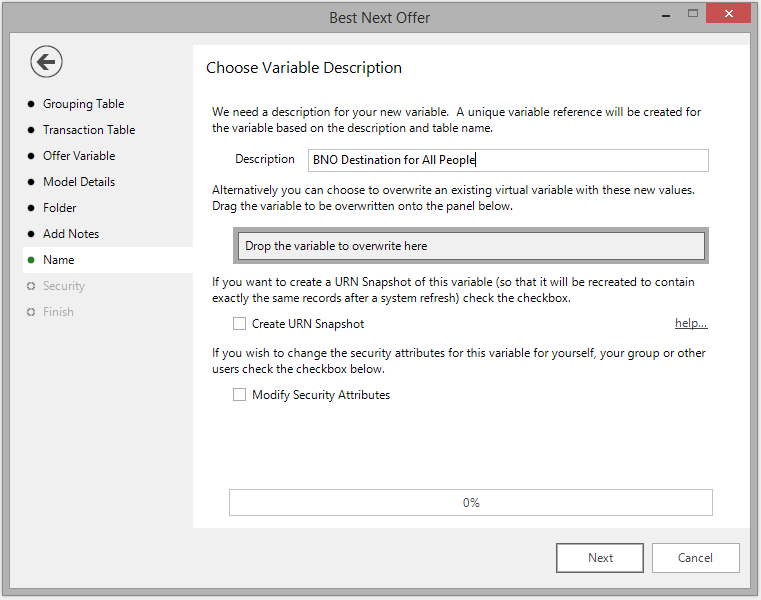
Enter the name of your variable in the Description box.
To overwrite an existing virtual variable drag it on to the Drop the variable to overwrite here drop box.
Tick the Create URN Snapshot box to record the exact records found at this time so it can be recreated after a refresh of the data, if needed.
Tick the Modify Security Attributes box to allow you access to Security (This option is only available on the Enterprise Version)
Security
This is an optional step available on the Enterprise version of the software.
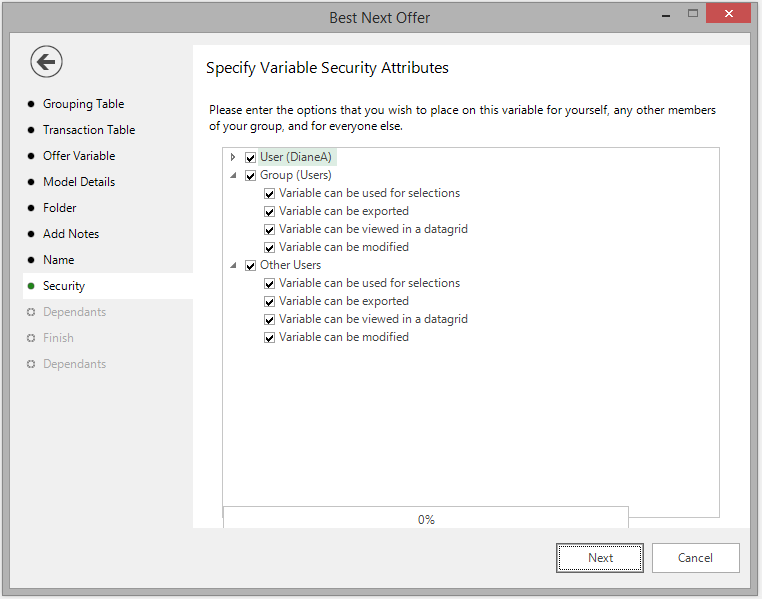
Use the tick boxes to set the security setting you wish to apply to this variable.
Finish
This step will tell you how many records have been updated.
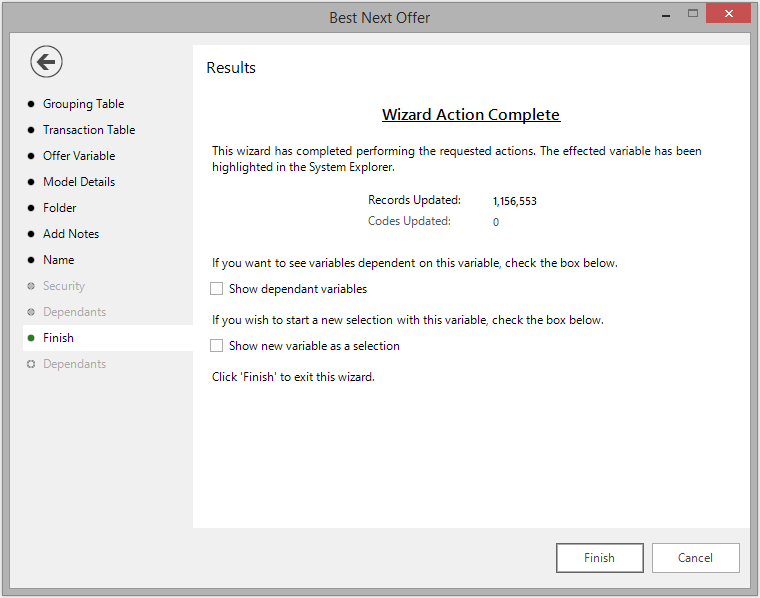
Tick the box to Show dependent variables - they will be displayed in Dependents step which provides a list view of any variables dependent upon the variable being updated..
Tick the Show new variable as a selection box. This will open the finished Virtual Variable for you to view when you click on the Finish button. Click Finish
Display the virtual variable to see a list of destinations and the number of people alongside them whose Best Next Offer is that destination (dependant on the parameters set at Step 4)
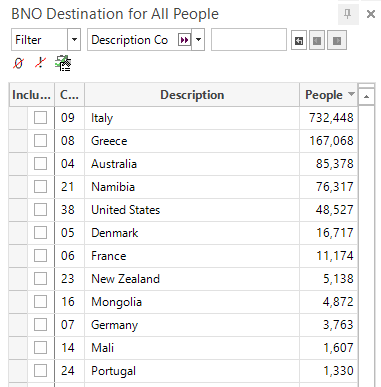
The screen shot above shows the virtual variable sorted in descending order by the number of people. This would indicate that c.732,500 of our customers may respond favourably to an offer to book their next holiday to Italy.