Cluster model wizard
The Cluster Model Wizard is a Virtual Variable Wizard that provides a way to create a Virtual Variable from a Cluster analysis. The Cluster analysis must already have been created. The Wizard just provides a way of capturing the model results from the Cluster tool in the form of a Virtual Variable. The Virtual Variable created will have categories that correspond to the number of records associated with each Cluster found.
The Virtual Variable can then be used in Selections, Cubes, etc.
On the Wizard tab click on the Cluster Model link to start the wizard.
Source
If you have selected the Cluster Model Wizard from the Wizards toolbox then you will be presented with this first step. Drag on a Cluster to specify the source information to be used to create the virtual variable.
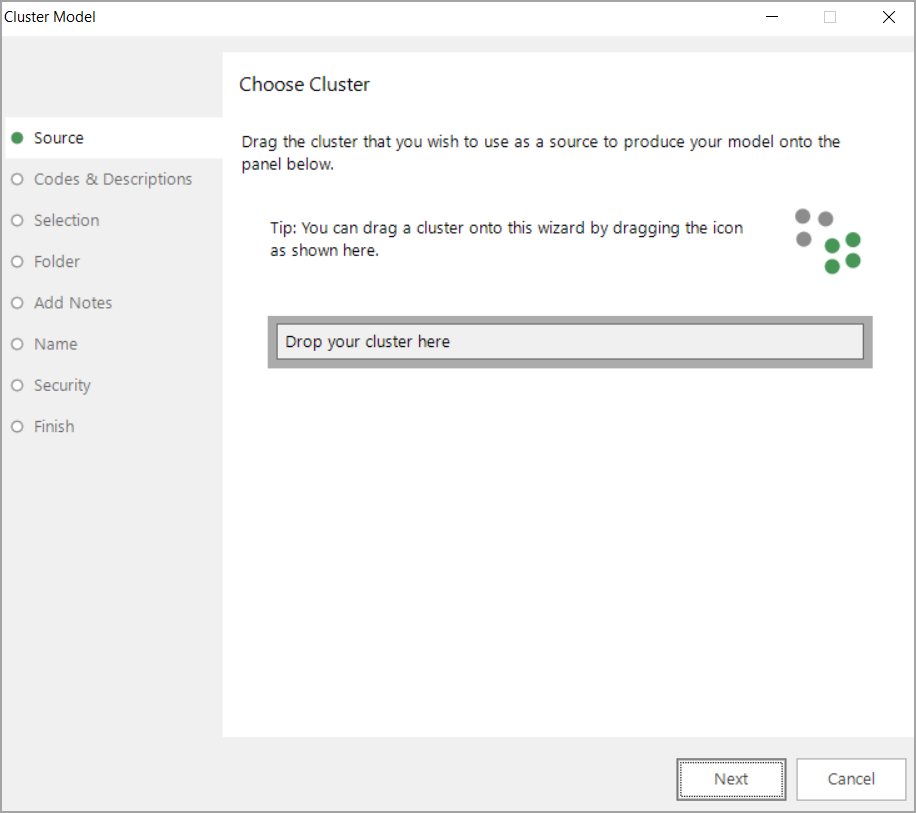
Note that if you have pressed the Cluster Model button on the Cluster tool window then you will not be shown this step.
Codes and descriptions
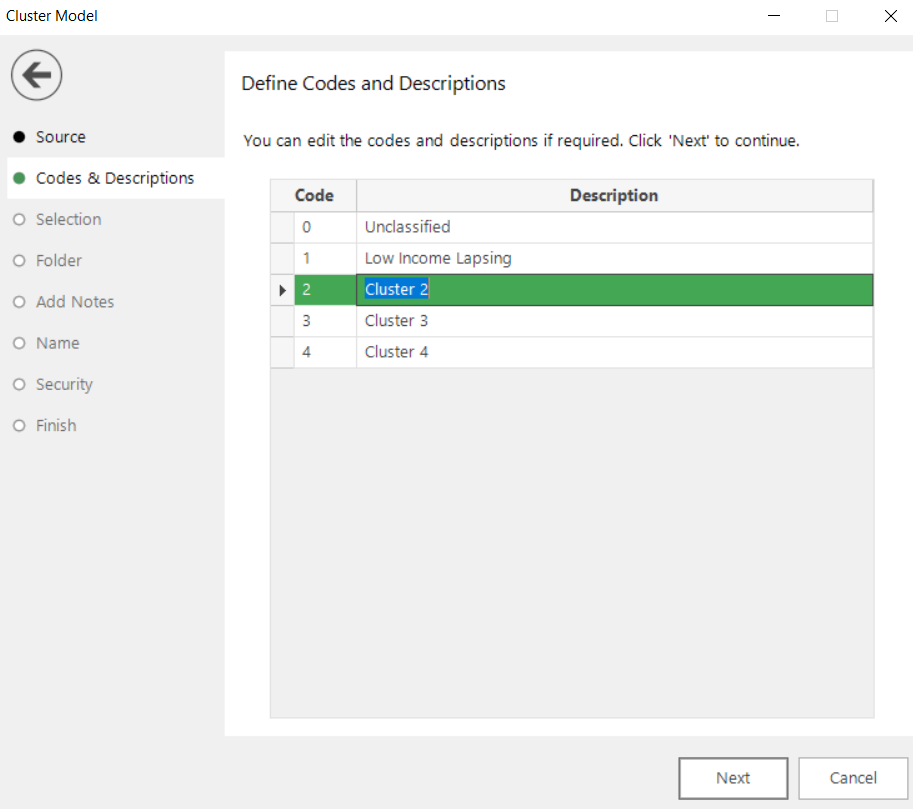
This step displays default codes and descriptions for this virtual variable. It is possible to overtype these and, for example, create more specific descriptions to reflect the cluster content.
Selection
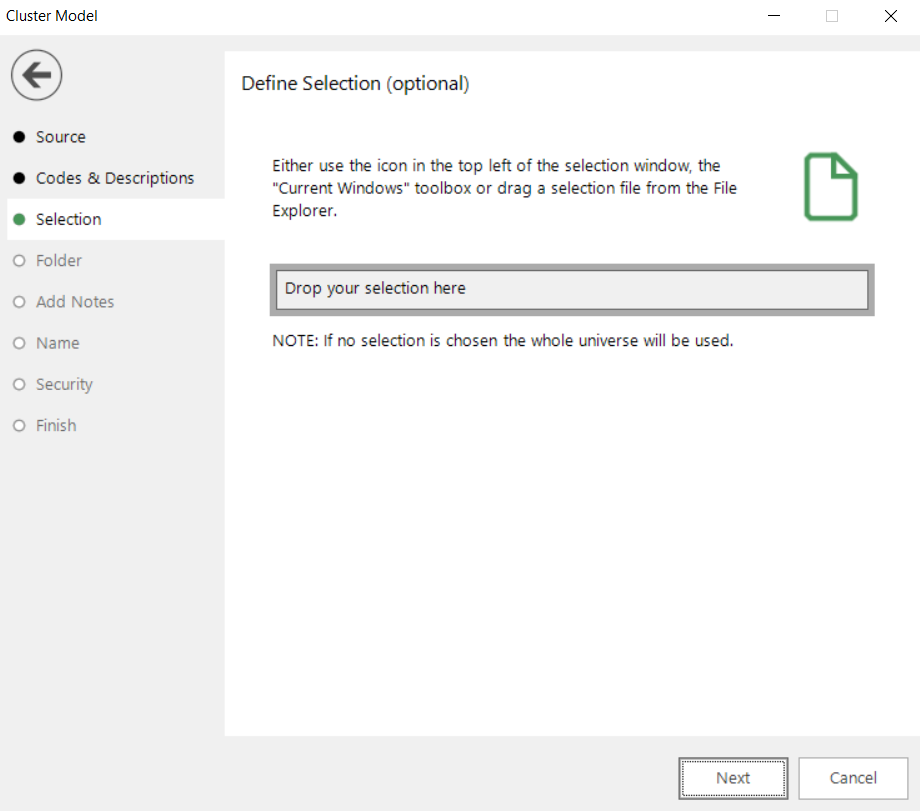
You can specify a custom selection which will be used to determine which records are classified. (i.e. something other than the full universe or the Base Selection used in the Cluster analysis).
Folder
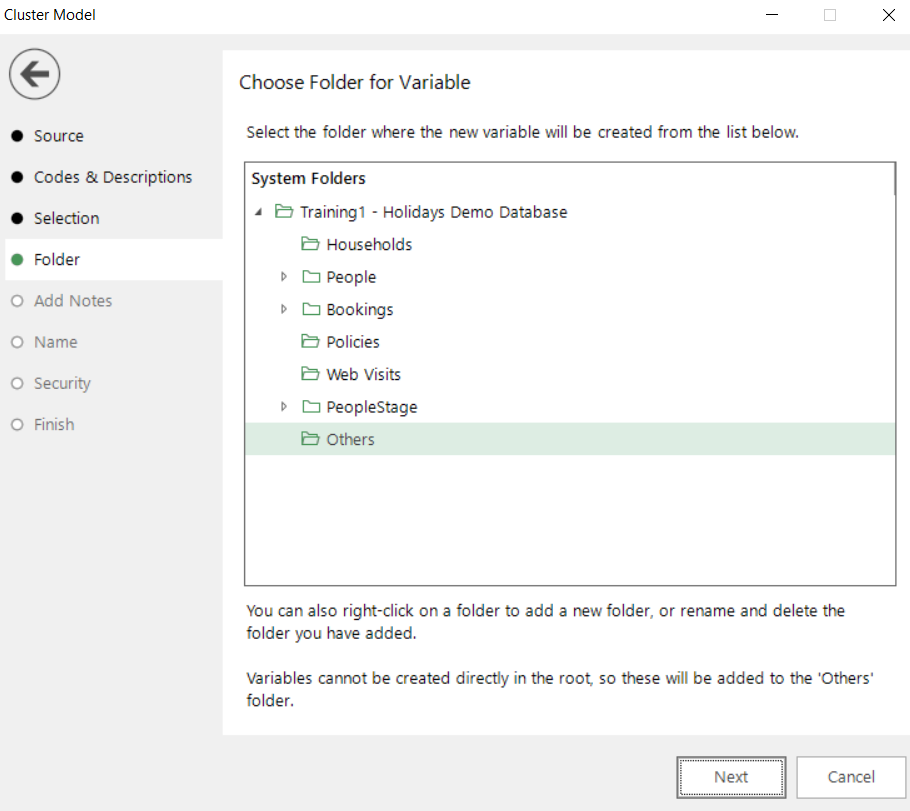
You can specify which folder you want the Virtual Variable to be created in.
Add notes
You can choose to add notes to your variable. These can be viewed later by right-clicking on the variable once it is in the System Explorer.
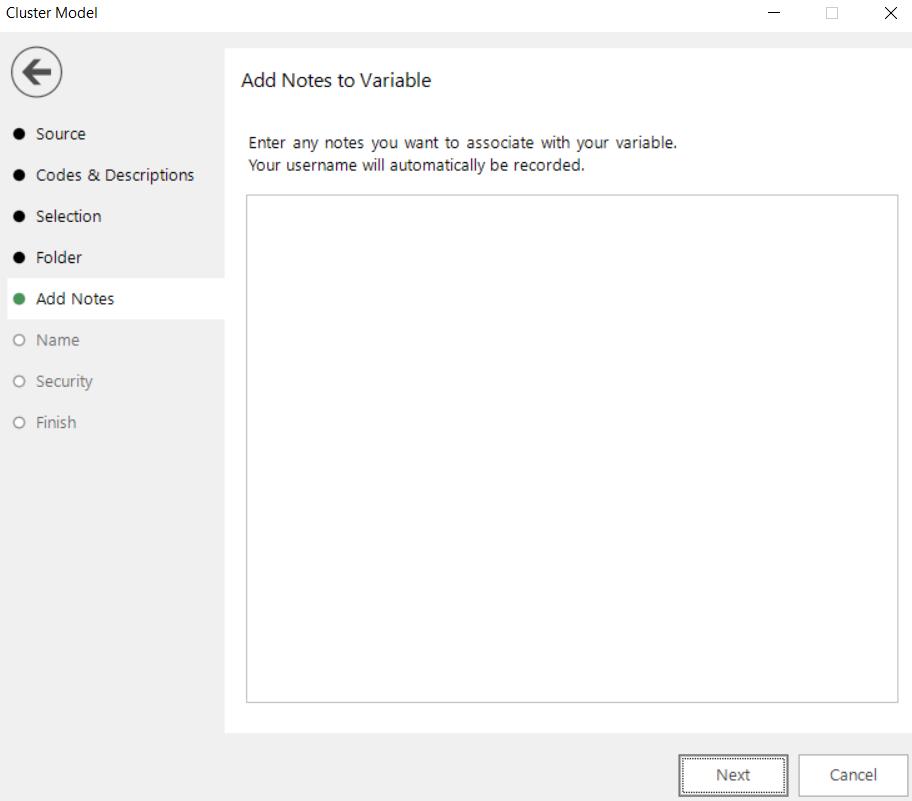
Enter any notes you wish to record.
Name
This step of the wizard allows you to define what the Virtual Variable will be called.
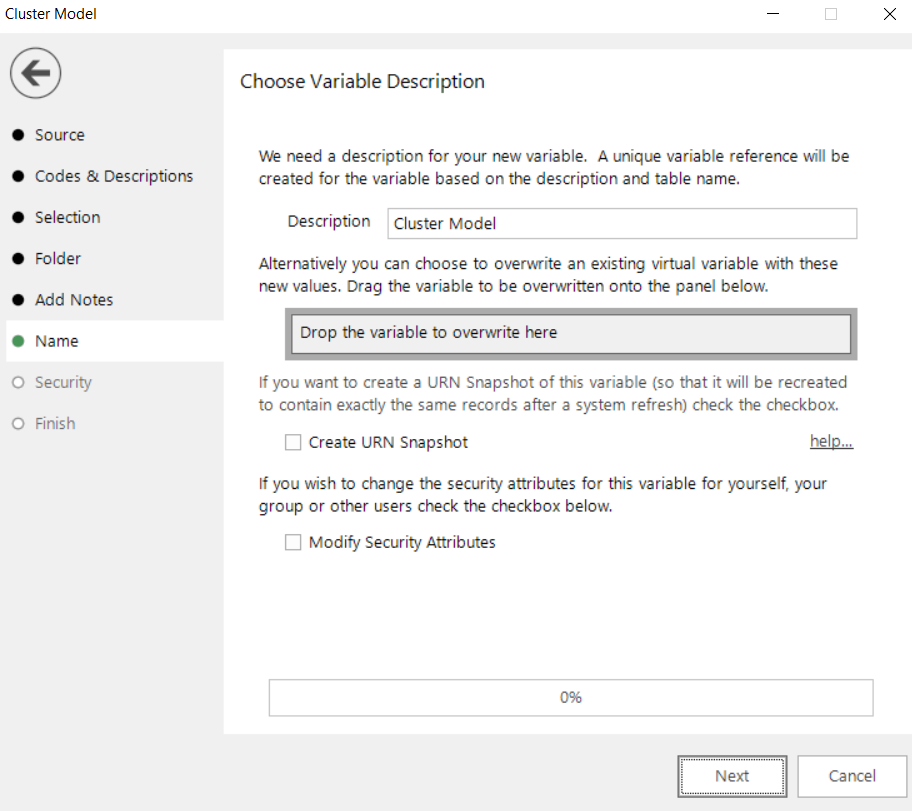
Enter the name of your variable in the Description box.
To overwrite an existing virtual variable drag it on to the Drop the variable to overwrite here drop box.
Tick the Create URN Snapshot box to record the exact records found at this time so it can be recreated after a refresh of the data if needed.
Tick the Modify Security Attributes box to allow you access to Security (This option is only available on the Enterprise Version)
Security
This is an optional step available on the Enterprise version of the software.
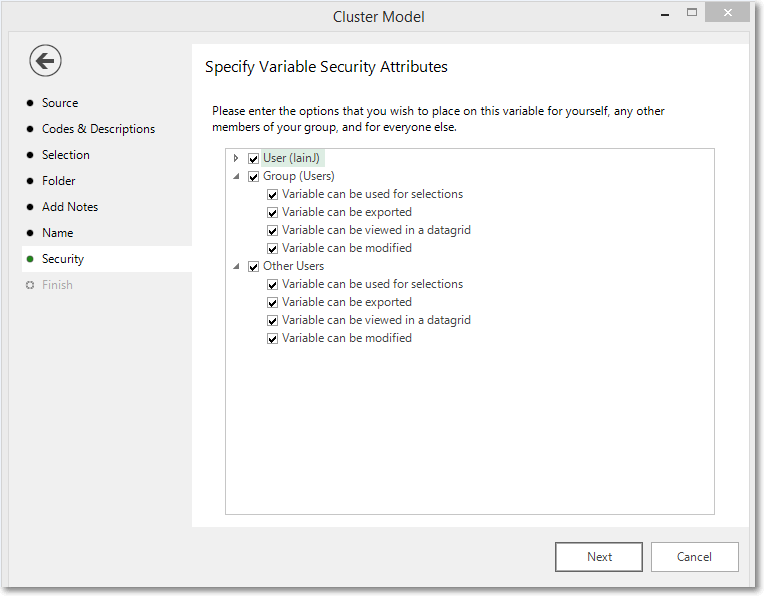
Use the tick boxes to set the security setting you wish to apply to this variable.
Finish
When you reach this step, the actions required by this wizard have been performed. The new variable has been highlighted in the System Explorer.
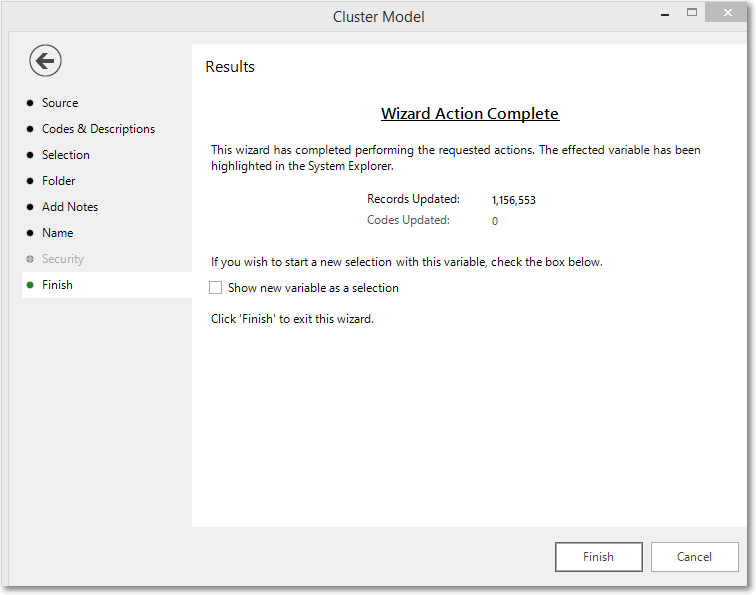
Tick the Show new variable as a selection box if you want to view the variable when the wizard is closed.
Click Finish to close the wizard.