Create from cube wizard
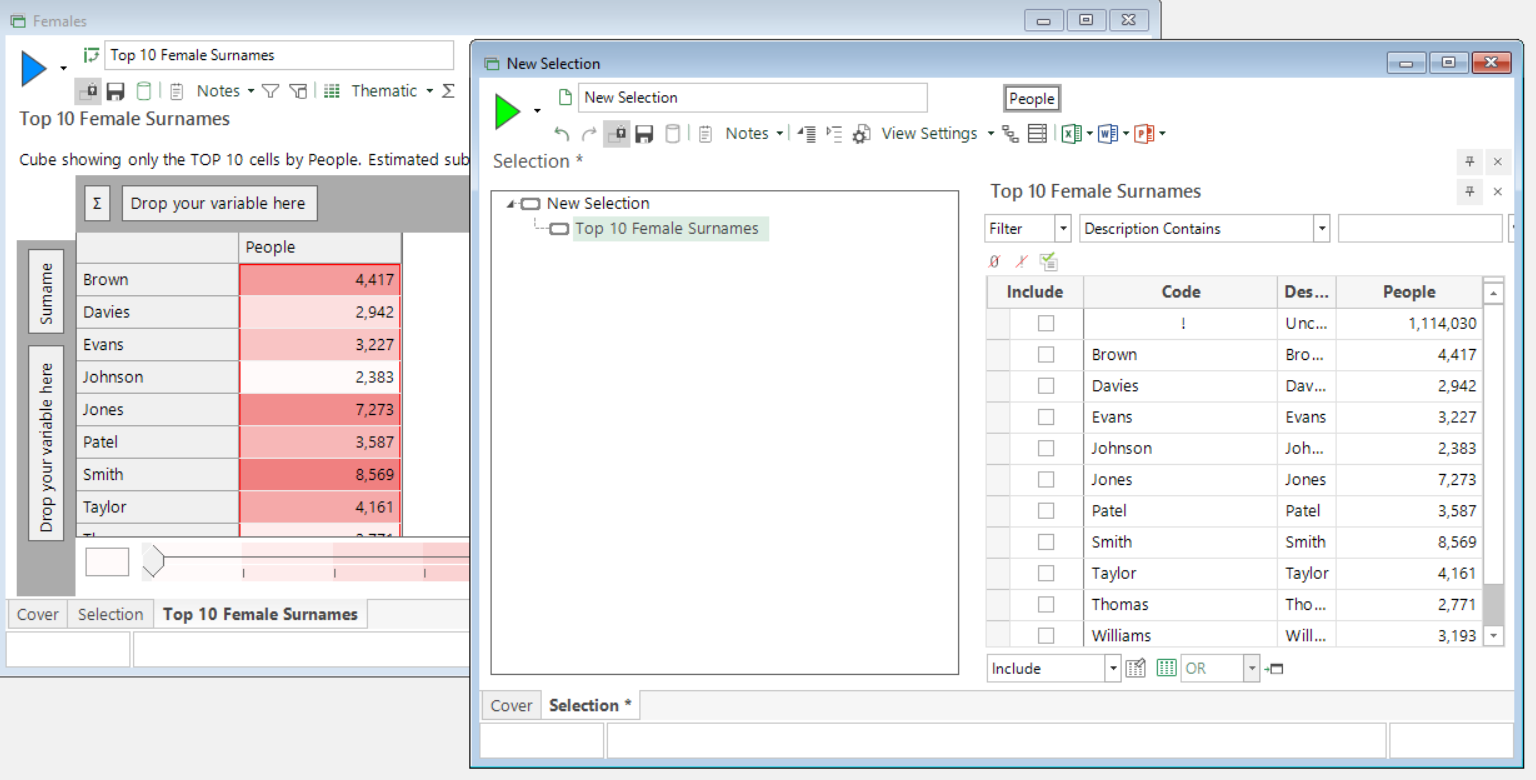
This wizard allows you to create a selector Virtual Variable from the results of a Cube or Tree. Only sparse 1 dimensional Cubes or Trees, with a text dimension and no overlaps between the cells can be used with this wizard.
Start
Drag the sparse Cube or Tree onto the drop zone.
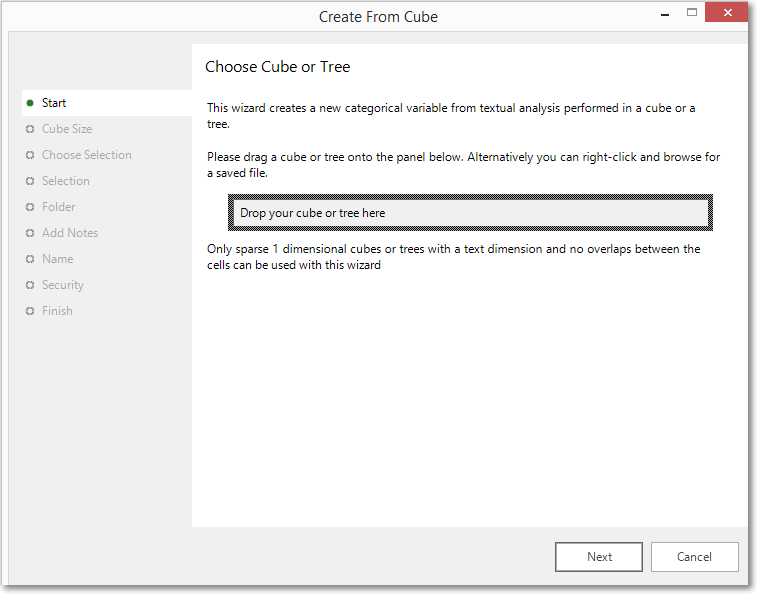
Once added, to see a copy of the Cube or Tree used to create the virtual variable, simply right click on the item in the drop panel and select View a Copy
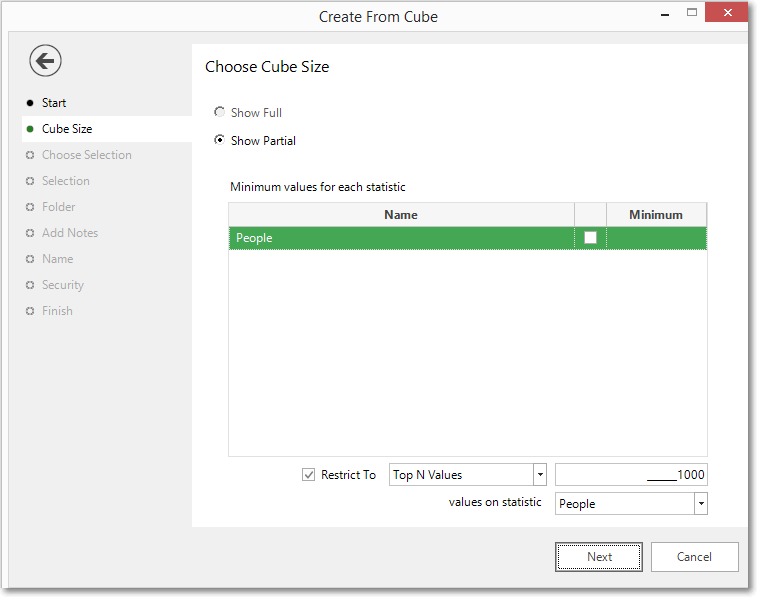
Cube size
Amend the restriction on the Cube Size, if required.
Choose selection
Click the radio button to select which group of records to classify.
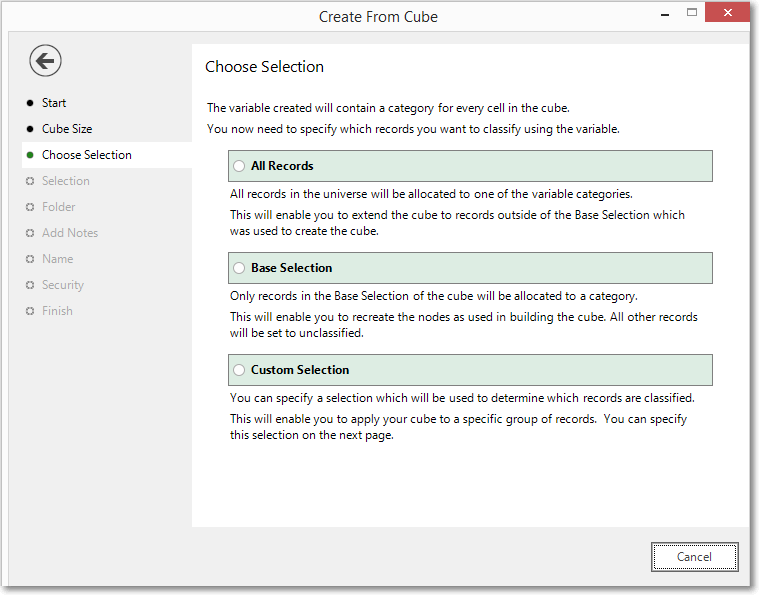
For All Records and Base Selection - click Next to go to Folder
For Custom Selection, click Next to go to Selection
Selection
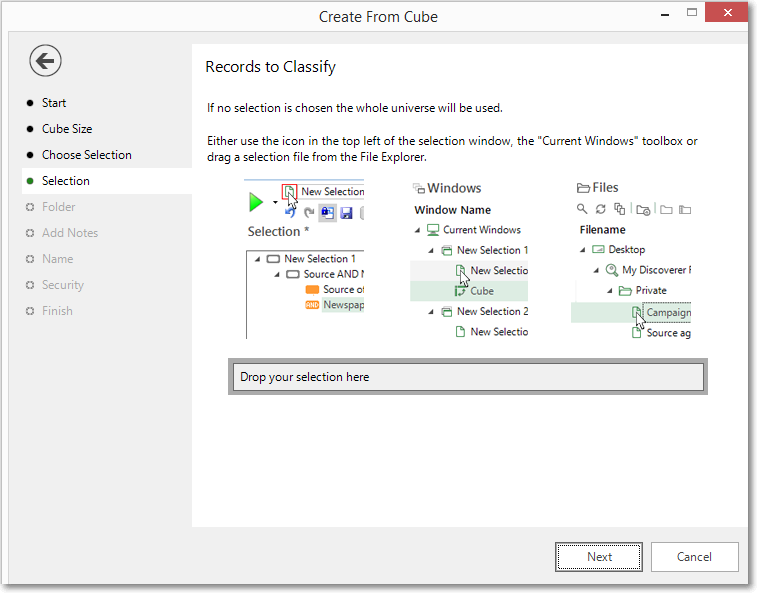
If a Custom Selection was selected in the Choose Selection step, here you can determine which records to use.
Folder
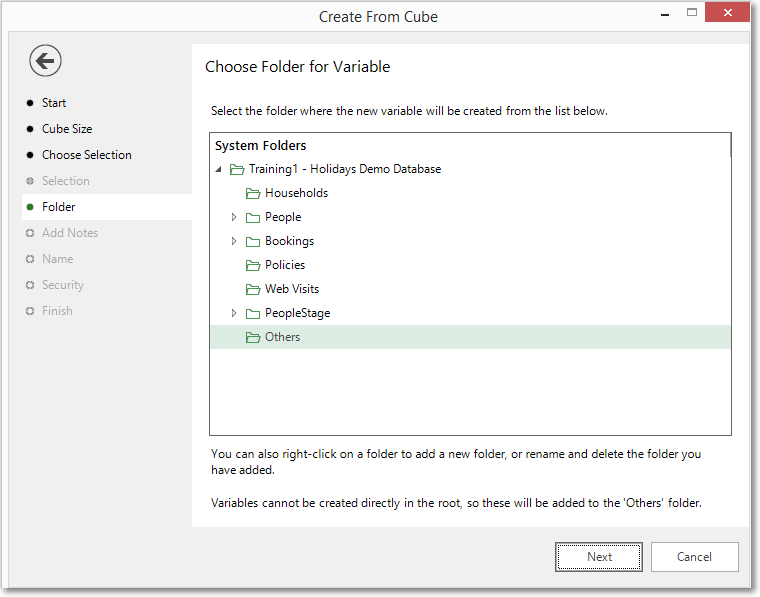
Highlight the folder you would like the variable to be stored. By default it will reside in the Others folder.
Add notes
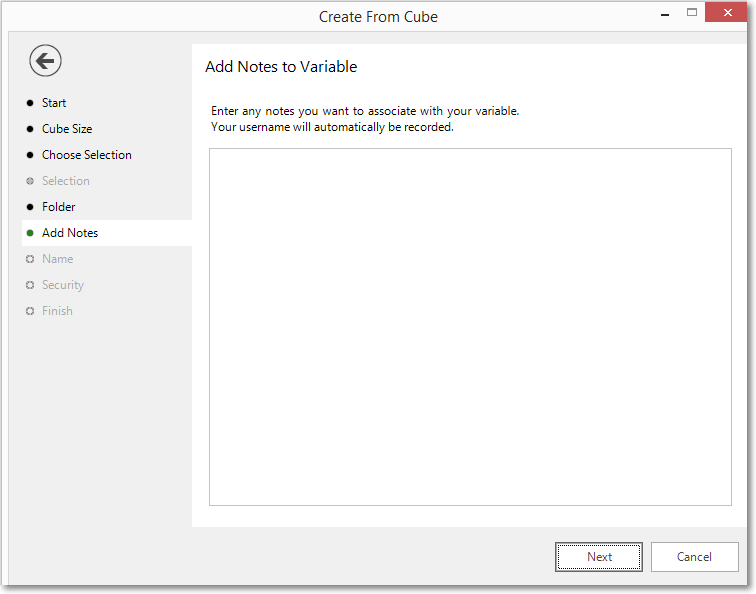
You may enter optional notes in this window.
Name
Enter the description for your Virtual Variable.
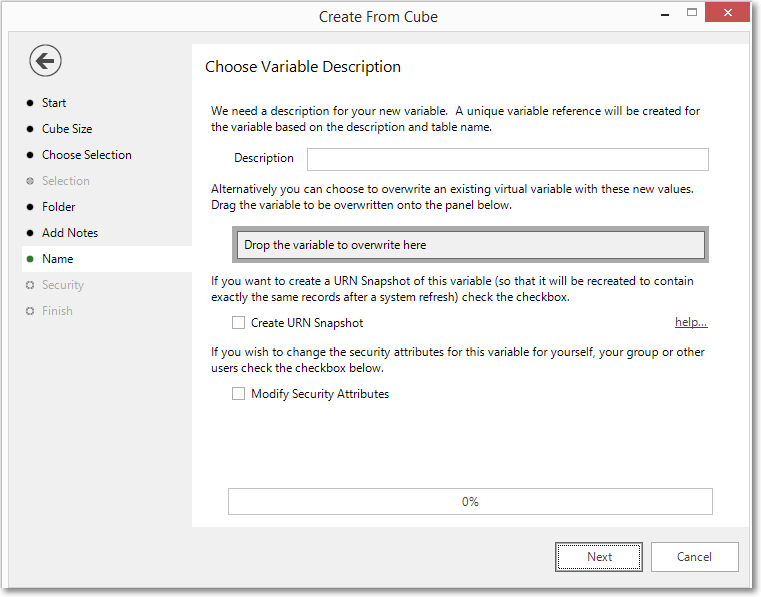
If you have an existing Virtual Variable which will be superseded by this one, it can be dragged onto the box Drop the variable to overwrite here to overwrite it.
Tick the Create URN Snapshot box to record the exact records found at this time so it can be recreated after a refresh of the data if needed.
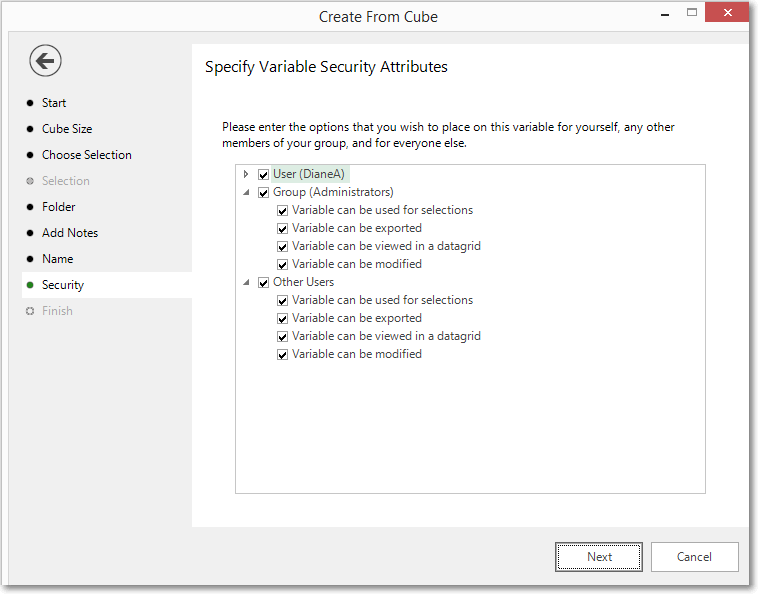
Tick the Modify Security Attributes box to allow you access to Security (This option is only available on the Enterprise Version)
Security
This is an optional step available on the Enterprise version of the software.
Finish
This step will tell you how many records have been updated.
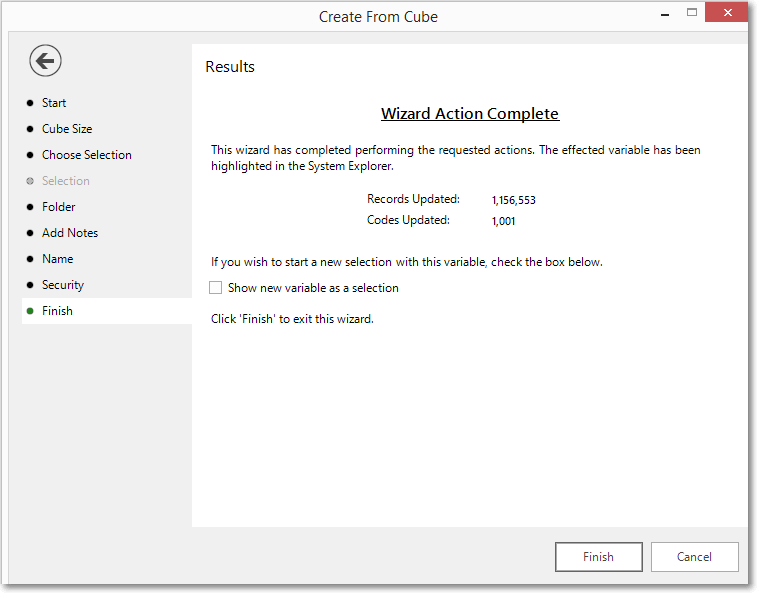
Tick the Show new variable as a selection box to see and work with the Virtual Variable.
Click Finish to close the wizard.
Note
You can edit a Virtual Variable created using the Create from Cube wizard
- Right-click on the Virtual Variable
-
From the menu select Edit Virtual Variable
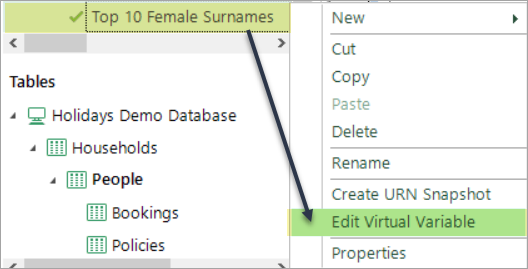
This will re-launch the wizard and allow you to move through the steps and make your changes.