Decision tree model output wizard
The Decision Tree Model Output Wizard' is a Virtual Variable Wizard that provides a way to create a Virtual Variable from a Decision Tree. The Decision Tree must already have been created. The Wizard just provides a way of capturing the model from the Decision Tree in the form of a Virtual Variable. The Virtual Variable created will have categories that correspond to the selection rules associated with the nodes of the Decision Tree.
The Virtual Variable can then be used in Selections, Cubes, etc.
On the Wizard tab click on the Decision Tree Model Output link to start the wizard.
Source
If you have selected the Decision Tree Model Output Wizard from the Wizards toolbox then you will be presented with this first step. Drag on a Decision Tree to specify the source information to be used to create the virtual variable.
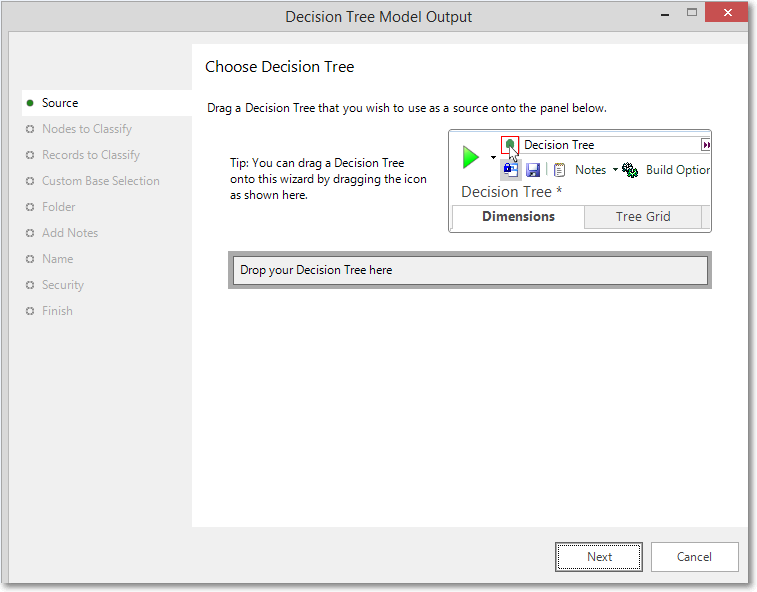
Note that if you have pressed the Output Model As Variable button on the Decision Tree window then you will not be shown this step.
-
Click Next to go to Nodes to classify
or
-
Click Next to go to Records to classify
Nodes to classify
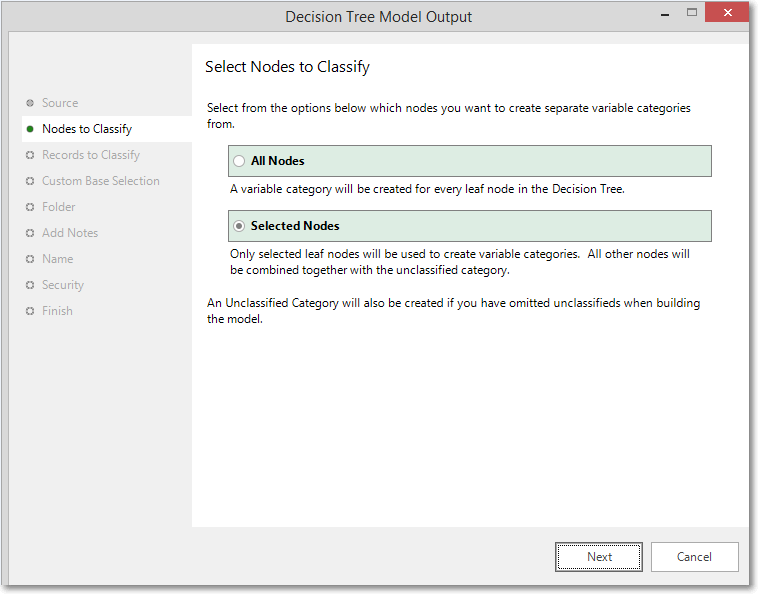
You can specify which of the Decision Tree nodes are used to create Virtual Variable categories.
The two alternatives are:
-
To create categories for all leaf nodes in the Decision Tree. In this case the unclassified category will only contain records that are not contained in any leaf node. This will only happen if you have selected "Omit Unclassified" for some of the dimensions.
You may wish to use this option if you want to decide at a later date which nodes to use in a campaign.
-
To create categories just for leaf nodes selected in the Decision Tree. In this case, the unclassified category will also contain records that belong to nodes which were not selected.
You may wish to use this option if you just want the top nodes to be classified.
Note
This page is not displayed if you have not selected any records in the Decision Tree.
Records to classify
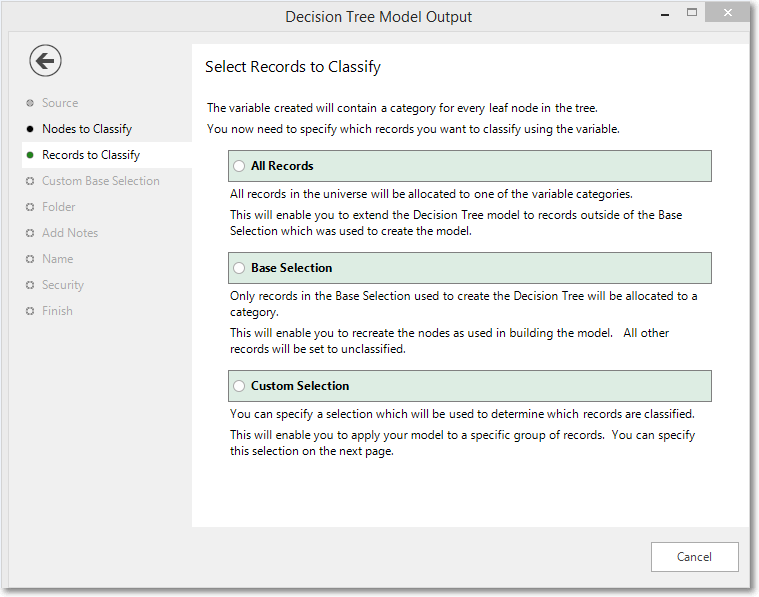
You can also choose which records you want to be classified in the Virtual Variable by specifying a selection. Any record not contained in this selection will be put in to the unclassified category. All records in the selection will be allocated to one of the categories.
The three options available are as follows:
-
All Records: All records in the universe will be allocated to one of the Virtual Variable categories.
You can use this option to extend the Decision Tree model to records outside of the Base Selection which was used to create the model. In this way you can generate the model rules based on perhaps a sample of data, but then apply the model to the full universe. This will give you the different counts for the Virtual Variable categories than for the corresponding nodes in the tree
-
Base Selection: Only records in the Base Selection used to create the Decision Tree will be allocated to a category.
This option will recreate the nodes as used in building the model giving you the same counts for each Virtual Variable category as for the corresponding node in the tree. All other records will be set to unclassified.
-
Custom Selection: You can specify a selection which will be used to determine which records are classified.
This will enable you to apply your model to a different group of records from that used to create the Decision Tree, but not necessarily the full universe. This could be useful if your base selection was, for example, a random sample of people living in a particular Region. You might then want to apply the model to all people in that Region, and would do this by specifying this region in the custom selection. This is done on the next step.
-
Click Next to go to Custom Base Selection if Custom Selection is specified
or
-
Click Next to go to Folder if All Records or Base Selection are specified
Custom base selection
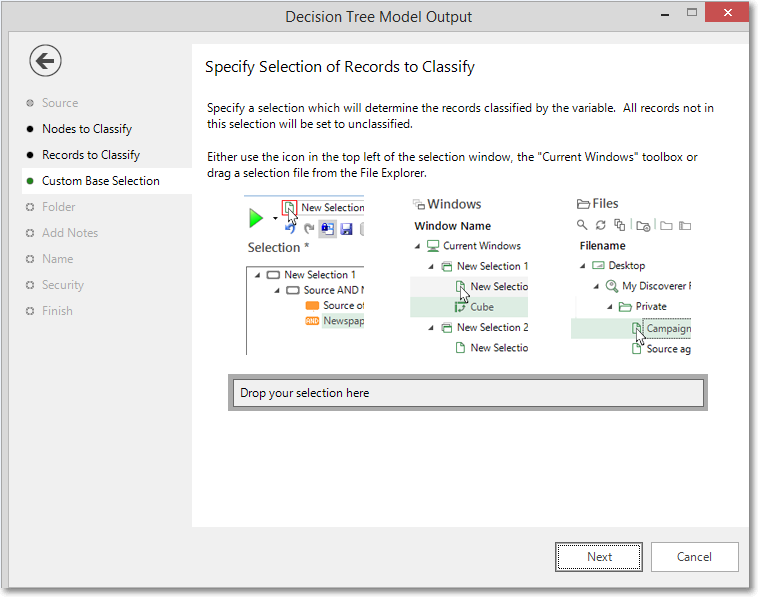
You can specify a custom selection which will be used to determine which records are classified. (i.e. something other than the full universe or the Base Selection used to build the model) .
This will enable you to apply your model to a different group of records from that used to create the Decision Tree, but not necessarily the full universe. This could be useful if your base selection was, for example, a random sample of people living in a particular Region. You might then want to apply the model to all people in that Region, and would do this by specifying this region in the custom selection.
This page is only displayed if you specified Custom Selection on the previous page.
Folder
You can specify which folder you want the Virtual Variable to be created in.
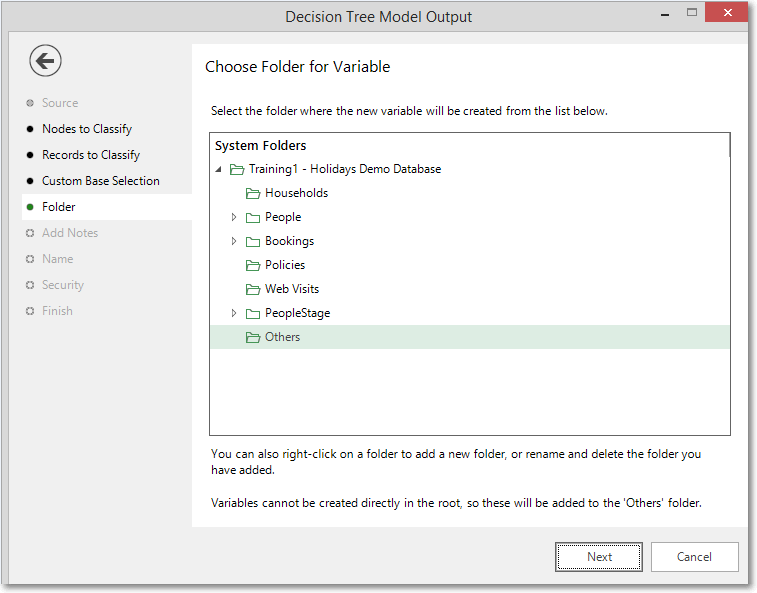
Create (if necessary) and highlight the folder to hold your Virtual Variable.
Add notes
You can choose to add notes to your variable. These can be viewed later by right-clicking on the variable once it is in the System Explorer.
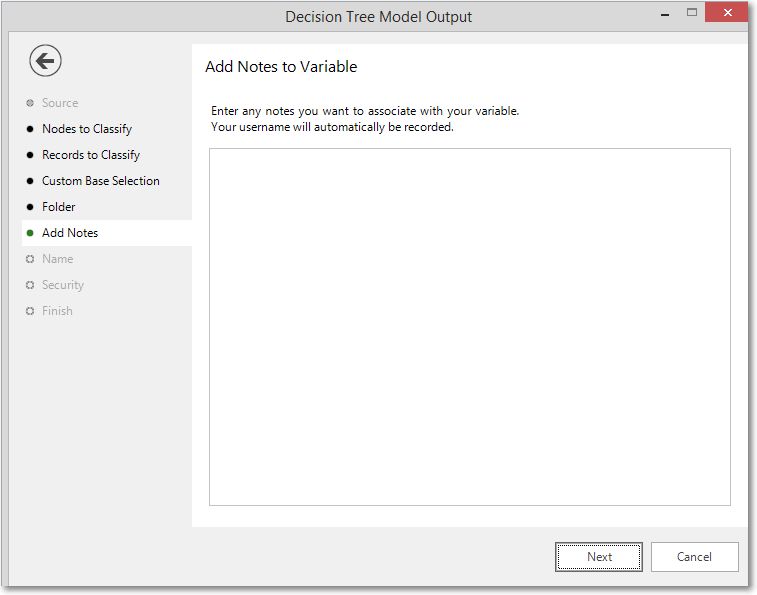
Enter any notes you wish to record.
Name
This step of the wizard allows you to define what the Virtual Variable will be called.
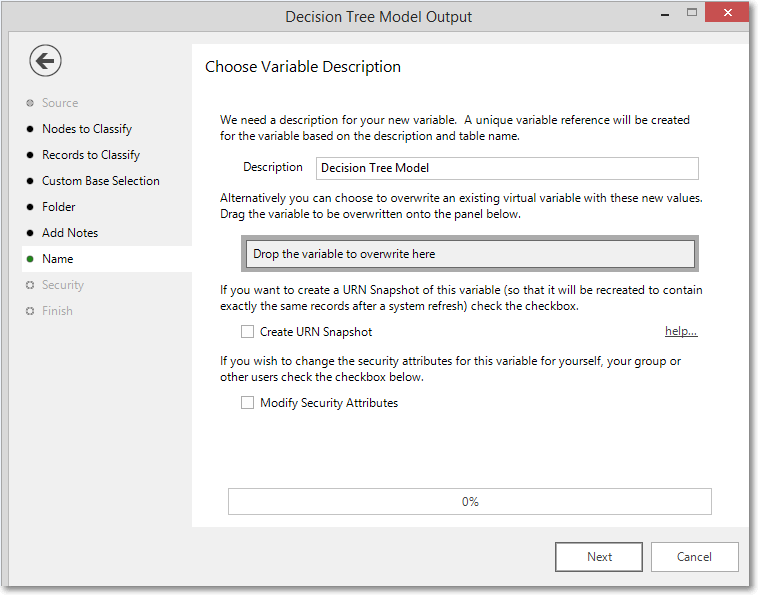
Enter the name of your variable in the Description box.
To overwrite an existing virtual variable drag it on to the Drop the variable to overwrite here drop box.
Tick the Create URN Snapshot box to record the exact records found at this time so it can be recreated after a refresh of the data if needed.
Tick the Modify Security Attributes box to allow you access to Security (This option is only available on the Enterprise Version)
Security
This is an optional step available on the Enterprise version of the software.
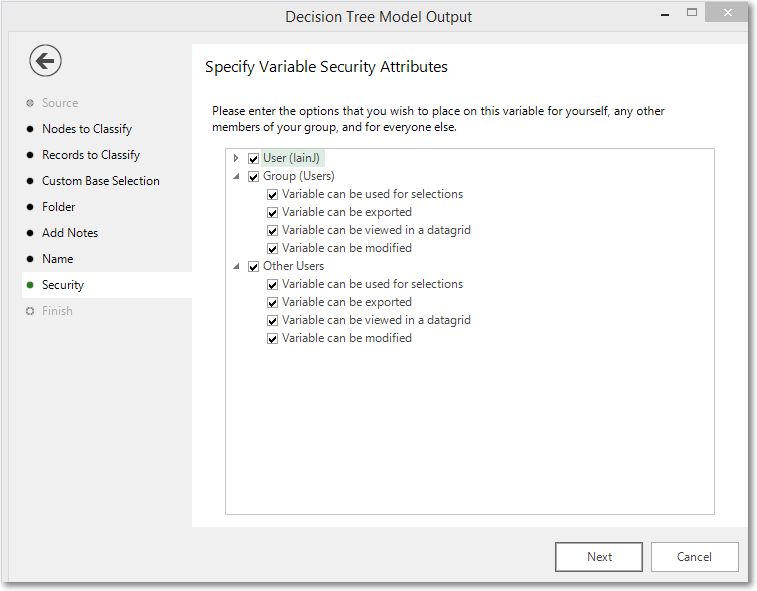
Use the tick boxes to set the security setting you wish to apply to this variable.
Finish
When you reach this step, the actions required by this wizard have been performed. The new variable has been highlighted in the System Explorer.
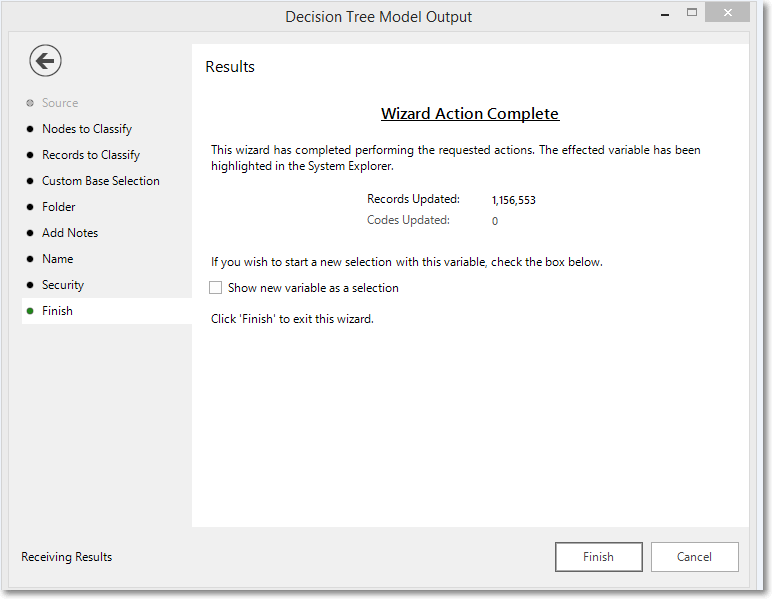
Tick the Show new variable as a selection box if you want to view the variable when the wizard is closed.
Click Finish to close the wizard.