FastStats interface
The main window
Once you have logged into FastStats, the main screen will load up.
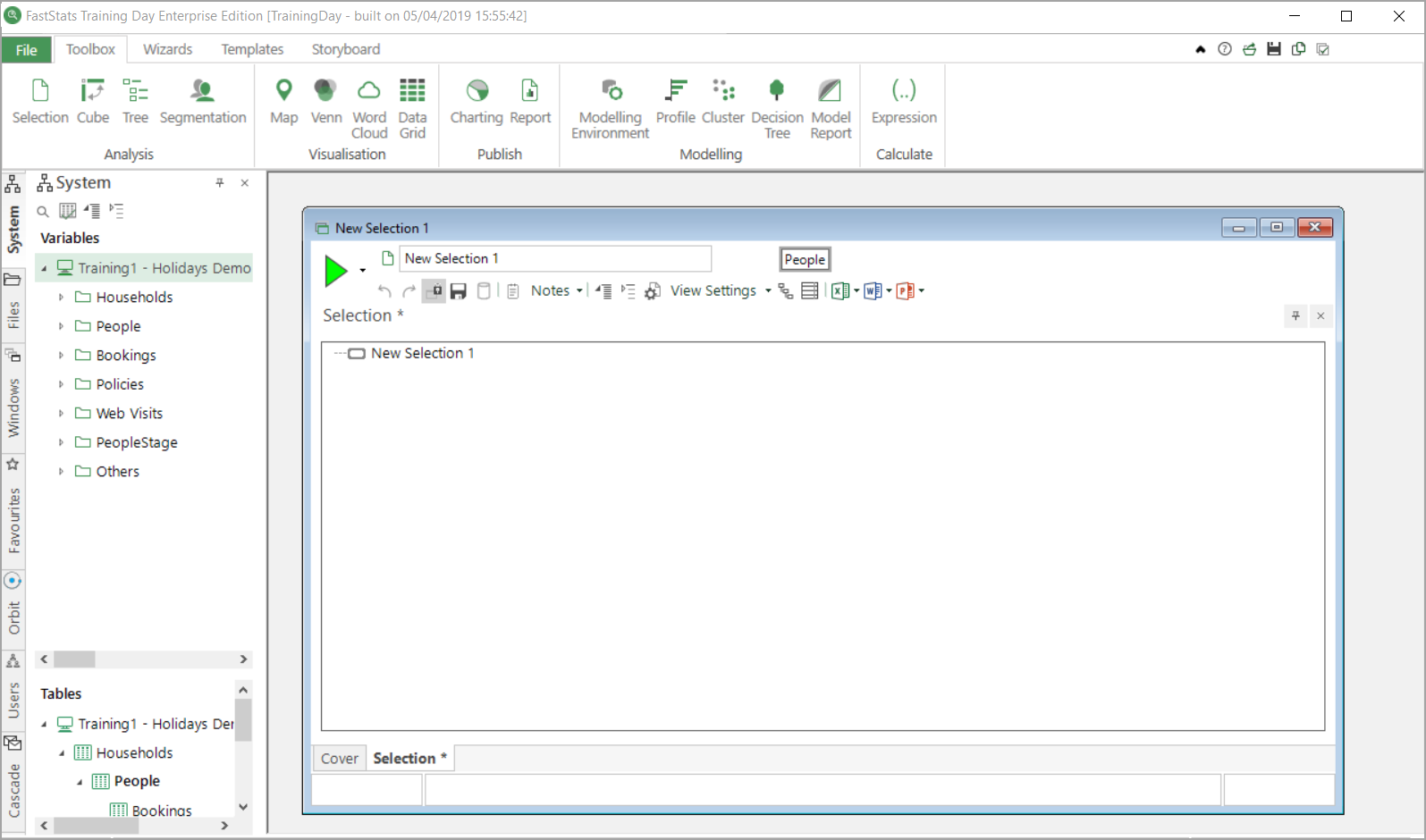
The main screen is made of the following elements:
-
Information panel with the system name and the date and time that the system was last refreshed

-
File menu with access to the Tools Options
- Ribbon bars for access to the Toolbox tools, Wizards, user created Templates and the Storyboard
-
Icons including single click access to the online Help files

On the left there are a series of windows sitting on top of each other which you can access via tabs at the side of the screen:
- The FastStats system window: This is where all the elements of the system (variables and tables) are displayed. This allows variables and tables to be dragged onto other parts of the main window.
- The FastStats files window: Provides access to My FastStats Folders, where work created in FastStats is saved.
- Windows: This gives you an easy way of seeing which windows are open and what they contain.
- Favourites: Provides ease of access to frequently used selections and variables.
- Users: Only visible to Administrators - where system users and permissions are defined.
- Cascade: Only visible when licensed - where users can create marketing campaigns and promotions.
Finally, and most important, the light grey central workspace is where Selection windows are displayed. You drag variables onto a Selection to interrogate your data, and use Toolbox tools to further analyse and visualise your selected group of records. When more than one 'page' is present, the window is known as a Selection Book. You can have multiple selection windows open at a time, if you wish to move between different sets of analysis.
The system window
The System tab is one of the most used sections of FastStats. It shows the contents of the underlying FastStats system.
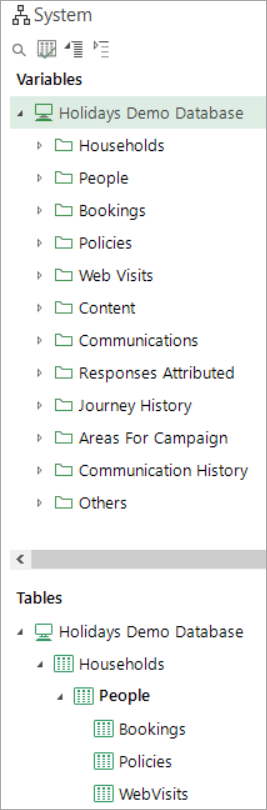
Variables section
This section of the System explorer shows the variables organised into their folders. The icons on the left of each description indicate the type of variable. The variable type describes its contents, and the operations that can be performed on that variable.
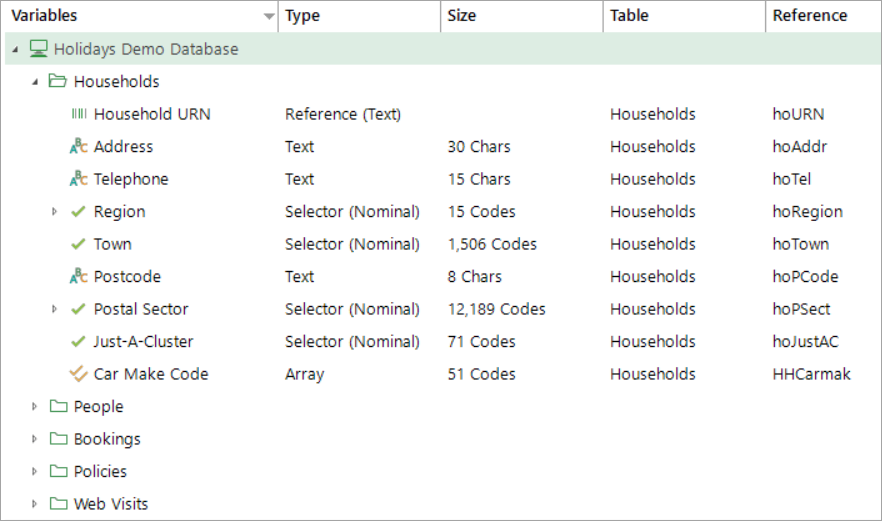
- Expand the window to see more detailed information about each variable
- Click on the search icon at the top of the screen to find a particular variable
- Drag variables or groups of variables onto the workspace or other parts of the application to use them
Tables section
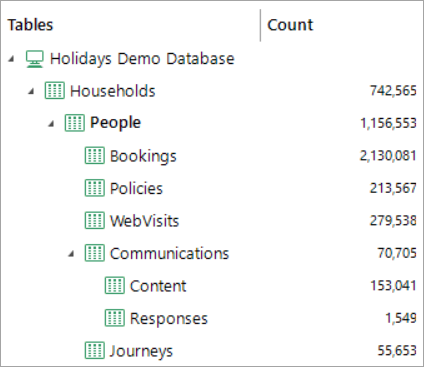
This shows the tables defined in the system. Many count or analysis operations use this to define the resolve table. The resolve table is the system table at which you want to perform the count/analysis.
The default resolve table is shown in bold. You can change the default resolve table for your own login by right clicking on the desired table name and selecting the option Set as Default Table. The change will be effective when you next log into your FastStats system.
The files window
The My FastStats Folders directory within the Files explorer window is where you can save and retrieve work you have created in FastStats.
To help you locate your files more easily, a search facility is available:
-
Click and highlight the My FastStats Folders directory.
This will perform a search across all folders and sub-folders. Alternatively, if you highlight for example the Public folder, the search will begin here and just include any sub-folders within Public.
-
Click the Find icon to open the Find window.
- Enter the name of the file you want and click Find.
FastStats will search and return any matching files.
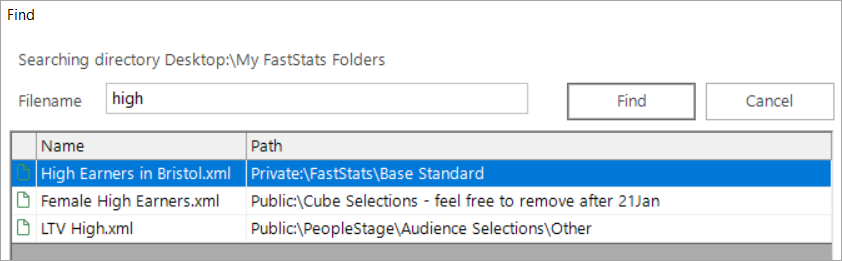
In the above screen shot we can see that 3 files have been located indicating that 2 of the paths are within the Public folder and 1 within Private.
- Double click on the line of the file and the item will open in the FastStats workspace
In some instances you may not know the full name of the file or would rather not type in a long file name. If this is the case the * wildcard character can be used. For example:
- seg will find all files that start with the letters 'seg'
- .xml will find all files that end with '.xml'
- avg will find all files that have the letters 'avg' somewhere within the name
Note
The Filename search box is NOT case sensitive.
The selection window
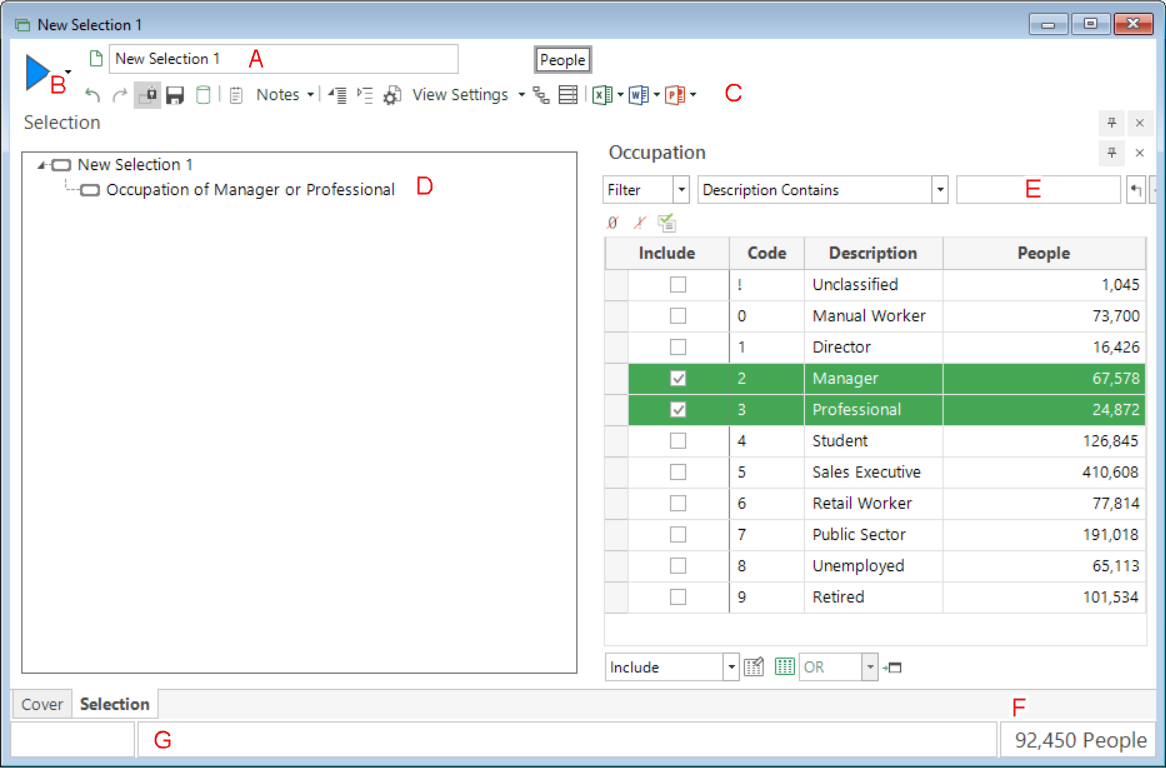
One of the most important parts of the main window is the Selection window. Here are 2 views:
Selection only
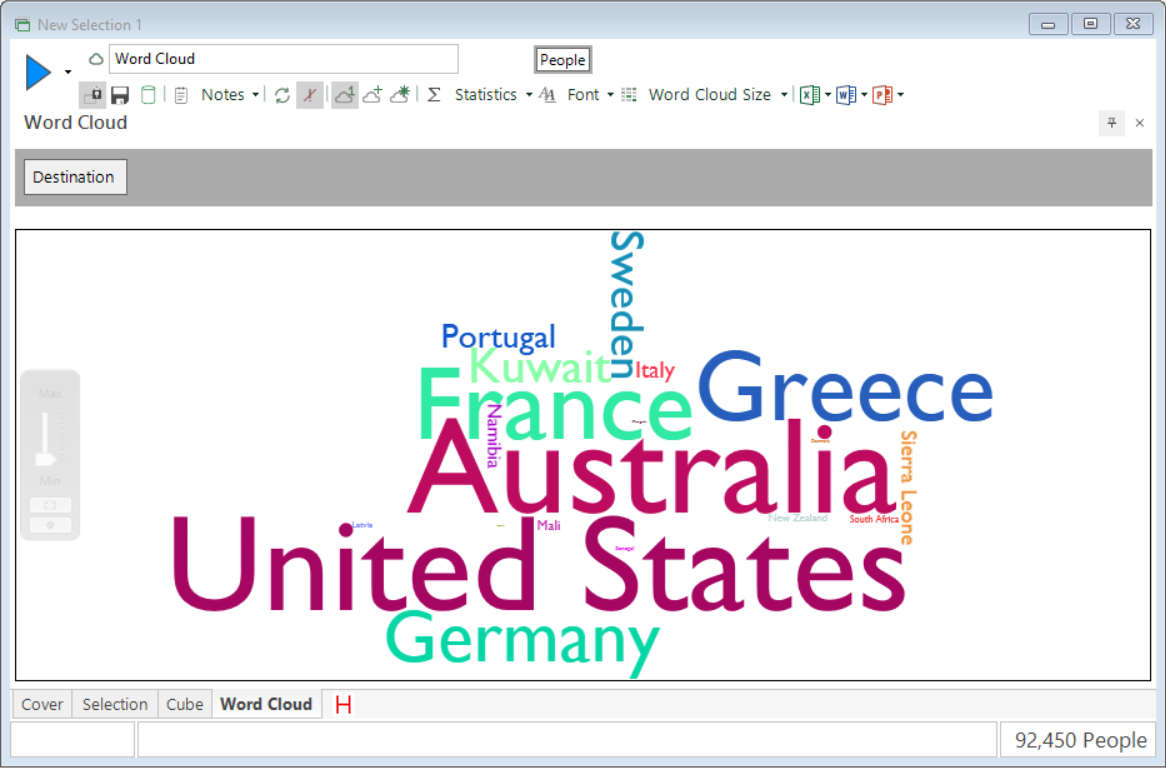
Selection book
The selection window is made of the following elements:
| Element | Description | |
|---|---|---|
| A | Name text box | This text box allows you to easily change the name of either the selection or the currently visible analysis page. For example, in the second image, this text box displays the name of the Chart being displayed. |
| B | Build button | This button is used to perform a count of a selection or to perform whatever analysis has been specified. By clicking on the down arrow to the right of the play button you can choose which part of the analysis (which "Page") to build, or to rebuild all pages. |
| C | Toolbar | All other tools are placed next to the build button. These will be specific to the particular analysis page being displayed. |
| D | Selection tree | This is the part of the selection window that is used to build up a selection by dragging on variables, etc. |
| E | Variable windows | These windows let you pick which parts of a variable are to be included in the selection. |
| F | Count | This shows the number of records that are included in the selection and that have been analysed by any analysis pages. |
| G | Progress bar and status box | The progress bar and status box show what operations are being performed by the FastStats server when the play button is pressed. |
| H | Workbook page tabs | These tabs allow you to choose which page should be displayed (an analysis or visualisation page, or the selection). |