Campaign folders
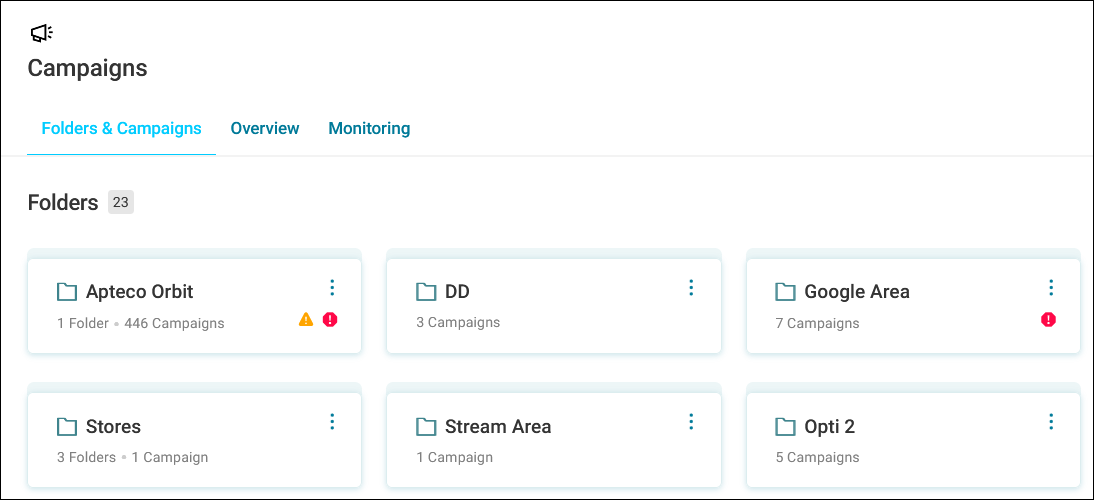
Use campaign folders in Orbit to organise your campaigns clearly and intuitively.
You can move and copy campaigns between folders so you can adapt quickly to organisational changes. Any search or applied filter include folders and any included campaigns in the results, so you get a full view of your campaign structure.
Folders help you and your team:
- Organise campaigns and other folders by theme or audience
- Keep a clear overview of all activity
Note
Folders in Orbit are fully cross-compatible with PeopleStage. Folders created in Orbit appear as areas in PeopleStage, while Areas created in PeopleStage appear as folders in Orbit.
Warning
The move and copy options available depend on the campaign's current state. You can move or copy draft campaigns. You can only copy published campaigns, not move them.
Example use cases
Retail seasonal campaigns
Organise your campaigns for your retail business by seasonal parent folders (Spring, Summer, etc.) containing sub-folders for product launches, promotions, and loyalty offers.
Customer lifecycle management
Structure your folders by lifecycle stages, with appropriate sub-folders for each stage.
- Acquisition
- Retention
- Win-back
Overview tab
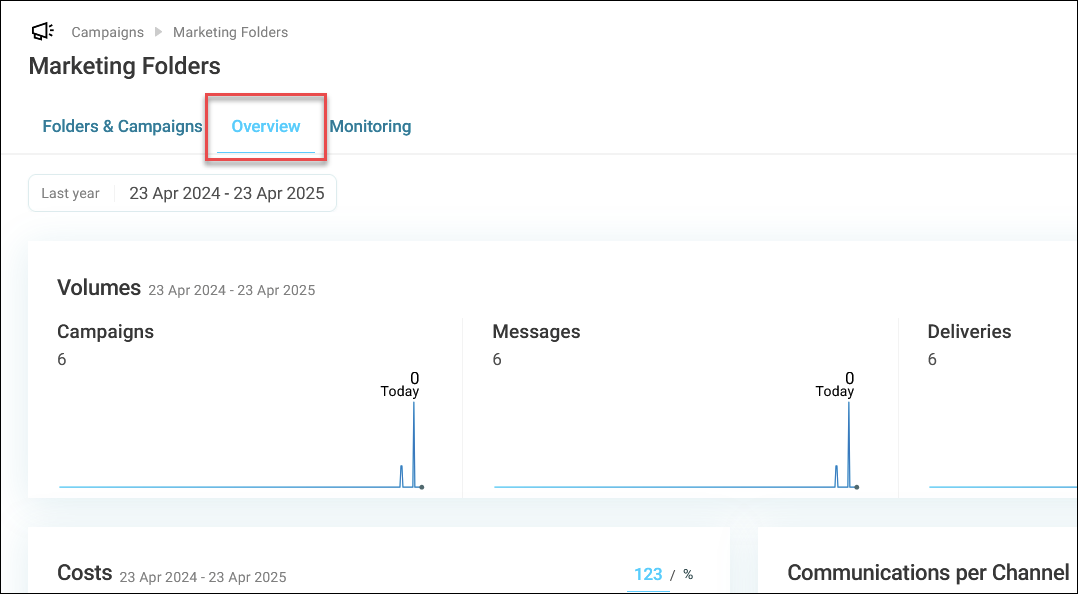
The Overview tab displays a summary of all activities at your current folder level, showing folders and campaigns within their current location.
Monitoring tab
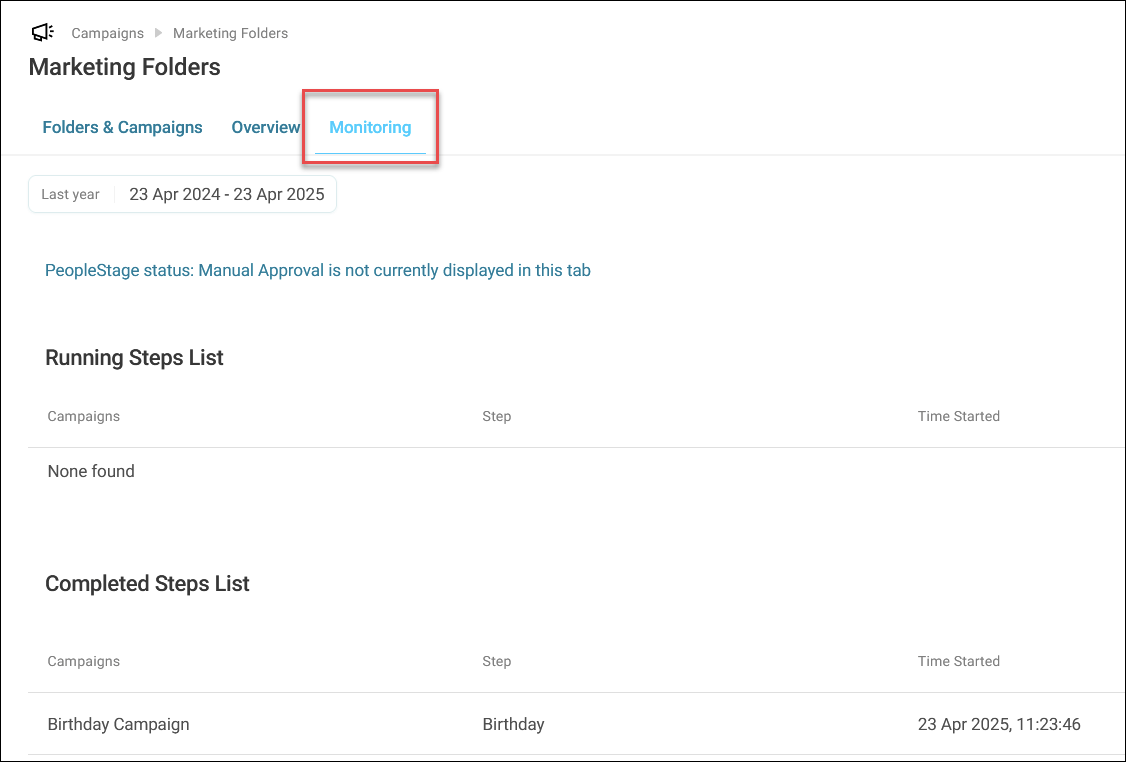
The Monitoring tab shows detailed information on all campaigns running at your current folder level.
Note
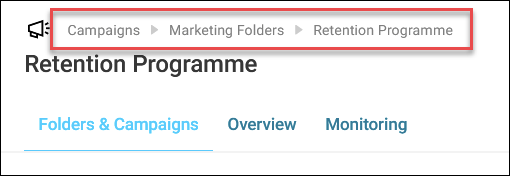
The breadcrumb trail shows your current location and all parent folders, allowing quick navigation between levels.
Creating a new folder
To create a new folder:
- Navigate to the folder location where you want to create your folder, or from the campaign home screen.
-
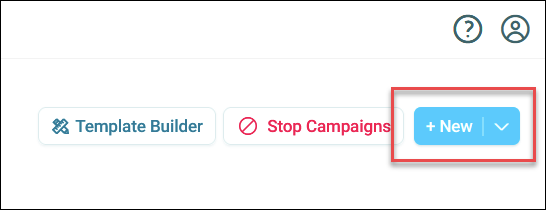
Click + New.
-
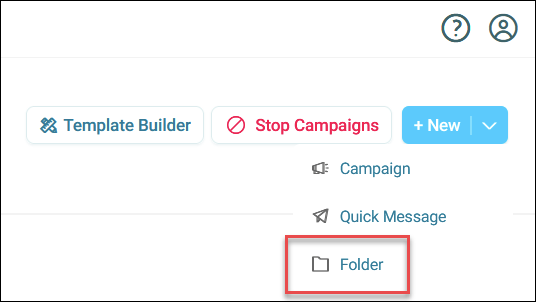
Click Folder.
-
Enter a name for your folder.
-
Click Create.
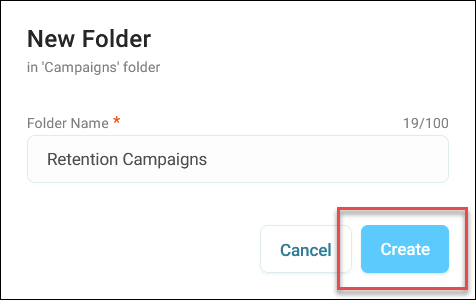
You’ve now created a folder.
Renaming a folder
When you rename a folder, all campaigns within it remain in place, and communication history is preserved.
To rename a folder:
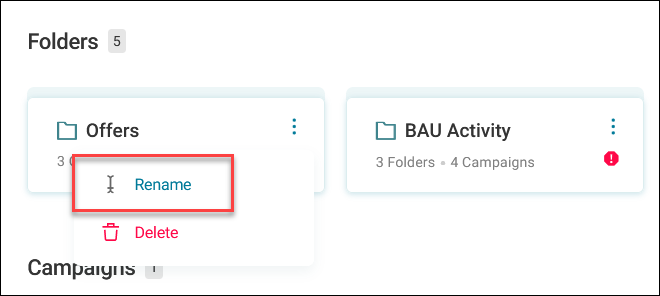
- Expand the option menu on the folder you want to rename.
-
Click Rename.
-
Enter a new name.
-
Click Rename.
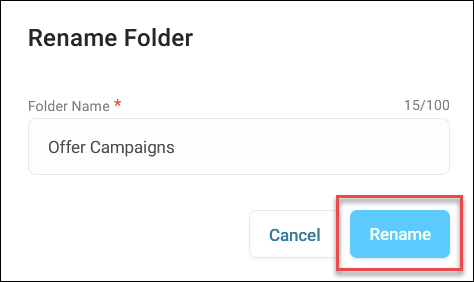
You’ve now renamed your folder.
Deleting a folder
To delete a folder:
- Expand the option menu on the folder you want to delete.
-
Click Delete.
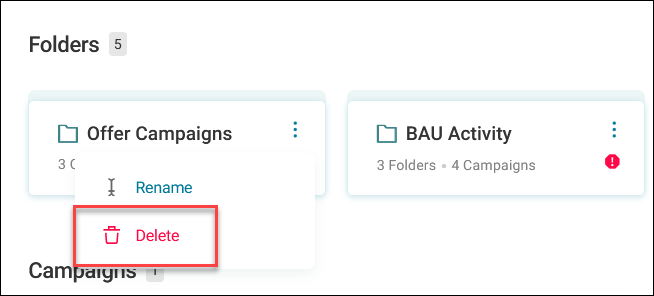
-
Click Delete to confirm.
You’ve now deleted your folder.
Warning
Orbit prompts you with warnings before deletion if:
- Campaigns are in edit mode
- Live campaigns are running
- Campaigns are pending manual approval
- Deliveries are scheduled to go out