Managing folders
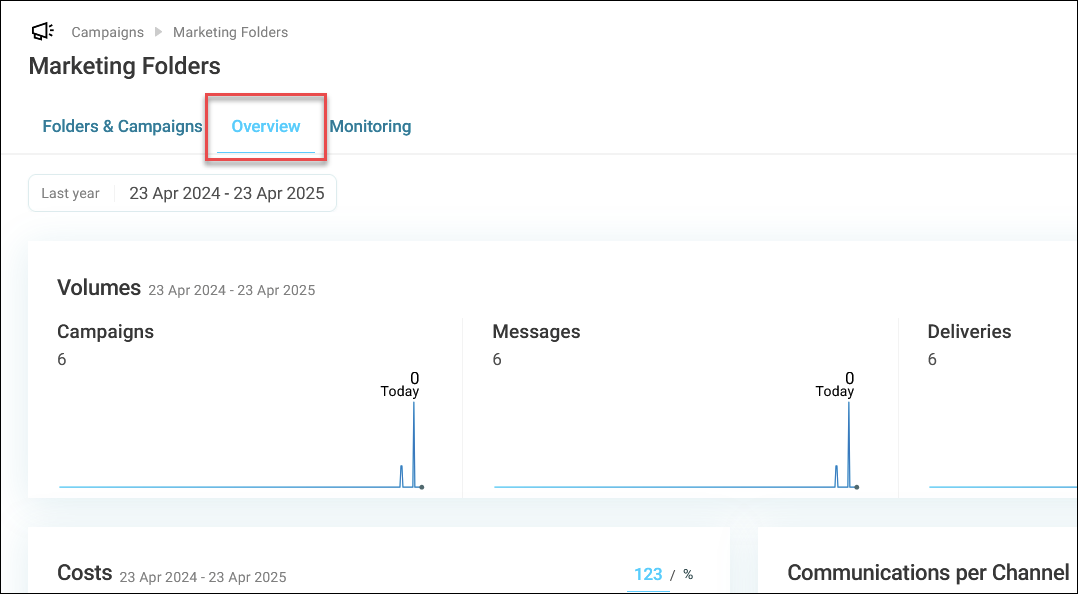
Overview tab
The Overview tab displays a summary of all activities at your current folder level, showing folders and campaigns within their current location.
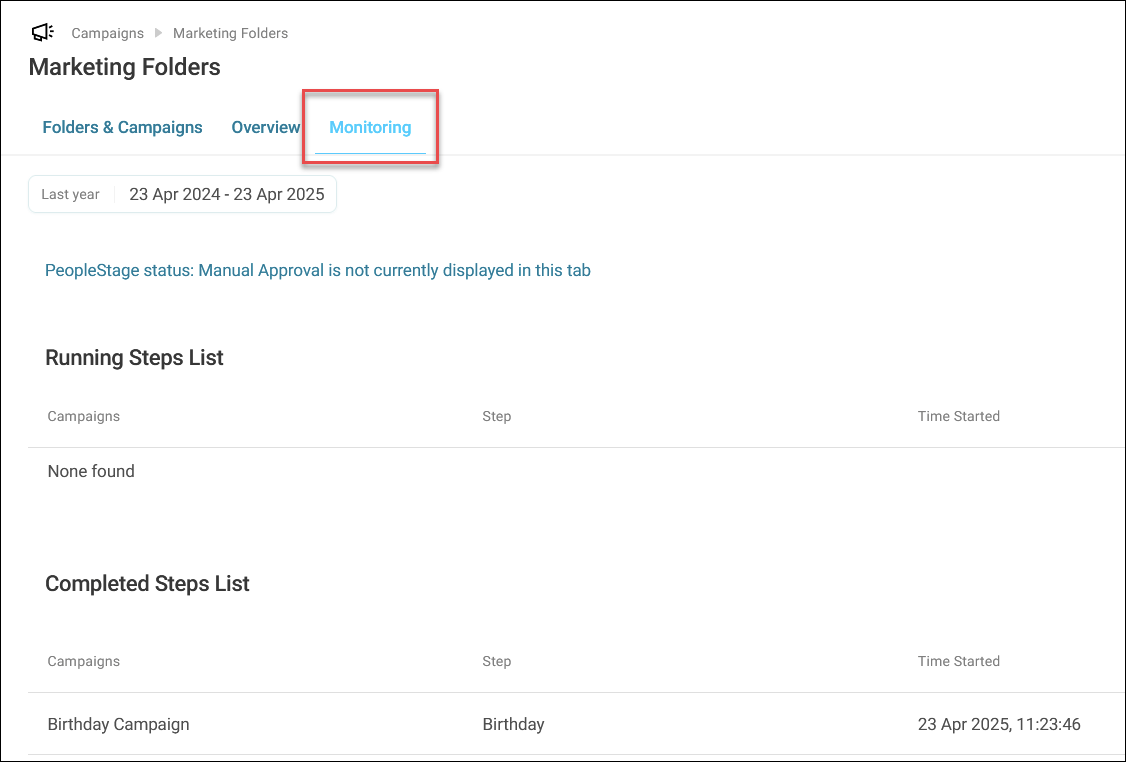
Monitoring tab
The Monitoring tab shows detailed information on all campaigns running at your current folder level.
Note
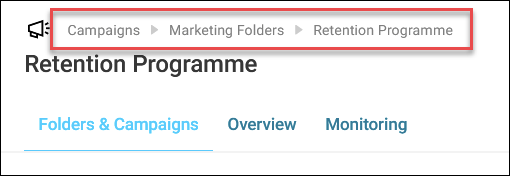
The breadcrumb trail shows your current location and all parent folders, allowing quick navigation between levels.
Creating a new folder
To create a new folder:
- Navigate to the folder location where you want to create your folder, or from the campaign home screen.
-
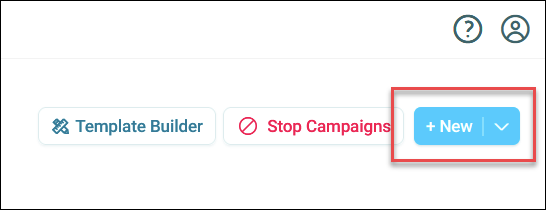
Click + New.
-
Click Folder.
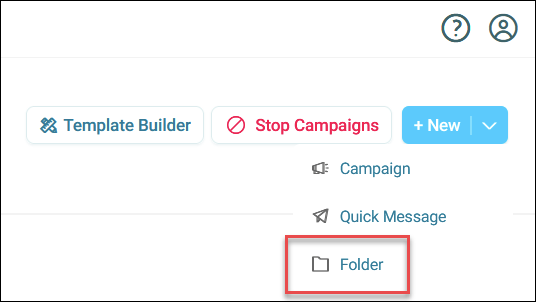
-
Enter a name for your folder.
-
Click Create.
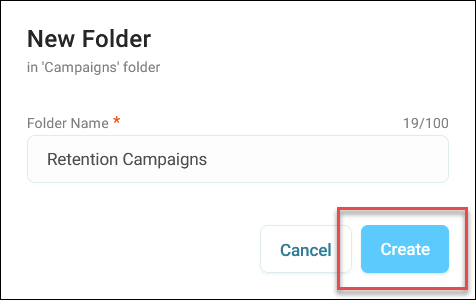
You’ve now created a folder.
Renaming a folder
When you rename a folder, all campaigns within it remain in place, and communication history is preserved.
To rename a folder:
- Expand the option menu on the folder you want to rename.
-
Click Rename.
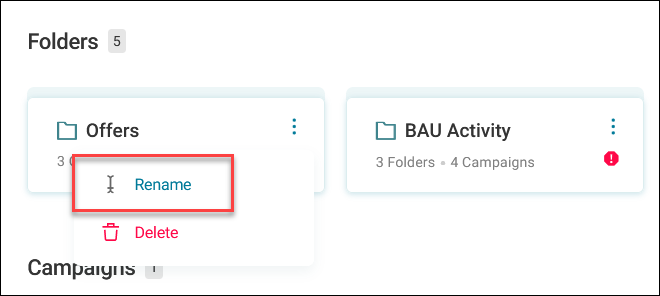
-
Enter a new name.
-
Click Rename.
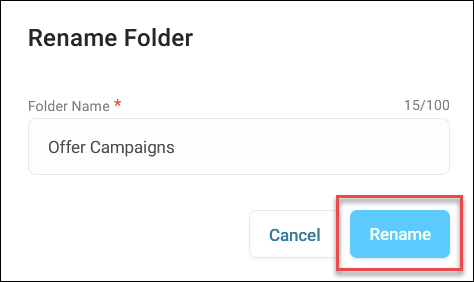
You’ve now renamed your folder.
Deleting a folder
To delete a folder:
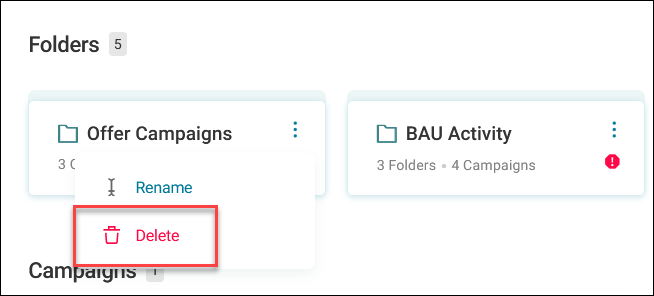
- Expand the option menu on the folder you want to delete.
-
Click Delete.
-
Click Delete to confirm.
You’ve now deleted your folder.
Warning
Orbit prompts you with warnings before deletion if:
- Campaigns are in edit mode
- Live campaigns are running
- Campaigns are pending manual approval
- Deliveries are scheduled to go out