Searching in Orbit
Search
Searching for customer attributes (variables) is fundamental in using both Audiences and Dashboards in Orbit to find those people you wish to target, or take a more focused look in visualisations to describe behavioural patterns or transactional trends.
We have improved search to help you find those attributes or variables quickly and efficiently. You may have many data variables which sound the same but are formatted differently, for example as text or numeric. Symbols describing the variable type have been added so that you can be sure of selecting the data in the correct format for your needs.
Types of variables
- Selector
- Multi-Response
- Date
- Numeric
- Text
- Currency
- Date Time
- URN (when Applying Limits to an Audience or creating an Export Template)
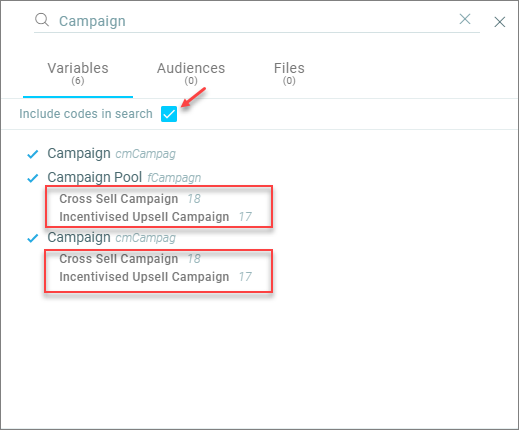
We have gone further to improve the default search mechanism, by filtering the search to show data variable names relating to the search criteria, not all options within each data variable as well. If you prefer the old way of showing you everything, you can always tick that box to expand the search.
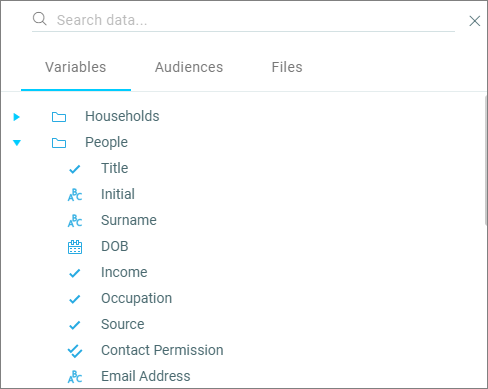
We have also combined searching and browsing together so that you don't have to switch between the two modes to understand where the data has come from. For example, you may have many data variables relating to sales in your data: sales from different product divisions, sales from different channels, or sales from different brands - by showing the data in folders, you can be reassured you are choosing the correct variable for your needs. For functions such as adding measures to a dashboard tile or applying limits, search allows you to select the table name rather than having to search for it.
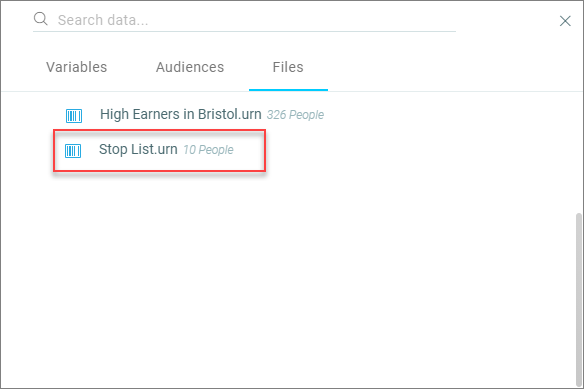
Search has not only been enhanced for efficiency but will soon be evolving to allow you to search and select not only saved Audiences but also URN files and Selections which have been made and saved in Apteco FastStats for use in Audiences and Dashboards in the Apteco Orbit platform.
Searching or browsing data
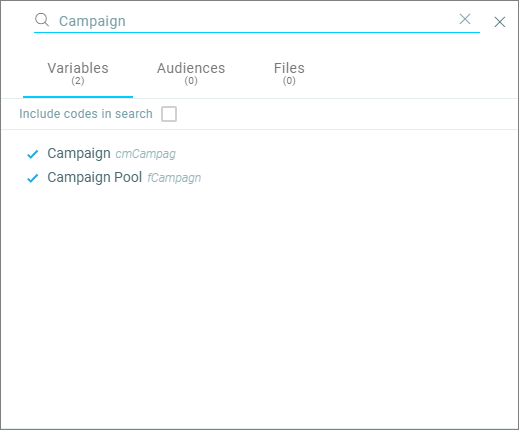
-
Click Include codes in search to show the defined codes.
-
Or Browse data to access your FastStats System explorer folders and navigate to select the required variable and category:
-
Or search for URNs or FastStats Selections.