Logging in to Orbit
To log in to Orbit, you need the user credentials supplied by your Apteco software account manager or a FastStats administrator.
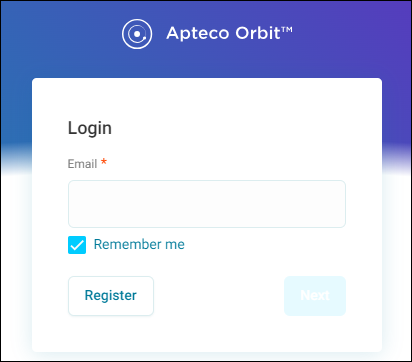
To log in:
- Enter either your username or email address and click Next.
-
Select a DataView if you have more than one.
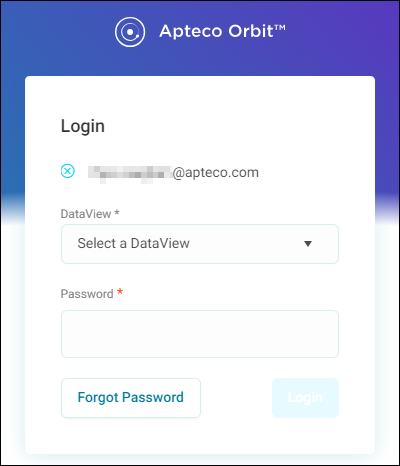
Use the Forgot password option on the login screen to request a password reset email.
Log in after receiving a shared item
You can be invited to view a Collection or Audience via an Orbit Share email. To log in after receiving a shared item: 1. Open the Orbit Share email. 2. If you are an existing user, log in with your existing credentials. If you are new, click the link to register an account. 3. Click Confirm registration in the registration confirmation email. 4. Log in to Orbit using the credentials you registered with.
Multi-factor authentication
Multi-factor authentication (MFA), also known as two-step or two-factor authentication, adds a second layer of security to your Orbit account. After entering your password, you confirm your identity using a one-time passcode (OTP) generated by an authenticator app on your phone or device. Even if your password is compromised, an attacker cannot access your account without that second factor.
Orbit MFA uses the time-based one-time password (OTP) standard, supported by all major authenticator apps.
For administrators
Make MFA available to users
Before users can enable MFA on their accounts, an administrator must enable it at the system level.
To make MFA available:
- Ensure your system is running the Q2 2026 Apteco software release and Orbit version 2.3.12 or later.
- Apply the required configuration change to the OrbitAPI in the FS_Config database.
Refer to the admin guide for step-by-step configuration instructions.
Once enabled, you can choose to enforce MFA for all users or allow users to opt in themselves. If you enforce MFA, users will be required to complete setup before they can log in.
Disable MFA for a user who cannot log in
If a user is locked out because they have lost access to their authenticator app and their recovery codes, an administrator can disable MFA on their behalf.
To disable MFA for a user:
- Click your avatar in the top-right corner, then click Users/Groups.
- Next to a user with MFA enabled, click Edit User.
-
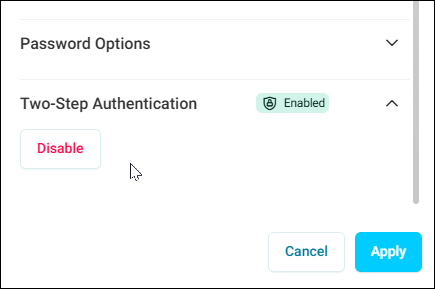
Expand the Two-step authentication section and click Disable.
For users
Enable MFA on your account
Before setting up MFA, make sure you have:
-
An authenticator app installed on your phone or device. Common options include Microsoft Authenticator, Google Authenticator, 1password, and Apple Passwords.
Tip
Choose an authenticator app that supports cloud backup or account recovery. If you lose your phone and have no cloud backup, you will need to use a recovery code to regain access to Orbit.
-
Access to Orbit under the Q2 2026 release (and Orbit version 2.3.12 or later).
- Confirmation from your administrator that the OrbitAPI has been configured to support MFA.
Tip
If you use a password manager such as 1Password, many support OTP codes natively. Check your password manager's documentation to see if you can store your MFA codes there alongside your Orbit credentials. Some password managers can autofill your OTP at login, making the process seamless.
Set up MFA on your account
You can set up MFA from your account settings at any time, or you may be prompted to do so at login if your administrator has enforced it.
To set up MFA:
- Click your avatar in the top-right corner of Orbit, and click Account Settings.
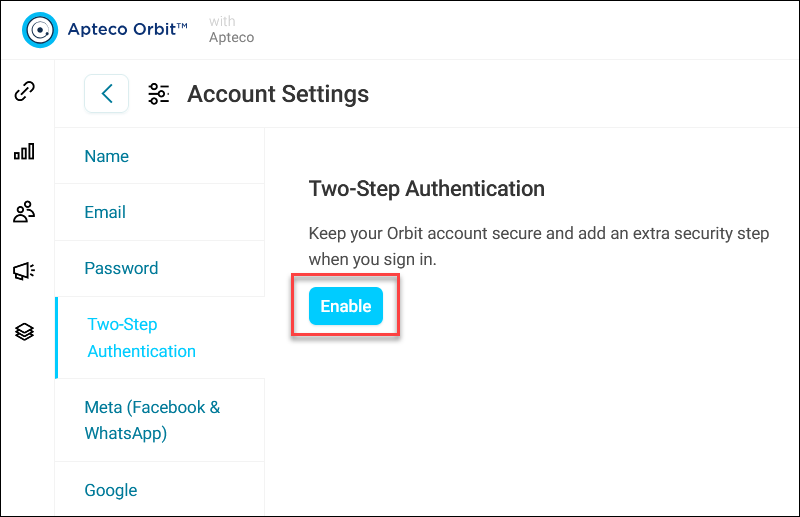
- Click Two-Step Authentication.
-
Click Enable.
-
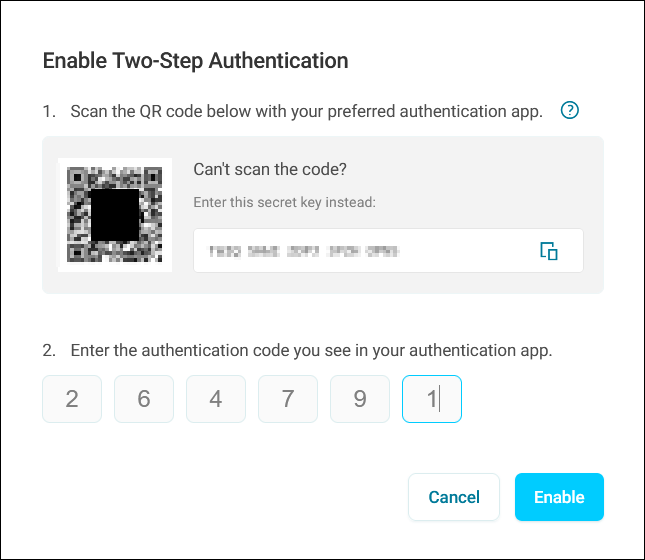
Open your authenticator app and scan the QR code displayed on screen, or copy the secret key manually and paste it into your app.
-
Your authenticator app generates a six-digit code. Enter this code into the confirmation field in Orbit.
-
Click Enable.
-
Click Copy Codes to copy the recovery codes displayed and store them somewhere secure (for example, in your password manager).
Note
You will need these if you ever lose access to your authenticator app.
MFA is now active on your account.
Tip
Open your authenticator app before scanning the QR code so the entry goes into the correct app. If you scan using your device's camera app without opening the authenticator first, the code may be sent to a different app or password store.
Note
If your system has multiple Orbit instances (for example, a test environment and a production environment), each instance requires a separate MFA entry in your authenticator app. The QR code embeds your username and the data view name. If multiple instances share the same data view name, rename the entries in your authenticator app manually so you can tell them apart.
Log in with MFA
Once you have enabled MFA on your account, the login process now includes an extra step.
To log in:
- Enter your username and password as normal.
- When prompted, open your authenticator app and find the current six-digit code for Orbit.
- Enter the code in the field.
You are now logged in. You will need to complete this step each time you log in. Refreshing the browser during an active session does not require re-authentication.
Note
OTP codes are time-sensitive and expire every 30 seconds. If you enter a code that has just expired, wait for the next code to appear in your authenticator app before trying again.
Respond to the MFA setup reminder
If MFA has not been enforced on your system but your administrator has enabled the setup reminder, you will see a prompt the first time you log in.
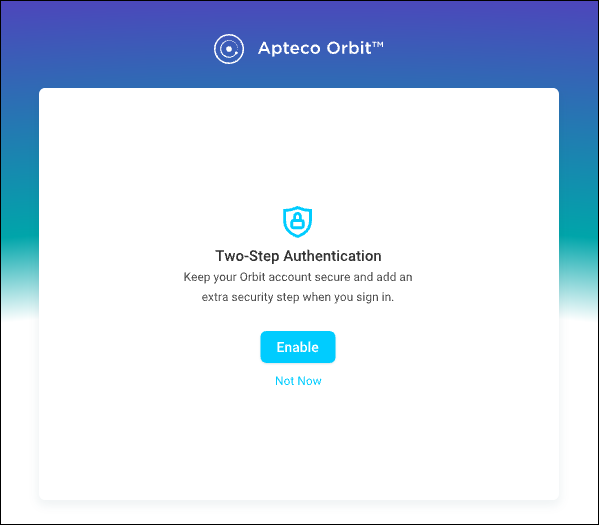
To respond to the prompt:
- Click Enable to go directly to the Two-Step Authentication section of your account settings and complete setup.
- Click Not now to dismiss the prompt. It will reappear after 30 days, or sooner if you use a different browser or device.
Note
The reminder is stored in your browser. If you switch to a different browser or device, the prompt appears again regardless of when you last dismissed it, as expected.
Use recovery codes
Recovery codes let you access your account if you lose your authenticator device.
Note
You can only use each code once.
To use a recovery code at login:
- On the OTP prompt, click Use a recovery code.
- Enter one of your saved recovery codes.
- Click Continue.
Once you are logged in, set up MFA again immediately to generate a new set of codes.
To generate new recovery codes without disabling MFA:
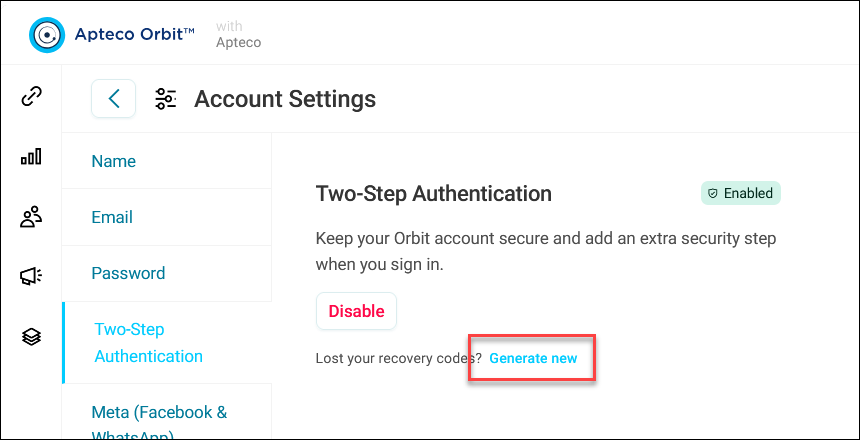
- Go to Account Settings > Two-Step Authentication.
-
Click Generate new.
-
Copy the new codes and store them securely.
Note
Generating new recovery codes immediately invalidates all previous codes. Store the new codes before navigating away.
Disable MFA on your account
You can disable MFA yourself from account settings. You will need your current password to confirm this action.
To disable MFA:
- Go to Account Settings > Two-Step Authentication.
- Click Disable.
- Enter your password when prompted.
- Click Disable.
MFA is now off. You can re-enable it at any time.
Note
If your administrator has enforced MFA via permissions, you will not be able to disable it yourself. Contact your Apteco administrator if you need MFA removed from your account.
Single sign-on (SSO)
With single sign-on, you only need one set of credentials to access all your Orbit DataViews. Before using SSO with Orbit, see Single Sign-On.
If you are not already logged in, you are presented with a login prompt from your identity provider (IdP).
To log in with SSO:
- Enter your username and password at your IdP login prompt, then click Continue.
- After authentication, you are redirected back to Orbit.
If you have already signed in to your IdP and open a new Orbit instance, you are taken straight in without needing to log in again. When you have multiple DataViews, select which one to log in to.
Log in from your IdP portal
Some identity providers offer a portal from which you can launch connected applications.
To log in to Orbit from your IdP portal:
- Log in to your IdP portal.
- Click on Orbit. You are redirected and logged in automatically.
MFA with SSO
If your organisation uses SSO, MFA in Orbit does not apply. Authentication (including any MFA) is handled entirely by your identity provider. This applies to Orbit and to all client applications, including FastStats and PeopleStage.
If you need to configure MFA for SSO users, refer to your identity provider's documentation or contact your administrator.