Multi-factor authentication
Apteco provides multi-factor authentication (MFA) to help keep your accounts secure.
Tip
MFA is also known as two-step or two-factor authentication (2FA).
One-time passcodes
One-time passcodes (OTPs) are a form of MFA. OTPs increase security over a username/password combination by requiring a verification code, generated by an authenticator app, when you sign in.
Note
OTPs are available in Orbit, FastStats, PeopleStage, and Excelsior with the Q2 2026 Apteco software release onwards.
How OTPs increase security
OTPs are designed to prevent attacks that rely on stolen or reused passwords. Each OTP is valid for one login session only, which provides the following protections:
- Replay attacks: If an attacker intercepts a login credential, they can't reuse the OTP because it expires immediately after use
- Password reuse: If a user's password is leaked, an attacker can't sign in without also having the OTP
- Brute-force attacks: OTPs reduce the effectiveness of brute-force attacks because each code is only valid for a short time window
- Keylogging: If a keylogger captures an OTP, the code typically expires before it can be used
Requirements
To use OTPs, you need:
- The Q2 2026 or later release of Apteco software
- An authenticator app (such as Microsoft Authenticator or Google Authenticator)
- The OrbitAPI configured with a connection to the FS_Config database — see Orbit API Configurator
Support Slot accounts
If a Support Slot account is being used by multiple users, each person who signs in needs access to the OTP for that account.
To support this, consider using an authenticator app that allows shared access to OTP codes. This avoids a situation where only the person who originally set up OTP can retrieve the code.
Setting up OTP for your account
Any user can set up OTP in FastStats or Orbit.
To set up OTP:
-
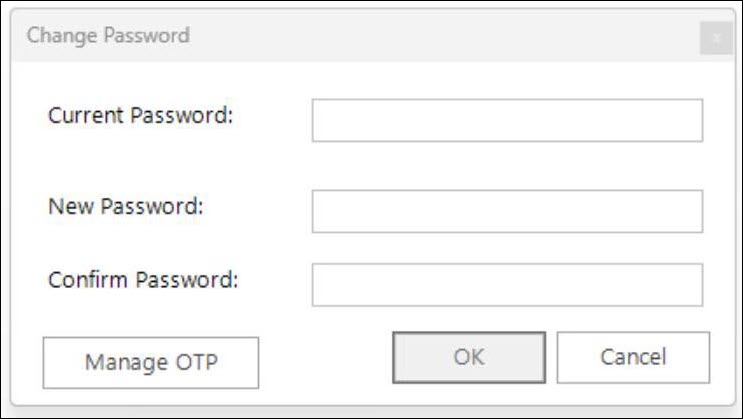
In FastStats, go to Change Password and select Manage OTP.
A dialog containing a QR code appears.
-
Scan the QR code using your authenticator app, then enter the validation code from the app into the dialog. This registers the secret with your authenticator app.
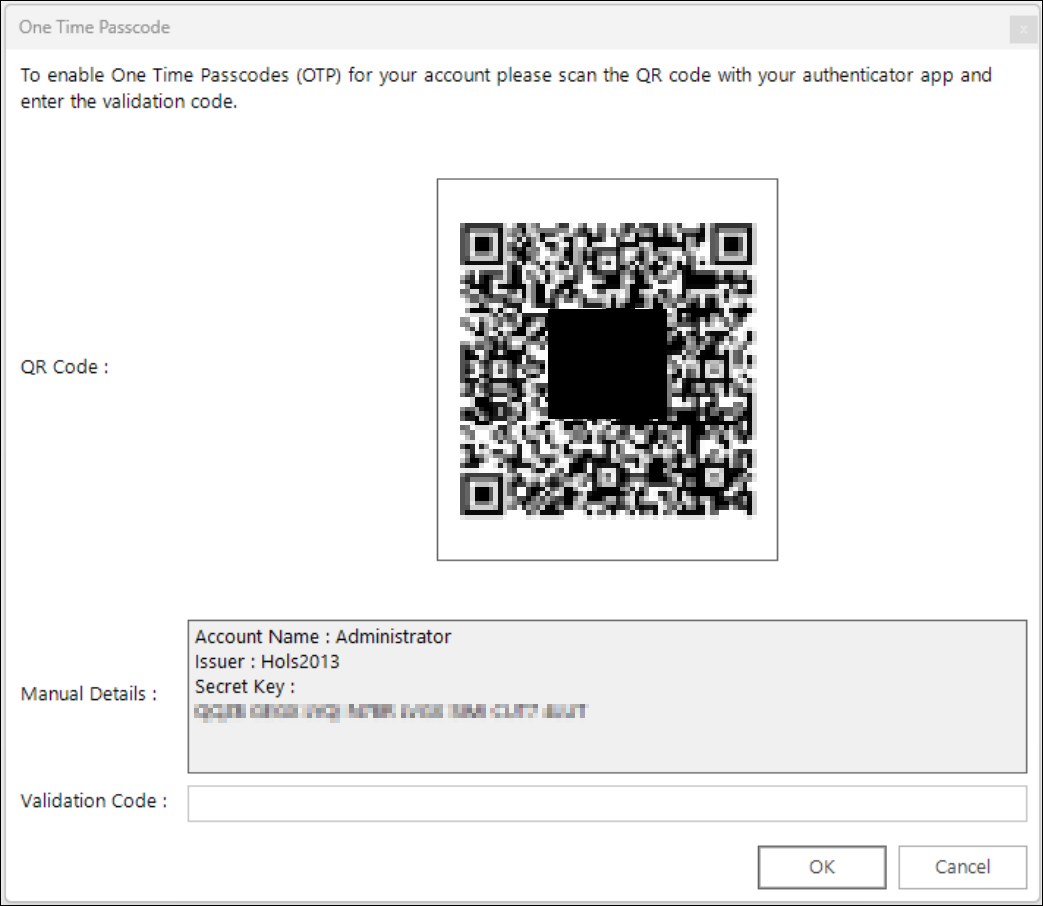
Alternatively, you can copy the secret key from the dialog into a desktop authenticator app.
Recovery codes
When you complete setup, recovery codes are generated and copied to your clipboard. Store these codes securely, for example in a password manager. You can use a recovery code to sign in if you don't have access to your authenticator app. Each recovery code can only be used once.
Signing in with OTP
When OTP is enabled for your account, you must enter your password and a valid OTP code each time you sign in. If your session expires due to inactivity, you must sign in again using both your password and a new OTP.
Recovering access
If you lose access to your authenticator app, you can recover your account in one of the following ways:
- Use a recovery code to sign in, then go to Change Password > Manage OTP and select Disable. You can then set up OTP again.
- Ask an administrator to reset OTP for your account.
Administration
Forcing OTP for a user or group
You can require users to set up OTP on their next login. This option can be applied at user, group, or system level.
To force OTP:
-
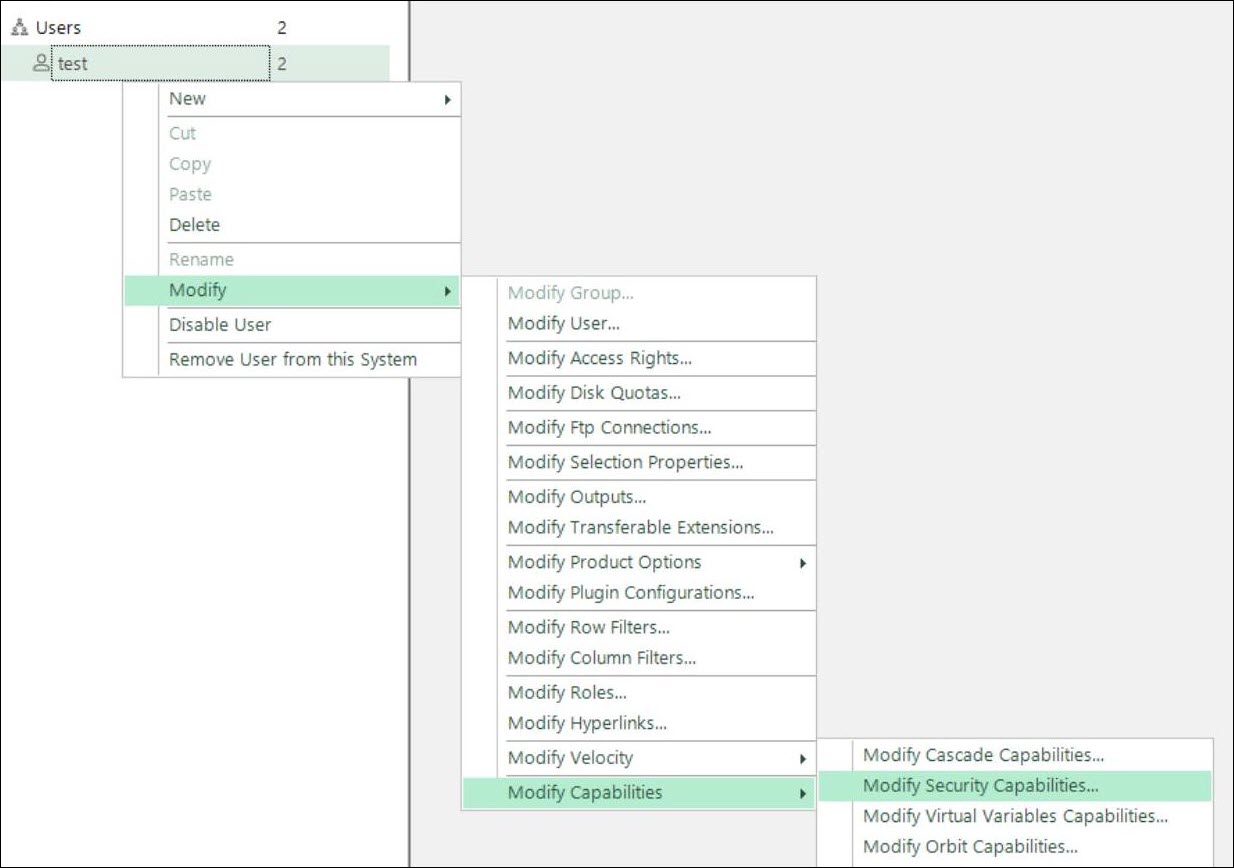
In FastStats, go to the Users tab.
-
Right-click the user, group, or system object and select Modify > Modify Capabilities > Modify Security Capabilities.
-
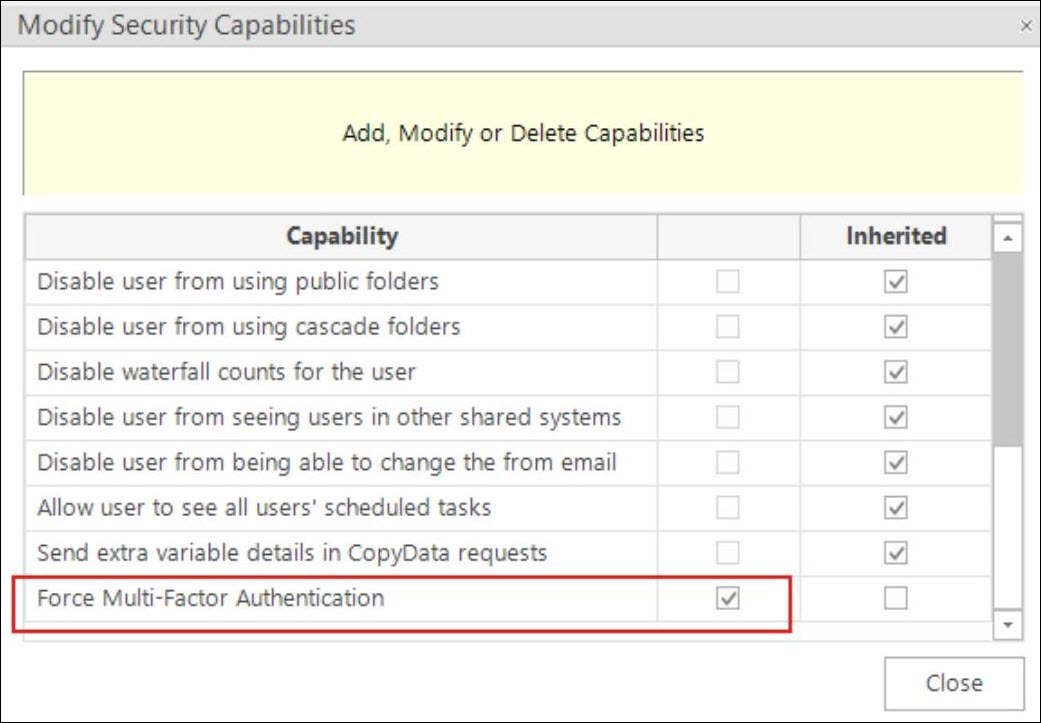
Select Force multi-factor authentication.
Disabling OTP for a user
If a user has lost access to their authenticator app and has no recovery codes, you can disable OTP for their account. This allows them to sign in with their username and password only.
To disable OTP for a user:
-
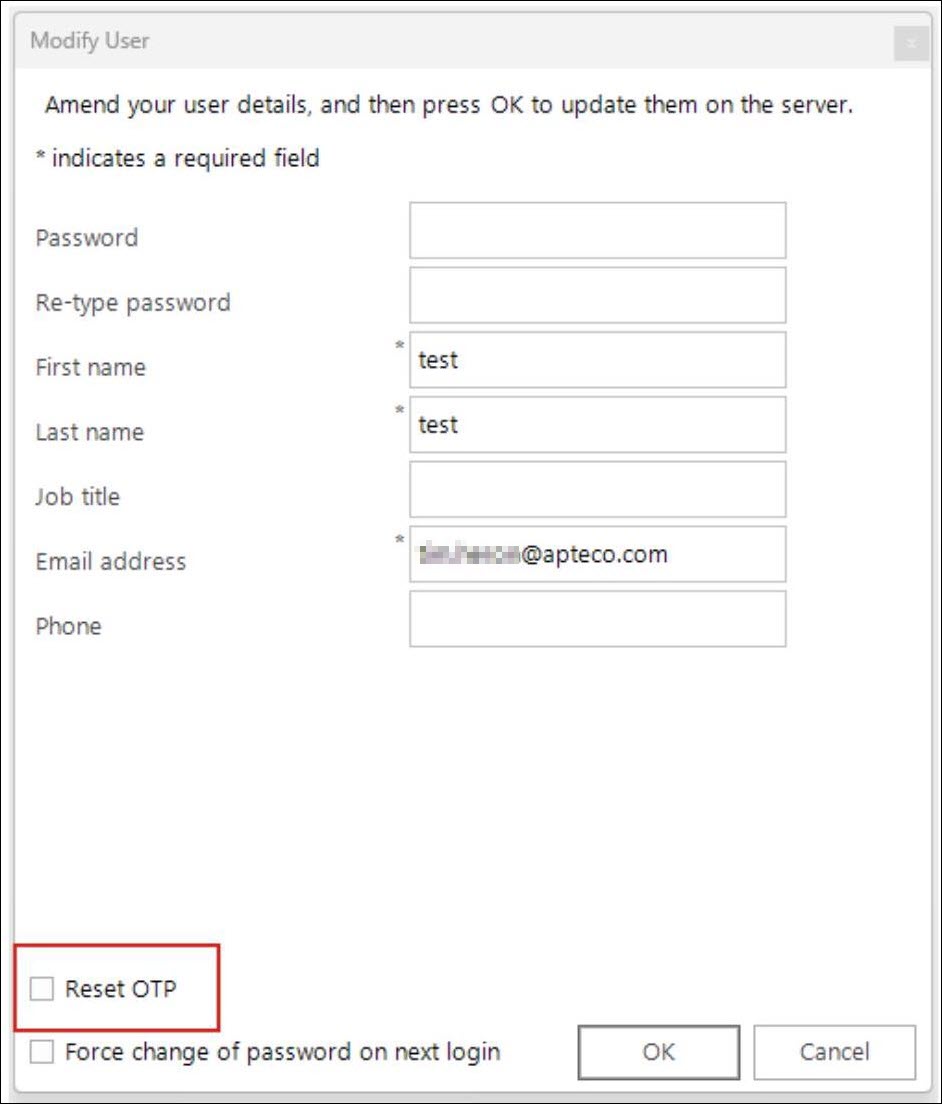
In the Users tab, right-click the user and select Modify > Modify User.
-
In the Modify User dialog, select Reset OTP and click OK.
Note
You can only reset OTP for one user at a time.
Disabling OTP for an administrator
If your only administrator has lost access to their authenticator app and has no recovery codes, you can disable OTP manually. To do this, edit the value of the OtpEnabled column in the Users table in the control database.
Service accounts
Do not configure OTP for service accounts, including accounts used by FastStats Designer for deployment, Virtual Variable Package post-load actions, or the RunFastStatsJob command line. These accounts are not used for interactive login.