Setting Orbit URLs in the FastStats Configurator
For any system with Orbit installed, the Orbit URLs must be added to both the FastStats Web Service and FastStats Service configurations.
Adding the Orbit URLs to the web service
To add the Orbit URLs to a web service configuration:
- Open your FastStats Configurator.
-
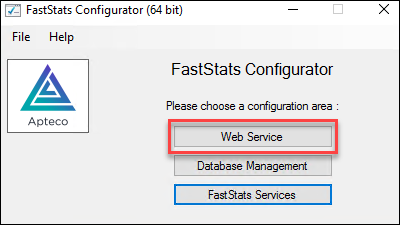
Click Web Service.
-
Choose the correct FS_Config database details and click OK.

-
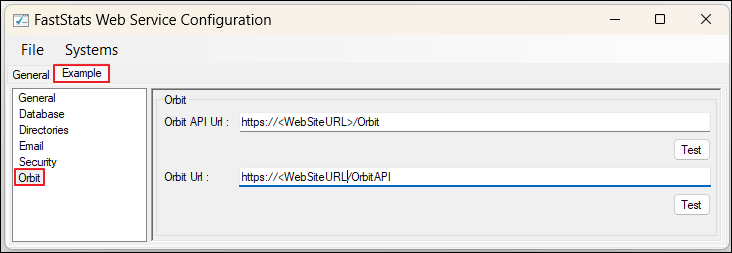
Choose the system you are configuring using the named tabs (in this example the system is named Example).
-
From the Example tab, choose the Orbit Panel and enter appropriate values for the Orbit and Orbit API URLs.
Note
Replace with the address of your actual website, e.g.
https://www.example.com/. -
Click Test to confirm you can connect to the URLs.
- Use File > Save to save the changes, then close the window.
Adding the Orbit API URL to FastStats services
To add the Orbit API URL to a FastStats Service:
- Open your FastStats Configurator.
-
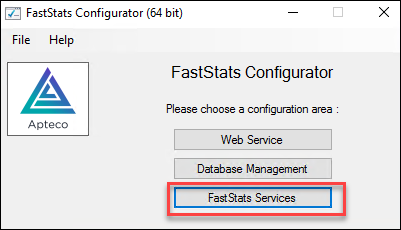
Click FastStats Services.
-
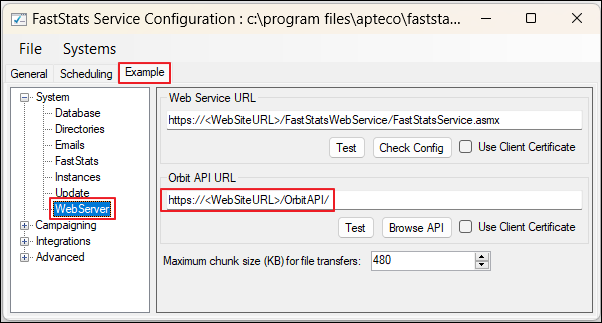
Choose the tab corresponding to the system name (in this example Example).
-
Choose the Web Server Panel and enter the Orbit API URL.
Note
The Orbit API URL format is
https://[your-server]/OrbitAPI/, e.g.https://www.example.com/OrbitAPI/. -
Click Test to confirm you can connect to the URL.
- Use File > Save to save the changes, then close the window.
Warning
You must restart the FastStats Service for these changes to take effect.