Channel editor
Using the Campaigning Channel Editor, you can set up new, or manage existing, channels in Apteco for campaigning in Orbit.
You can manage the whole process of setting up a broadcast channel, creating an audience, then sending a broadcast from within Orbit:
Tip
Channels can be configured to Upload and Broadcast, or Upload Only.
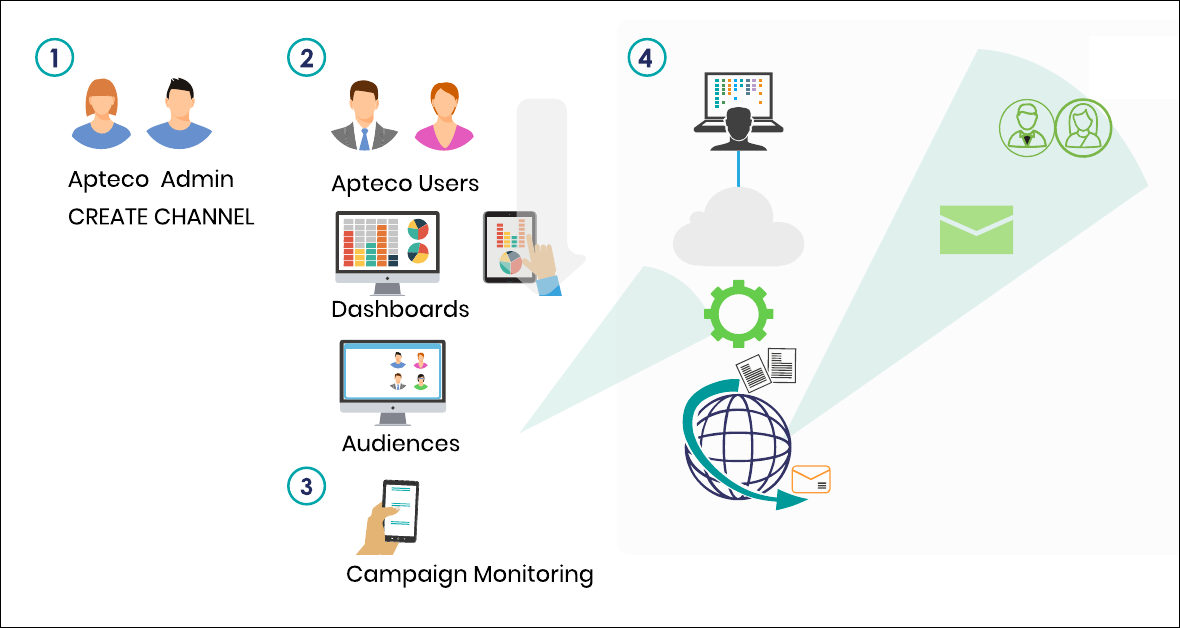
- A system administrator uses the channel editor to create new, or manage existing, broadcast channels.
- Orbit users can either use an existing audience, analyse dashboards to create an audience, or create a new audience, then use the email broadcast integration in the audience Export step to select an Upload and Broadcast channel. Orbit users can then send a one-off email for immediate broadcast.
- Orbit creates a campaign, which can be monitored to confirm it sent successfully.
- Optionally, Orbit users can use an Upload Only channel to upload the list to the broadcaster and then schedule the send using the broadcaster's web panel, or simply use Apteco email.
Note
You can use Orbit or PeopleStage to create or manage channels. Only one administrator can use the channel editor in a system at the same time. For other administrators, it displays as checked out in PeopleStage or read-only in Orbit.
Administrators can take over a locked channel editor. For more details, see Editing the channel editor when locked out.
Note
You don't need a campaigning licence to use the channel editor, but you do need some PeopleStage roles and permissions.
Warning
This guide assumes you have access to the required information and the relevant administration experience to perform this task, particularly with preparing your broadcaster. If you don't, contact your Apteco partner or the Apteco support team.
You also need access to the broadcaster's web-based control panel and all the relevant information, and you need to understand how to set up your broadcaster with the relevant details to hand.