Public folder access
The following process guides is intended to help guide system administrators through granting public folder access to users. For administrator reference/comparison purposes, this process is equivalent to Modifying Access Rights in FastStats.
Technical notes
Note
For System wide settings you don't need to choose a user or group.
Note
In a brand new system, no public permissions are configured.
Note
In a fresh system, each user has write access to their own private folder but the users don’t have permission to write to the public folder or any subfolders of the public folder.
Granting public folder access
To grant public folder access:
- If the system is using Permissions then go to Permissions/Tags.
- If you want to configure permissions for all users, then click System.
- If you want to configure a specific user or group then click User or Group.
- To configure for a user or a group, choose the relevant option from the dropdown.
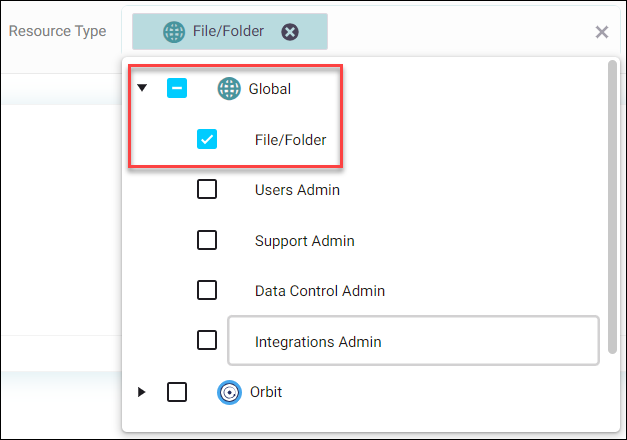
- To filter the permissions, click within the Select Resource Type box.
-
Select Global and tick File/Folder.
In the example below there are two file/folder permissions set at the System level:
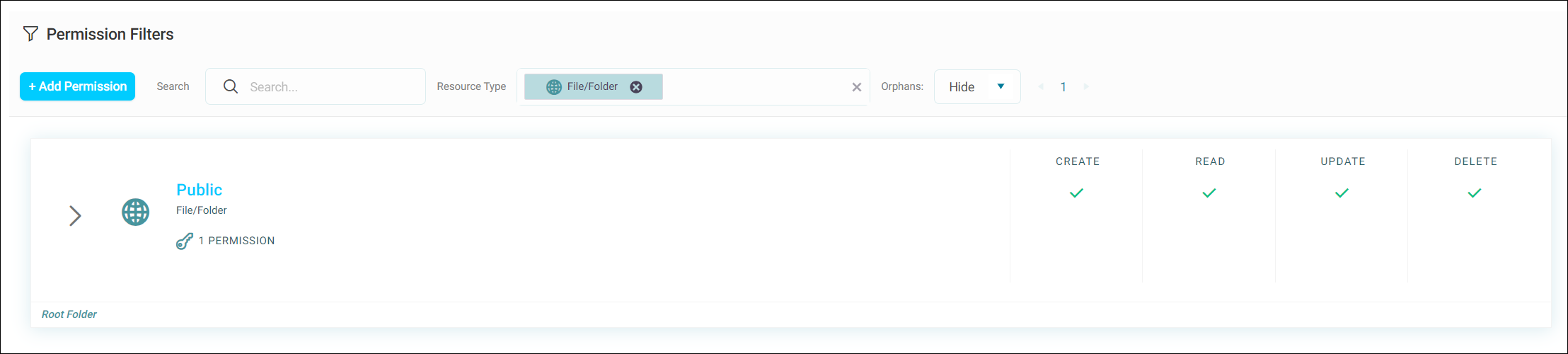
-
To add the required permission click + Add Permission.
- Click the dropdown and choose File/Folder in the Global section.
- Click the + Select button.
- To configure the public folder select Public.
- To grant access to a specific file or subfolder of the public directory, expand the carat icon drop down menu to the left of public folder icon, and navigate to your required file/subfolder.
-
Specify the Read, Create, Delete, and Update permissions by repeatedly clicking in each section:
- A green tick grants access to that folder/file
- A red cross denies access to that folder/file
- A dash leaves it unspecified so it inherits or gets the default settings
-
Click Create when you have configured the permissions.
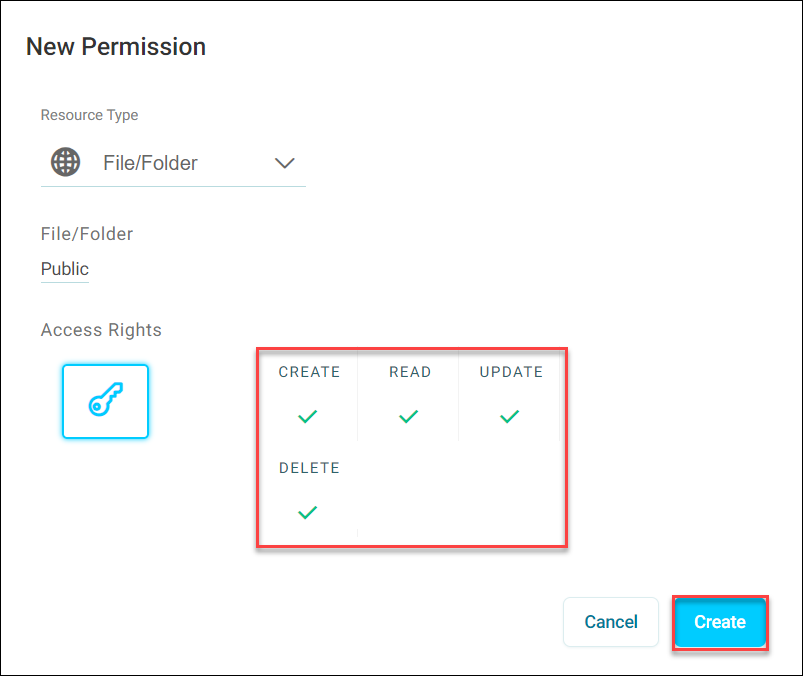
If you do this for all new systems, then each user is able to access the public folder and any subfolders of the public folder.