Channel editor
Users with admin permissions can access this function and define different Channels to use within PeopleStage.
Note
This help topic is a general overview; each Channel definition is documented in detail and available from the Apteco Partner Portal (login required). Search for "Which Digital Service Providers does FastStats integrate with?" in the Knowledge Base.
Open the Channel Editor:
-
Select File > Administration > Channel Editor
The Channel Editor will list any existing defined channels under each channel type on the left:
-
Use the
 Menu button to the right to Add, Import or Export a channel definition.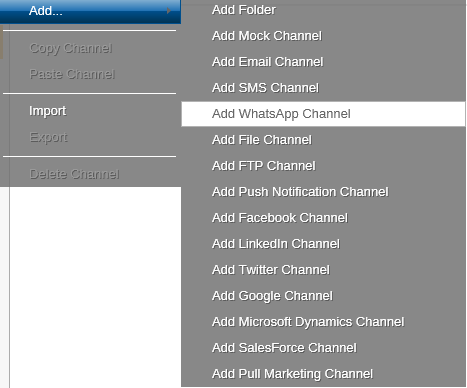
-
Select an existing row to edit the settings for a channel.
Channel settings
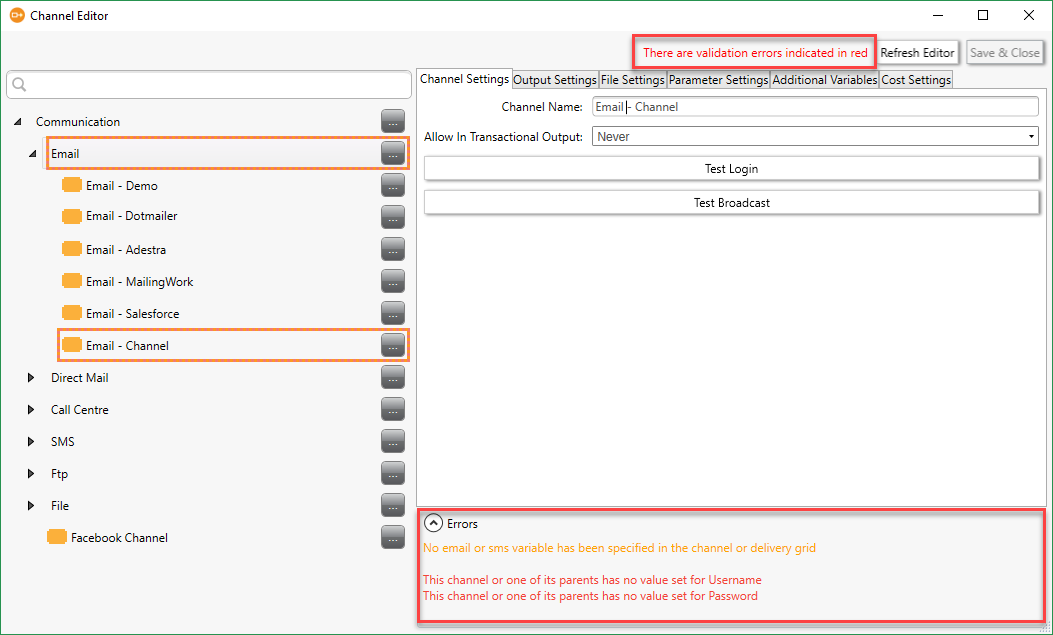
The Channel Settings tab defines the name of the channel.
Note
Any required fields will be displayed in the Errors area; these will be different for each integration.
Output settings
The Output Settings tab defines the Broadcaster API username and password and the main broadcast variables, the reply contact etc.

Note
Select the Message Content Type from the drop-down (for example, Broadcaster Template); this will be different for each integration and tie in with the Creative template used by the broadcaster.
File settings
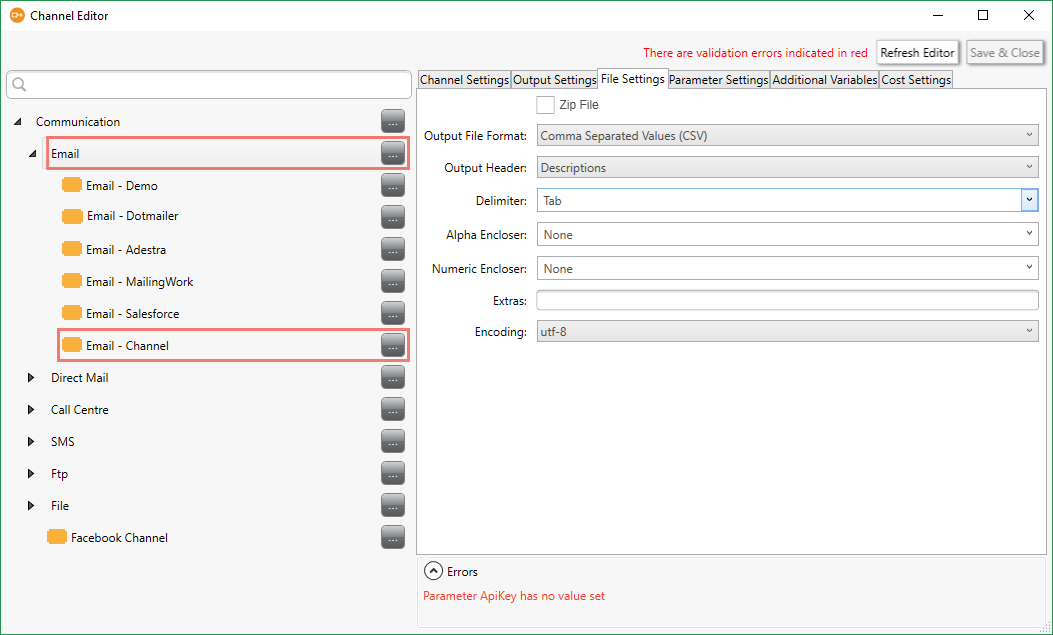
The File Settings tab defines the settings for the file to be uploaded.
Tip
The default encoding is windows-1252; most broadcasters use UTF-8.
Parameter settings
The Parameter Settings tab defines the API required account parameters and any optional parameters to modify how the broadcast is handled.
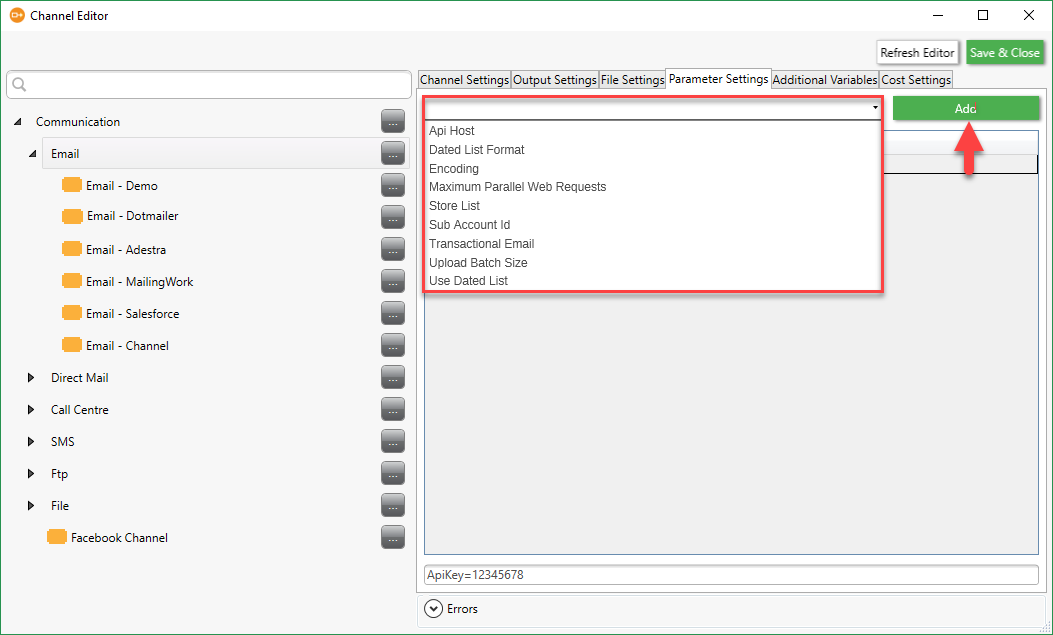
Select from the drop-down menu and click Add. When all the required parameters have been defined, the errors will clear.
Additional variables
The Additional Variables tab defines the optional variables that you wish to dynamically include in your communication and any overrides to match the variable to the broadcaster's requirements.

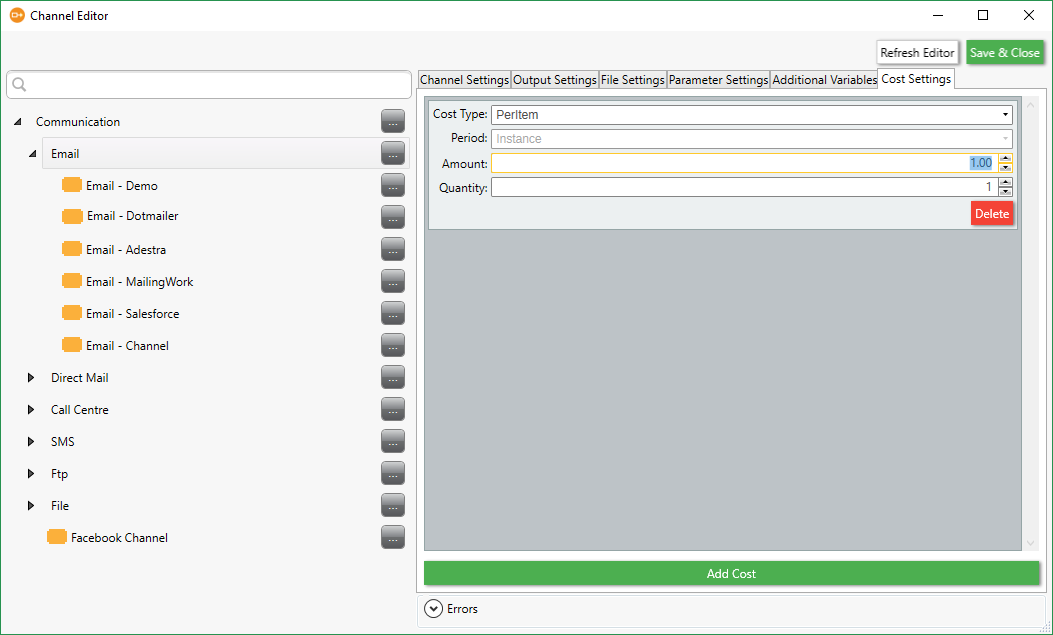
Cost settings
The Cost Settings tab defines the item cost/s which can then be used in reports.
When you have completed the Channel definition, click Save & Close to close the editor.