One per aggregations editor
Users with admin permissions can access this function and define different recencies to determine which transactional data to display within the output file when creating a Person level campaign.
To create a One Per Aggregation, from the File menu:
- Select File > Administration > One Per Aggregations Editor
The One Per Aggregations Editor will list any existing recency definitions:
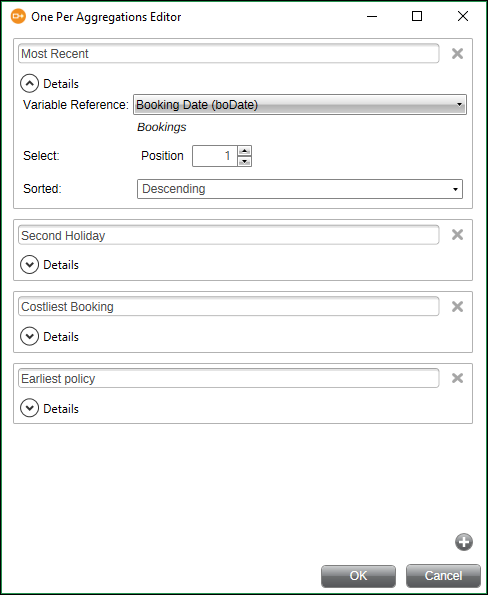
To view or amend an existing definition
- Click the Details dropdown and edit
You can amend the variable used, the aggregation's description and the positioning; you can also define which way PeopleStage should sort the variable in order to choose the desired transaction to display.
To create a new aggregation
-
Click + in the bottom right of the Editor window.
A new One Per Cell item will appear below any existing definitions.
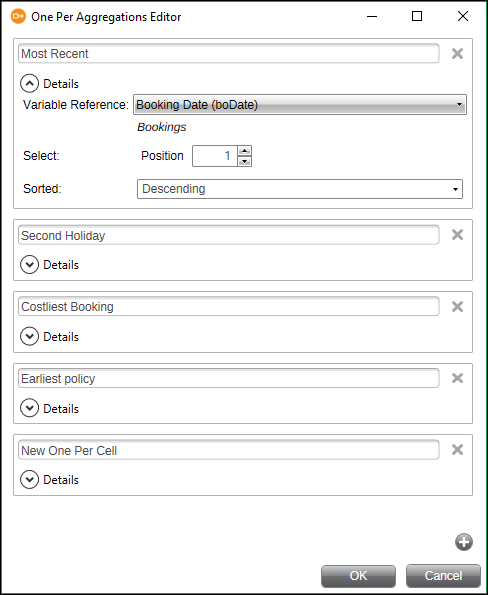
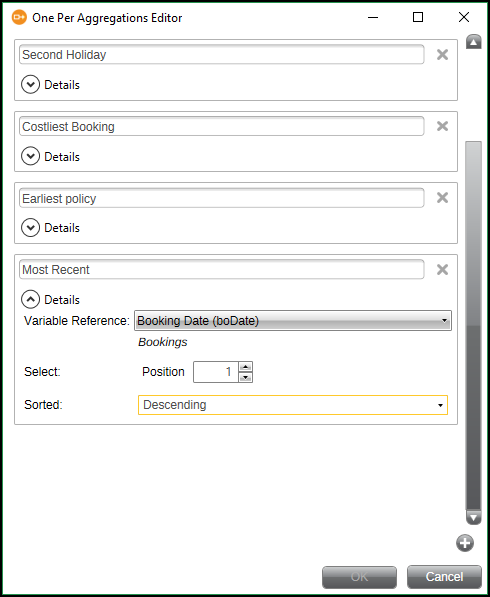
For a Most Recent booking definition, you can use the Booking Date variable to order the transactions and, once sorted, determine that PeopleStage chooses the first transaction based on descending order (that is, select the closest date relative to today's date).
If you use a numeric variable and sort descending, PeopleStage selects and displays the largest number.
- Variable Reference: navigate to and select the variable to use in sorting the data
- Select: Position: the position within the ordered data that PeopleStage uses
- Sorted: Ascending/Descending: the order in which PeopleStage sorts
Overtype the New One Per Cell description with a name that best describes the recency definition, for example Most Recent.
-
Click OK to complete the process