Combine categories
The combine categories post-load action is used to create a summary variable from an existing Selector variable using information from a database query.
This action works the same as the FastStats Combine Categories wizard but the categorisation data is taken from a database rather than from a file or from the user.
Specify the table and the selector variable you wish to summarize.
Then give the new summary variable a reference and a description.
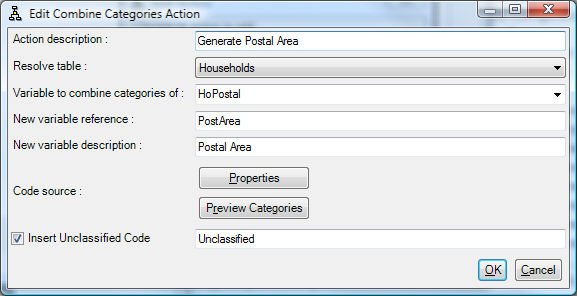
Then specify the database query: the database query must return three columns:
- Code - the codes to group into a single summary code
- SummaryCode - the summary code
- SummaryDescription - a description for the summary code
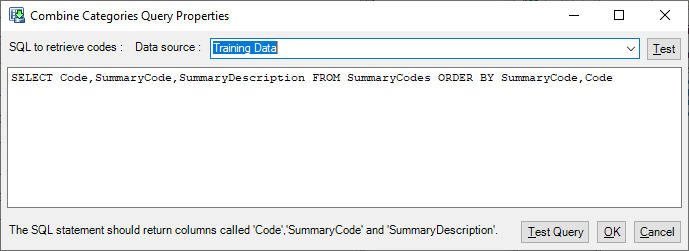
Clicking Preview Categories will give a demonstration of how the codes will be grouped.
Finally you can choose to add an unclassified summary code and specify a description for it.
Example
Consider this selector of Car Model:
| Code | Description |
|---|---|
| A | Unclassified |
| B | Mondeo |
| C | Astra |
| D | Freelander |
| E | Vectra |
| F | Maverick |
| G | Civic |
Then the following table will group the Car Model's into Car Makes:
| Code | SummaryCode | SummaryDescription |
|---|---|---|
| A | 0 | Unclassified |
| B | 1 | Ford |
| C | 2 | Vauxhall |
| D | 3 | Land Rover |
| E | 2 | Vauxhall |
| F | 1 | Ford |
| G | 4 | Honda |
This would produce a variable that looks like this in FastStats:
The Combine Categories action can be used in a nested manner so the new variable could be grouped again - this can be used to create multiple levels of summary. If this is done then it is not possible to choose the Variable to Combine Categories of from the drop-down and the variable reference must be manually typed in. This is because Designer does not know about the variable until it has been created by the preceding action.
Combine categories by rule
The combine categories by rule post-load action is used to create a summary variable from an existing Selector variable by using a specific number of prefix characters from the variable.
This action works the same as the FastStats Combine Categories wizard but the descriptions are optionally taken from a database rather than from a file or from the user.
UK postcode example
A typical way to handle UK postcodes in FastStats Designer is to create an alias of a postcode Text variable called Postal Sector with the Selector Mapping of UK Postcode to AADDLS and then to use a couple of Combine Categories by Rule post-load actions to derive a Postal District and Postal Area summary variables.
-
Deriving Postal District from Postal Sector:
The Postal Sector variable is in AADDLS format so by taking the first 5 characters we can generate a Postal District variable in the format AADDL:
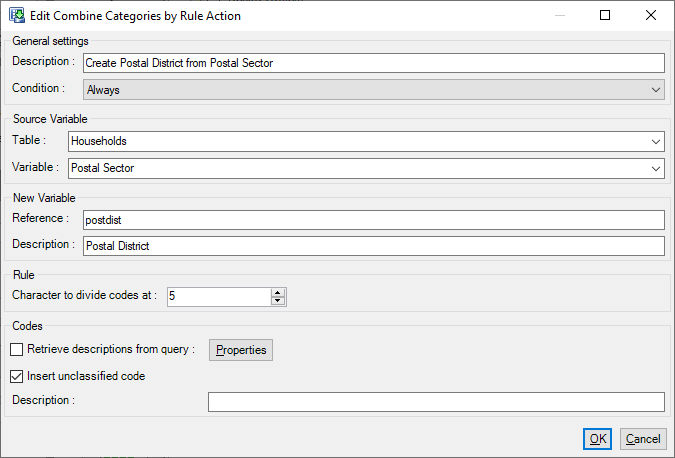
-
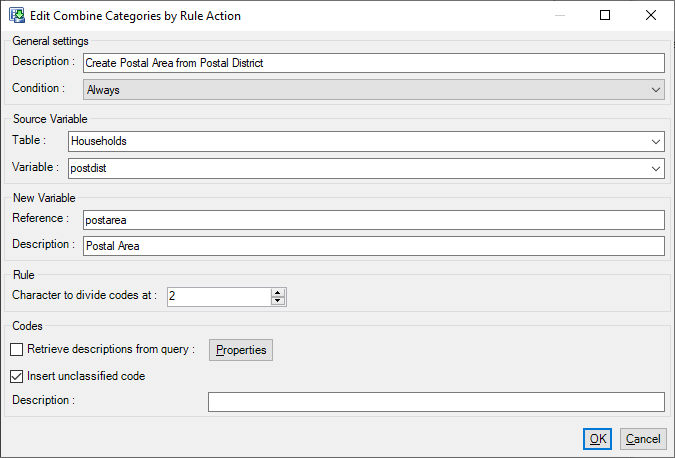
Deriving Postal Area from Postal District:**
The Postal District variable is in AADDL format so by taking the first 2 characters we can generate a Postal Area variable in the format AA:
Notice that in this dialog we cannot find the Postal District variable in the drop down because it create by our earlier post-load action rather than being defined in the body of the design. To specify the Postal District variable in this case we enter the variable reference that we specified in the earlier action:
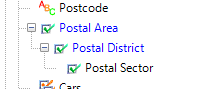
This will create the 3 level drill-down variable Postal Area -> Postal District -> Postal Sector: