Elapsed time points
Customers begin their journeys at different points: The Segmentation tool allows you to consider time as elapsing from a reference date that is individual for each person. For example, this might be an individual's date of registration, or their first communication or transaction date. This enables us to identify overall patterns from start points.
-
Create your Segmentation selections.
Note
Steps for creating Segmentation selections are described in Fixed time points
To create Elapsed Time Points:
- Click on the Time Report tab.
- Click on the
.png) icon and select Elapsed Time Points from the Type drop-down menu.
icon and select Elapsed Time Points from the Type drop-down menu.
In the following example, we will use the FastStats' variable called Date of First Booking which will reference the individual date that each person first interacted with the Holidays Company Plc.
-
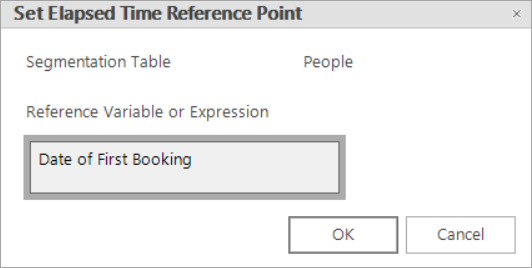
Click on the Edit reference variable button to open up the following window:
-
Drag and drop the Date of First Booking variable from the System explorer window onto the Drop your variable or expression here drop-box and click OK.
-
Click back onto the Reporting Points icon and complete the settings, as required. For example:
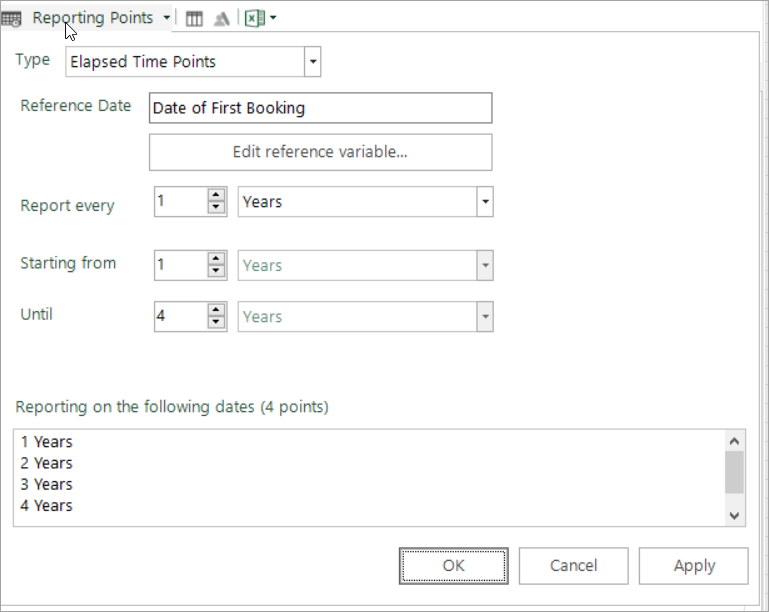
Elapsed Time Reports can be interpreted in a similar way to Fixed Time Reports.
-
Click on the Time Report tab and
.png) build
buildBased on the settings defined, the resulting cube shows us how many records were in each segment 1, 2, 3 and 4 years after a customer's first interaction - here, first booking made.
.png)
Whilst 109,079 people were HFHV one year after their first booking, the results above suggest that, over time, there is a high drop out from this segment - just 1,146 people remain HFHV customers after 4 years.
To see a visualisation of this information:
-
Click on the Chart tab
.png)
There is a sharp increase in the No Bookings segment between years 1 and 2, followed by a more gradual but continued movement upwards. There is a corresponding sharp decrease in all other segments before a gradual levelling out.
The other Segmentation reports can be created by selecting the appropriate tab and clicking Build.
Info
Unlike a Fixed Time Report, where FastStats looks and reports on all the records that were in a particular segment at a particular point in time, Elapsed Time Reports require FastStats to check and report on where each individual was at defined points after an interaction (such as date of first booking) has taken place.
Because these points are specific to each individual, it can take longer for them to be generated. Consideration should also be given to the frequency of time points to be reported on; the more granular the number of reporting points, the longer it can take to pull the results back.
See also Sub-day elapsed time segmentation and Prior elapsed time segmentation.