Setting up opt-outs
You can include an opt-out button in your WhatsApp messages to give users the opportunity to unsubscribe from your communications
Note
As the campaign owner you are responsible for managing opt-outs. WhatsApp/Meta does not handle opt-outs directly.
To set up an opt out button:
-
The opt-out functionality is managed within WhatsApp/Meta. To set up the opt-out option, ensure that your message template includes a custom button for opting out.
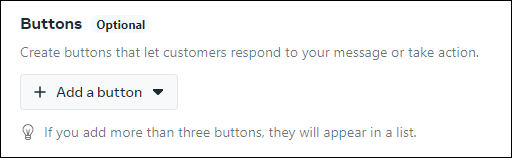
For more detail, see Creating message templates and Adding a marketing opt-out button.
-
The opt-out button should be clearly visible within the message template. When users click on this button, they will be opting out of further communications.
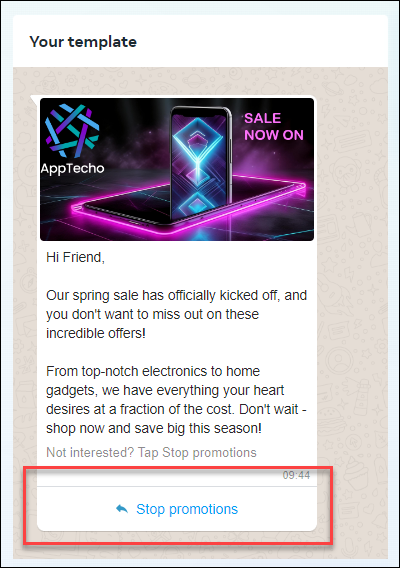
-
In your response gathering process, any specified opt-out keywords must be included in your .bat file. If these keywords are detected, the users are automatically opted out.
Ensure that the opt-out keywords specified in your response gathering process match the keywords used in your communications.
Note
The matching process is case-sensitive.
Opt-out requests and related data will be managed through webhook data in your database. Make sure you have systems in place to handle this data effectively.
For more detail, see Setting up WhatsApp webhooks for responses.
-
To ensure opt-out requests are promptly processed, it's essential to continuously run the response gatherer as part of your campaign management process.
By following these steps, you can effectively manage opt-outs for WhatsApp communications within your Apteco Orbit campaigns. If you have any further questions or need assistance, please refer to the WhatsApp documentation on creating message templates.