Setting up WhatsApp webhooks for responses
Note
For general setup and configuration documentation for WhatsApp, see the WhatsApp with Apteco documentation.
The WhatsApp webhook process works as follows:
- Meta sends WhatsApp events as JSON to the webhook.
- Responses stream to your Webhooks table in the social database.
- You then run the social response gatherer to pull data from the Webhooks table and place it in the SO_ response tables.
Create an Orbit Webhook Connector app in Meta
- Go to developers.facebook.com and sign in.
-
Click My Apps, then click Create App.

-
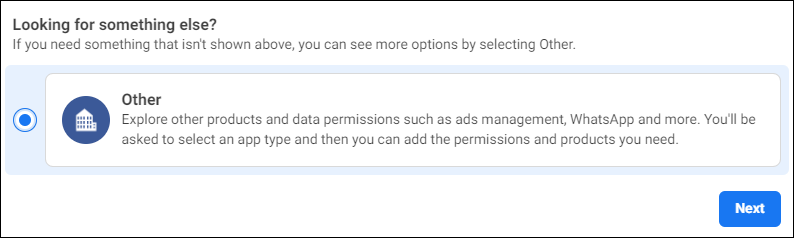
Select Other, then click Next.
-
Select Business.

-
Name your app Orbit Webhook Connector and verify by logging in again.
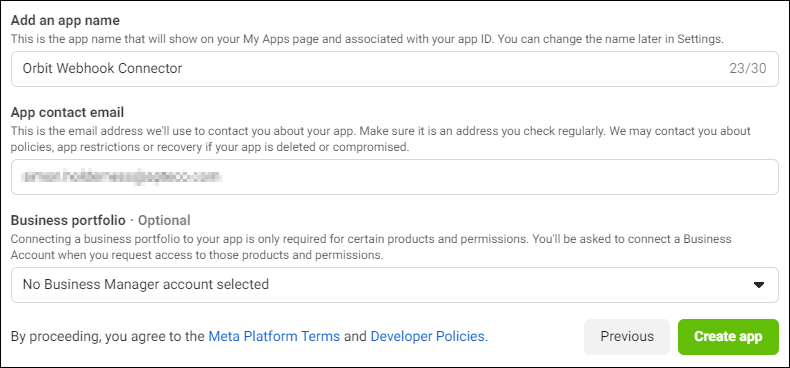
You should now have the Orbit Webhook Connector shell.

Get your app secret and set your privacy policy
You need an app secret to set up the webhook successfully.
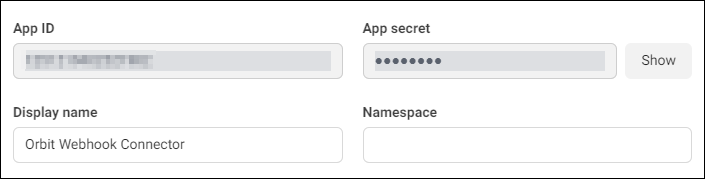
Use this app secret as your AptecoOrbitSecret in the configuration below. This ensures you only receive events from this app.
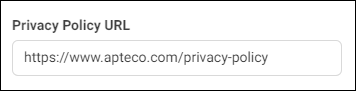
Configure the Orbit Responses API
Note
Make sure you have access to the OrbitResponses API—verify using Swagger.
Add the following configuration to your appsettings.json for the OrbitResponsesAPI:
"WhatsApp": {
  "ConnectionString": "user id=faststats_service;password=xxx;initial catalog=SO_Develop;data source=10.0.2.101;pooling=true;max pool size=10000;",
  "ConfiguredToken": "some-whatsapp-token",
  "AptecoOrbitSecret": "some-whatsapp-secret",
  "VerifyPayloadAfterRoundtripThroughJsonParser": true
}
Where:
ConnectionString—points to your social response databaseConfiguredToken—the token you wish to use when validating your webhook in Meta (e.g.5ebfd954-6cba-4a36-aae7-385dd83fbeec)AptecoOrbitSecret—your app secret from Meta
Get your webhook endpoint
Navigate to the Orbit Responses API Swagger page to find your endpoint.


Set up the webhook in Meta
-
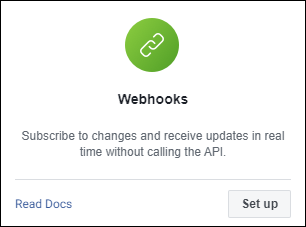
In your Orbit Webhook Connector app, choose to add Webhooks.
-
Click Subscribe to get to the verification page.
-
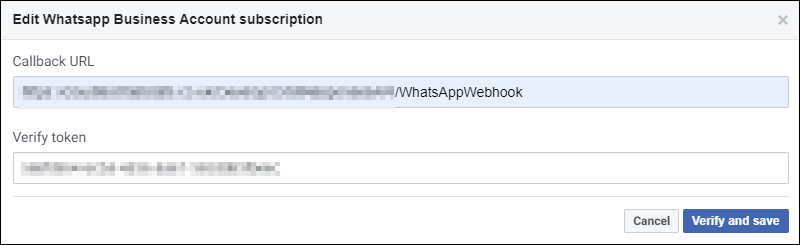
Enter the webhook URL found in the previous step.
Note
Enter the
ConfiguredTokenvalue (e.g.5ebfd954-6cba-4a36-aae7-385dd83fbeec) as the Verify Token. -
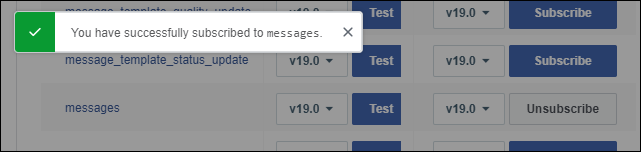
Subscribe to the messages events.
-
Make sure your connector is now live.

You can now send WhatsApp messages and Apteco will store the messages and replies in your response database.