Folder constraints
Folder constraints let you set communication limits that apply to every campaign within a folder, including subfolders. Rather than configuring the same rules on each campaign, you define them once at folder level and Orbit enforces them automatically at run time.
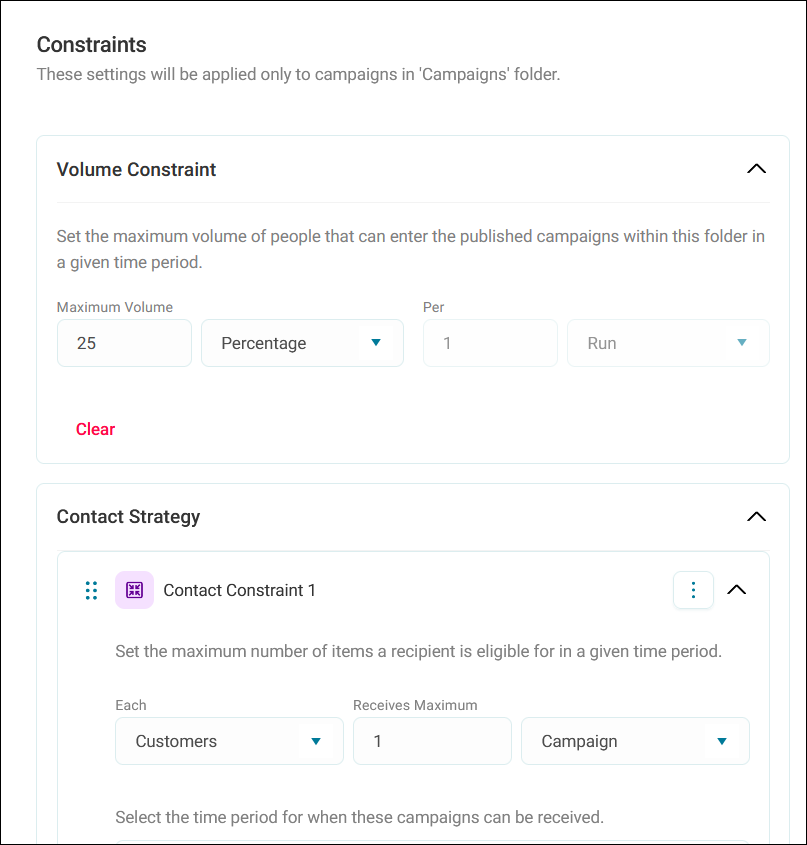
Two constraint types are available at:
- Volume constraint: Limits the total number of recipients that can enter campaigns in the folder within a time period
- Contact strategy: Limits how many times, via which channel, and across how many concurrent campaigns you can contact a recipient
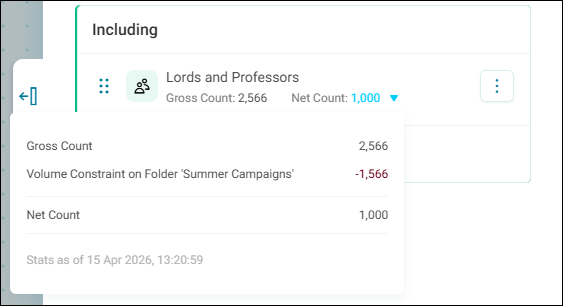
Folder constraints work alongside any constraints set on individual campaigns. When both are present, the most restrictive rule prevails. Audience counts reflect all applied constraints, so you can see exactly where volume drops off and which rule is responsible.
Folders with active constraints display a badge in both Grid view and List view, so you can assess constraint status without opening each folder. The badge shows the total number of constraints applied directly to that folder.
Note
Folder constraints are available from the Apteco Q1 2026 software release or later.
Example use cases
Protect donor experience
Your animal welfare charity runs multiple direct mail campaigns from a Direct Mail 2026 folder: seasonal appeals, lapsed donor reactivation, and major donor cultivation. To avoid overwhelming supporters, your fundraising team applies a folder-level contact strategy constraint:
- Each person receives a maximum of 1 communication via Direct Mail every 2 months
When a spring appeal and a lapsed-donor campaign run in the same month, Orbit checks comms history and automatically excludes anyone who already received a direct mail piece within the two-month window.
Tip
Pair a per-channel communication constraint with a volume constraint on the same folder to also cap total mailing volumes.
Concurrent campaign control
Your humanitarian charity runs three simultaneous emergency fundraising email campaigns from an Emergency Appeals folder, each targeting broadly overlapping segments. Without a constraint, a single subscriber could receive all three appeals in the same week.
Your digital team adds a campaign constraint at folder level:
- Each person receives a maximum of 1 campaign, at the same time
With the concurrent runs constraint applied, each subscriber enters only one emergency appeal at a time.
How Orbit applies constraints
When a campaign runs, Orbit checks for constraints in this order:
- Individual campaign
- The campaign’s immediate parent folder
- Any ancestor folder higher in the hierarchy
Orbit applies the most restrictive qualifying rule at each level. A constraint on a grandparent folder enforces communication history checks on all campaigns in every subfolder beneath it.
Volume and contact strategy constraints from different levels can coexist. For example, a volume constraint on a folder and a contact strategy constraint on an individual campaign inside that folder are both enforced simultaneously.
Note
If any ancestor folder has a contact strategy constraint, Orbit automatically enables Record communications history for all campaigns within it.
Viewing constraint impact
Audience counts
When a folder constraint reduces a campaign's target segment, the drop-off appears as a named step in the audience counts, making it straightforward to distinguish folder-level exclusions from campaign-level ones.
Monitoring tab
After a campaign runs, the Monitoring tab shows actual send volumes. If a contact strategy constraint prevented communications, the monitored count reflects those exclusions.
Volume constraints
A volume constraint sets an upper limit on the total number or percentage of recipients who can enter campaigns in the folder within a defined time period. Once the limit is reached, Orbit excludes any additional recipients.
Tip
Start with a slightly higher volume limit than you expect to need, then refine it after reviewing audience counts from the first few runs.
Applying a volume constraint
To apply a volume constraint to a folder:
- Go to the folder in Campaigns.
- Expand the option menu on the folder card, or expand the option menu in the folder header when inside the folder.
- Click Constraints.
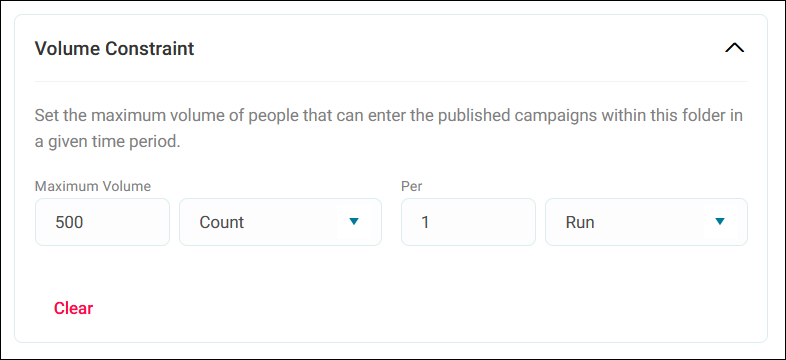
- Under Volume Constraint, enter the Maximum Volume.
- Select how volume is measured: Count or Percentage. Percentage does no require a time unit.
-
Set the Per number and time unit.
Tip
Setting Per to Run caps volume per individual campaign execution rather than over a rolling time window.
-
Select Apply.
Tip
Click Clear to remove the current values.
Contact strategies
A contact strategy limits how frequently Orbit contacts recipients across all campaigns in a folder. You can add multiple contact strategy constraints to a single folder, such as one rule per channel and one for concurrent campaigns. Orbit evaluates each constraint independently and all apply simultaneously.
Contact strategy types
There are two contact strategies to choose from:
- Communication: Limits the number of communications a recipient can receive via a specific channel (or any channel) within a time period
- Campaign: Limits the number of campaigns a recipient can be included in, either within a time period or running concurrently
Tip
Add several contact strategy constraints to cover different scenarios. For example, a communication constraint limiting email to once per week alongside a campaign constraint capping concurrent runs at one.
Applying a contact strategy
To apply a contact strategy to a folder:
- Go to the folder in Campaigns.
- Expand the option menu on the folder card, or expand the option menu in the folder header when inside the folder.
- Click Constraints.
- Under Contact Strategy, click + Add Constraint.
- Set Each field to the recipient type.
- Enter the Receives Maximum value.
- Set Type to Communication or Campaign and follow the steps below.
Communication contact strategy
To limit the number of communications recipients can receive:
- Set Via to a specific channel or Any channel.
- Set the Every number and time unit.
- Click Apply.
Campaign contact strategy
To limit the number of campaigns recipients can be included in:
- Set Type to Campaign.
-
Expand the dropdown menu and select either Within a time frame or At the same time.
- Within a time frame: Set the Of number and time unit.
- At the same time: Orbit restricts recipients to the specified number of active campaigns concurrently.
-
Click Apply.
You can rename or delete individual constraints using the option menu on each constraint.