Drilldowns
Drilldowns allows you to explore data at multiple levels of detail within a single dashboard tile.
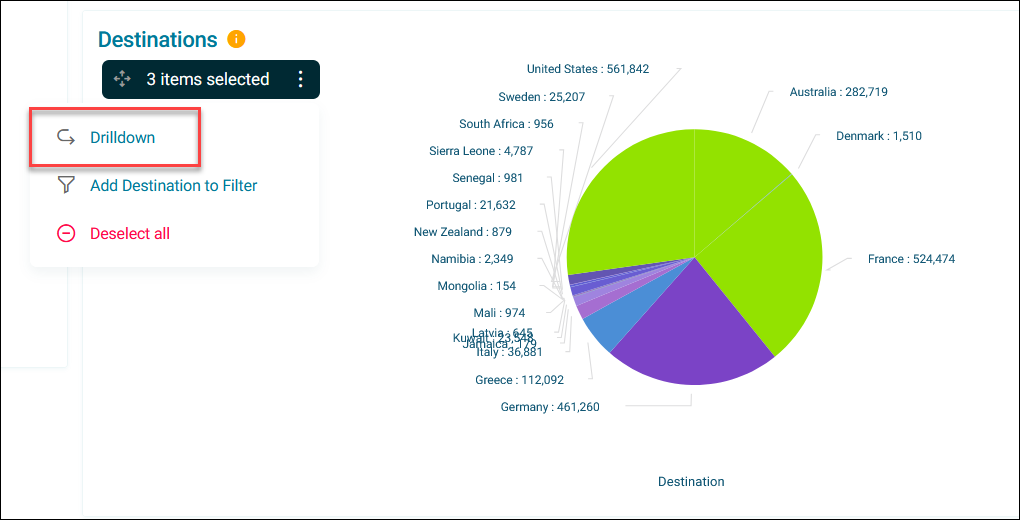
You can select categories in your initial visualisation and examine them through subsequent, more granular views using different dimensions or measures.
Example use cases
- Start with a map showing regional booking data, select specific regions, then drill down to view those selections broken down by income band in a pie chart or by gender in a column chart.
- Begin with booking data from 2023-2024, then drill down into 2024 to view quarterly breakdowns with mean profit.
Creating drilldown levels
To set up drilldown levels:
- Open your dashboard and click Edit.
- Expand the option menu on your tile.
- Click Edit Tile.
- Click the Drilldowns tab.
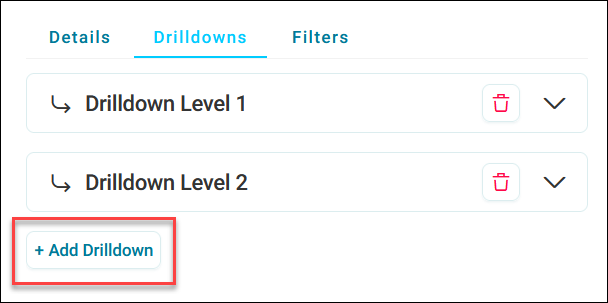
- Click + Add Drilldown.
- Select your Tile Type from the dropdown.
- Add the dimensions and measures you want to include.
-
Click + Add Drilldown again to add more drilldown levels, as required.
Note
You can add unlimited drilldown levels to a dashboard tile.
Tip
Add a note to your drilldown under Tile Settings. This can help others who want to examine data in the tile.
-
To delete any drilldown levels, click the bin icon.
- When finished, click Apply.
- Save your dashboard.
Select categories on your tile to further examine your data.
Using drilldowns
To drill down into your tile data:
-
Select one or more categories on your tile. A selection box appears showing the number of items selected.
-
Click the option menu on the selection box.
-
Click Drilldown.
The first drilldown level displays on the tile using the tile type you configured, showing data constrained to your selection.
-
To drill down further, select categories in the current view and repeat the process.
Note
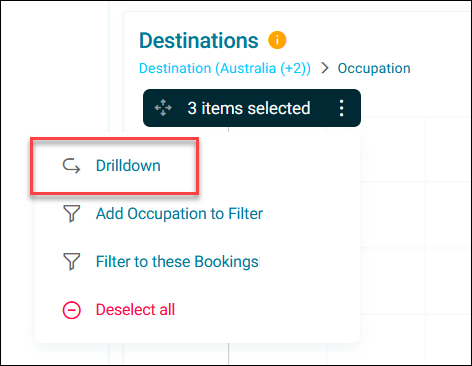
When selecting categories on a tile, you can then choose to apply these to your user filters:
- Add X to Filter: Adds only the selected values to your user filters
- Filter to these X: Applies all active drilldown filters, which limits the dashboard to show only the records currently displayed on the tile
This gives you control over whether to filter by your specific selections or by the complete set of drilled-down results.
See User filters.
-
To navigate back through drilldown levels, click the breadcrumb trail below the tile title.
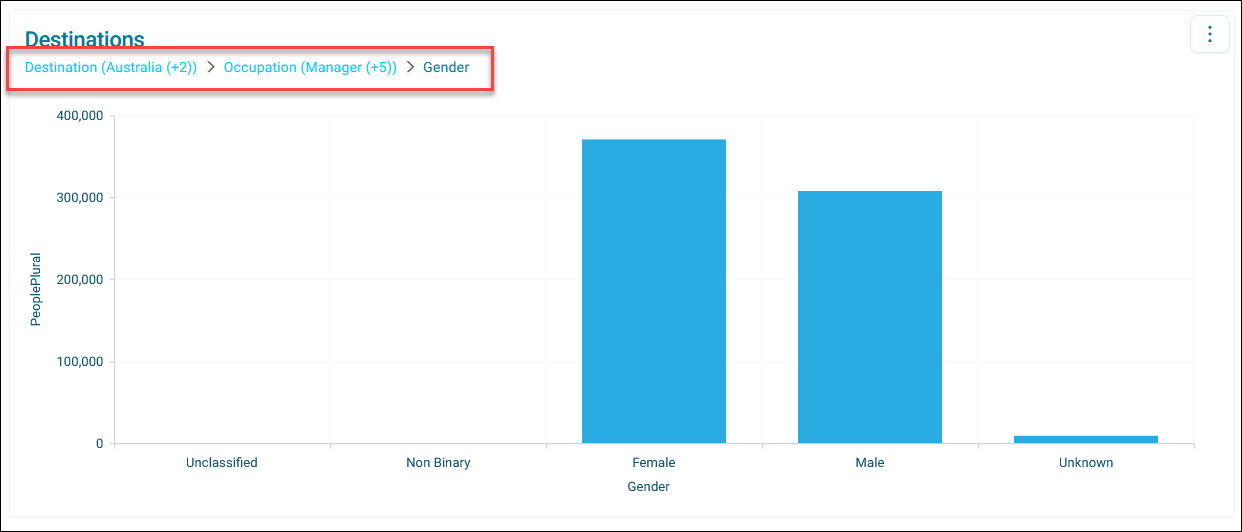
By using drilldowns, you've created multiple levels of data exploration within a single tile without having to switch dashboards.