User filters
User filters can be temporarily applied to all tiles on a dashboard, helping you explore data on-the-fly.
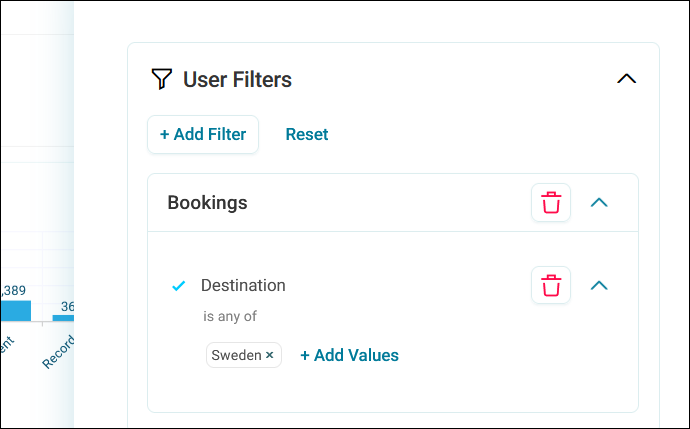
Any dashboard viewer can add, modify, and reset these filters without affecting the underlying dashboard setup or other users viewing the same dashboard.
Note
If you need filters to persist across sessions, then ask your dashboard editor to set up dashboard filters or predefined filters.
Prerequisites
To create user filters, make sure Allow Filter By Dimension is enabled in Application Settings > Dashboard Settings.
Adding a user filter
You can add user filters directly from the Filters side panel to filter the entire dashboard.
Note
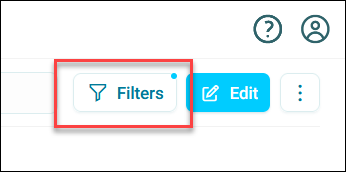
A blue dot appears on the Filters button when filters are active.
- Open your dashboard in view mode.
-
Click Filters.
-
Under User Filters click + Add Filter.
- Search for a select the criteria you want to filter by. See Working with filters.
- Click Apply.
- Modify existing user filters. See Editing existing filters.
- Click Close.
Note
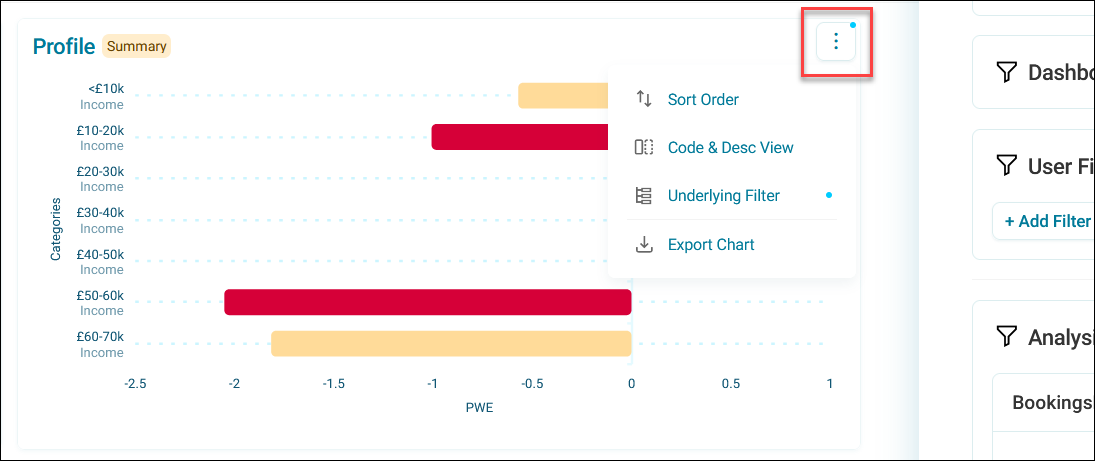
If your filter doesn't affect a tile, then there may be conflicting Tile filters applied. Tile filters are set by dashboard editors and take precedence over user filters. A blue dot on the tile's option menu indicates an active tile filter.
Adding user filters from tiles
You can select categories directly on a tile and add them to your user filters, making it easy to build filters as you explore your data.
Note
Some tiles may have category selection disabled by the dashboard editor. These tiles display an orange warning tag stating This tile is not selectable.
To filter by categories on a tile:
- Find the tile you want to filter by.
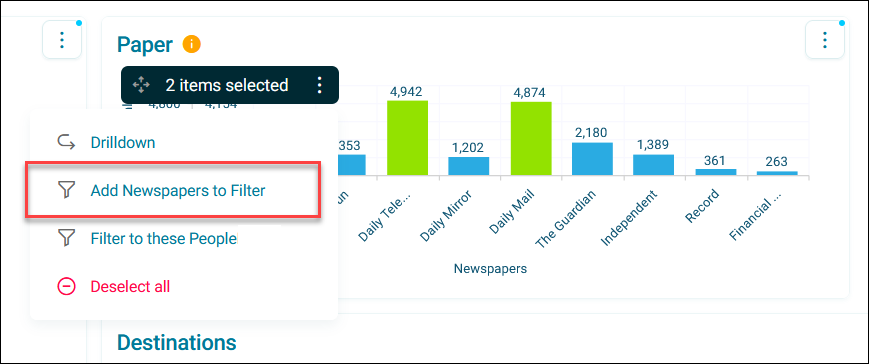
- Select one or more categories.
-
In the selection box, expand the option menu.
Tip
You can reposition the selection box using the arrows icon.
Note
If a tile has an underlying tile filter already applied or you're viewing Drilldowns of your data, you can choose to add these to your user filters by clicking Filter to these X, applying it to the whole dashboard.
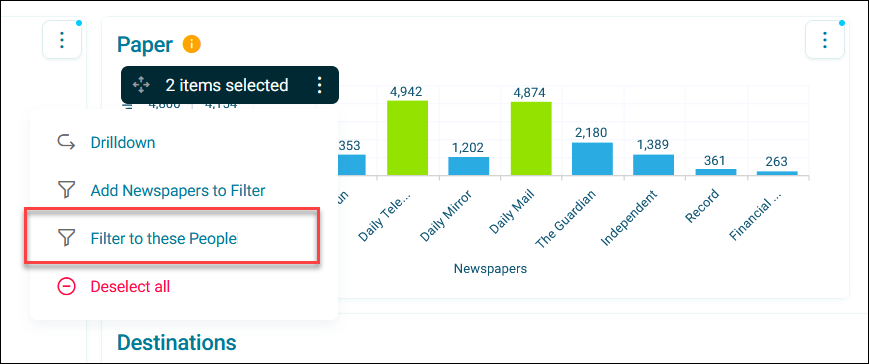
-
Click Add X to Filter to add the categories to the user filters.
The selected categories are added to your user filters.
Note
You can also choose to exclude chart categories from a filter. Excluded selections appear in the filter panel as "Is none of" conditions, grouped together at the end of the filter clause, separate from "Is any of" inclusions. Multiple exclusions are combined with OR logic, ensuring selections are treated as a single "Is not any of" set rather than compounding as separate AND conditions.
Resetting user filters
You can reset user filters to return the dashboard to its default view.
To reset user filters:
-
Click Reset All.
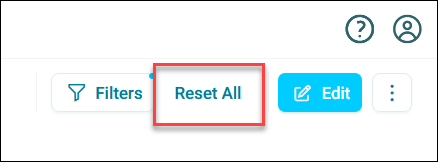
-
Alternatively you can click Reset in the Filters side panel.
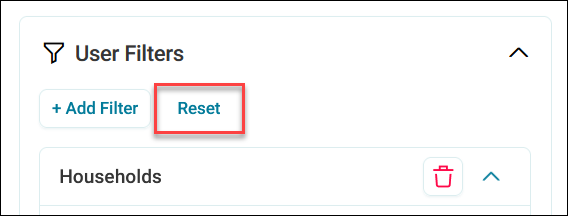
All user filters are removed from the dashboard.
Note
Predefined filters remain in the side panel after resetting, but you need to add values again to reapply them.