Working with filters
Configure any filter through the Select Filter dialogue.
Tip
If you create filters with multiple conditions or complex logic, document them in the dashboard description or tile notes so others understand the filtering logic.
Selecting a filter
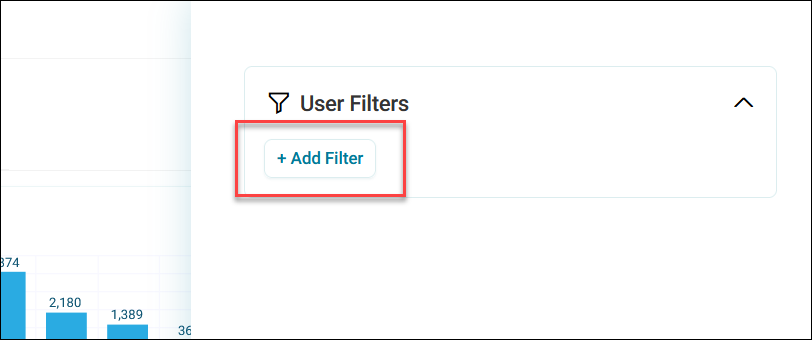
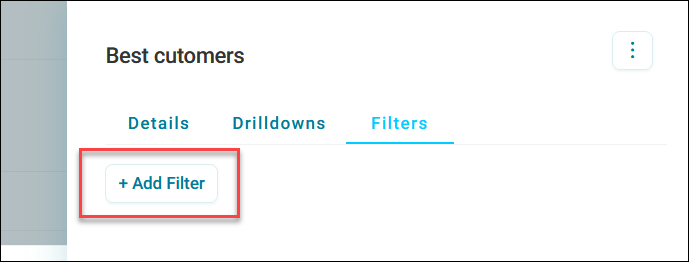
The Select Filter dialogue opens when you click + Add Filter in:
-
The filters side panel (for User, Search, Dashboard, Predefined, or Analysis filters)
-
The Filters tab on a tile (for Tile filters)
Searching for filter criteria
The Search tab lets you find and select criteria to filter by.
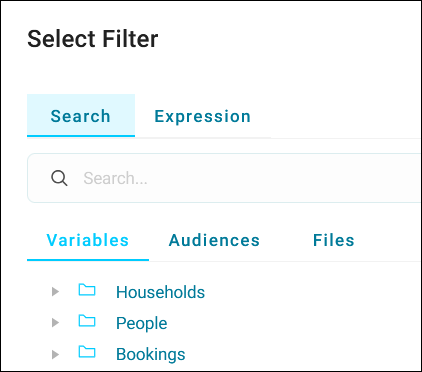
Under the Search tab are the three main filter component types.
- Variables: Data fields from your system
- Audiences: Pre-defined groups of records
- Files: Uploaded lists of values
Tip
The search bar searches through all filter components and displays a result count under each one.
Editing existing filters
You can add and remove values to filters without recreating them.
To remove values from a filter:
- Locate the filter.
-
Click the x next to the value you want to remove.
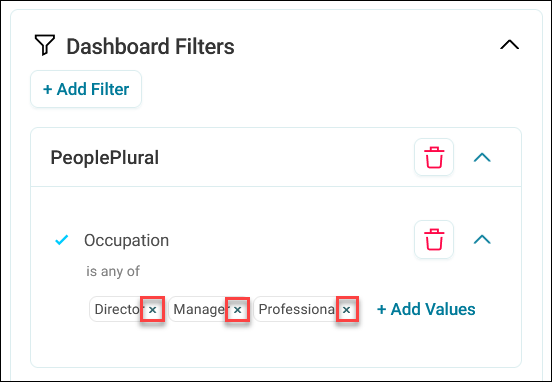
The value is removed and the filter updates immediately.
Tip
This is useful when you want to refine a filter gradually rather than rebuilding it from scratch.
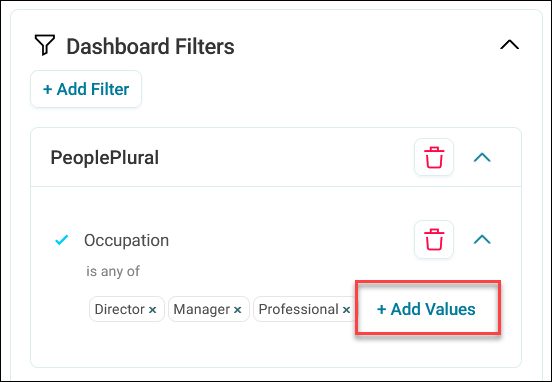
To add values to a filter:
- Locate the filter.
-
Click + Add Values.
-
Select or input additional values.
- Click Apply.
The new values are added to the existing filter.
See User filters.
Filtering with audiences or files
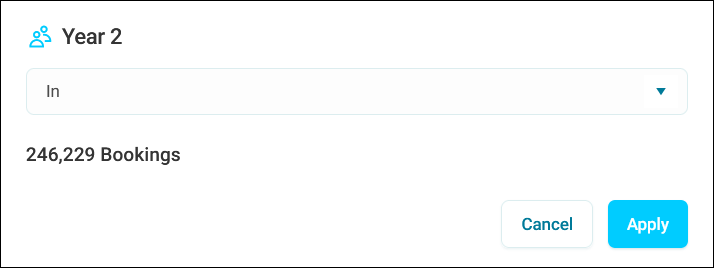
When you select an audience or a file:
-
Choose an option from the dropdown:
- In: Includes records that belong to the audience or values in the file
- Not in: Excludes records that belong to the audience or values in the file
-
Click Apply.
The audience criteria or file values filter your data immediately.
Filtering with reference variables
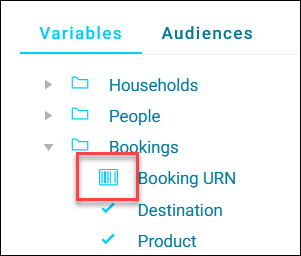
Reference variables identify unique records, such as Household URN or Customer ID, identified by the barcode icon.
-
Select a reference variable and choose an option from the dropdown:
- Is: Includes records with these reference values
- Is not: Excludes records with these reference values
-
Specify values using one of these methods:
- Manually input values (separate multiple values with commas or new lines)
- Select an existing file containing the values
- Upload a new file with the values
-
Click Apply.
Tip
Use file uploads when filtering by many reference values. This keeps your filter manageable and makes it easier to update values later.
Filtering with selector variables
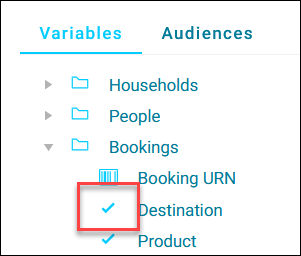
Selector variables contain predefined categories, such as Occupation, Region, or Product, identified by the tick icon.
-
Select a selector variable and choose an option from the dropdown:
- Is any of: Includes records matching any selected values
- Is none of: Excludes records matching any selected values
-
Specify values using one of these methods:
- Select values from the table by ticking checkboxes
- Select an existing file containing the values
- Upload a new file with the values
-
If selecting from the table, optionally customise the view.
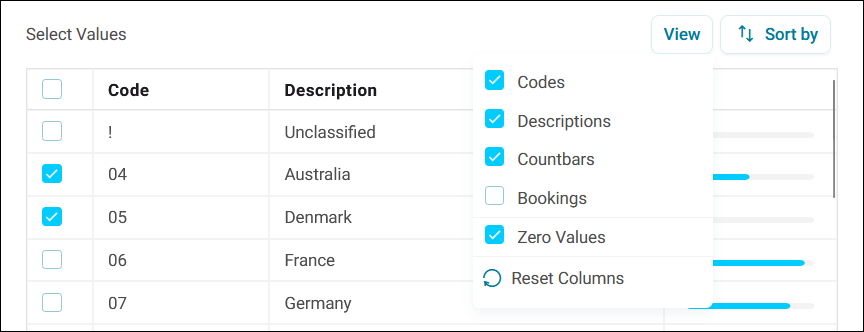
Click View to change displayed columns:
- Codes: Shows category codes
- Descriptions: Shows category descriptions
- Count bars: Displays visual representation of record counts
- Resolve Table: Shows the data counts
- Zero Values: Includes or excludes categories with no records
-
Click Apply.
Tip
Use the Countbars view to see which categories contain the most records, helping you make informed filtering decisions.
Filtering with text variables
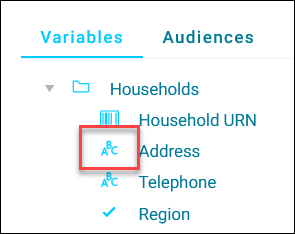
Text variables contain free-text data, such as Forename, Postcode, or Email Address, identified by the ABC icon.
-
Select a text variable and choose an option from the dropdown:
- Is: Exact match
- Is not: Excludes exact matches
- Starts with: Matches the beginning of text
- Does not start with: Excludes text that starts with specified characters
- Ends with: Matches the end of text
- Does not end with: Excludes text that ends with specified characters
- Contains: Matches text anywhere in the field
- Does not contain: Excludes text matches
- Has ranges and wildcards of: Matches text using wildcard patterns
- Does not have ranges and wildcards of: Excludes text matching wildcard patterns
See Using wildcards below.
-
Specify values using one of these methods:
- Manually input values (separate multiple values with commas or new lines)
- Select an existing file containing the values
- Upload a new file with the values
-
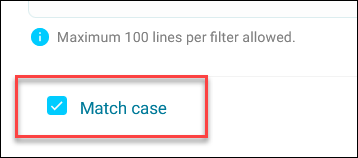
Choose whether you want to match case by ticking the checkbox.
-
Click Apply.
Using wildcards
Use wildcard characters to create flexible search patterns when filtering with text variables.
- ? matches any single character
- ***** matches any number of characters (including zero)
Examples
- Sm?th finds Smith, Smyth, Sm4th, Sm th, Sm@th
- Robert* finds Robertson, Roberts, Robert, Robertsdfjhsd
- ABC-??? finds product codes with ABC followed by a dash and exactly three characters
- ABC-?* finds product codes with ABC followed by a dash, at least one character, then any number of additional characters
- ?* finds all non-blank values (any field with at least one character)
Filtering with numeric variables
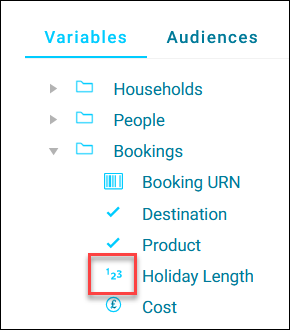
Numeric variables contain numerical data, such as Age, Transaction Value, or Holiday Length, identified by the 123 icon.
-
Select a numeric variable and choose an option from the dropdown:
- Is any of: Includes records matching any selected ranges
- Is none of: Excludes records matching any selected ranges
-
Define your numeric ranges:
-
Set the From value:
- = Equal to: Matches the exact value
- > Greater than: Matches values above the specified number
- >= Greater than or equal to: Matches values above or equal to the specified number
- -∞ No lower bound: Includes all values up to the upper limit
- Ø Missing values: Includes records with no value
-
Set the To value:
- < Less than: Matches values below the specified number
- <= Less than or equal to: Matches values below or equal to the specified number
- ∞ No upper bound: Includes all values from the lower limit
-
-
Click + Add Filter to create additional range criteria.
- Click Apply.
Filtering with date variables
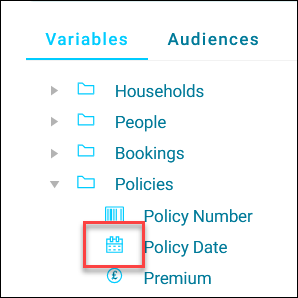
Date variables contain date or datetime information, identified by the calendar icon.
-
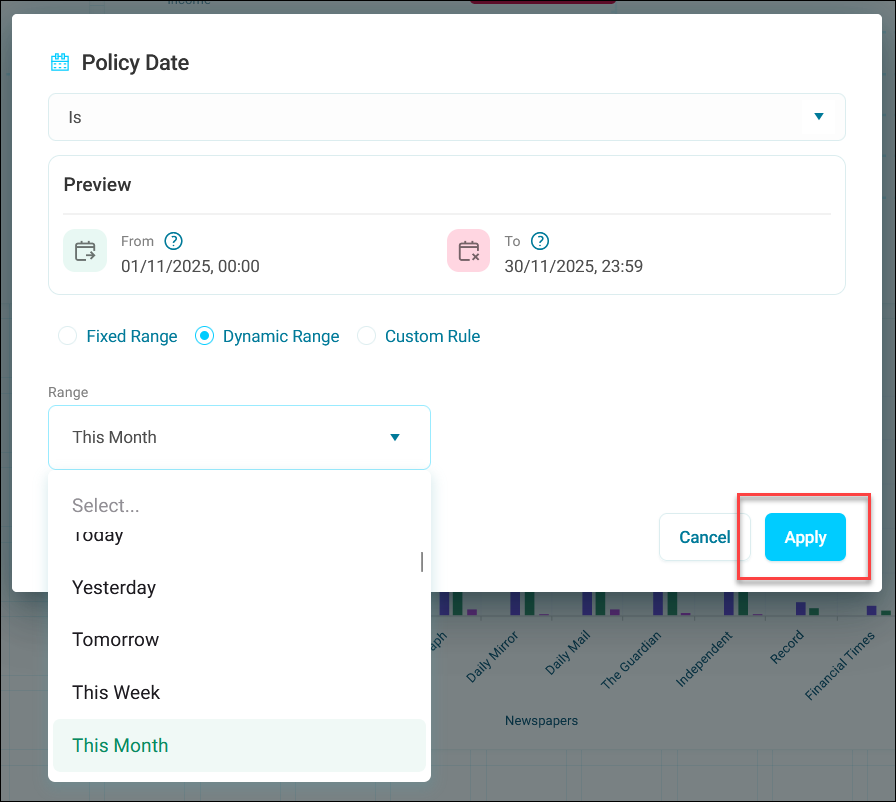
Choose a date operator from the dropdown:
- Is: Include records within the date range
- Is not: Exclude records within the date range
-
Specify the date values using a Fixed Range, Dynamic Range, or a Custom Rule.
Note
A preview shows your selected date range for reference.
-
Click Apply.
Tip
Use a dynamic range (such as ‘This Month’ or ‘The Last Quarter’) when available, as these automatically update as time passes.