Search filters
Search filters provide custom search boxes to allow quick filtering across specific variables in a dashboard. This persistent search tool makes it easy for any dashboard viewer to find specific records or values without having to understand the underlying data structure.
Example
Create a search filter labelled Customer ID that searches across both Customer Reference Number and Customer URN variables, allowing viewers to find customers regardless of which identifier they have.
Prerequisites
To create search filters:
- Enable Dashboard Search Filters in Application Settings > Dashboard Settings
- Have edit permissions for a dashboard
Creating a search filter
- Open your dashboard and click Edit.
- Click Filters to open the Filters side panel.
-
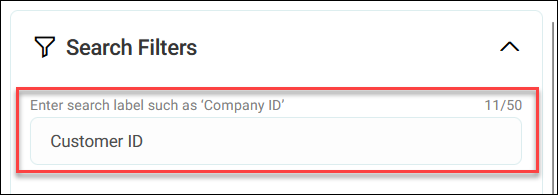
Under Search Filters, enter your custom search label in the text box to help viewers know what they are filtering.
Tip
Choose labels that clearly indicate what viewers should search for (e.g., 'Customer Email' rather than just 'Search').
-
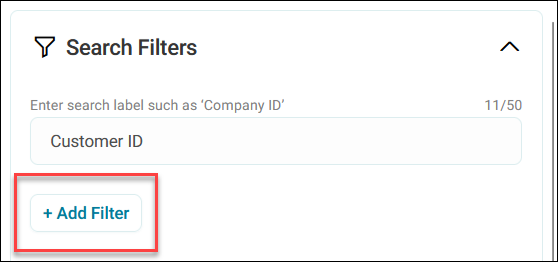
Click + Add Filter.
-
In the Select filter dialogue, search for and add one or more variables by ticking the checkboxes. See Working with filters.
Note
Search filters only accept variables.
Tip
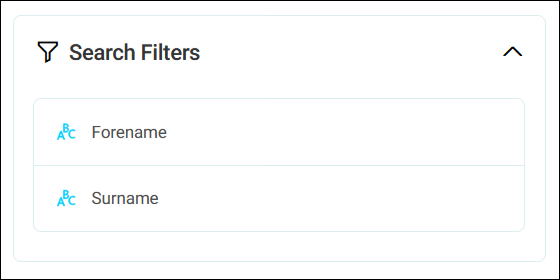
Group related variables together in a single search filter. For example, combine Forename and Surname variables in a 'Customer Name' search filter.
-
Click Add.
-
Add any additional variable to your filter by clicking + Add Filter again.
Tip
Click the bin icon to remove a variable from the filter.
-
Toggle on Show filters in view mode if you want viewers to see the filters in view mode.

-
Click Close.
- Save your dashboard.
A search box appears in the top-right corner with your chosen label.
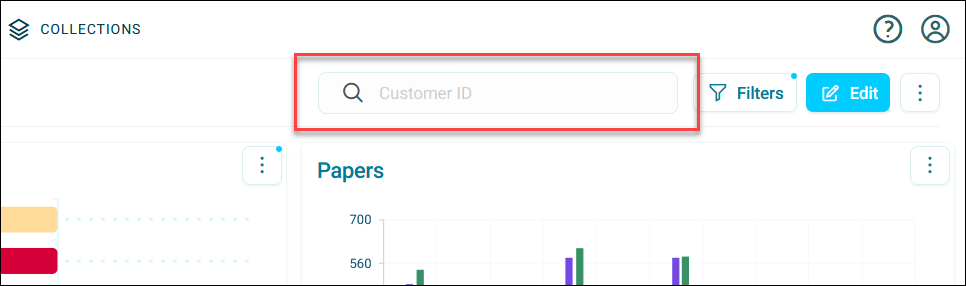
When viewers use this search filter, Orbit searches all specified variables and returns results matching any of them.
Using search filters in view mode
- In view mode, enter your search term in the search box.
- Press Enter or wait a few seconds.
The dashboard filters to show only records matching the search term across the specified variables.
Tip
Clear your search by clicking the X.
Note
View any active search filter variables by clicking Filters and expanding Search filters in the side panel.