Audience settings
Audience Settings
The following settings apply to the Audiences tab
Allow Export to File Server (Public Folder)
Enable or disable the ability for a user to export an Audience to the File Server Public folder.
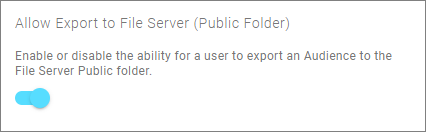
This will enable the File Server (Public Folder) Delivery option in the Audience Export tab
File Server (Public Folder) Description
Override the default description for the File Server Public folder.
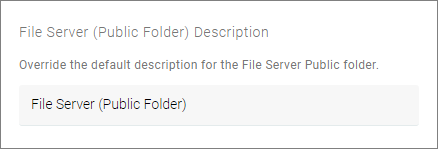
This will rename the public folder description for the File Server (Public Folder) - Delivery option
File Server (Public Folder) Export Path
The path within the File Server Public folder to write the export to.
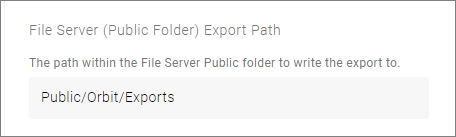
- You can use the default path which will create the location in your FastStats system
- Click in the box to select an alternative location, you can choose from any locations that have previously been created in FastStats
Allow Export to File Server (Private Folder)
Enable or disable the ability for a user to export an Audience to the File Server Private folder.
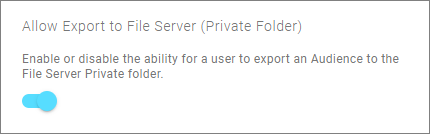
This will enable the File Server (Private Folder) Delivery option in the Audience Export tab
File Server (Private Folder) Description
Override the default description for the File Server Private folder.
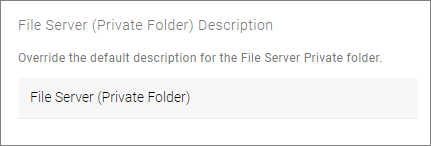
This will rename the public folder description for the File Server (Private Folder) - Delivery option
File Server (Private Folder) Export Path
The path within the File Server Private folder to write the export to.
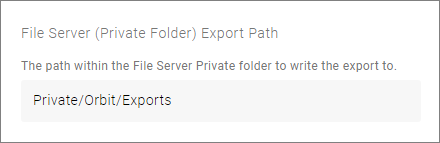
- You can use the default path which will create the location in your FastStats system
- Click in the box to select an alternative location, you can choose from any locations that have previously been created in FastStats