History view
The History view gives operational detail on what has happened within an Area, Campaign or Message. This shows the actual time when things have run, and whether there have been any errors.
Select the History View on your campaign:

Status icons
| Icon | Status |
|---|---|
 |
A red cross is shown if a Delivery Failure has occurred |
 |
A yellow exclamation mark is shown if a manual approval is required |
 |
A blue information mark is shown while a delivery is pending |
 |
A green tick is shown when a schedule or delivery completes successfully |
 |
A blue pause indicator is shown when the Campaign is paused |
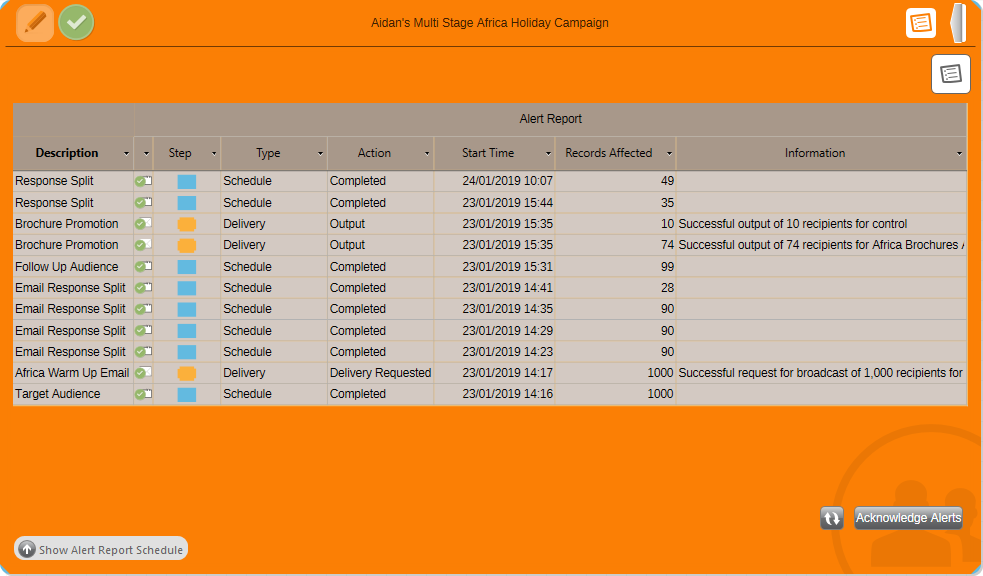
Example image below shows:
- The successful request for delivery of email, and Output of both DM files
- You can see when each Audience step ran and how many people were selected
The Current Status is summarised by a Property indicator in the top left of a process. This shows a single icon for the most important status level based on the prioritised sequence.
Campaign pausing
Campaigns can be paused by the user using the Campaign Status control, so interrupting current processing within the Campaign and preventing any future schedules from running. The Campaign can be resumed using the same Campaign Status control.
Note
The Campaign can't be interrupted if it has already started uploading records to the ESP (indicated by the information icon). This process will continue and only subsequent schedules will be paused.
Tip
You can schedule this History Report to be distributed as an Excel attachment in a similar way to the marketing reports.
For information on the archiving process and how it relates to the history view, see Administration of archiving in PeopleStage.