Install mapping resources
Once a Bing key has been provided, map resources are held in a Maps folder created in the appropriate location. The Maps folder is in one of the following locations:
Note
You need to create the appropriate Maps folder when adding online mapping to a FastStats system, if not already in place.
- On the web server in …\FastStats\Maps—if using the Apteco FastStats Launcher
- On the user's PC in …\Program Files\Apteco\FastStats Discoverer (x64)\Maps—for a locally installed Apteco FastStats connecting to a local system (i.e. using a
.system.xmlconnection file such as when launched from FastStats Designer) - On the user's PC in …\Program Files\Apteco\FastStats Discoverer (x64)\Maps—for a locally installed Apteco FastStats connecting to an Enterprise system (i.e. via the FastStats WebService)
Note
The [SystemName] subfolder is necessary to allow separation of user IDs between systems.
If you purchase one or more Bing keys, you are provided with a 64 or 128 character string for each named user. These keys need to be stored in a file called Bing.key in the appropriate Maps folder. One key is held on each line, containing [user-id][tab][key]. The user ID and Bing key are separated by a tab character and do not need angle brackets. An example Bing.key file (with fictitious content) is shown below:
1   1234567890AaBbCcDdEeFfGgHhIiJjKkLlMmNnOoPpQqRrSsTtUuVvWwXxYyZz12
3   AaBbCcDdEeFfGgHhIiJjKkLlMmNnOoPpQqRrSsTtUuVvWwXxYyZz1234567890XX
6   JjKkLlMmNnOoPpQqRrSsTtUuVvWwXxYyZz121234567890AaBbCcDdEeFfGgHhIi
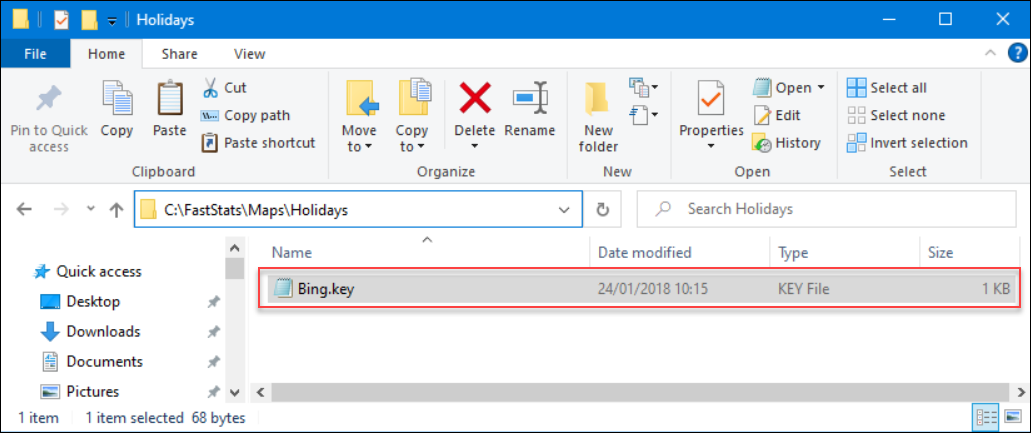
This process is also required for making use of the OpenStreetMap resource. You are not provided with a Bing key but you are required to create a Bing.key file and place it in the same folder as described above. This is necessary to make the Mapping Module available in Apteco FastStats. Here is an example OpenStreetMap key, which can be used in any system that has purchased a Geo licence:
Inserting the Bing key into binaries
Once the file is saved in the correct directory, you then need to add the Bing.key file into the Apteco FastStats Binaries in the FS_Config database (for Launcher users only):
-
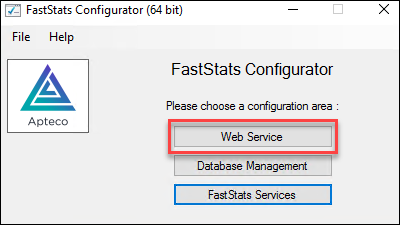
Open the FastStats Configurator and click the Web Services button.
-
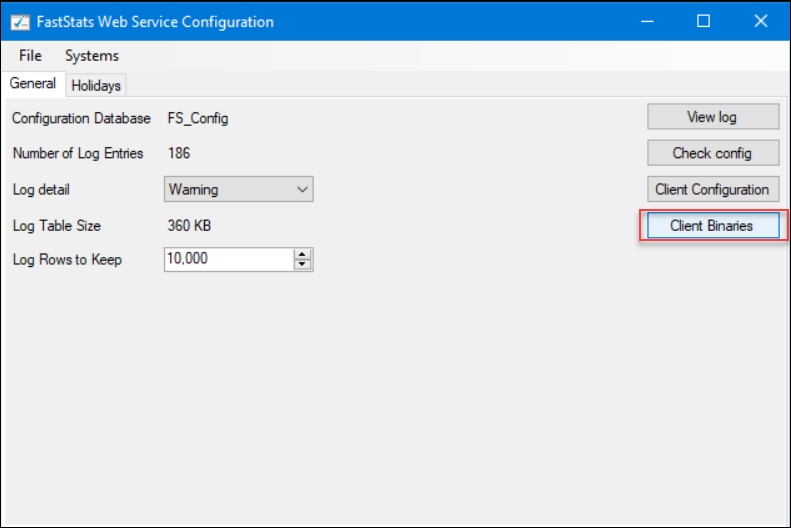
Select the Client Binaries option.
-
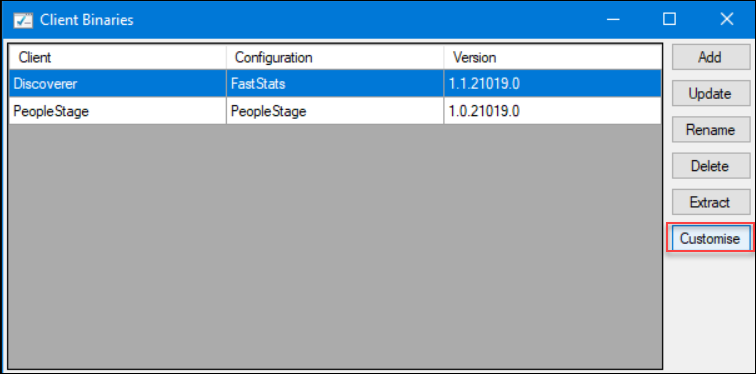
Select the FastStats Discoverer configuration and then click Customise.
-
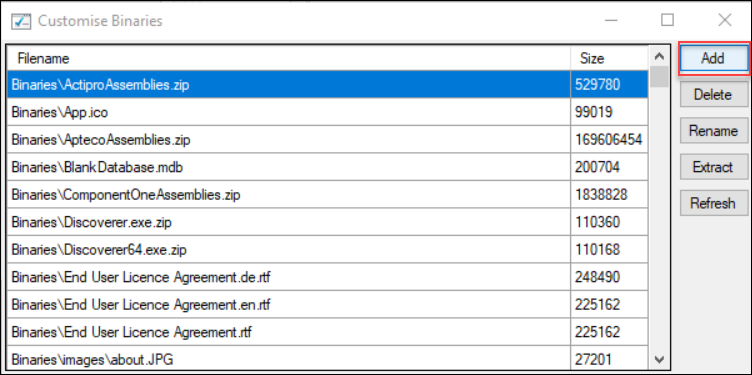
Click Add in the Customise Binaries window.
-
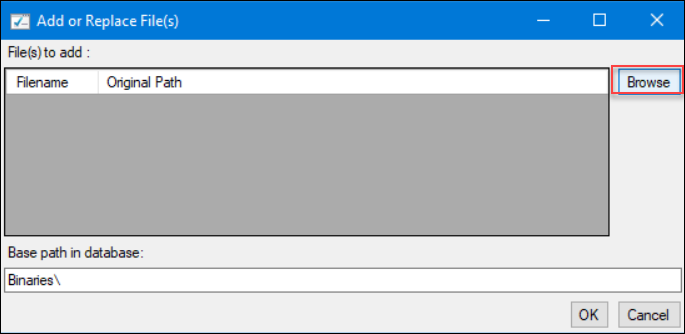
Via the Add or Replace File(s) menu, browse to and double-click the Bing.key file.
Note
The
Bing.keyfile is now displayed within the Add or Replace File(s) menu window as a file to add. -
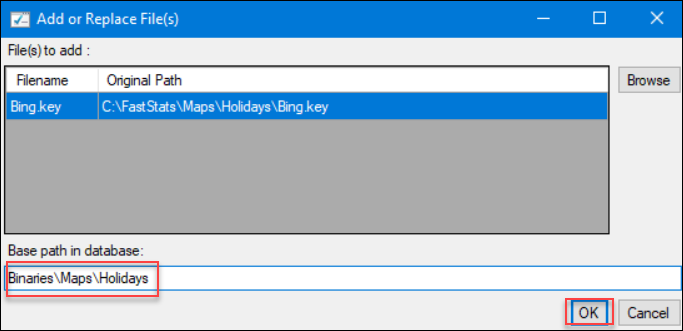
Insert Binaries\Maps into the Base path in database field (as shown below) and click OK.
-
The
Bing.keyfile is now displayed in the Customise Binaries window.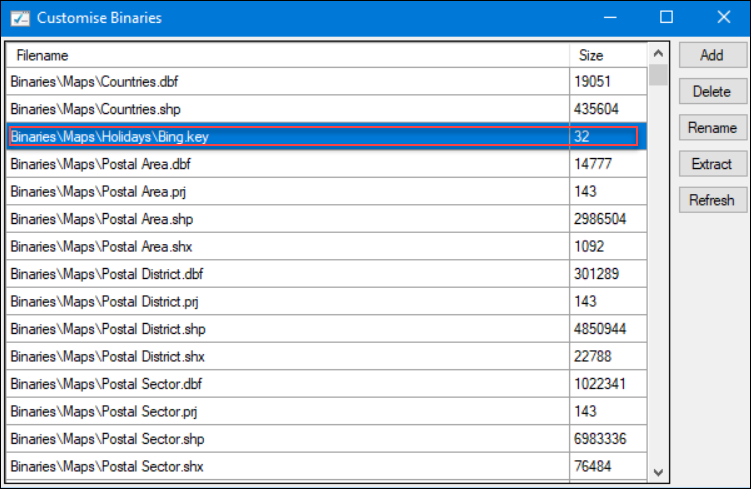
When the user next logs into Apteco FastStats, they are presented with the following in the Debug Log:

The Mapping Module is now available in the Toolbox ribbon bar.
