Troubleshooting
If you are using a web service based FastStats system and you drag and drop your Map onto your Selection, the following error message may be displayed:
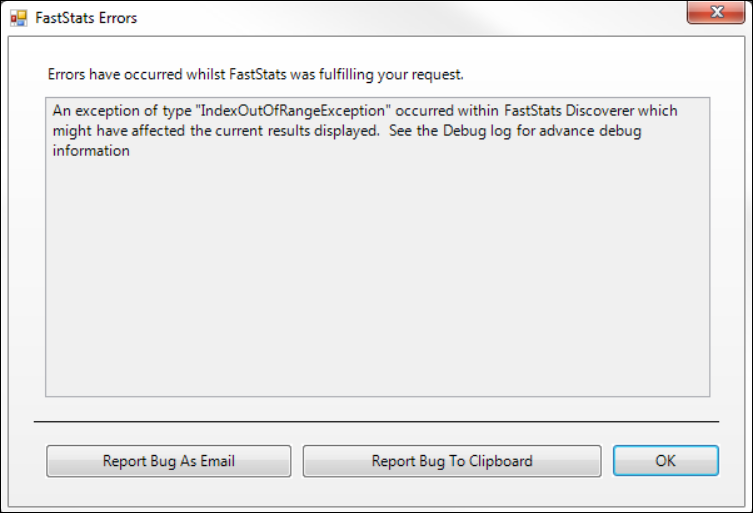
The problem is likely to be restrictions on the types of file that your web server can deliver. Click on the Debug Log—near the bottom of the log you may find lines similar to the following:
Text Only
29/03/2011 11:39:45: Can't download Bing Map Key C:\Users\msuch\AppData\Local\Apteco\Discoverer\bing.key: Error downloading http://localhost/Discoverer/Binaries/Maps\bing.key
Got HTTP Error message NotFound (404)
29/03/2011 11:39:45: Can't download countries map shape file to C:\Users\msuch\AppData\Local\Apteco\Discoverer\Countries.shp: Error downloading http://localhost/Discoverer/Binaries/Maps\Countries.shp
Got HTTP Error message NotFound (404)
29/03/2011 11:39:45: Can't download countries map dbf file to C:\Users\msuch\AppData\Local\Apteco\Discoverer\Countries.dbf: Error downloading http://localhost/Discoverer/Binaries/Maps\Countries.dbf
Got HTTP Error message NotFound (404)
Fixing MIME type errors
To fix this error, add .key, .shp, and .dbf files to your MIME types in IIS:
- Navigate to Control Panel > Administrative Tools > Internet Information Services (IIS) Manager.
- Click MIME Types.
- Click Add and enter
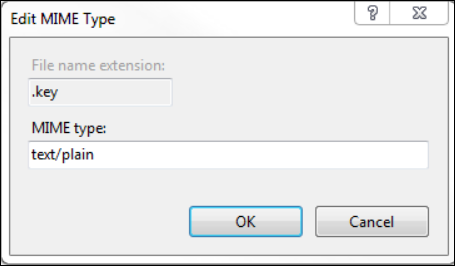
.keywith MIME type text/plain. -
Click OK.
-
Click Add and enter
.shpwith MIME type application/octet-stream.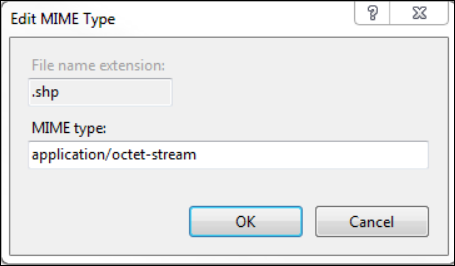
-
Click OK and repeat for
.dbf. -
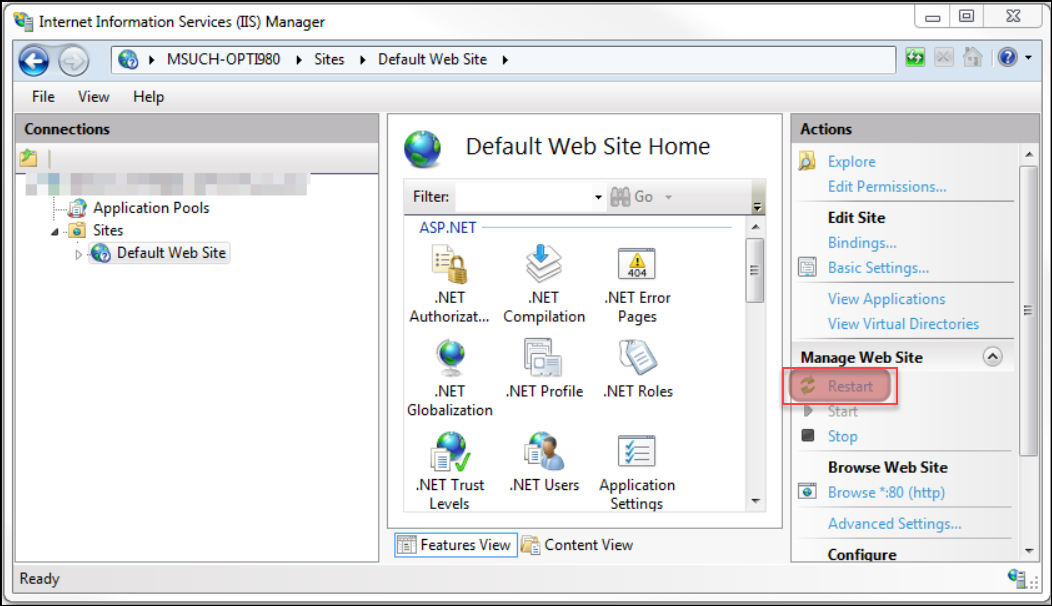
Once you have added the file extensions, restart your website.
-
Delete the Map in FastStats and retry dragging and dropping the Map onto your selection to resolve the error.